
095 Family Standards
Chris McKeown / July 1, 2025
Power
Overview
Family Standards performs a deep audit of family content by opening each selected family document and extracting its internal standards data into seven comparison tabs: Sub Categories, Materials, Line Patterns, Fill Patterns, Parameters, Text and Labels, and Dimensions. Each tab uses a matrix layout where rows are families and columns are unique standard values — a tick mark shows which families share each value. This is the essential tool for BIM Managers who need to audit whether loaded families conform to project or practice standards.
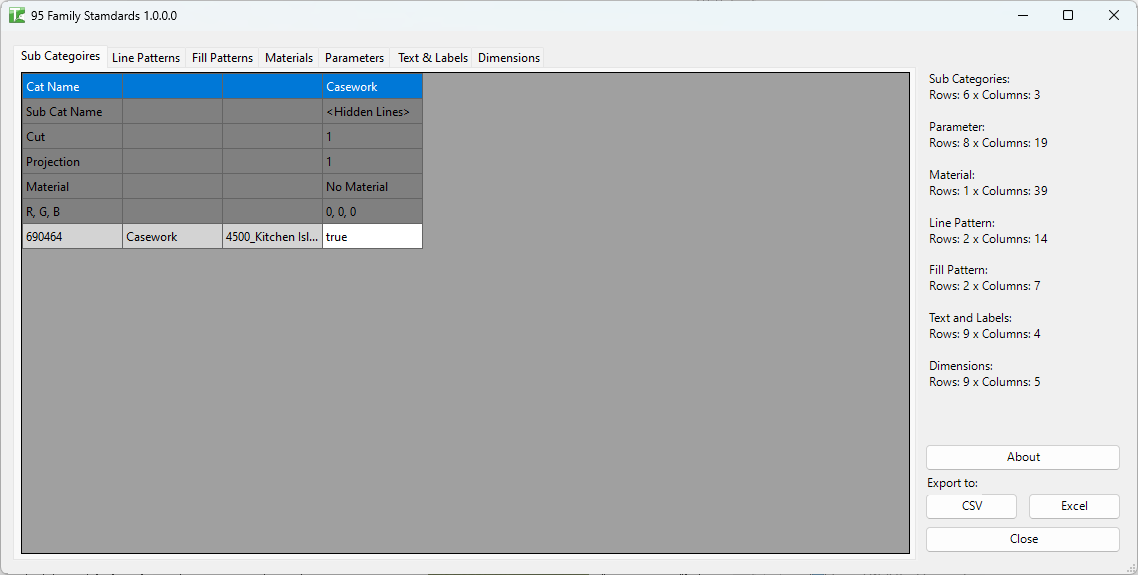
Table of Contents
- Key Features
- Requirements
- Running the Tool
- Understanding the Output
- Tips and Best Practices
- Common Use Cases
- Troubleshooting
Key Features
- Two-step workflow: select families to audit (via WPF_AllFamilies), then view the standards report
- Seven audit tabs: Sub Categories, Materials, Line Patterns, Fill Patterns, Parameters, Text and Labels, Dimensions
- Each tab uses a matrix layout: frozen header rows show standard values, frozen identifier columns show family name and category, data cells show "true" where a family contains that standard
- Summary count shows rows × columns for each tab (e.g. "Sub Categories: Rows: 5 × Columns: 12")
- Export CSV / Export Excel exports all seven tabs simultaneously into a single multi-sheet file
- Progress bar with Cancel during grid loading
- Not available in a Family document environment
Requirements
- Must be run in a project document — "Action not available in the Family environment." is shown if run inside a family
- The project must contain at least one loaded family with placed instances
- A valid Kiwi Codes Bonus Tools licence must be active
Running the Tool
Launch
Find Family Standards on the Bonus Tools Ribbon or use 115 Search Tools.
Step 1 — Select families to audit
The Family Selector dialog (WPF_AllFamilies) opens first. Browse and select the families you want to audit. Click OK to proceed.
Selecting many families with complex content will take longer to load as the tool must open each family document internally. Start with a subset if auditing a large library.
Step 2 — Review the standards grid
The main Family Standards dialog opens with seven tabs. Each tab is a matrix:
- Frozen identifier columns (grey): Family ID, Family Category, Family Name
- Frozen header rows (grey): the standard value labels
- Data cells: "true" where that family contains that standard value
Understanding the Output
Sub Categories tab
Each column represents a unique subcategory found across the audited families, described by:
| Row Header | Description |
|---|---|
| Cat Name | Parent category name |
| Sub Cat Name | Subcategory name |
| Cut | Cut line weight |
| Projection | Projection line weight |
| Material | Assigned material name (or "No Material") |
| R, G, B | RGB line colour values |
Materials tab
Each column represents a unique material name used within the family. A "true" cell indicates that family uses a material with that name.
Line Patterns tab
Each column represents a unique line pattern, described by:
| Row Header | Description |
|---|---|
| Name | Line pattern name |
| Line Pattern | Dash/dot sequence with type and length |
Parameters tab
Each column represents a unique parameter definition, described by:
| Row Header | Description |
|---|---|
| Family Shared | "Shared" if the parameter has a GUID, otherwise "Family" |
| gUID | Shared parameter GUID (blank for family parameters) |
| Definition Name | Parameter name |
| Parameter Group | Parameter group ID |
| Parameter Type | Data type (Text, Length, Integer, etc.) |
| Is Instance | True/False — whether it is an instance parameter |
| Formula | Formula string if one is defined |
| Is Reporting | True/False — whether it is a reporting parameter |
Fill Patterns tab
Each column represents a unique fill pattern, described by name and its grid angle and offset.
Text and Labels tab
Each column represents a unique Text or Label style, described by:
| Row Header | Description |
|---|---|
| Name | Text/Label style name |
| Text Font | Font family |
| Text Size | Text height |
| Background | Opaque/Transparent |
| Color | Line colour |
| Bold | True/False |
| Italic | True/False |
| Underline | True/False |
| Width Factor | Text width scale |
Dimensions tab
Each column represents a unique Dimension style with the same properties as Text and Labels (Name, Font, Size, Background, Color, Bold, Italic, Underline, Width Factor).
Step 3 — Export
Click Export Excel or Export CSV to export all seven tabs as a single multi-sheet workbook (Excel) or separate CSV files. Use the export to share the audit with a team, track non-conformant families, or produce a compliance report.
Tips and Best Practices
- Start with a focused selection. Auditing 5–10 suspect families is faster than auditing all 200 loaded families. Use the family selector to target the families most likely to have issues.
- Look for columns with "true" in only one row. A subcategory, material, or line pattern that only appears in one family is a likely non-standard. Shared standards should appear across many families.
- Compare against a standards family. Include your practice's "standards reference" family in the selection — any value that appears in the standards family but not others highlights a gap.
- Export to Excel for cross-family comparison. The matrix format is easier to analyse in Excel with conditional formatting applied to the "true" cells.
- Re-run after loading corrected families. Use the audit as a before/after tool — export before remediation, correct the families, reload, and run again to confirm compliance.
Common Use Cases
BIM standards compliance audit — Audit all loaded families against a standards checklist. Any subcategory, line pattern, or parameter not in the standards document stands out as a non-conformance.
Identifying non-standard fonts in family text — Run the Text and Labels tab to find families using non-approved fonts or sizes. Export and distribute to modellers for correction.
Parameter consistency check — Check whether all families of the same category share the required shared parameters (GUID match). Identify families missing mandatory parameters before publishing a BIM deliverable.
Subcategory audit before project handover — Confirm that all loaded families use approved subcategories and material assignments before issuing for record or handover.
Troubleshooting
"Action not available in the Family environment." The tool was launched from inside a family document. Close the family and re-run from a project document.
Grid loads slowly or times out Each selected family is opened as a family document internally. Selecting a large number of complex families will take proportionally longer. Reduce the selection to smaller batches and run multiple times.
A family does not appear in the grid despite being selected The family may have failed to open as a family document. This can happen if the family file is missing from disk or is corrupted. Check whether the family can be opened manually via the project browser → Edit.
Export produces empty tabs If a tab has no data columns (no unique values found), it exports as a header-only sheet. This is expected if the audited families have no materials, fill patterns, or other content of that type.