
091 Advanced Sheet Duplication
Chris McKeown / July 1, 2025
Sheet & View Manipulation
Overview
Advanced Sheet Duplication copies complete sheets — including placed views, legends, schedules, and annotations — from any open Revit project into the active document. It handles cross-model duplication with a configurable set of options controlling what gets copied alongside each sheet. This is the go-to tool when setting up a new project from a template, when merging sheet packages between models, or when you need to duplicate sheet sets for phasing or package purposes.
Table of Contents
- Key Features
- Requirements
- Known Limitations
- Running the Tool
- Tips and Best Practices
- Common Use Cases
- Troubleshooting
Key Features
- Copies sheets from any open Revit project into the active document (including from the current document)
- Sheet list in
DocTitle : SheetNumber : SheetNameformat — search and multi-select - Search by Parameter dropdown to filter the sheet list
- New Sheets Count — specify how many copies of each selected sheet to create
- Title Block dropdown — choose which title block family to use for new sheets
- Copy options controlling what content travels with each sheet:
- Place/copy Legends (with optional Duplicate Legends sub-option)
- Place/copy Schedules (with optional Duplicate Schedules sub-option)
- Duplicate/copy all other View Types (elevations, sections, etc.)
- Copy View Templates
- Copy Annotations from Linked Files
- Progress bar with Cancel
- Completion report: "Number of sheets created: X" with any errors listed
Requirements
- Must be run in a project document (not a Family document)
- At least one project document (which may be the active document) must contain sheets to copy from
- Level names must match between source and target documents for plan views to be placed correctly
- A valid Kiwi Codes Bonus Tools licence must be active
Known Limitations
Level name matching — When copying floor plans, ceiling plans, structural plans, or other level-based views, the Level name must exist in the target document. The Level elevation does not need to match. If no matching Level name is found, that view will not be placed on the sheet.
Dependent views become independent — Dependent views copied by this tool are placed as independent views in the target document. Re-establish dependency relationships manually after copying if required.
Viewport title locations — Sheet viewport titles are placed at default positions with default title line lengths. This is a current Revit API limitation. Adjust viewport positions and title lines manually after duplication.
Area Plans cannot be copied — Only views associated with Levels are copied. Area Plans are excluded.
Running the Tool
Launch
Find Advanced Sheet Duplication on the Bonus Tools Ribbon or use 115 Search Tools.
Open all source models before launching the tool — only documents already open in the current Revit session appear in the sheet list.
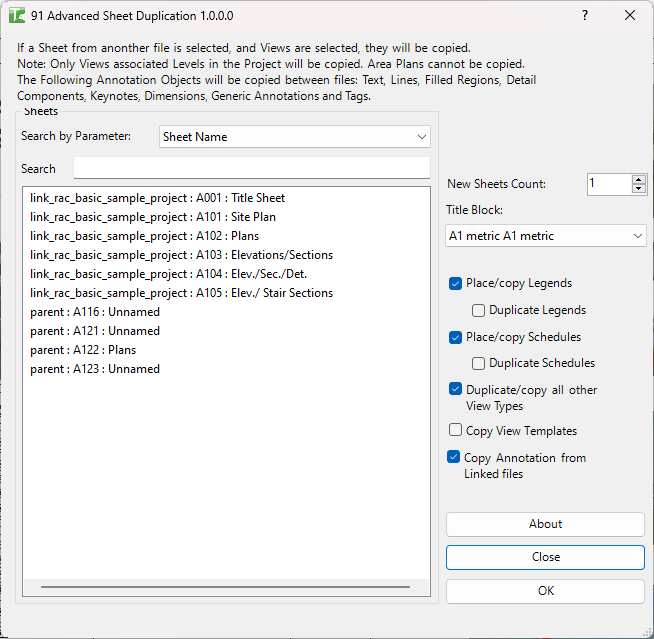
Step 1 — Select source sheets
The sheet list populates with all sheets from all open project documents in DocTitle : SheetNumber : SheetName format. Use the Search by Parameter dropdown and the search field to filter the list. Click rows to select sheets — use Ctrl+Click or Shift+Click for multiple selections.
Step 2 — Configure sheet settings
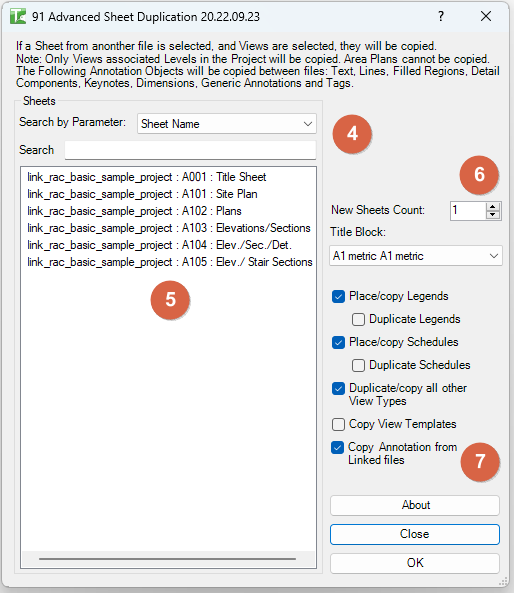
Set the New Sheets Count to specify how many copies of each selected sheet to create (minimum 1). Choose a Title Block from the dropdown — this is the title block family that will be used on the new sheets.
Step 3 — Set copy options
Configure the copy options panel:
| Option | Behaviour |
|---|---|
| Place/copy Legends | Finds the legend in the target model first; copies it across if not found |
| Duplicate Legends | (Sub-option) Duplicates the legend even if one with the same name already exists in the target |
| Place/copy Schedules | Finds the schedule in the target model first; copies it across if not found |
| Duplicate Schedules | (Sub-option) Duplicates the schedule even if one with the same name already exists in the target |
| Duplicate/copy all other View Types | Copies elevations, sections, and other non-plan view types referenced on the sheets |
| Copy View Templates | Copies the View Template associated with each copied view if one is assigned |
| Copy Annotations from Linked Files | Copies 2D annotation elements sourced from linked files that are accessible via the Revit API |
Step 4 — Execute
Click OK. The tool processes each selected sheet in turn, creating the new sheet, placing views, schedules, legends, and annotations according to the configured options.
Transactions used include: "New Sheet", "Add Sheet Annotation", "Add View", "Add Schedule", "Add Legend", "Move View", "Set View Template".
When complete, the Output log reports: "Number of sheets created: X" followed by any errors encountered.
Note: Revit may show warnings or dialogs during duplication. Review and dismiss these as required after the tool completes.
Tips and Best Practices
- Match Level names first. Before running, verify that Level names in the target document match those in the source. Rename levels if necessary — mismatched names are the most common cause of views not being placed.
- Test with a single sheet. On large sheet sets, select one sheet first and verify the result before copying the full set.
- Use Duplicate Legends/Schedules when standards differ. If the target model uses different schedule formatting, enable the Duplicate sub-options to bring fresh copies rather than reusing the existing versions.
- Copy View Templates separately if needed. If Copy View Templates is not checked and the source views reference templates that don't exist in the target, views will be placed without templates. Run tool 90 Copy View Templates first to pre-populate templates.
- Adjust viewport locations after running. Viewport positions and title line lengths will be at default positions — budget time to reposition them after duplication.
Common Use Cases
Setting up a new project from a template — A practice template model contains a full sheet set with title blocks, schedules, and legends. Open the template alongside the new project, select all sheets, and duplicate them across in one operation.
Duplicating a sheet package for a revision issue — All sheets in a package need to be duplicated for a parallel design option. Select the package sheets, set New Sheets Count to 1, and run.
Merging sheet content from a consultant model — A consultant delivers a model with sheets that need to be incorporated into the main project. Open the consultant model, select the required sheets, and copy them across including their schedules and annotations.
Replicating a standard sheet layout across disciplines — A standard cover sheet with logos and project info is maintained in one model. Duplicate it into each discipline's model when starting a new project phase.
Troubleshooting
Views are missing from the duplicated sheets Level names in the source do not match Level names in the target document. Check that corresponding levels have identical names. Area Plans and views not associated with levels cannot be copied.
"Number of sheets created: 0" or low count The sheet list may have had no items selected, or all sheets failed. Check the Output log for red entries identifying the specific failure reason.
Dependent view placed as independent view This is by design — the Revit API does not support copying dependent view relationships. Re-establish dependent view relationships manually if required.
Legends or schedules appear duplicated or incorrectly named If Duplicate sub-options are enabled, new copies are created even when the same-named element exists. Disable the Duplicate sub-options to reuse existing legends and schedules instead.
Annotations from linked files are missing Only 2D annotation elements accessible via the Revit API can be copied. Some annotation types from linked files are not exposed by the API and cannot be copied by this tool.