
089 Open Views
Chris McKeown / July 1, 2025
Sheet & View Manipulation
Overview
Open Views removes the friction of manually locating and opening views in the Project Browser. Select a view type, optionally filter by a parameter or keyword, choose any number of views from the list, and click OK — Revit opens all of them simultaneously. All view types and sheets are supported. Views currently placed on sheets are highlighted in red so you can identify live drawing views at a glance.
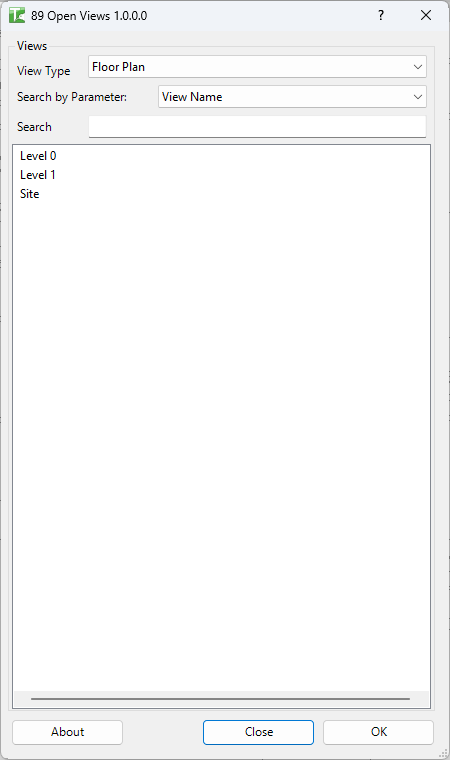
Table of Contents
Key Features
- View Type dropdown — all view types (3D View, Floor Plan, Ceiling Plan, Section, Elevation, Detail, Schedule, Legend, Sheet, and more) in a single list
- Search by Parameter dropdown — filter the view list by any view parameter value
- Keyword search — type to narrow the list by view name or sheet number in real time
- Views placed on sheets shown in red for quick identification
- Multi-select — open any number of views in one click
- Settings (view type, parameter, and search text) saved and restored between sessions
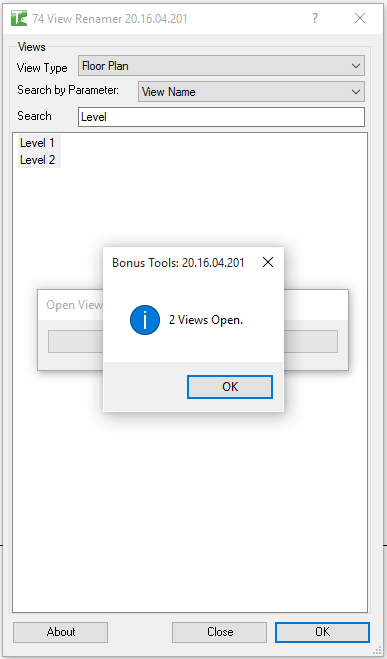
- Confirmation message: "[N] Views Open."
Requirements
- Any Revit project document
- A valid Kiwi Codes Bonus Tools licence must be active
Running the Tool
Launch
Find Open Views on the Bonus Tools Ribbon or use 115 Search Tools.

Step 1 — Select a view type
From the View Type dropdown, select the category of views to show. The dropdown lists every view type present in the project:
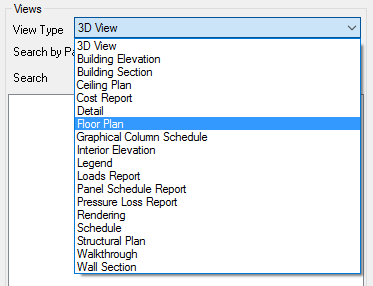
The view list refreshes immediately to show all views of the selected type.
Step 2 — Filter the list (Optional)
Use either filter method to narrow the results:
By parameter — select a view parameter from the Search by Parameter dropdown. The list will show views where that parameter contains data. This is useful for filtering views by a custom field such as a discipline code or issue status.
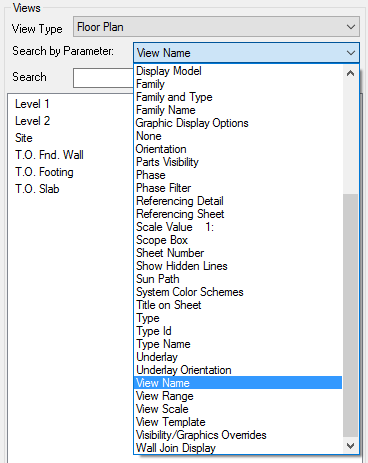
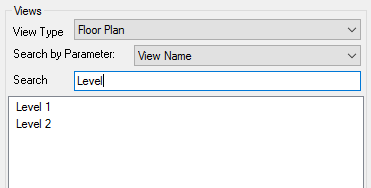
By keyword — type in the Search text box to filter the list in real time by view name or sheet number.
Views shown in red are currently placed on a sheet. These views affect live issued drawings — open them with care if an issue is in progress.
Step 3 — Select views to open
Click any row to select a view. Hold Ctrl or Shift to select multiple views. All selected views will be opened when you click OK.
Step 4 — Open
Click OK. Each selected view is activated in sequence. A confirmation popup reports the number of views opened:
Tips and Best Practices
- Use keyword search to jump to views quickly. On large projects with hundreds of views, typing the first few characters of a view name is faster than scrolling the Project Browser.
- Red items are sheet views — open them with care. Views placed on sheets affect issued drawings. Be cautious when opening and editing them if an issue or transmittal is in progress.
- Combine View Type + keyword for precision. Select Floor Plan from the View Type dropdown and type a level name in the Search box to instantly filter to that level's floor plans only.
- Settings are remembered between sessions. The View Type, Parameter, and Search text from your last session are restored when you reopen the tool — no need to reconfigure each time.
- Use Ctrl+A in the list to select all visible views. After filtering to exactly the views you need, select all and open them in one click.
Common Use Cases
Opening all floor plans at the start of a session — Select Floor Plan from the View Type dropdown, select all views in the list, and open them all at once rather than double-clicking each in the Project Browser.
Quickly opening sheets for a review — Select Sheet from the View Type dropdown, type a sheet number or title keyword in the Search box, and open the relevant sheets instantly.
Opening all views of a discipline — If views follow a naming convention (e.g. A- prefix for architectural views), type the prefix in the Search box to filter to that discipline and open all matching views in one click.
Reviewing all 3D views on a project — Select 3D View from the dropdown, select all, and open every 3D view simultaneously for a rapid model overview.
Troubleshooting
No views appear in the list Verify the selected View Type matches view types that exist in the project. If filtering by parameter, confirm that the selected parameter is bound to the View category and contains data on at least some views.
Views open but the active tab does not switch to a specific view Revit activates views by setting the active view sequentially. When many views are opened at once, the last one in the selection becomes the active view. Use the Revit View tab or the Windows menu to navigate between open views.
A sheet cannot be opened Ensure the sheet exists and is not a placeholder sheet without a sheet number. Sheets are matched by Sheet Number — verify the sheet number is populated in the sheet properties.
The view list does not update after changing the View Type Click inside the Search text box and clear the current search string, or change the View Type selection again to force the list to refresh.
Previously saved settings load an incorrect view type or parameter The tool restores the last-used settings. If the saved view type or parameter no longer exists in the current project, the dropdown may default to the first available option. Select the correct values and the settings will be saved for next time.