
087 3D Room Tags
Chris McKeown / July 1, 2025
Power
Overview
3D Room Tags uses any Generic Model family as a 3D tag template. For each room (or area or space) in scope, the tool places a new family instance at the room centre or finds and updates an existing one — then writes the configured parameter values from the room onto the family. On the first run instances are created; on subsequent runs the existing instances are moved to the current room centre and their parameters are updated. The Element Id mapping row is mandatory: it is the key used to match rooms to their corresponding family instances across runs.
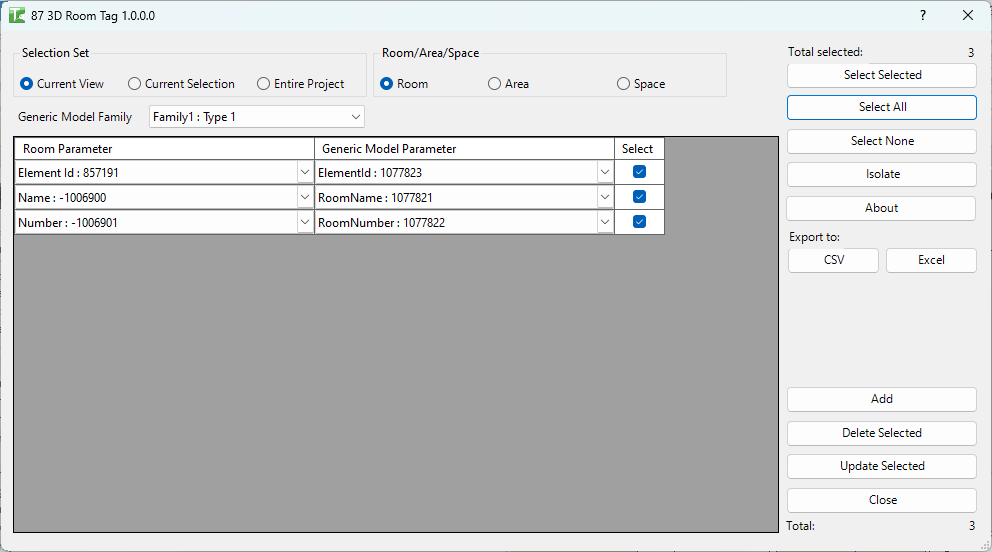
Table of Contents
Key Features
- Supports Rooms, Areas, or Spaces (selected via radio buttons)
- Scope: Current View, Current Selection, or Entire Project (radio buttons)
- Generic Model Family dropdown — lists all
FamilyName : TypeNamecombinations present in the project - Parameter mapping grid — map any room/area/space parameter to any writable text parameter on the Generic Model
- Special Element Id mapping — mandatory; used to locate existing instances on re-runs so rooms are updated rather than duplicated
- Create or update logic: first run creates new instances; subsequent runs move and update existing ones
- Settings (family choice and parameter mapping) saved per-document via ExtensibleStorage — reloaded automatically on next open
- Transaction: "3D Room Tags" with per-room sub-transactions
- Output shows separate counts for: parameters updated, instances moved, instances created, and failures
Requirements
- Any Revit project document containing placed rooms, areas, or spaces
- At least one Generic Model family must be loaded with at least one instance placed in the project (required for the tool to read available parameters)
- The Generic Model must have writable Text parameters to receive the room data
- At least one Element Id mapping row must be added before running
- A valid Kiwi Codes Bonus Tools licence must be active
Running the Tool
Launch
Find 3D Room Tags on the Bonus Tools Ribbon or use 115 Search Tools.

Step 1 — Select scope and spatial element type
At the top of the dialog, configure the scope and element type to process:
| Setting | Options | Default |
|---|---|---|
| Selection Set | Current View / Current Selection / Entire Project | Current View |
| Room/Area/Space | Room / Area / Space | Room |
- Current View — processes all placed rooms/areas/spaces visible in the active view
- Current Selection — processes only the rooms currently selected in Revit before opening the tool
- Entire Project — processes all placed rooms/areas/spaces across the entire project
Step 2 — Select the Generic Model family
From the Generic Model Family dropdown, select the family type to use as the 3D tag. The dropdown lists all FamilyName : TypeName combinations for Generic Model instances placed in the project.
Important: The tool reads available parameters from a placed instance of the selected family. If the Generic Model has no placed instances, the parameter dropdowns will not populate. Place at least one instance in the project first.
Step 3 — Configure parameter mappings
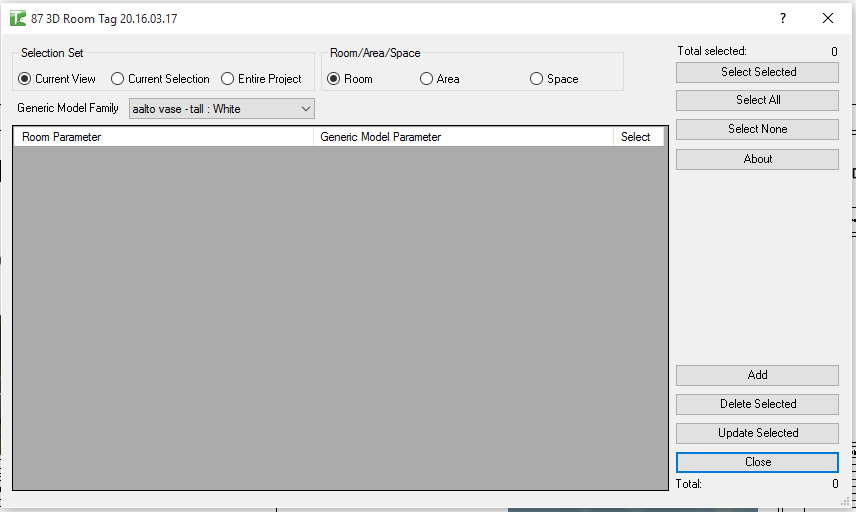
Click Add to add a parameter mapping row to the grid. Each row maps one room parameter to one Generic Model parameter:
| Column | Description |
|---|---|
| Select | Checkbox — tick to include this mapping row in the run |
| Room Parameter | The room (or area/space) parameter to read from; includes Element Id |
| Generic Model Parameter | The writable text parameter on the Generic Model to write to |
The Element Id mapping row is mandatory. Add a row, set Room Parameter to Element Id, and map it to a text parameter on the Generic Model. This value is stored on each Generic Model instance and used on subsequent runs to match instances back to their source room without creating duplicates.
Add additional rows for any other parameters to propagate — Name, Number, Department, Level, Area, or any custom shared parameter.
Use Delete Selected to remove a mapping row, or Update Selected to refresh the parameter lists from the current family selection.
Step 4 — Run
Click Update Selected (the execute button). For each room/area/space in scope, the tool:
- Reads the Element Id from the spatial element
- Searches for an existing Generic Model instance where the mapped Element Id parameter equals that value
- If found: moves the instance to the current room centre point and updates all mapped parameters
- If not found: creates a new family instance at the room centre point and writes all mapped parameters
Results appear in the output panel:
- "[N] Parameters updated." (green) — existing instances had parameters refreshed
- "[N] Located and Location Point modified." (green) — existing instances were moved to updated room centres
- "[N] Family created." (green) — new instances were placed for rooms without an existing tag
- Failed parameter writes are shown in red: "Failed to write: [RoomParam] to [GMParam]"
- Summary: "X passed. Y failed."
Tips and Best Practices
- Always include the Element Id mapping row. Without it, every run creates new instances rather than updating existing ones, leading to duplicate tags in every room.
- Place one instance of the Generic Model before opening the tool. The family and type dropdowns are populated by reading parameters from a placed instance. If no instance exists, the dropdowns are empty.
- Settings are saved per-document. The selected family and all parameter mappings are stored in the document's ExtensibleStorage and reloaded automatically the next time you open the tool in the same project.
- Re-run after room changes. If rooms are moved, renamed, or their parameters are updated, re-run the tool to push the changes to all Generic Model instances.
- Use a dedicated Generic Model family for 3D tags. A family designed specifically for this purpose — with shared text parameters for Name, Number, Department, and Level — gives the cleanest result in 3D views and schedules.
- Use Current Selection for targeted updates. To update only specific rooms without processing the full project, select those rooms in Revit before opening the tool, then run with Current Selection scope.
Common Use Cases
3D room labels for model review and fly-through — Create a Generic Model family with visible 3D text parameters. Run 3D Room Tags to populate every room with a tag showing room name and number, visible in any 3D view for client presentations or internal model reviews.
Room data synchronisation for downstream processes — Map department, occupancy classification, or area parameters from rooms to a Generic Model family used in Navisworks, IFC exports, or downstream BIM coordination tools.
Coordination model room markers — Place Generic Model instances at each room centre populated with room names and numbers, for use in clash detection or coordination views shared with structural and MEP disciplines.
Space planning area exports — Run 3D Room Tags targeting Area elements with an Area Plan scope to propagate area names and programme data to 3D markers for space planning exports.
Troubleshooting
"Please select at least the Room Element Id" No mapping row with Room Parameter set to Element Id is checked. Add a mapping row, set the Room Parameter column to Element Id, tick its Select checkbox, and retry.
"No family symbol found." The selected Generic Model type could not be found in the project. Verify the family is still loaded and the type name has not changed since the settings were saved.
"This Project contains no Generic Models." No Generic Model instances are placed in the project. Load a Generic Model family and place at least one instance, then reopen the tool.
"Please ensure one instance of the Generic Model selected is modelled to gain access to the RevitParameters." The Generic Model type exists but has no placed instances. The tool reads available parameters from a placed instance. Place one instance in the project and reopen the tool.
"Failed to write: [RoomParam] to [GMParam]" The value from the room parameter could not be written to the Generic Model parameter. The target parameter must be a writable Text parameter (not formula-driven or read-only). Verify the target parameter type in the family editor.
"3D Room Tagging failed. Gain ownership of elements and try again." A worksharing conflict prevented the transaction from committing. Gain ownership of the affected rooms or Generic Model instances in Revit and retry.
Duplicate instances are appearing in rooms The Element Id mapping row is missing or its Select checkbox is unchecked. Ensure the Element Id mapping row is present and checked so the tool can match existing instances on re-runs instead of creating new ones.