
086 Rename Number Sheets
Chris McKeown / July 1, 2025
Sheet & View Manipulation
Overview
Rename Number Sheets loads every sheet in the project into a single editable grid, letting you filter by any sheet parameter, select multiple sheets, and bulk-rename or renumber them in one operation. Sheet numbers use a configurable Prefix / Start Character / Increment / Suffix dialog for sequential renumbering. All other text parameters (Sheet Name, Drawn By, Designed By, Approved By, and custom parameters) use a simple rename dialog. Duplicate sheet numbers are detected automatically and resolved by appending a counter suffix. All changes are applied in one transaction when you click OK.
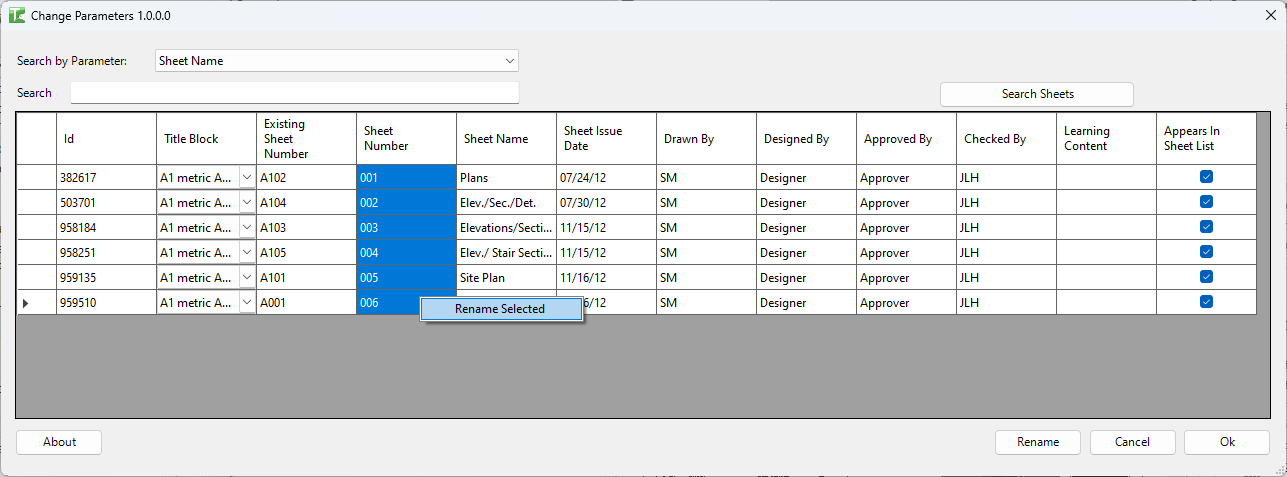
Table of Contents
Key Features
- Search by Parameter dropdown — filter the sheet grid by any sheet parameter value
- Keyword search — type to narrow results; click Search Sheets to load the matching sheets
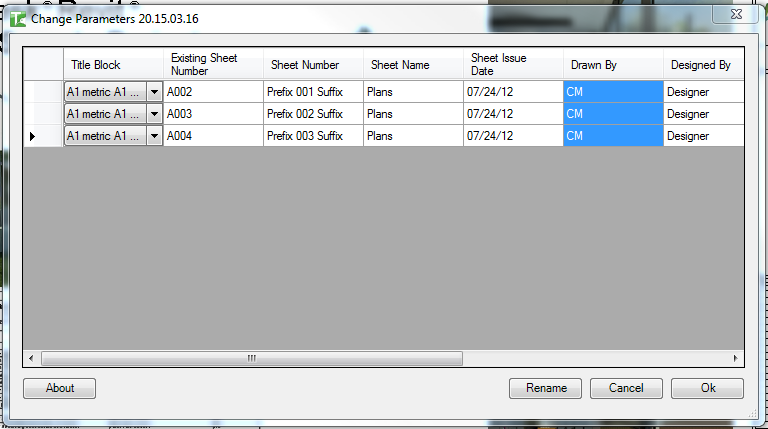
- Grid columns: Id, Title Block (dropdown), Existing Sheet Number (read-only), Sheet Number, Sheet Name, Sheet Issue Date, Drawn By, Designed By, Approved By, plus dynamically added columns for the selected search parameter
- Title Block dropdown (per row) — change the title block family type on each sheet
- Right-click → Rename Selected — applies to the highlighted column:
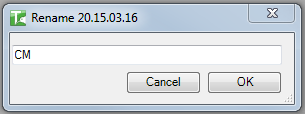
- Text columns → simple Rename dialog (type new value, click OK)
- Sheet Number column → Renumber dialog (Start Character, Increment, Prefix, Suffix)
- Duplicate detection — conflicts are resolved by auto-appending
(1),(2), etc. - Double-click any row to open the sheet detail view
- Transaction: "Updating Sheets" with per-sheet sub-transactions
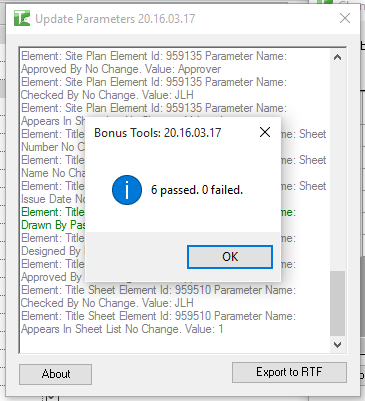
- Output: "X passed. Y failed." summary
Requirements
- Any Revit project document containing sheets
- A valid Kiwi Codes Bonus Tools licence must be active
Running the Tool
Launch
Find Rename number Sheets on the Bonus Tools Ribbon or use 115 Search Tools.

Step 1 — Search and filter sheets
On launch, the grid is empty. Use the filter controls to load the sheets you want to work with:
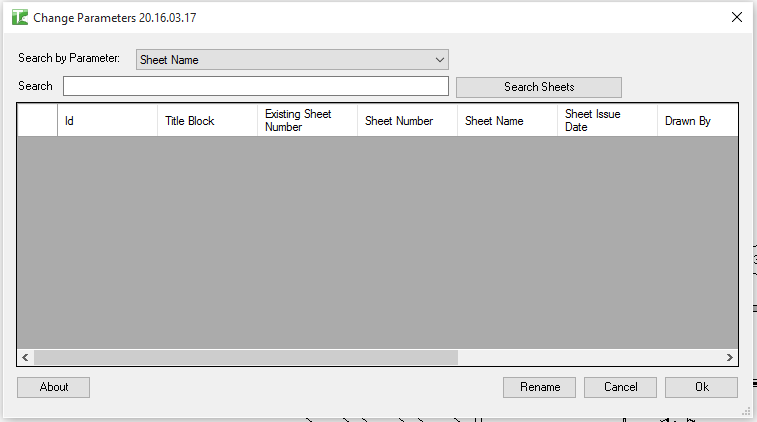
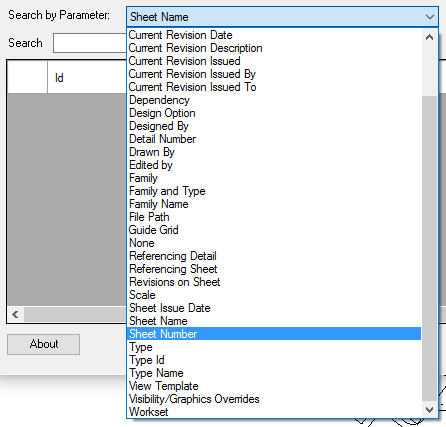
Search by Parameter — select a parameter to filter by. The dropdown lists all available sheet parameters:
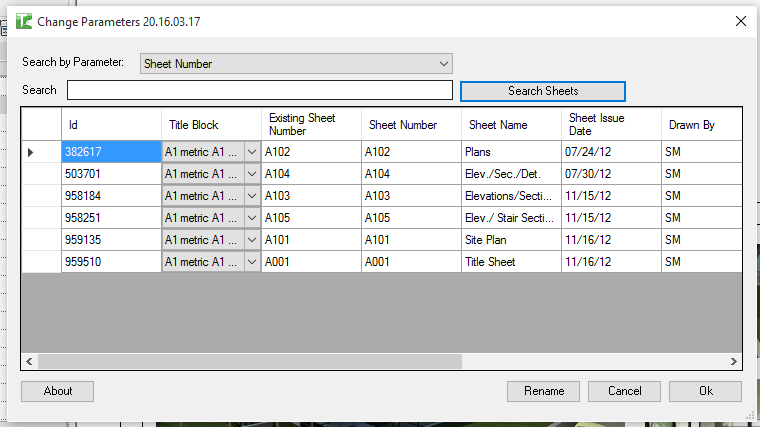
Search text — type a keyword to narrow results (e.g. A1 to show only sheets whose parameter value contains A1):

Click Search Sheets to load the matching sheets into the grid:

Leaving the Search text blank loads all sheets in the project — this may take a moment on large projects.
Step 2 — Review the sheet grid
After searching, each row shows one sheet:
| Column | Description |
|---|---|
| Id | Revit Element Id of the sheet |
| Title Block | Current title block type — change via the per-row dropdown |
| Existing Sheet Number | The sheet's current number (read-only — for reference before editing) |
| Sheet Number | Editable sheet number — change directly or via right-click Renumber |
| Sheet Name | Editable sheet name |
| Sheet Issue Date | Editable issue date |
| Drawn By | Editable drawn by field |
| Designed By | Editable designed by field |
| Approved By | Editable approved by field |
| (custom columns) | Additional columns added dynamically based on the selected search parameter |
Step 3 — Change the Title Block (Optional)
Click the Title Block dropdown in any row to change the title block applied to that sheet:
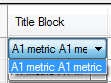
The dropdown lists all title block family types currently loaded in the project. Select the desired type — the change is applied when you click OK.
Step 4 — Rename or Renumber
Select one or more rows (Ctrl+click or Shift+click for multiple), then right-click the column you want to edit and choose Rename Selected.
Renumbering Sheet Numbers
Right-click the Sheet Number column:
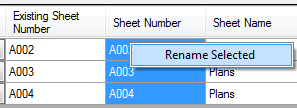
The Renumber dialog appears:
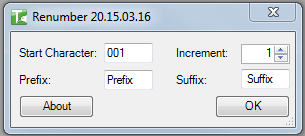
| Field | Description |
|---|---|
| Start Character | The first number in the sequence (e.g. 001) |
| Increment | Amount added per row (e.g. 1 → 001, 002, 003) |
| Prefix | Text prepended to every number (e.g. A- → A-001, A-002) |
| Suffix | Text appended to every number (e.g. -R → 001-R, 002-R) |
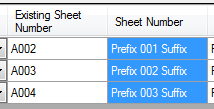
Numbers are assigned in the order rows appear in the grid. After clicking OK, the Sheet Number column shows the pending new values highlighted:
Renaming Text Columns
Right-click any text column (Sheet Name, Drawn By, Designed By, Approved By):
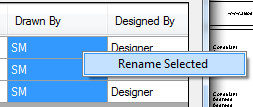
The Rename dialog appears — type the new value and click OK:
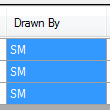
The column updates showing the pending new value highlighted for all selected rows:
Step 5 — Apply changes
When all edits are complete, click Ok in the main dialog. All changes are committed to the sheets in one transaction. An output panel shows the detailed results and summary:
The grid refreshes showing the updated values applied to the sheets:
Click Cancel to close without applying any pending changes.
Tips and Best Practices
- Leave Search blank to load all sheets. Clicking Search Sheets with no text in the Search box loads every sheet in the project — useful when renumbering the entire set.
- Filter before renumbering to avoid accidental changes. Filter to a subset (e.g. all Architectural sheets by prefix) before using Renumber to avoid modifying other disciplines' sheet numbers.
- Use Increment to create gaps for future sheets. Setting Increment to 5 or 10 (e.g. A001, A005, A010) leaves space to insert sheets later without renaming the whole set.
- The Existing Sheet Number column is your safety reference. It never changes — use it to compare before and after values before clicking OK.
- Duplicate sheet numbers are flagged automatically. If a new number conflicts with an existing sheet, the tool appends
(1)or(2). Review the output panel and correct any numbered conflicts manually. - Sort the grid to control the renumbering sequence. The Renumber dialog assigns numbers in the order rows appear. Sort by Sheet Name or another column to control the sequence before renumbering.
Common Use Cases
Renumbering a full sheet set at the start of a project — Load all sheets, select all, right-click Sheet Number → Rename Selected, and apply a prefix and sequential numbering in one Renumber operation.
Updating the Drawn By field across all sheets — Filter to show all sheets, select all, right-click Drawn By → Rename Selected, type the new value, and apply in one operation.
Changing the title block on multiple sheets — Load the affected sheets, select the new title block type from the per-row dropdown for each row, and click OK to update all at once.
Reorganising sheets after a discipline handover — Filter to the incoming sheets, select all, and renumber sequentially to fit within the project's numbering convention.
Correcting sheet issue dates in bulk — Filter by discipline, select the relevant sheets, right-click Sheet Issue Date → Rename Selected, and apply the correct date to all selected sheets at once.
Troubleshooting
Grid is empty after clicking Search Sheets No sheets matched the selected parameter and search text. Clear the search text and re-click Search Sheets to load all sheets.
"X passed. Y failed." with failures Some sheets could not be updated. In a workshared model, the sheet element may be owned by another user. Borrow or check out the relevant sheets and retry.
"Rename Sheets failed. Gain ownership of elements and try again." The transaction failed due to a worksharing conflict. Gain ownership of the affected sheets and retry.
"Operation Failed." An unexpected error occurred. Check the Revit journal for details.
Sheet numbers show (1) or (2) after renumbering
A duplicate number was detected and the tool automatically appended a counter. Manually correct the affected sheet numbers after the run — change one to a unique value first, then correct the other.
Title block does not change after clicking OK Verify the title block type exists in the project. If it was deleted after the dialog was opened, the change will fail silently. Reload the dialog and reselect.
Parameters appear in Search by Parameter but not as grid columns Only certain parameter types generate additional grid columns. Parameters of unsupported types appear in the search dropdown for filtering but do not add a column.