
077 Project Parameters
Chris McKeown / July 1, 2025
Parameters
Overview
The Project Parameters tool displays a spreadsheet-like matrix with all Revit Categories as rows and all Project Parameters as columns. Each cell shows whether a parameter is bound to a category. Check or uncheck cells to assign or remove bindings, then click Apply Categories to commit all changes in a single transaction. Only Shared Parameters can be re-bound — built-in parameters (shown with a grey background) are read-only in the grid.
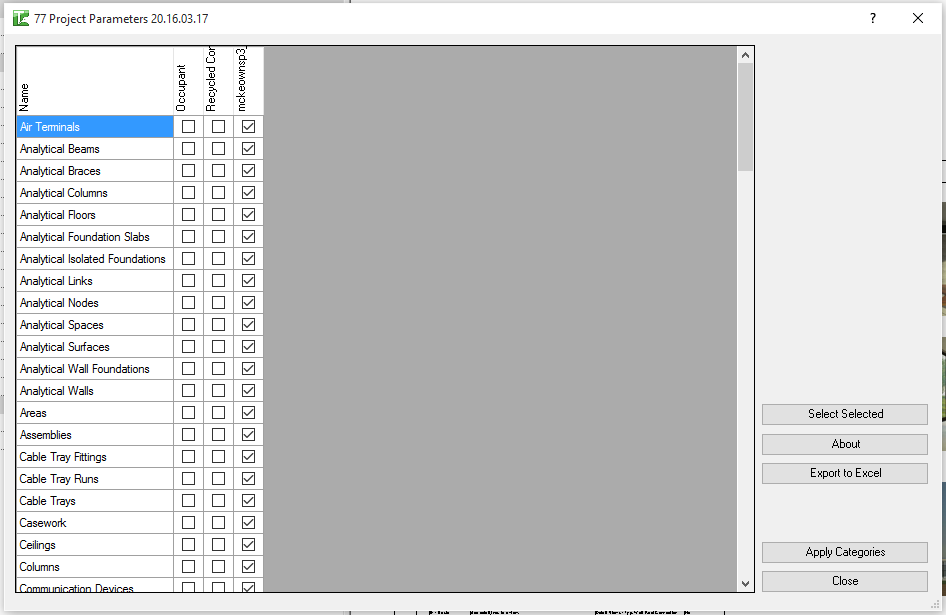
Table of Contents
Key Features
- Full parameter-vs-category matrix in a single scrollable grid
- Category column is frozen so it remains visible when scrolling horizontally through many parameters
- Column headers are rotated 90° to fit more parameters in the view
- Shared Parameters are editable (white background); built-in parameters are read-only (grey background)
- Check or uncheck cells individually, or use drag + Ctrl to multi-select
- Select and Clear buttons apply or remove the checked state on currently selected cells
- Category search field filters the row list to speed up navigation in large models
- Parameter search field filters the column list
- Apply Categories commits all pending changes to the Revit parameter bindings
- Supports both Instance and Type binding — the tool preserves the original binding type when re-inserting
Requirements
- The project must contain Shared Parameters bound as Project Parameters before they appear as editable columns
- Built-in Project Parameters cannot be re-bound through this tool (shown in grey)
- In workshared projects, ownership of the affected elements may be required before applying changes
Running the Tool
Launch
Find Project Parameters on the Bonus Tools ribbon or use 115 Search Tools. The dialog opens and loads the full matrix.
Step 1 — Navigate the Matrix
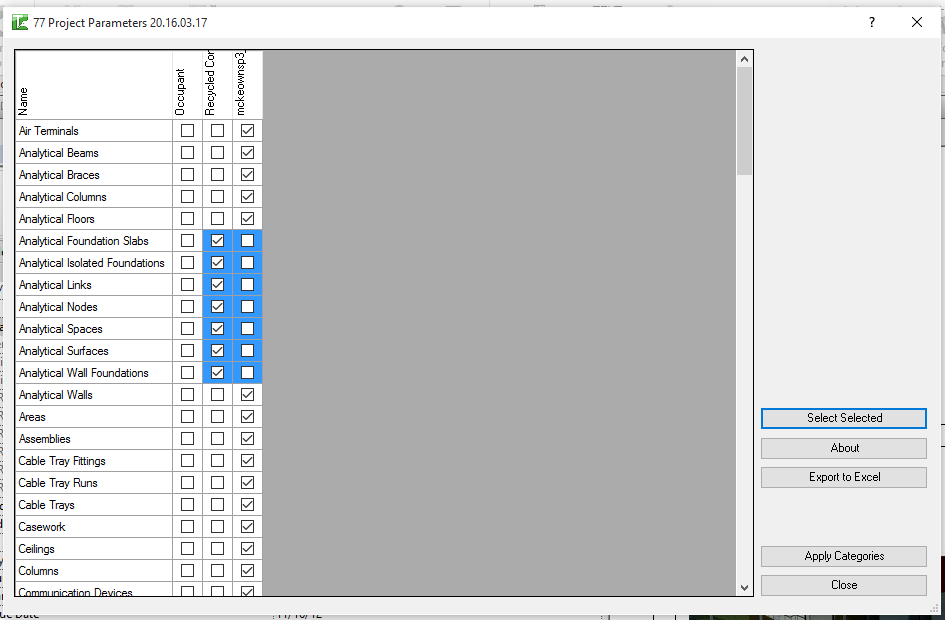
- Scroll vertically to browse categories (rows) and horizontally to browse parameters (columns).
- The Category Name column is frozen and always visible at the left.
- Column headers are rotated for readability — hover to read the full parameter name if it is truncated.
Use the Category Search field to filter rows by category name. Use the Parameter Search field to filter columns.
Step 2 — Check or Uncheck Cells
Click any editable cell (white background) to toggle its checked state:
- Checked — the parameter is (or will be) bound to this category.
- Unchecked — the parameter is (or will be) removed from this category.
To edit multiple cells at once, click and drag across a range, or use Ctrl+Click. Then click Select to check all selected cells, or Clear to uncheck them.
Grey cells represent built-in parameters — they cannot be edited and reflect the current state only.
Step 3 — Apply Changes
Click Apply Categories to commit all pending changes. The tool iterates through each parameter column and re-inserts the bindings to reflect the current checkbox state. Instance and Type binding types are preserved.
A results dialog confirms the counts:
- Instance Passed / Instance Failed
- Type Passed / Type Failed
Tips and Best Practices
- Use the search fields on large projects. Models with hundreds of categories and parameters make the full matrix unwieldy. Filter to the categories or parameters you need before making changes.
- Plan the assignment before clicking Apply. The tool shows the current state clearly — review the full matrix before committing, as there is no undo dialog.
- Only Shared Parameters are editable. If you need to rebind a built-in parameter, this must be done through the native Revit Manage → Project Parameters dialog.
- Grey = read-only. Do not mistake a grey cell for an unchecked editable cell — grey cells are built-in and cannot be changed.
- The Category column is frozen. Scroll the parameter columns freely while the category names remain visible.
- Use drag-select for bulk operations. To assign a new parameter to a large block of categories, drag across the relevant rows in that column, then click Select to check all of them at once.
Common Use Cases
Setting up shared parameters across multiple categories — Add a new Shared Parameter to a project and assign it to 20 categories in one operation, rather than editing each category individually in the native dialog.
Auditing parameter coverage — Review the matrix to identify which categories are missing a required parameter (empty cell in a mandatory column) before issuing the model for coordination.
Removing obsolete parameters — Uncheck a parameter from all categories it no longer needs, then click Apply to clean up the project parameter bindings without deleting the parameter definition.
Aligning parameters across disciplines — Compare the matrix against a BIM standards requirement table. Check any missing assignments and apply in a single operation.
Troubleshooting
Editable cells show grey (read-only) for a parameter I expected to control The parameter is a built-in (non-shared) Project Parameter. Only Shared Parameters can be re-bound through this tool. Re-bind built-in parameters via Manage → Project Parameters.
"Project Parameter set failed. Gain ownership of elements and try again" Another user has ownership of elements affected by the parameter binding change. Synchronise with central, resolve ownership, and retry.
Apply Categories reports Instance Failed / Type Failed counts Individual parameter bindings failed to apply. This can occur if the parameter definition is corrupted or if Revit does not permit that category-parameter combination. Review the Output window for specific error messages.
Category search shows no results The search is case-insensitive but requires at least partial text. Check for typos. If searching for a subcategory, try entering just part of the parent category name.
Matrix loads slowly on first open Large models with many categories and parameters require time to build the matrix. Loading runs with a progress bar — wait for it to complete before interacting with the grid.