
076 Element Tracker
Chris McKeown / July 1, 2025
Power
Overview
The Element Tracker monitors selected element categories and writes modification timestamps into text-based Project or Shared Parameters. As elements are edited, their day-of-week parameter is populated automatically, giving consultants a live record of what changed and when. An optional per-user mode creates separate parameters for each team member, enabling individual contribution tracking within a workshared environment.
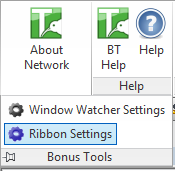
Table of Contents
Key Features
- Tracks element modifications and writes timestamps to a designated text parameter
- Multiple tracking modes: by Day, Last Modified Date, by User, or All
- Requires a text-based Project or Shared Parameter as the tracking target
- Category selection — choose which element categories to monitor
- Optional per-user tracking creates individual parameters using the Revit login name
- Newly added elements are marked with "Added" text in the day parameter
- Parameters populate automatically as elements are modified — no manual action required after setup
- Accessible from the Ribbon Settings dialog
Requirements
- A text-based Project Parameter or Shared Parameter must exist in the project to receive the tracking values
- The parameter must be assigned to the categories being tracked
- Avoid tracking Views, Sheets, and Project Information in workshared projects — these can cause performance issues
- Works in both workshared and non-workshared projects
Running the Tool
Launch
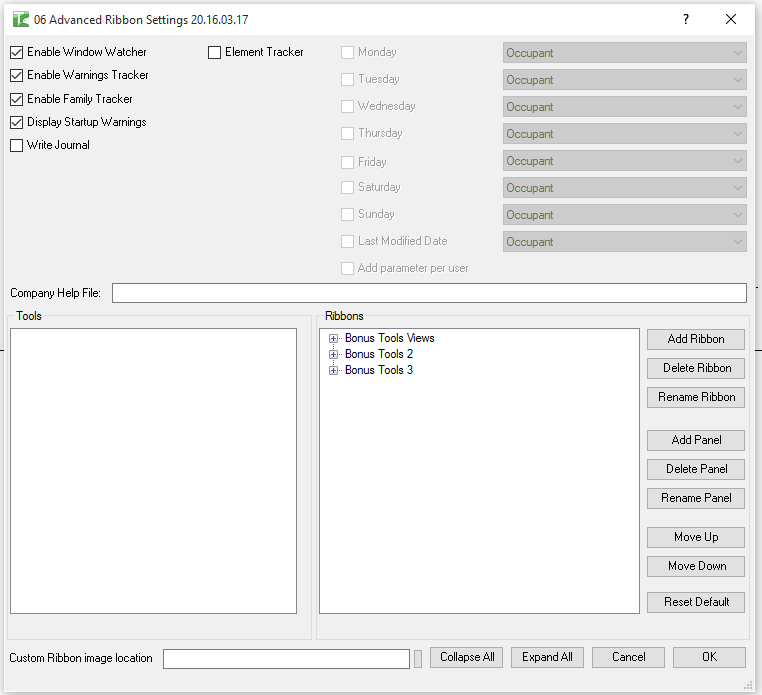
The Element Tracker is configured through Ribbon Settings on the Bonus Tools ribbon. Open Ribbon Settings and select Element Tracker from the list of available tools.
Step 1 — Select the Tracking Method
Choose how to track elements:
| Method | Description |
|---|---|
| By Day | Records which day of the week an element was last modified |
| Last Modified Date | Records the full date and time of the last modification |
| By User | Records the username of the last person to modify the element |
| All | Records all of the above into separate parameters |
Step 2 — Select the Tracking Parameter
Choose a text-based Parameter (Project or Shared) from the dropdown. This is the parameter that will receive the tracking values. The parameter must already exist in the project and be assigned to the categories you plan to track.
Step 3 — Select Categories to Monitor
Choose which element categories to track. Tick the categories relevant to your coordination workflow (e.g. Walls, Doors, Windows, Structural Framing). Avoid adding Views, Sheets, and Project Information in workshared environments as this can impact synchronisation performance.
Step 4 — Enable Per-User Tracking (Optional)
Enable Add parameter per user to create individual tracking parameters for each team member. Parameters are named using the user's Revit login name. This lets you distinguish who made each change when reviewing the model.
Step 5 — Activate
Confirm the settings. The tracker activates and begins monitoring element modifications in the background. From this point:
- Modified elements have their day/date/user parameter updated automatically.
- Newly added elements receive "Added" text in the day parameter.
- No further interaction is required unless settings need to change.
Tips and Best Practices
- Assign the tracking parameter to all monitored categories before activating. The parameter must be visible in the element's Properties panel for tracking to work.
- Use a Shared Parameter for cross-model reporting. A Shared Parameter can be scheduled and exported, making it easier to produce coordination change reports.
- Avoid tracking system categories in workshared projects. Views, Sheets, and Project Information are modified by many background Revit operations. Tracking them can flood the parameter with noise and slow synchronisation.
- Keep parameter names descriptive. Names like
BT_Changed_Day,BT_Changed_Bymake it clear to the whole team what the parameter records. - Use per-user tracking for accountability. In projects with multiple BIM authors, per-user parameters let you quickly identify who changed which element without reading the workset journal.
- Reset parameters at the start of a new issue period. Clear the tracking parameters at the start of each coordination cycle so the data reflects only changes made in that period.
Common Use Cases
Weekly coordination reports — Enable Day tracking on structural and architectural categories. At the end of each week, schedule the tracking parameter to export a list of all elements modified that week. Share the schedule with consultants.
Change log for contractor RFIs — Enable Last Modified Date tracking on Doors, Windows, and Walls. When a contractor queries a change, filter the schedule by date to identify when and what was modified.
Multi-author accountability — Enable per-user tracking on a mixed-team project. At each design review, the project lead can filter by user to understand each team member's contribution for that sprint.
Post-issue change management — Activate tracking after an issued set. Any element modified after the issue date is automatically flagged, simplifying the production of a change notice for the next issue.
Troubleshooting
Parameters are not populating after setup Ensure the selected parameter is assigned to the categories being tracked and that elements in those categories are being actively modified. The tracker only fires when elements are changed — loading the model does not trigger population.
Parameter shows values for categories I did not select The parameter is shared with another tool or process that is also writing to it. Use a dedicated parameter name for Element Tracker to avoid conflicts.
Tracking slows down synchronisation in a workshared project Remove Views, Sheets, or Project Information from the tracked category list. These elements are modified frequently by background operations and can create excessive transaction overhead.
Per-user parameters are not created The Revit user session may not have a login name set. Verify that the username is configured under Revit Options → General → Username.
"Added" text does not appear for new elements "Added" is written at element creation time. If the tracker was not active when the element was placed, the text will not be retrospectively added. Re-enable tracking before placing new elements.