
069 Section Box to Scope Box Updater
Chris McKeown / July 1, 2025
3D Views
Overview
Section Box to Scope Box Updater solves a common 3D view management problem: Revit does not automatically keep a 3D view's section box aligned with a Scope Box when the Scope Box changes. This tool lets you define a matrix that maps each 3D View to a specific Scope Box. The mapping is saved inside the project using Extensible Storage, so it persists between sessions. When a Scope Box is resized or moved, re-run the tool and click Update Selected to instantly resize all mapped 3D View section boxes to match their Scope Boxes — no manual adjustment needed.
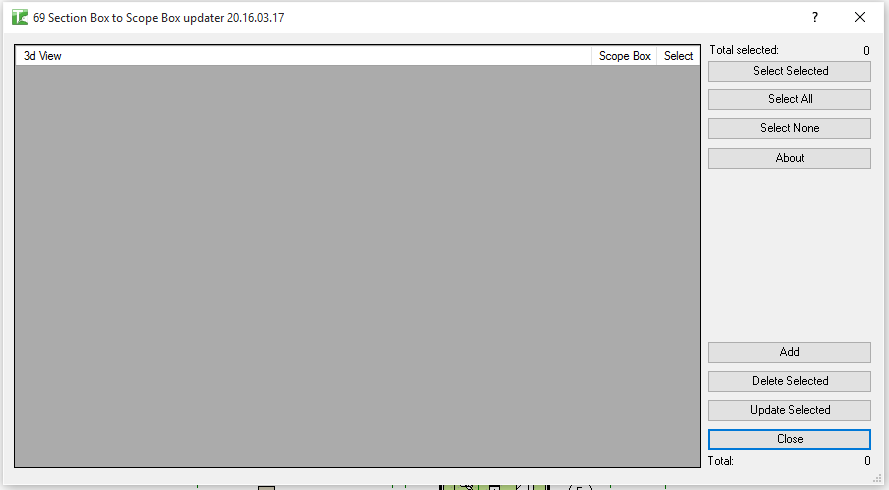
Table of Contents
Key Features
- Define a persistent mapping between 3D Views and Scope Boxes stored in the project
- Mapping data is saved using Extensible Storage and reloaded automatically on next launch
- Grid with dropdown selectors for both 3D View and Scope Box on each row
- Add new mappings or remove existing ones at any time
- Select rows individually or in bulk with Select All / Select None
- Update Selected applies the Scope Box geometry to the section box of each selected 3D View
- Progress bar with cancel support
- Completion message confirms how many section boxes were updated
- Export to Excel (.xlsx) or CSV
- Isolate button; Reset reloads the saved mapping state
Requirements
- Must be run in a project document — not available in the Family Editor
- The project must contain at least one 3D View (non-template) and at least one Scope Box (
Volume of Interestcategory) - 3D Views must have their section box enabled for the update to take effect
Running the Tool
Launch
Find Section Box to Scope Box Updater on the Bonus Tools ribbon or use 115 Search Tools.
The dialog opens and loads any previously saved mappings from the project. If this is the first time running the tool, the grid is empty.
Step 1 — Add Mappings
Click Add to insert a new row. Each row contains two dropdown selectors:
| Column | Description |
|---|---|
| View | Dropdown listing all non-template 3D Views in the project |
| Scope Box | Dropdown listing all Scope Boxes (Volume of Interest elements) in the project |
| Select | Checkbox to include this row in the update operation |
Select a 3D View from the first dropdown and a Scope Box from the second. Repeat for each pairing you want to manage.
Step 2 — Save Mappings (Close)
Click Close to save the current mapping list back into the project's Extensible Storage. The next time you open the tool, all mappings will be restored automatically.
Mappings are only saved when you click Close. If you close the dialog another way, unsaved changes may be lost.
Step 3 — Select Rows to Update
Use the checkboxes, Select All, or Select None to choose which mappings to apply. The Selected counter shows how many rows are active.
Step 4 — Update Section Boxes
Click Update Selected. The tool iterates through each selected row, calculates the bounding geometry of the linked Scope Box, and sets the 3D View's section box to match that geometry. A progress bar tracks the operation.
When complete, a message confirms how many section boxes were updated.
Step 5 — Remove Mappings (Optional)
Select rows you no longer need and click Remove Selected to delete them from the mapping list. Click Close to save the updated list.
Tips and Best Practices
- Set up mappings once, update repeatedly. The main value of this tool is in its persistence. Spend a few minutes creating the full mapping matrix at the start of a project; from then on, a single run of Update Selected keeps all 3D View section boxes in sync after any Scope Box changes.
- Enable section boxes on your 3D Views before updating. The tool sets the section box geometry but does not enable the section box if it is currently off. In each 3D View's Properties, ensure Section Box is checked.
- Use consistent Scope Box and 3D View naming. If views and scope boxes are renamed after the mapping is created, the dropdowns will reflect the new names correctly on next open — but review the list after a rename to confirm the pairings are still correct.
- Related tool — 068 Section Box to Scope Box. Tool 68 performs a similar function but operates on a single selected 3D View. Tool 69 is designed for managing multiple pairings across a project.
- Check ownership before updating in workshared models. If the update fails, you may not own the affected 3D Views. Check out or borrow the views before running Update Selected.
Common Use Cases
Multi-zone project with one 3D View per zone — Create a Scope Box for each zone, create a 3D View per zone, and set up a mapping for each pair. When zone boundaries change, open the tool and update all section boxes in one click.
Keeping coordination views aligned with design zones — When Scope Boxes are used to define coordination zones, use this tool to keep the 3D coordination views for each zone exactly sized to the current zone boundary.
After Scope Box modification — A design change shifts or resizes a Scope Box. Open the tool, select the relevant mapping rows, and click Update to propagate the change to the corresponding 3D Views.
Standardising section box extents — If multiple 3D Views should share the same extent as a Scope Box (e.g. different discipline views for the same zone), map them all to the same Scope Box and update together.
Troubleshooting
"Scope Box update failed. Gain ownership of elements and try again." In a workshared project, one or more of the selected 3D Views is owned by another user. Borrow or check out those views and retry.
"Operation Failed." An unexpected error occurred during the transaction. Check the Revit journal for details.
Mappings are not restored on re-opening the tool The mapping data is stored using Extensible Storage in the project. If the project was not saved after the last time you closed the dialog, the mappings will not have been persisted. Always save the project after configuring mappings.
Dropdown shows no 3D Views The project has no non-template 3D Views. Create at least one 3D View (not a 3D View Template) before running the tool.
Dropdown shows no Scope Boxes
The project has no Scope Boxes. Add at least one Scope Box (Volume of Interest element) before running the tool.
Section box geometry does not match the Scope Box after update If the Scope Box is rotated (not axis-aligned), the tool calculates the bounding box from the scope box geometry, which should match the scope box extents. Confirm the 3D View's section box is enabled and that the view direction is not severely oblique relative to the scope box axes.
Tool not available The tool cannot run in the Family Editor. Open or switch to a project document and try again.