
068 Section Box To Scope Box
Chris McKeown / July 1, 2025
3D Views
Overview
Section Box to Scope Box resizes the active 3D view's section box to precisely match a selected Scope Box. Instead of manually dragging each face of the section box to align with a Scope Box boundary, you select the Scope Box, run the tool, and the section box snaps to match it in one operation. This is particularly useful when you want a 3D view to show exactly the same area as a plan view already controlled by a Scope Box. A companion tool, 069 Section Box to Scope Box Updater, keeps the section box synchronised when the Scope Box is later moved or resized.
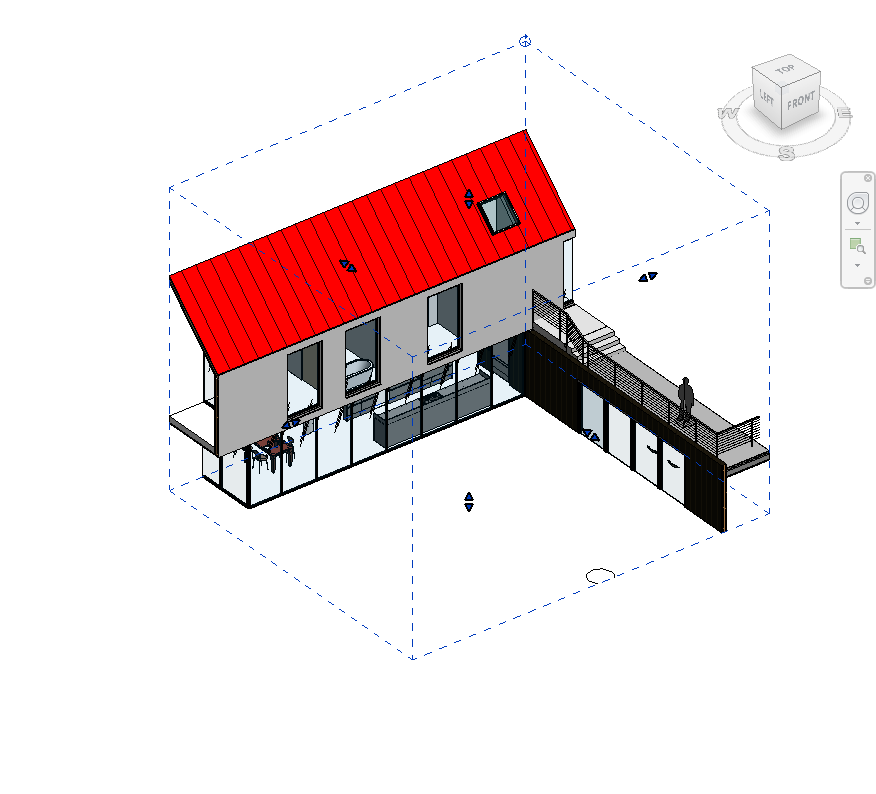
Table of Contents
Key Features
- Matches the 3D section box to a Scope Box in a single click — no manual dragging
- Preserves the section box orientation relative to the view direction
- Works with rotated and non-orthogonal Scope Boxes
- Transaction recorded as "Move And Resize Section Box" — appears cleanly in undo history
- No dialog — instant result
- Companion tool 069 keeps the section box updated when the Scope Box changes
Requirements
- Must be run from a 3D View — the tool reads the section box from the active view
- A Scope Box element must be selected before running
- The section box does not need to be currently enabled — the tool sets it automatically
- Must be run in a project document (not a Family environment)
Running the Tool
Launch
Find Section Box To Scope Box on the Bonus Tools Ribbon or use 115 Search Tools.

Step 1 — Open a 3D View
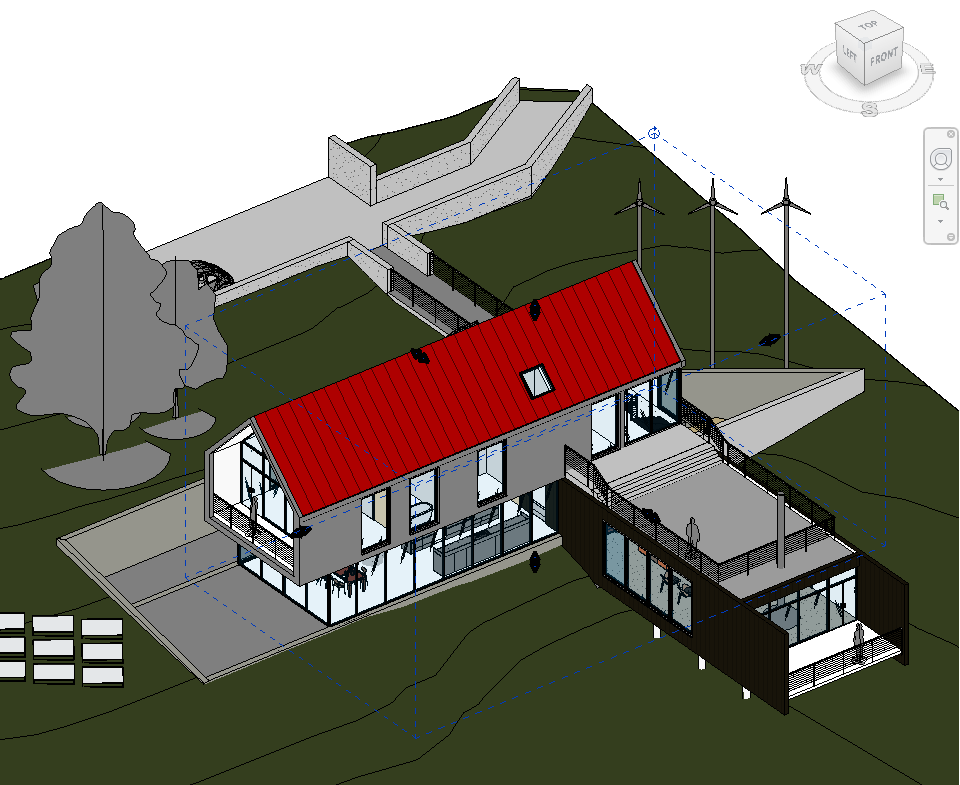
Navigate to the 3D view where you want to apply the section box. Ensure the Scope Box you want to match is visible in this view.
Step 2 — Select the Scope Box
Click the Scope Box element in the 3D view to select it. You can also select it from the Project Browser or by Tab-selecting if it is obscured.
Make sure only the Scope Box is selected — or that the Scope Box is included in the selection. The tool uses the first Scope Box found in the active selection.
Step 3 — Run the Tool
Click Section Box To Scope Box on the Bonus Tools Ribbon. The section box is updated immediately to match the Scope Box bounds and orientation. No dialog appears.
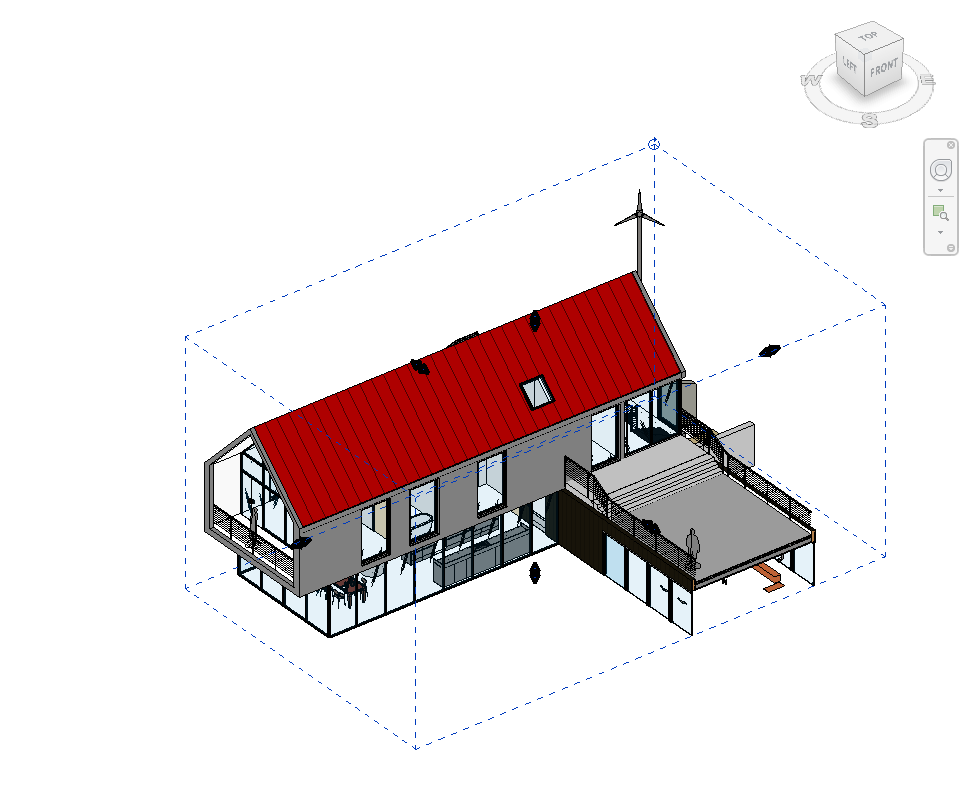
The section box will now clip the 3D view to exactly the same area defined by the Scope Box.
Tips and Best Practices
- Enable the Section Box on the view first if it is not already active. Go to the View Properties panel and check the Section Box checkbox, then run the tool.
- Use 069 Section Box to Scope Box Updater if the Scope Box may be adjusted later — the updater keeps the section box in sync automatically.
- Works with rotated Scope Boxes. The tool computes the correct transform from the Scope Box geometry, so rotated scope boxes produce correctly oriented section boxes.
- Assign to a view template. After setting the section box with this tool, save the view template so new 3D views can be created with the same scoping parameters.
- Combine with view duplication. Duplicate the default 3D view, assign a Scope Box, run this tool, and name the view — an effective workflow for creating coordinated 3D views for each zone or area of a project.
Common Use Cases
Zone coordination views — For each plan area controlled by a Scope Box, create a matching 3D view using this tool so that the 3D and plan extents are always consistent.
Clash detection setups — When handing off to a clash detection platform, ensure the 3D view section box exactly matches the coordination zone Scope Box so the exported model covers the correct area.
Client presentation views — Create a 3D view for a specific building zone for a design presentation, using this tool to match the section box to an existing plan Scope Box rather than manually dragging each face.
Phased model reviews — Set up one 3D view per phase zone by assigning different Scope Boxes to each view and applying this tool, giving reviewers consistent scoped views for each phase.
Troubleshooting
"Please run this command in a 3D view." The active view is not a 3D view. Navigate to a 3D view and retry.
"Select a Scope Box." No elements are selected when the tool runs, or none of the selected elements is a Scope Box. Select a Scope Box element in the 3D view before running.
"Action not available in the Family environment." The tool can only run in a project document.
Section box appears in an unexpected position The tool calculates the section box position relative to the view direction. If the view has been rotated, the resulting section box orientation accounts for this. If the result looks wrong, reset the view orientation to the default (looking North-East in plan) and retry, or use the updater tool for ongoing management.
Section Box checkbox is greyed out after running The section box may not be enabled in the View Properties. In the Properties panel for the 3D view, ensure the Section Box parameter is set to Yes. Run the tool again after enabling it.