
063 Element overrides
Chris McKeown / July 1, 2025
Lists
Overview
Element Overrides scans the active Revit view and lists every element that has any graphic override applied — including hidden elements, halftone, custom line weights, line colours, line patterns, surface fill patterns, surface colours, surface transparency, and cut overrides. Each override type is shown as a separate column in a scrollable grid, with red highlighting indicating which properties are overridden on each element. You can then select which overrides to clear, on which elements, and remove them in bulk — a task that would otherwise require editing each element's override settings individually.
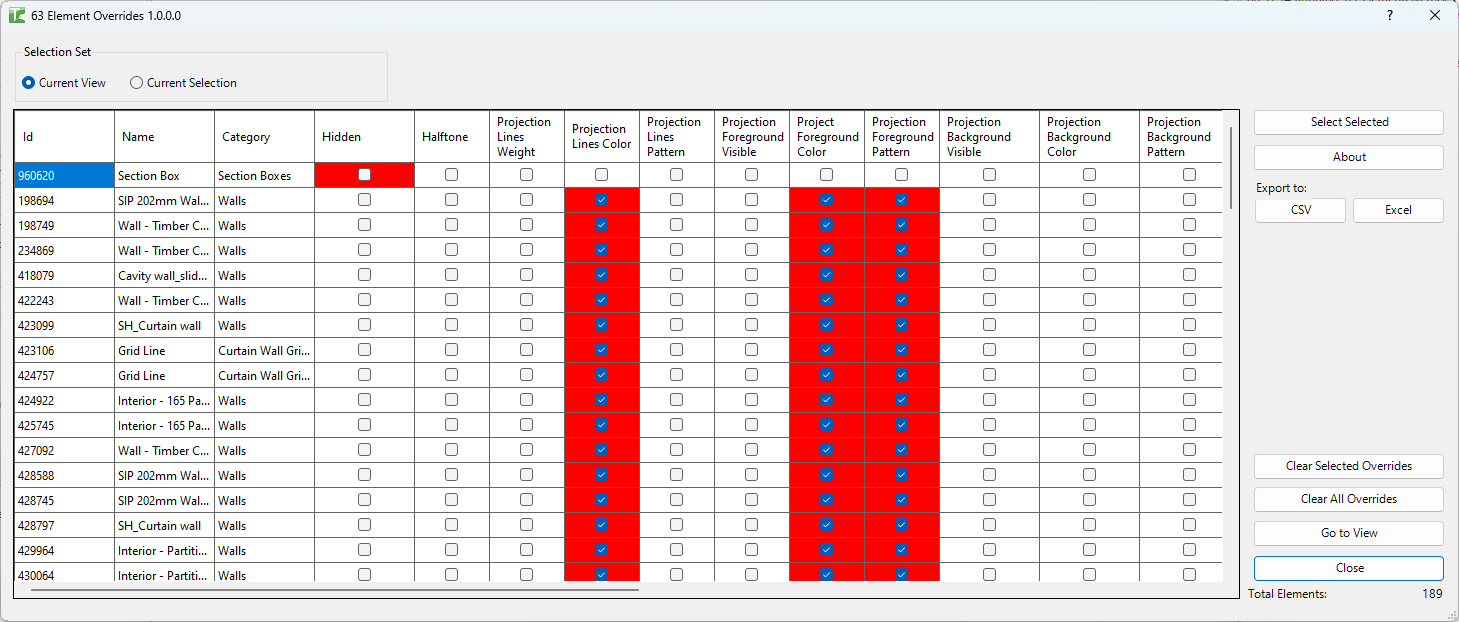
Table of Contents
Key Features
- Scans the active view for all elements with any graphic override or hidden status
- Scope filter: Current View or Current Selection
- Sortable grid with frozen Id, Name, and Category columns for context while scrolling
- Red-highlighted cells indicate active overrides; grey cells indicate no override for that property
- Supports all override properties: Hidden, Halftone, Projection Line Weight, Projection Line Color, Projection Line Pattern, Surface Foreground/Background Fill Pattern Visible/Color/Pattern, Surface Transparency, Cut Line Weight/Color/Pattern, Cut Foreground/Background Fill Pattern Visible/Color/Pattern
- Selectively clear chosen overrides per element using checkboxes
- Clear All Overrides button resets every override property for every listed element
- Clear Selected Overrides button clears only the checkboxes you have unchecked (toggled off)
- Go to View button highlights selected elements in the Revit canvas
- Export to Excel (.xlsx) or CSV
Requirements
- Must be run in a project document — not available in the Family Editor
- The active view must support graphic overrides (
AreGraphicsOverridesAllowed()) — schedules and some legend views do not support overrides and will result in an empty grid
Running the Tool
Launch
Find Element Overrides on the Bonus Tools ribbon or use 115 Search Tools.
The dialog opens with scope set to Current View by default and immediately loads all overridden elements.
Step 1 — Set Scope
Select the radio button for the scope:
| Option | Description |
|---|---|
| Current View | All overridden or hidden elements in the active view |
| Current Selection | Only overridden elements within the current Revit selection |
Changing the scope reloads the grid automatically.
Step 2 — Review the Grid
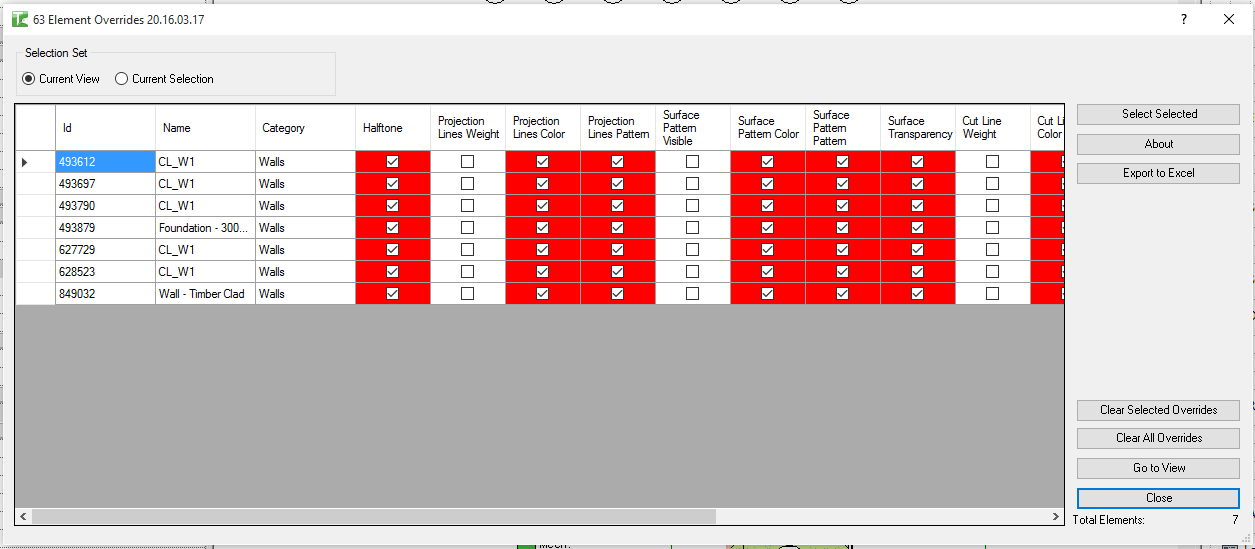
The grid has fixed columns at the left (Id, Name, Category) and scrollable override columns to the right. Each override column contains a checkbox:
- Red background + checked: the override is active on this element. The checkbox is editable.
- No red background + unchecked (greyed): no override for this property. The cell is read-only.
Override columns:
| Column | Description |
|---|---|
| Hidden | Element is hidden in this view |
| Halftone | Halftone override applied |
| PL Weight | Projection line weight override |
| PL Color | Projection line colour override |
| PL Pattern | Projection line pattern override |
| PFP Visible | Surface foreground fill pattern visibility override |
| PFP Color | Surface foreground fill pattern colour override |
| PFP Pattern | Surface foreground fill pattern override |
| PBP Visible | Surface background fill pattern visibility override |
| PBP Color | Surface background fill pattern colour override |
| PBP Pattern | Surface background fill pattern override |
| Surface Transparency | Surface transparency override |
| CT Weight | Cut line weight override |
| CL Color | Cut line colour override |
| CL Pattern | Cut line pattern override |
| CFP Visible | Cut foreground fill pattern visibility override |
| CFP Color | Cut foreground fill pattern colour override |
| CFP Pattern | Cut foreground fill pattern override |
| CBP Visible | Cut background fill pattern visibility override |
| CBP Color | Cut background fill pattern colour override |
| CBP Pattern | Cut background fill pattern override |
Step 3 — Select Overrides to Clear
To clear specific overrides selectively:
- Scroll to the override column you want to clear.
- Uncheck the red checkbox in any row to mark that property for clearing on that element.
- Repeat for any other properties and elements.
- Click Clear Selected Overrides to apply.
To clear all overrides for all listed elements at once, click Clear All Overrides.
Step 4 — Navigate or Export
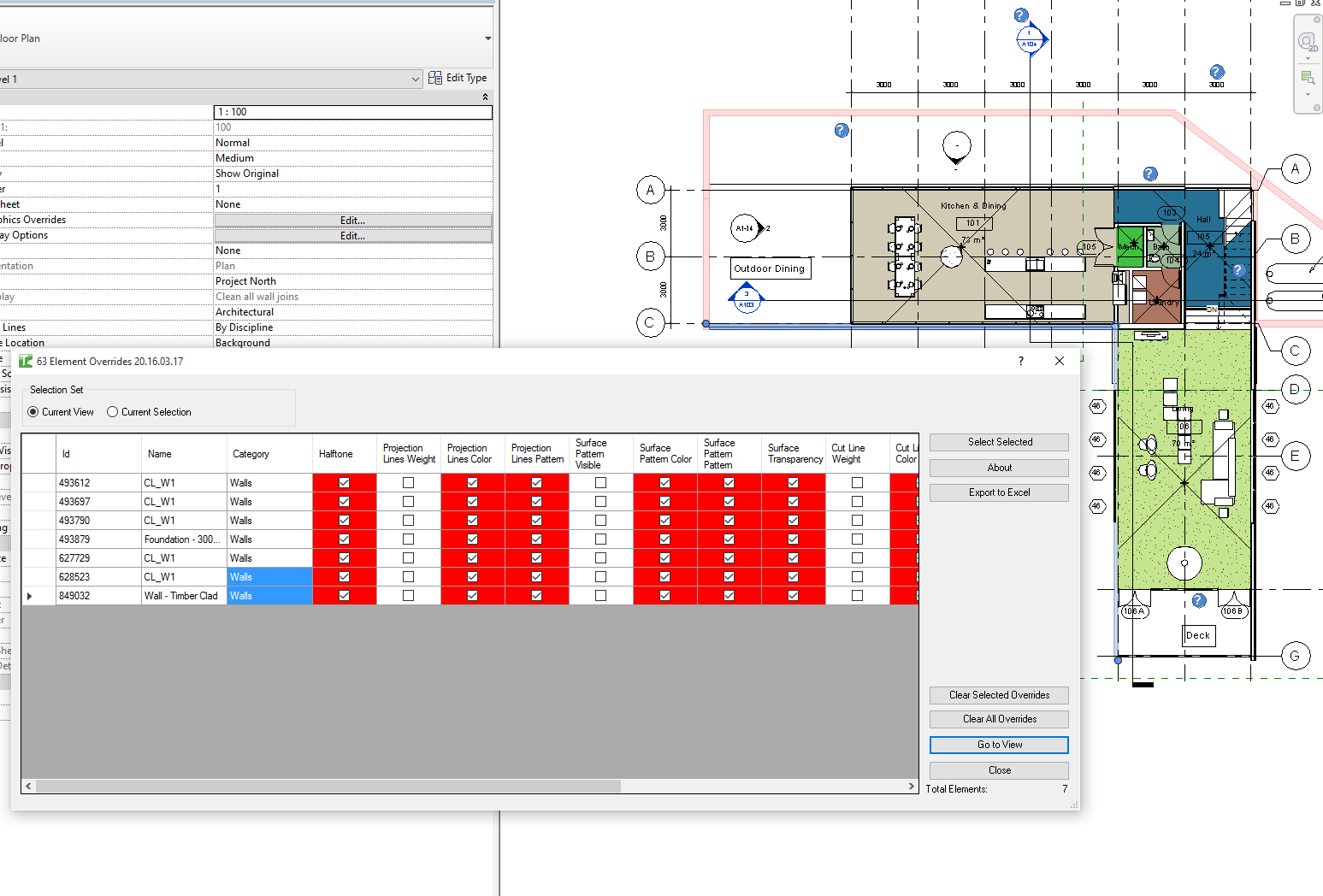
Go to View — select rows in the grid and click this button to highlight the corresponding elements in the active Revit view.
Export to Excel / Export to CSV — exports the full grid for use in QA reports or issue tracking.
Tips and Best Practices
- Use Current View scope for cleanup during design. Run the tool on specific views where override accumulation is suspected — coordination views or views shared with consultants often build up ad-hoc overrides over time.
- Sort by Category to target cleanup. If you only want to clear overrides on one category, sort by Category, select those rows, and clear selectively.
- Clear All Overrides is irreversible within the session. Before using Clear All Overrides, export the grid to Excel so you have a record of what was cleared. Use Revit's Undo immediately after if the result is unexpected.
- Hidden elements appear first in the list. The tool collects hidden elements separately before scanning overrides, so Hidden rows appear at the top of the grid. Review these carefully — some elements may have been intentionally hidden.
- Export for QA sign-off. Export the overrides grid before issuing drawings. A non-empty grid is a sign that elements have been manually styled outside of View Templates, which may indicate a standards compliance issue.
- Check scope before running. The Current Selection scope is useful when you want to audit only the elements you have already identified as problematic in Revit.
Common Use Cases
Cleaning up a view before issuing — Run the tool on the active view, review the grid, and clear all ad-hoc overrides to ensure the view is controlled entirely by View Templates and category overrides.
Finding hidden elements — Use the tool to reveal all elements hidden individually in a view (as opposed to category-hidden). The Hidden column makes these visible in a list rather than requiring element selection tricks in Revit.
Resolving halftone overrides — After a design review session where elements were halftoned for discussion, use the tool to find and clear all halftone overrides across the view.
Auditing override accumulation — Export the overrides list for a set of views across the project to track how many and which elements have been manually overridden, as part of a BIM standards audit.
Clearing consultant-applied overrides — When receiving a model from a consultant, run the tool to identify and remove any graphic overrides the consultant applied before integrating the model into your project.
Troubleshooting
Grid is empty after loading Either the active view has no overridden or hidden elements, or the view does not support graphic overrides (e.g. a Schedule or some Legend views). Confirm the view is a plan, section, elevation, or 3D view.
"Element Overrides failed. Gain ownership of elements and try again." In a workshared project, some elements are owned by another user. Borrow or check out the affected elements and run the clear operation again.
"Operation Failed." An unexpected error occurred. Check the Revit journal for details. Ensure the document is not read-only.
Clear Selected Overrides does not change some rows Only cells with a red background and an unchecked checkbox are cleared. Cells without red background are read-only (no override present). Ensure you have unchecked the correct red cells before clicking the button.
Tool not available The tool cannot run in the Family Editor. Open or switch to a project document and try again.