
061 Sheets File
Chris McKeown / July 1, 2025
Sheet & View Manipulation
Overview
Sheets File is a hidden background tool that protects your Revit project from a common and costly mistake: synchronizing with Central before reloading linked files. When the feature is active, Revit prompts the user to confirm that all linked Revit files have been reloaded before the synchronization proceeds. If the user selects No, the synchronization is cancelled entirely — preventing tags and dimensions from disassociating due to stale link data.
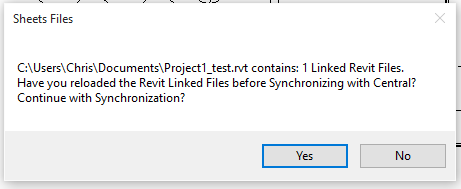
Table of Contents
- Key Features
- Requirements
- Setting Up the Sheets File Parameter
- How It Works at Sync Time
- Tips and Best Practices
- Common Use Cases
- Troubleshooting
Key Features
- Intercepts the Synchronize with Central workflow to prompt for linked file confirmation
- Cancels synchronization completely if the user selects No — no partial sync occurs
- Prompt displays the number of linked Revit files detected in the model
- Activated through a single Yes/No project parameter — no per-user configuration required
- Works silently in the background once the parameter is enabled — no ribbon button to press
Requirements
- A project parameter named "Sheets File" (Yes/No type) must exist on the Project Information category
- The parameter must be set to Yes in Project Information to activate the feature
- The tool only activates in workshared (Central file) projects — synchronization prompts do not appear in non-workshared files
Setting Up the Sheets File Parameter
This setup is performed once per project, typically by the BIM Manager:
Step 1 — Add the Project Parameter
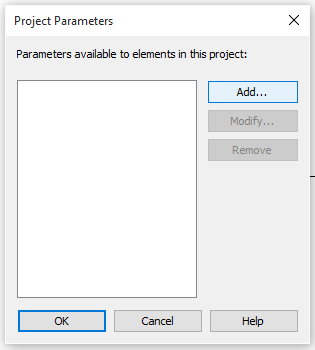
- In Revit, go to Manage → Project Parameters
- Click Add
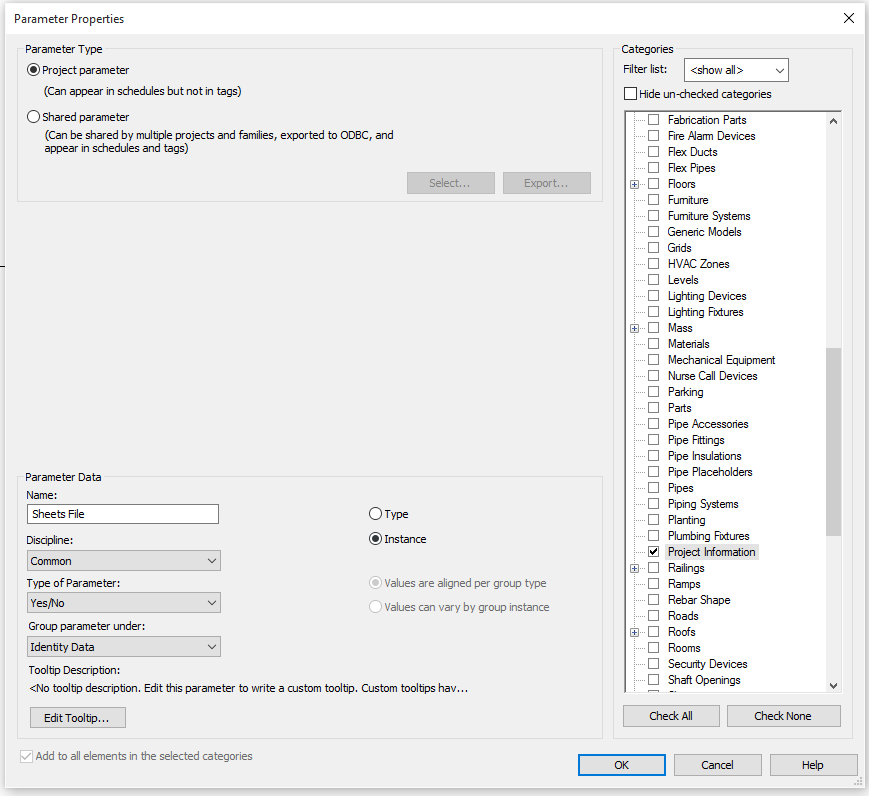
- Configure the parameter:
| Field | Value |
|---|---|
| Name | Sheets File |
| Type of Parameter | Yes/No |
| Group | (any — e.g. Text) |
| Instance/Type | Instance |
| Categories | Project Information |
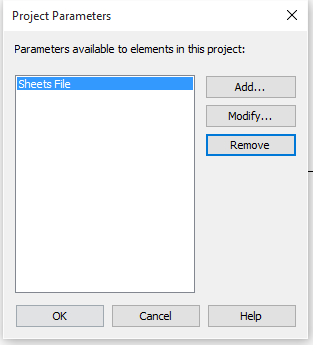
- Click OK twice to save
Below is the sequence of dialogs for adding the parameter:

Step 2 — Enable the Parameter
- Go to Manage → Project Information
- Find the Sheets File parameter in the list
- Set it to Yes
- Click OK

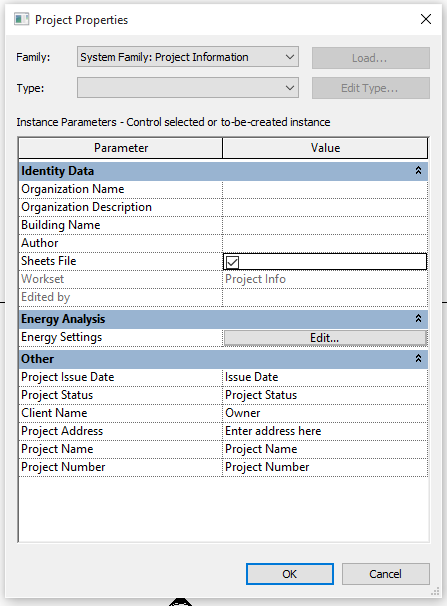
Once enabled, the feature is active for all users working in that project file.
How It Works at Sync Time
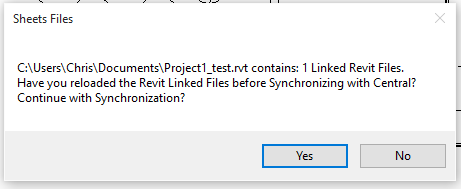
When a user initiates Synchronize with Central in a project where the Sheets File parameter is set to Yes, they receive a prompt:
"File [filename].rvt contains: [X] Linked Revit Files. Have you reloaded the Revit Linked Files before Synchronizing with Central? Continue with Synchronization?"
- Yes — synchronization proceeds normally
- No — synchronization is cancelled; the user must reload linked files and retry
Tips and Best Practices
- Add this parameter to your project template so every new project starts with the protection in place without requiring setup.
- Reload links first, then sync. Make it a standard workflow habit: Manage → Manage Links → Reload All, then Synchronize with Central.
- Communicate the purpose to your team. Users who don't understand why the prompt appears may click Yes without reloading. A brief team briefing ensures the safeguard is used correctly.
- Disable by setting the parameter to No. If the project is in a phase where all links are intentionally unloaded, set the Sheets File parameter to No in Project Information to suppress the prompt.
- Works alongside Revit's built-in reload options — this tool adds a human checkpoint, not an automatic reload. Users must reload manually through Manage Links or at file open.
Common Use Cases
Large multi-discipline models — On projects with many linked architectural, structural, and MEP files, a missed reload before sync can cause widespread tag disassociation that is time-consuming to repair. This tool makes the check mandatory.
Teams working across time zones — When team members sync at different hours, some may not be aware that others have published updated links. The prompt ensures each user actively confirms link status before committing changes.
Projects with frequent link updates — On fast-moving projects where linked files change multiple times per day, this feature acts as a constant reminder to keep links current before each sync.
Troubleshooting
Prompt does not appear before synchronization The Sheets File parameter either does not exist in the project or is set to No. Open Manage → Project Information and confirm the parameter exists and is set to Yes. If the parameter is missing, follow the setup steps above.
Users click Yes without reloading links The tool provides a checkpoint but cannot enforce reloading. Supplement with team agreements or a BIM protocol document that specifies reloading links as a required step before each sync.
Prompt appears on a non-workshared file The synchronization prompt only appears in workshared Central file workflows. If the prompt is appearing unexpectedly, verify the project is correctly set up as a Central file with active worksets.