
058 File Coordinates
Chris McKeown / July 1, 2025
Time Saving
Overview
File Coordinates reads the Project Base Point and Survey Point from the host Revit file and from every linked Revit file currently open, then outputs all coordinate values — North-South, East-West, Elevation, and Angle to True North — to the Bonus Tools Output dialog in a single operation. Use it to quickly verify that all files in a collaborative project share consistent coordinate origins.
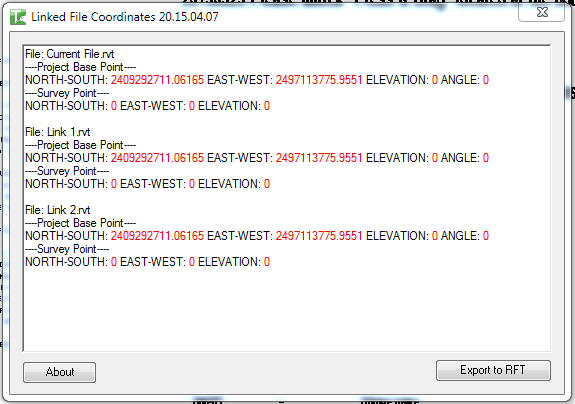
Table of Contents
Key Features
- Reads Project Base Point (North-South, East-West, Elevation, Angle to True North) for each file
- Reads Survey Point (North-South, East-West, Elevation) for each file
- Processes the host file and all linked Revit files open in the same Revit session
- Values are converted from Revit internal units to the document's display units and rounded to 5 decimal places
- Output displayed in the Bonus Tools Output dialog with colour-coded labels (grey for file/section headers, red for coordinate values)
- No dialog required — runs silently and outputs results immediately
- Compatible with Revit 2014 and newer
Requirements
- Must be run in a project file (not a Family document)
- The Bonus Tools Output dialog (Dockable Dialog) must be accessible — it opens automatically when the tool runs
- Linked files are read from the Application documents collection; links must be loaded (not unloaded) to be included
- Compatible with Revit 2014 and newer
Running the Tool
Launch
Find File Coordinates on the Bonus Tools Ribbon or use 115 Search Tools.
The tool runs immediately — no dialog appears. The Bonus Tools Output dialog opens (or activates if already docked) and displays the results.
Reading the Output
For each file the output shows:
File: [full file path]
----Project Base Point----
NORTH-SOUTH: [value]  EAST-WEST: [value]  ELEVATION: [value]  ANGLE: [value]
----Survey Point----
NORTH-SOUTH: [value]  EAST-WEST: [value]  ELEVATION: [value]
The host file is listed first, followed by each linked file found in the session.
Tips and Best Practices
- Load all links before running. Unloaded links are not included in the output. Reload all links via Manage → Manage Links before running the tool.
- Compare Project Base Point values across files. For a shared coordinate setup, all files should show the same or predictable offsets. Discrepancies indicate a coordination problem.
- Check the Angle to True North. Even if the XY coordinates match, a different Angle value means the linked file is rotated relative to the host — a common source of clash detection errors.
- Copy the output to a spreadsheet. Select all text in the Output dialog and paste it into Excel for side-by-side comparison of multiple files.
- Run after acquiring or sharing coordinates. After using Acquire Coordinates or Specify Coordinates from a linked file, run File Coordinates to confirm the values have transferred correctly.
Common Use Cases
Verifying shared coordinates on project start — After all discipline models are linked and coordinates shared, run File Coordinates to confirm every linked file's Survey Point matches the host, confirming a consistent shared coordinate origin.
Diagnosing a coordination offset — When elements in a linked file appear displaced, run File Coordinates to check whether the Project Base Point or Survey Point values differ from the host. A North-South or East-West discrepancy immediately identifies the source of the offset.
Documenting coordinates for handover — Copy the Output dialog contents into the project's BIM Execution Plan or handover documentation as a record of the survey and project coordinate setup at the time of issue.
Troubleshooting
The tool runs but no output appears The Bonus Tools Output (Dockable Dialog) may not be visible. Enable it via View → Windows → User Interface → Bonus Tools Output, or check the View menu for dockable dialogs.
Linked files are not listed in the output The linked files are either unloaded or were opened as a standalone session rather than loaded as links. Ensure links are loaded via Manage → Manage Links, then re-run.
Coordinate values show as 0.0 or unexpected values The Project Base Point or Survey Point may not be set in the linked file. Open the linked file, verify the base points, then reload the link and re-run.
The tool reports an error The tool cannot run in a Family document. Open a project file and try again.