
056 Print Revisions
Chris McKeown / July 1, 2025
Sheet & View Manipulation
Overview
Print Revisions filters and prints Sheets by their current revision, using the active Revit Print Settings. Select a specific revision (or "All Current") to populate a list of matching Sheets, choose which ones to print, and the tool submits each Sheet to the printer one by one. An optional export mode allows simultaneous output to DWG, DXF, DWF, DWFx, and DGN formats in a single pass.

Table of Contents
Key Features
- Filters the Sheet list by a selected revision number or "All Current"
- Uses the active Revit Print Settings — no need to reconfigure print parameters in the tool
- Configurable print file name pattern via a Sheet Namer builder (Sheet Number, Revisions on Sheet, text separators, and any Sheet parameter)
- Optional revision suffix pushed to the end of the export filename
- Simultaneous export to DWG, DXF, DWF, DWFx, and/or DGN alongside printing
- Per-format prefix and suffix controls for exported file names
- Shared coordinate support for DWG exports
- DWG/DXF version selection (Default, AutoCAD 2007/2010/2013)
- Optional Tick Parameter Before Export — sets a Yes/No title block parameter to 0 before export and restores it to 1 afterwards (useful for suppressing revision clouds on export)
- Multi-Title Block Sheet support for printing sheets with multiple title blocks at configurable row/column grid positions
- Optional paper size and paper orientation overrides driven by title block parameters
- Load Sheets from an existing View Sheet Set
- Progress bar with cancel support
- Compatible with Revit 2013 and newer
Requirements
- At least one Sheet must exist in the project
- Revit Print Settings must be configured before running (the tool uses the active setting)
- For Adobe PDF virtual printing, the print setting must not be
<In-Session> - An output directory must be specified when exporting formats other than print
- Compatible with Revit 2013 and newer
Running the Tool
Step 1 — Check Print Settings
Before launching, verify your Revit Print Settings (File → Print → Print Setup) are configured correctly. The tool uses the active print setting for all Sheets — paper size, orientation, and other settings come from there.

Step 2 — Launch the Tool
Navigate to the Bonus Tools Tab and select Print Revisions.

Step 3 — The Dialog Opens
The Print Revisions dialog appears showing the Sheet list, revision controls, and export options.
Step 4 — Select the Revision
Use the Revision dropdown to select which revision to filter by. The list includes All Current plus each revision number defined in the project. The Sheet list updates automatically to show only Sheets whose current revision matches.

Step 5 — Select Sheets to Print
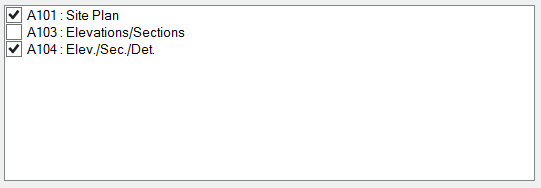
Check the Sheets you want to print in the Sheets list. Use the View Sheet Set dropdown to pre-select a set of sheets, or manually check individual rows. The current printer name is displayed above the list.
Step 6 — Configure the Print File Name (Optional)
The Print Name field shows the current naming pattern (default: Sheet Number_Revisions on Sheet). Click the button next to the field to open the Sheet Namer builder and customise the pattern using Sheet parameters, fixed text separators, and the Revisions on Sheet value.
Enable Push Revision to End of Filename to append the revision at the end rather than inline. Enable Include Previous Field to include the preceding separator with the revision suffix.
Step 7 — Click OK
Click OK to start printing. Each selected Sheet is submitted to the printer in turn using the active Print Settings.

Step 8 — Confirmation
A confirmation message reports how many Sheets were printed successfully and how many failed. The Bonus Tools Output dialog shows per-sheet results.

Step 9 — Check Output
Verify the printed sheets in your output destination.

Tips and Best Practices
- Use a saved named Print Setting. The tool requires a non-In-Session print setting when using the multi-title block print mode or Adobe PDF. Save your settings in Revit before running.
- Filter to "All Current" for a full issue set. This selects all sheets that have any current revision, giving you the complete issue package in one run.
- Use the Sheet Namer to build consistent file names. Combining Sheet Number, a separator like
_, and Revisions on Sheet produces names likeA101_Rev3— unambiguous and ready for an archive folder. - Enable Tick Parameter Before Export for clean DWG output. If your title block has a Yes/No parameter that controls a revision cloud or watermark, enable this option to suppress it during export and restore it automatically afterwards.
- DWG XRef mode. By default DWG exports merge views. Enable DWG XRefs to keep views as external references instead.
- Multi-Title Block Sheets requires a saved named Print Setting. In-Session settings are blocked for this mode.
Common Use Cases
Printing a revision issue — Select the current revision number from the dropdown, check all listed Sheets, verify the Print Name pattern, and click OK. Every Sheet at that revision is printed using the saved Print Settings.
Exporting DWG files for a revision issue — Enable the Export Other Formats checkbox, tick DWG, set the output directory, configure the DWG prefix/suffix naming, and run. DWG files are exported for each selected Sheet alongside (or instead of) printing.
Issuing only specific sheets from a revision — Filter by the relevant revision, then manually uncheck Sheets that should not be included in this particular issue before clicking OK.
Troubleshooting
"Print setting must not be <In-Session>"
Save the current print settings as a named setting in Revit (File → Print → Print Setup → Save As), then re-run the tool.
"Please select at least one Sheet." No Sheets are checked in the Sheet list. Tick at least one Sheet before clicking OK.
"Please select a valid output directory for Exports." The Export Other Formats checkbox is enabled but no valid output path has been entered. Click the folder button to browse to an existing directory.
"You require ownership of View Sheet Set 'Bonus Tools Set'" The tool creates a temporary View Sheet Set during printing. Another user owns it. Ask that user to synchronise and release it, then retry.
Sheets print but the files are not appearing in the expected folder
When printing to a virtual PDF printer, the print-to-file path defaults to C:\. Check that folder, or configure the output path in your PDF driver settings before running.