
054 Help File
Chris McKeown / July 1, 2025
Help
Overview
The Help File tool opens your organisation's custom help document in its default application with a single click. The file path or URL is configured once in Ribbon Settings by an administrator, and from then on any team member can access it directly from the Bonus Tools ribbon — without knowing where the file is stored or navigating a file system. This is ideal for companies that maintain internal Revit standards guides, BIM execution plans, or project-specific documentation.

Table of Contents
- Key Features
- Requirements
- Setting Up the Help File
- Running the Tool
- Tips and Best Practices
- Common Use Cases
- Troubleshooting
Key Features
- Opens any file type supported by Windows — PDF, DOCX, HTML, URL, and more
- File path or URL configured centrally in Ribbon Settings — users never need to know the location
- Single click — no dialog, no confirmation step
- Separate from 055 Bonus Tools Help, which opens the Bonus Tools online tutorials
Requirements
- The Company Help File path must be configured in Ribbon Settings → General Tab before use
- The file or URL must be accessible from the user's machine at runtime (local path, mapped drive, UNC network path, or public URL)
- An internet connection is required if the help file is a web URL
Setting Up the Help File
An administrator configures the help file path once:
- On the Bonus Tools Ribbon, open Ribbon Settings
- Navigate to the General tab
- Locate the Company Help File field
- Enter the full path to your help document:
- Local file:
C:\Company\Standards\BIM Guide.pdf - Network path:
\\server\shared\Standards\BIM Guide.pdf - Web URL:
https://intranet.company.com/bim-guide
- Local file:
- Save and close Ribbon Settings
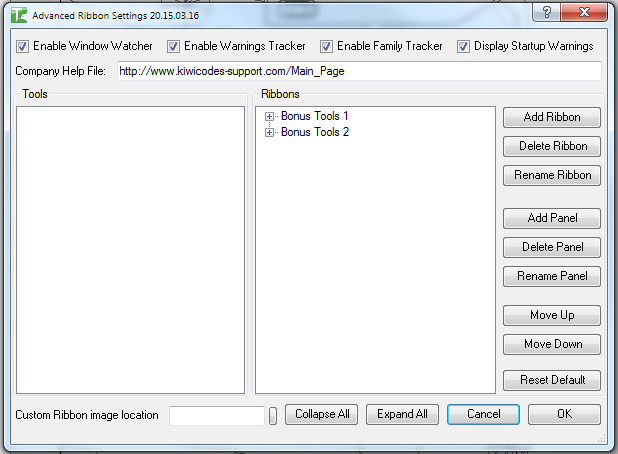
Once saved, the configured path is used for all users sharing the same Bonus Tools settings deployment.
Running the Tool
Launch
Find Help File on the Bonus Tools Ribbon or use 115 Search Tools.

Clicking the button immediately opens the configured help file in its default application. No dialog appears and Revit continues running in the background.
Tips and Best Practices
- Use a shared network path so updates to the document are immediately available to all users — no redistribution required.
- PDF format is recommended for company standards documents — PDFs open reliably across machines regardless of Office version.
- URLs work for intranet platforms. Confluence, SharePoint, and similar platforms are fully supported — point the field at the specific page URL.
- Tell your team the button exists. Many users are unaware of this shortcut and navigate to documentation manually. A brief mention in a team meeting removes the friction.
- For Bonus Tools documentation, use 055 Bonus Tools Help instead — tool 054 is specifically for your company's own internal documents.
Common Use Cases
Company BIM standards — Store the office BIM Execution Plan or Revit Standards Guide at a shared network location. Any team member opens it from the ribbon without leaving Revit or navigating a file system.
Project-specific documentation — Update the Ribbon Settings path at the start of each project to route users to the correct project brief or BEP. The button label stays the same; the destination changes.
Training materials — Link new starters to an onboarding guide. The Bonus Tools ribbon becomes the entry point to internal training documentation from day one.
Quick reference sheets — Point to a one-page PDF listing keyboard shortcuts, view template names, or shared parameter definitions that the team refers to regularly.
Troubleshooting
"Please see Ribbon Settings, General Tab, Company Help File to set." No help file path has been configured. Open Ribbon Settings → General Tab, enter the path or URL, and save. The button will work correctly on the next click.
File opens but shows an older version If the file is hosted on a network path and has been updated, the new version is loaded the next time the file is opened. If users have the document already open in an application, they will need to close and reopen it to see updates.
The file does not open (no error, no file) The configured path may point to a file that has been moved or renamed. Open Ribbon Settings → General Tab and verify the path is still valid and the file exists at that location.
Opens in the wrong application Windows opens the file using whichever application is registered as the default for that file type. To change the default, open Windows Settings → Apps → Default Apps and reassign the application for the relevant file extension.