
045 Renumber Parameter
Chris McKeown / July 1, 2025
Parameters
Overview
Renumber Parameter lets you click elements in the Revit view to assign them sequential values in a chosen parameter. Select a category, pick the parameter to renumber, set the starting value and increment, and optionally add a prefix and suffix. Then click elements one at a time in the canvas and the tool writes the next sequential value to each one. The Allow Cross Category Renumber option lets the same sequence span multiple categories.
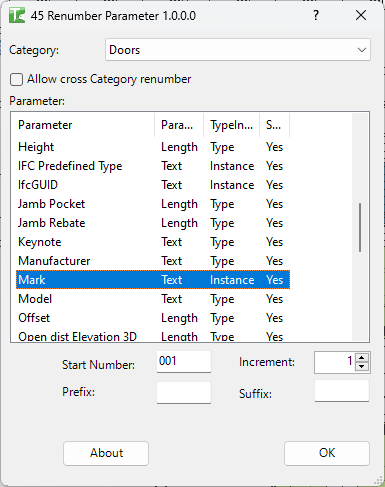
Table of Contents
Key Features
- Click-to-number workflow — after dismissing the dialog, click elements in the view to assign the next sequential value
- Any renumberable parameter — works with Text, Integer, Number, and Length parameters; read-only parameters are excluded
- Configurable sequence — set start value (default "001"), increment, prefix, and suffix
- Cross-category renumbering — the Allow Cross Category Renumber checkbox lets a single sequence span elements from different categories
- Last used parameter remembered — the tool saves the last selected parameter name per project so it pre-selects on reopening
- Parameter type columns — the parameter list shows Parameter name, ParameterType, TypeInstance (Instance or Type), and Shared status for easy identification
Requirements
- Project document (not available in the Family Editor)
- The active view must contain elements of the selected category
- Target parameter must not be read-only
- A valid Kiwi Codes Bonus Tools licence must be active
Running the Tool
Launch
Find Renumber Parameter on the Bonus Tools Ribbon or use 115 Search Tools.
Step 1 — Select a category
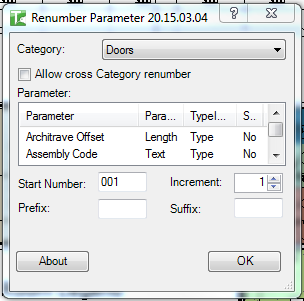
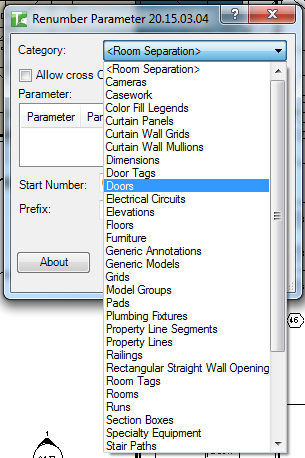
Choose a category from the Category dropdown. The dropdown is populated from elements present in the active view.
Optionally tick Allow cross Category renumber to allow the sequence to continue across categories when you click elements of different types.
Step 2 — Select a parameter
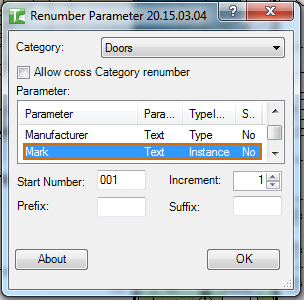
The Parameter list shows all renumberable parameters on elements in the selected category. Columns:
| Column | Description |
|---|---|
| Parameter | Parameter name |
| ParameterType | The parameter's storage type (Text, Integer, etc.) |
| TypeInstance | Whether the parameter is on the instance or type |
| Shared | Whether the parameter is a shared parameter |
Click a row to select the parameter to renumber. The tool remembers the last selected parameter name for next time.
Prefix and Suffix fields are only enabled for Text-type parameters. For numeric parameter types (Integer, Number, Length), the value is written as a number without prefix or suffix.
Step 3 — Configure the sequence
| Field | Description |
|---|---|
| Start character | The first value to assign (e.g., "001", "100") |
| Increment | Amount to add for each successive click (default 1) |
| Prefix | Text prepended to the value (Text parameters only) |
| Suffix | Text appended to the value (Text parameters only) |
Step 4 — Click OK and number elements
Click OK. The dialog closes and you return to Revit in a selection mode. Click elements in the view one at a time in the order you want them numbered. Each click writes the next sequential value to the selected parameter.
Press Esc to exit the renumbering command.
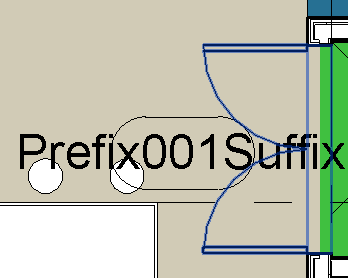
After clicking elements, their tag in the view updates immediately showing the assigned value with prefix and suffix:
Tips and Best Practices
- Plan your clicking route before starting. The sequence is assigned in the order you click, so decide the intended order (e.g., left to right, top to bottom) before clicking the first element.
- Use tags to see values update live. If the target parameter has a visible tag in the view, you can watch values appear as you click — a good real-time check.
- Use a leading-zero start value for consistent sorting. "001" sorts correctly in schedules; "1" can sort alphabetically (1, 10, 11… instead of 1, 2, 3…).
- Cross-category numbering is useful for combined element sequences. For example, if you want a single sequential number across both Doors and Windows, enable Allow Cross Category Renumber and click elements of both types in your desired order.
- Esc exits cleanly. You can stop renumbering at any point by pressing Esc without affecting elements already numbered.
- If you make a mistake, undo. Each click is a separate transaction — Ctrl+Z undoes only the last numbered element, allowing precise correction.
Common Use Cases
Numbering rooms or spaces in sequence — Select the Rooms category, choose the Number parameter, set Start to "1" and Increment to 1, then click rooms in your preferred order to assign sequential numbers.
Door mark assignment by position — Select Doors, choose the Mark parameter with a prefix like "D-", and click doors along a corridor in left-to-right order to produce marks D-001, D-002, D-003…
Numbering detail items or annotations — For complex details requiring numbered callout references, use Renumber Parameter on a shared text parameter to assign reference numbers by clicking annotations in reading order.
Spot-check renumbering after additions — When a new element is inserted into an existing sequence, use Renumber Parameter to reassign numbers from the insertion point onwards without manually editing each element.
Troubleshooting
"Must select a Parameter." No parameter is selected in the Parameter list. Click a row in the list before clicking OK.
"Please enter a integer." The Start character field contains a non-integer value when a numeric parameter type is selected. Enter a whole number (e.g., "1" or "100").
"No elements in the project of Category type: X" No elements of the selected category exist in the active view. Change the active view, switch to Entire Project scope, or verify the category exists in the project.
Prefix and Suffix fields are disabled The selected parameter is not a Text-type parameter. Prefix and Suffix are only available for Text parameters. For numeric parameters, the tool writes the number directly.
Clicking an element does nothing The element may be read-only (e.g., linked model element, group member, or owned by another user in a workshared model). Gain ownership of elements in worksets, ungroup if necessary, and retry.