
041 Room Number to Doors and Windows
Chris McKeown / July 1, 2025
Parameters
Overview
Room Number to Doors and Windows sets the Mark parameter on door and window elements to the number of their associated room — either the From Room (the room the door/window leads from) or the To Room (the room it leads into). Optional prefix and suffix text can be added to each number, and a duplicate-detection option automatically appends a numeric (1, 2, 3…) or alphanumeric (A, B, C…) suffix when multiple doors or windows share the same room number.
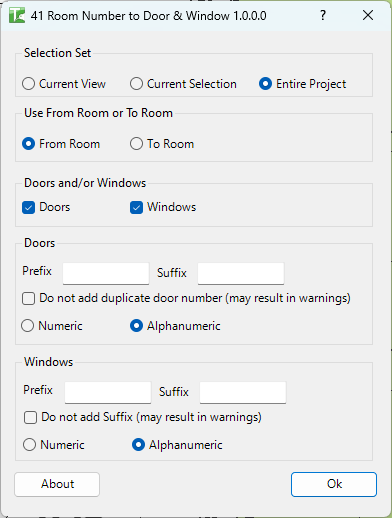
Table of Contents
Key Features
- From Room or To Room — choose which side of the door/window provides the room number
- Doors and/or Windows — process either element type independently or both together
- Prefix and Suffix — add a fixed text prefix and/or suffix to the room number when writing the Mark
- Duplicate detection — automatically appends a suffix when multiple openings share a room number, avoiding Revit Mark duplication warnings
- Numeric or Alphanumeric suffix — duplicate counter can be 1, 2, 3 (numeric) or A, B, C (alphanumeric)
- Selection Set scope — operate on Current View, Current Selection, or Entire Project
- Fallback logic — if From Room is null, the tool automatically falls back to To Room
Requirements
- Project document (not available in the Family Editor)
- Doors and/or windows must be placed and bounded by rooms
- Rooms must be placed and have numbers assigned
- A valid Kiwi Codes Bonus Tools licence must be active
Running the Tool
Launch
Find Room Number to Doors and Windows on the Bonus Tools Ribbon or use 115 Search Tools.
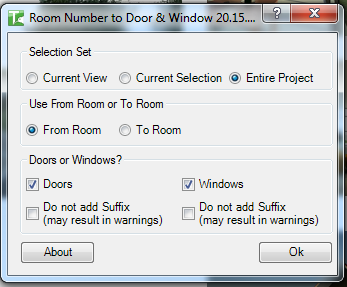
Step 1 — Choose Selection Set
| Option | Elements included |
|---|---|
| Current View | Doors/windows visible in the active view |
| Current Selection | Doors/windows currently selected in Revit |
| Entire Project | All doors/windows in the project |
Step 2 — Choose From Room or To Room
Select whether the room number is read from the From Room (the room the door leads away from) or the To Room (the room the door leads into).
If the selected source room is null for a door or window, the tool automatically falls back to the other room. If neither room is found, that element is counted as failed.
Step 3 — Select Element Types and configure settings
Tick Doors, Windows, or both to control which element types are processed.

Step 4 — Configure Doors settings
In the Doors group:
| Field | Description |
|---|---|
| Prefix | Text prepended to the room number in the Mark value |
| Suffix | Text appended to the room number in the Mark value |
| Do not add duplicate door number | When checked, skips elements whose Mark already contains the room number — prevents duplicate warnings but may result in unchanged elements if marks were set previously |
| Numeric / Alphanumeric | Controls whether the duplicate-detection suffix is 1, 2, 3 or A, B, C |
Step 5 — Configure Windows settings
The Windows group has the same structure as the Doors group — Prefix, Suffix, duplicate detection checkbox, and Numeric/Alphanumeric radio buttons.
Step 6 — Run
Click OK. The tool runs two transactions (one for doors, one for windows if both are selected).
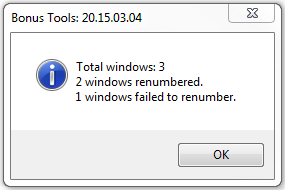
A results summary appears for each element type:
Total doors: X Y doors renumbered. Z doors skipped. W doors failed to renumber.
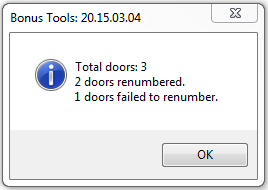
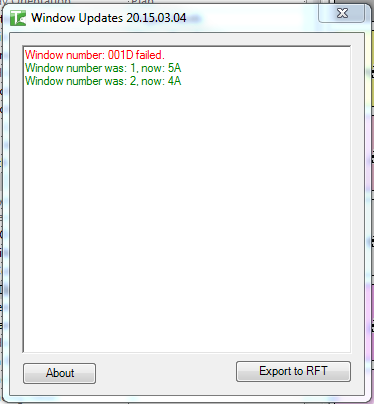
A detail log then shows the before/after value for each element:
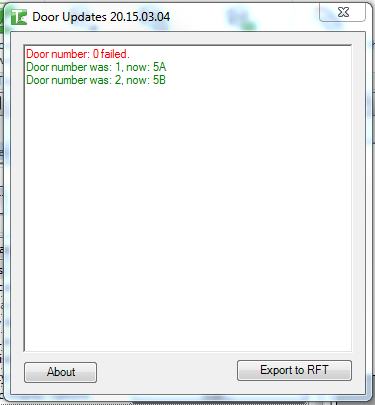
If Windows was also enabled, an equivalent summary and detail log follow:
Tips and Best Practices
- Use Numeric suffix for most projects. Alphanumeric suffixes (A, B, C) are preferred when numbering conventions require letter-based identifiers, but numeric is simpler for most annotation tags.
- Verify room placement before running. Doors not bounded by a room on either side will fail with "No From or To Room found." Ensure rooms are correctly placed and bounded.
- Run on Current Selection to test first. Select a handful of doors in a single room and verify the output before running across the Entire Project.
- Check the Revit output panel. Each failed door/window is logged with its Mark value and failure reason, making it easy to identify unbounded elements.
- Use Prefix/Suffix to match door schedules. If your office standard requires marks like "R01-01", set the Prefix to "R" and let the room number and duplicate suffix fill in the rest.
- Undo is available. The tool runs as two separate Revit transactions ("Number Doors", "Number Windows"). Use Ctrl+Z twice to undo both.
Common Use Cases
Numbering doors to match rooms on a floor plan — Run across the Entire Project with From Room selected to stamp all doors with their room number, ensuring the door mark matches the room schedule.
Renaming doors after room renumbering — When room numbers change during a project, re-run the tool to propagate the updated room numbers to all associated doors in one pass.
Handling multiple doors per room — Enable the duplicate detection checkbox and select Alphanumeric to produce marks like "101A", "101B" for multiple doors opening into room 101.
Windows with independent numbering — Use the Windows group independently from Doors, adding a "W-" prefix to distinguish window marks from door marks in schedules.
Troubleshooting
"Door number: X failed. No From or To Room found." The door or window has no associated room on either side. In Revit, open a floor plan view and verify that room bounding elements fully enclose the space adjacent to the door/window. Rooms must be placed and not deleted.
Elements skipped but not failed The "Do not add duplicate door number" checkbox is enabled and the door's Mark already contains the room number. Uncheck the option and re-run if you need to force an update.
Doors updated but windows unchanged The Windows checkbox was not ticked. Re-run with Windows enabled.
Tool runs but Mark values look wrong Check the From Room / To Room selection. If From Room is null for some doors, those fall back to To Room — switching the radio button may produce the expected result.
"W doors failed to renumber." count is unexpectedly high In a workshared model, doors owned by other users cannot be edited. Gain ownership of the affected elements via Worksets or Editing Requests and retry.