
038 View Duplication
Chris McKeown / July 1, 2025
Sheet & View Manipulation
Overview
View Duplication lets you batch-create Revit views using three distinct strategies — duplicating existing views, generating fresh plan views for selected levels, or replicating an entire set of dependent views from one parent view onto multiple other parents. All three modes support optional view template assignment, custom naming via a View Namer sub-dialog, and a progress bar with cancel support.
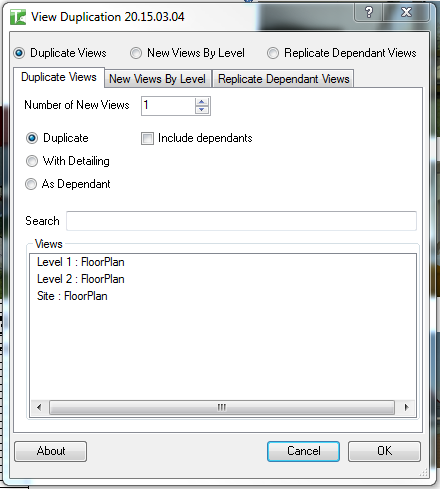
Table of Contents
Key Features
- Three duplication modes selectable via radio buttons: Duplicate Views, Views By Level, and Replicate Dependant Views
- Duplicate Views — copy any number of existing views using Revit's Duplicate, Duplicate With Detailing, or As Dependant options; set how many copies to create per view
- Include Dependants checkbox copies dependent views with their crop boxes and all view parameters intact
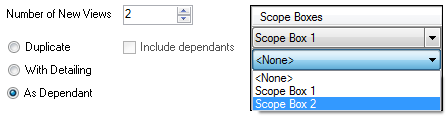
- Scope Box assignment at duplication time — single scope box for Duplicate/With Detailing, per-copy scope boxes for As Dependant mode
- Views By Level — generate brand-new plan views (Floor Plan, Ceiling Plan, Structural Plan, etc.) for any selection of project levels with one click
- Replicate Dependant Views — copies every dependent view from a chosen source view onto each selected target view, preserving crop boxes and all view parameters
- Recreate Sheets option in Replicate mode recreates sheets with the original title block, sheet number, viewport placement, and any schedule instances
- View Template assignment available in all three modes
- View Namer sub-dialog builds custom name patterns from text fields and live view parameters, with a real-time preview
- Search filter in each tab to quickly narrow long view or level lists
- Progress bar with cancel button for large batches
- Settings (view type, parameter selection) are persisted per document
Requirements
- Must be run in a project document — not available in the Family Editor
- No active view restriction — the dialog can be launched from any context
- Duplicate Views and Replicate Dependant Views modes require plan-type views to be present in the project (Sections, Elevations, Schedules, Sheets, and 3D views are excluded from the lists)
- Views By Level requires at least one Level and one compatible ViewFamilyType (plan views only — Detail, Section, Elevation, Schedule, Sheet, 3D, Walkthrough, and Legend types are excluded)
- Replicate Dependant Views source dropdown only shows views that already have dependent views
- Scope box assignment requires scope boxes to exist in the project
Running the Tool
Launch
Find View Duplication on the Bonus Tools Ribbon or use 115 Search Tools.
The dialog opens on the Duplicate Views tab by default. Select the mode you need using the radio buttons at the top.
Step 1 — Choose a Mode
Three radio buttons at the top of the dialog control which tab is active:

| Mode | What it does |
|---|---|
| Duplicate Views | Copies selected existing views using Revit's standard duplicate options |
| Views By Level | Creates new plan views associated with selected project levels |
| Replicate Dependant Views | Copies all dependent views from a source view onto multiple target views |
Each radio button enables its corresponding tab and disables the others.
Mode A — Duplicate Views
Step A1 — Set Number of Copies
Use the Number of new Views spinner to set how many copies to create per selected view.

The default is 1. Increase this to create multiple copies of each selected view in one operation.
Step A2 — Choose the Duplication Type
Select one of three radio buttons to control how Revit duplicates each view:
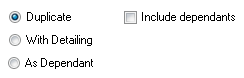
| Option | Behaviour |
|---|---|
| Duplicate | Creates a clean copy with no annotation elements |
| With Detailing | Copies all annotation and detail elements as well |
| As Dependant | Creates a child view dependent on the source; scope boxes are assigned per copy |
Include dependants — when checked alongside Duplicate or With Detailing, the tool also creates a dependent copy for each existing dependent view, preserving its crop box and all view parameters.
When As Dependant is selected, a Scope Boxes grid replaces the single scope box dropdown, allowing a different scope box to be assigned to each copy.
Step A3 — Optional: Assign a View Template
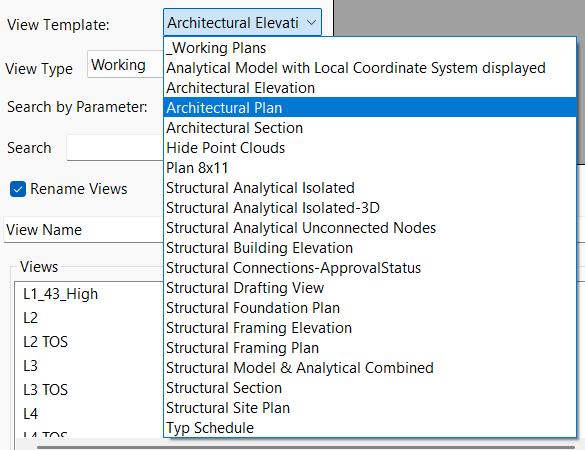
Check Select a View Template to enable the View Template dropdown. The selected template is applied to every newly created view (and its dependants if applicable).
Step A4 — Select Views to Duplicate
Three controls work together to populate the Views list.
View Type filters the list to a specific ViewFamilyType (e.g. "Working", "Floor Plan", "Ceiling Plan"). Only view types present in the project appear. Changing this selection immediately refreshes the list and updates the Search by Parameter options to match the selected type.
Search by Parameter controls which view parameter is used to filter the list when you type in the Search box. Defaults to View Name. Switch to any other parameter — for example a custom discipline or zone parameter — to build a list scoped to that value.
Search filters the view list in real time as you type. The filter applies against whichever parameter is selected in Search by Parameter.

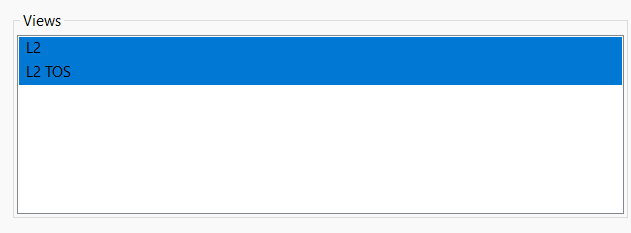
Select one or more views from the resulting list. Use standard multi-select (Ctrl+click / Shift+click).
Step A5 — Optional: Rename Duplicated Views
Check Rename Views and click View Name to open the View Namer sub-dialog.

View Namer dialog
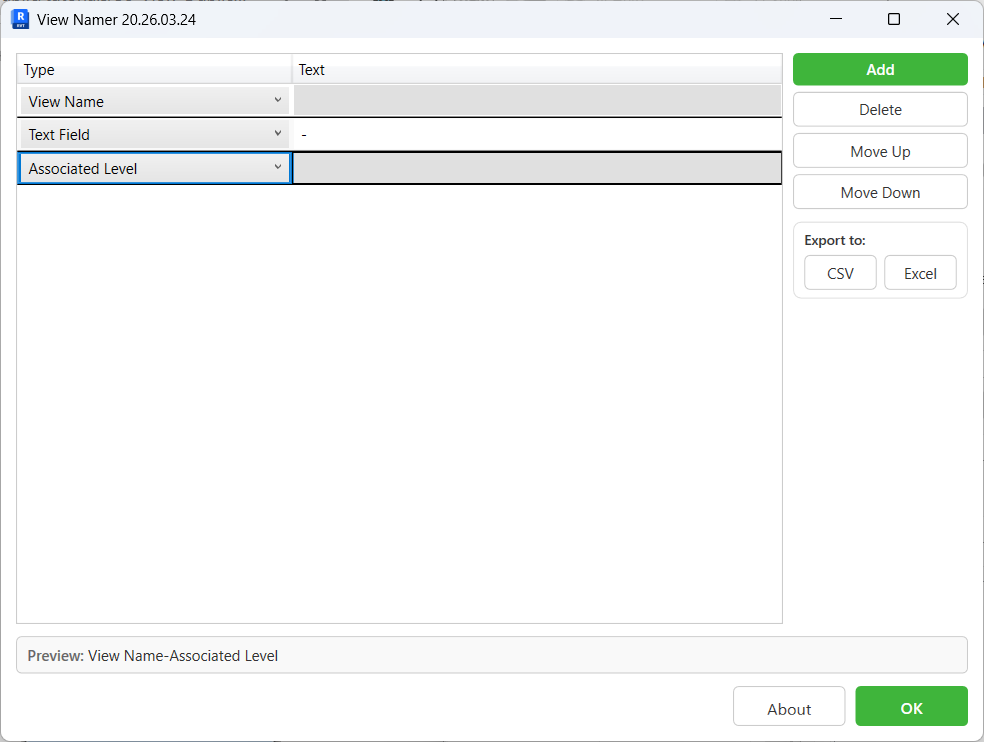
The dialog builds a name by concatenating one or more rows in order. Each row has two columns:
| Column | Description |
|---|---|
| Type | A dropdown listing Text Field first, then every parameter found on views in the project (sorted A–Z). Select Text Field to enter literal text; select any parameter name to insert that parameter's value at runtime. |
| Text | Editable when Type is Text Field — type any fixed string (e.g. a separator like - or _, a prefix, a discipline code). Greyed out and read-only when a view parameter is selected, because the value is resolved from the actual view at creation time. |
Row management buttons (right-hand panel):
| Button | Action |
|---|---|
| Add | Appends a new row defaulting to Text Field |
| Delete | Removes the currently selected row |
| Move Up / Move Down | Reorders the selected row one position |
| CSV / Excel | Exports the current row definitions to a CSV or Excel file |
Preview bar at the bottom assembles all rows in real time — Text Field rows show their literal text, parameter rows show the parameter name as a placeholder. The actual parameter value is substituted when each view is renamed after creation.
Click OK to confirm. The text box directly below the Rename Views checkbox updates to show the assembled pattern (e.g. View Name-Associated Level). This is a display field — it reflects the active naming definition and cannot be edited directly. The pattern is applied to every new view on creation.
The name definition is saved to the document and restored the next time you open the dialog.
Step A6 — Run
Click OK. A progress bar tracks each view as it is created. Click Cancel in the progress bar to stop mid-batch (views already created are kept).
A summary message reports how many views were created and how many failed.
Mode B — Views By Level
Switch to this mode by selecting the Views By Level radio button.
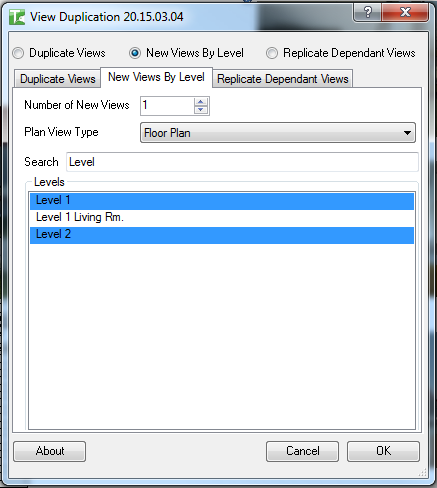
Step B1 — Set Number of New Views
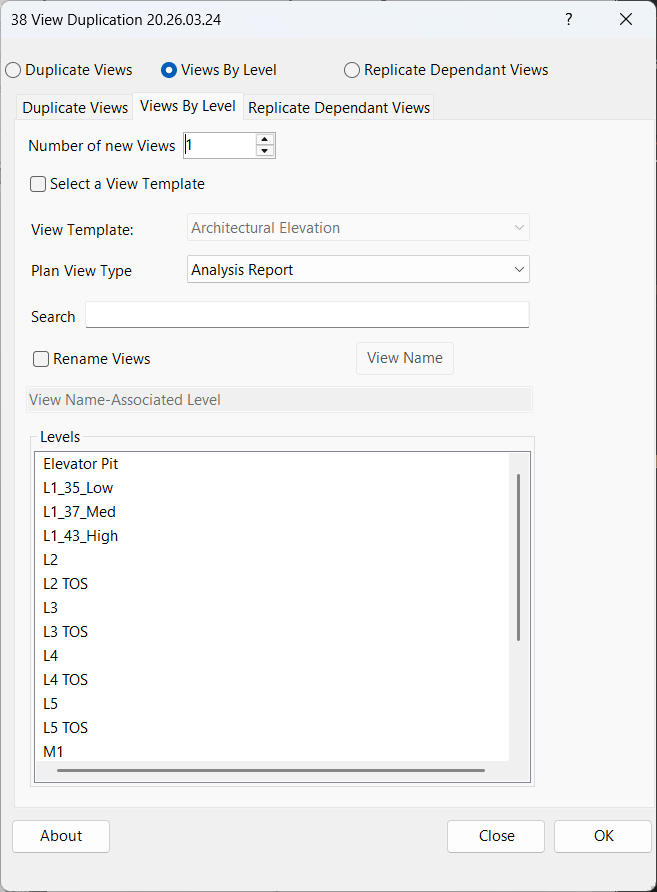
Use the Number of New Views spinner to set how many plan views to create per level.

Step B3 — Optional: Assign a View Template
Check Select a View Template to enable the View Template dropdown and assign a template to every created view.

Step B4 — Choose the Plan View Type
Select the type of plan view to create from the Plan View Type dropdown. Options are drawn from the ViewFamilyTypes present in your project (plan families only).

Common options: Floor Plan, Ceiling Plan, Structural Plan.
Step B5 — Select Levels
Type in the Search box to filter the level list. Select one or more levels to create views for.
Step B6 — Optional: Rename Duplicated Views
As per Step A5
Step B5 — Run
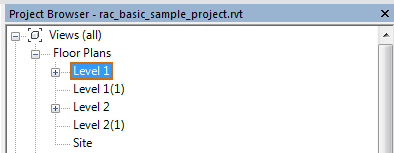
Click OK. New plan views are created in the Project Browser under each selected level.
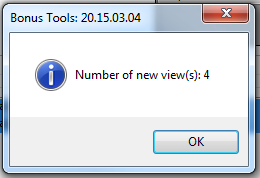
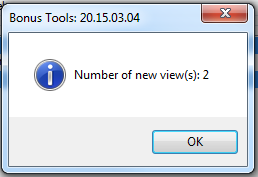
A summary message reports the number of views created.
Mode C — Replicate Dependant Views
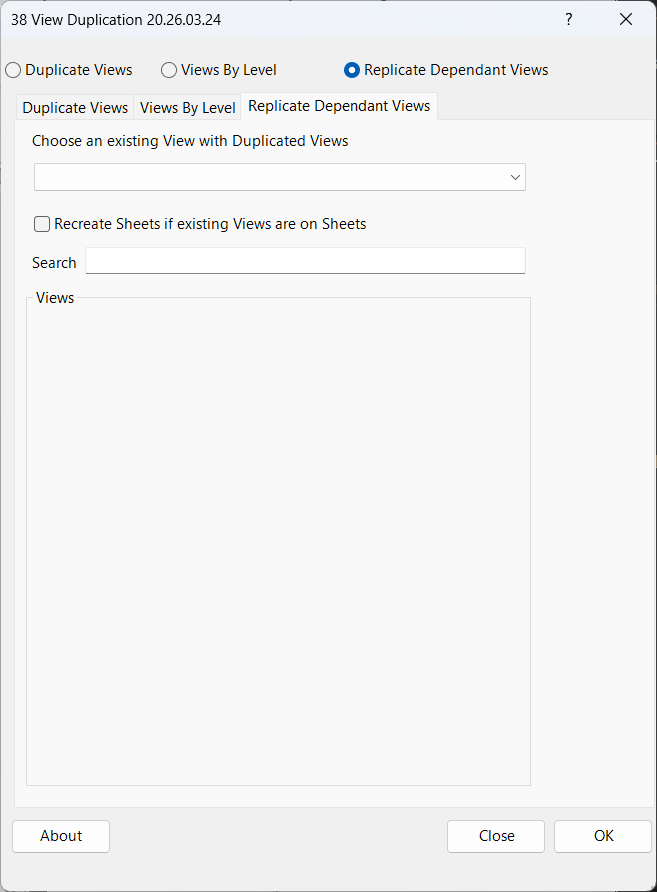
Switch to this mode by selecting the Replicate Dependant Views radio button. This mode copies every dependent view from one source parent view onto each selected target parent view.
Step C1 — Choose the Source View
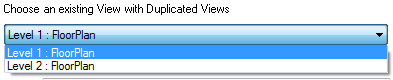
Select the view whose dependent views you want to replicate from the Choose an existing View with Duplicated Views dropdown. Only views that already have at least one dependent view appear here.
Step C2 — Optional: Recreate Sheets
Check Recreate Sheets if existing Views are on Sheets to have the tool also create a matching sheet for each new dependent view. The new sheet inherits:
- The same title block type as the source sheet
- All sheet parameters (except Sheet Number and Sheet Name, which are derived from the source dependent view name)
- Title block placement position
- Viewport placement (matched to the source sheet)
- Any schedule sheet instances

Step C3 — Select Target Views
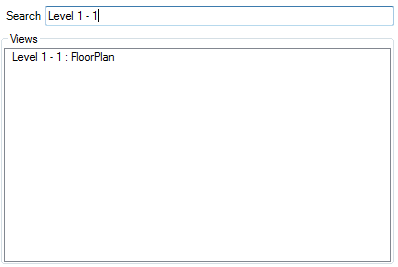
Use the Search box to filter the view list. Select one or more target views. For each selected view, the tool will create a full copy of all dependent views from the source view.
Step C4 — Run
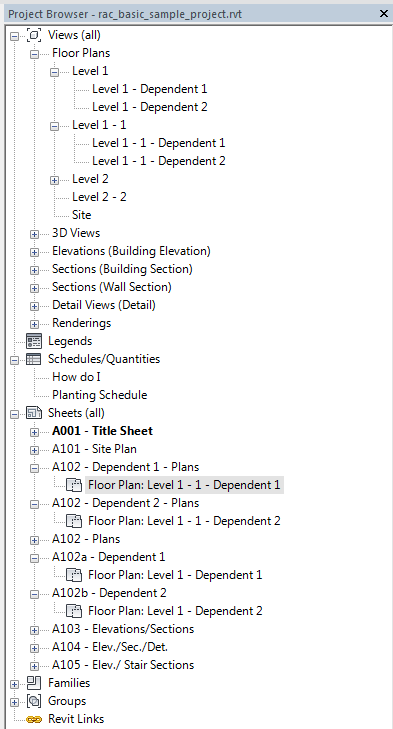
Click OK. The tool creates the dependent views and (if checked) their sheets. All view parameters are copied from the source dependent views, and crop boxes are preserved.
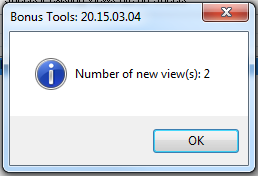
A summary message reports the total number of new views created.
Tips and Best Practices
- Use View Type and Search together in Duplicate Views mode to precisely target a subset of views — for example, filter to "Floor Plan" type and search for a prefix to select only the views you need.
- Set up naming patterns before duplicating. Opening the View Namer sub-dialog first and building a pattern using parameter tokens (Level Name, View Name, etc.) means new views arrive with correct names instead of Revit's default "Copy of…" suffix.
- As Dependant + Scope Boxes is ideal for tiling large floor plans. Create the parent view once, set the number of copies equal to the number of scope boxes, and assign each scope box to a copy in the grid — all in one run.
- Include dependants preserves crop boxes. When duplicating a parent view that already has dependants, checking this option ensures the new dependants inherit the exact crop region of their source counterparts, saving manual repositioning.
- Replicate Dependant Views is the fastest way to roll out a new level. If Level 1 already has a complete set of annotated dependent views and sheets, selecting it as the source and all other levels as targets recreates the full sheet set in seconds.
- Recreate Sheets copies schedule instances. Any revision schedule or key plan placed on the source sheet is automatically placed on the new sheet at the same position.
- Cancel mid-batch is safe. Views already created before Cancel is pressed are kept — the operation is not rolled back. This is useful for large batches where you want to stop early.
- View template assignment happens at creation time. If the template you want doesn't exist yet, create it in Revit before launching View Duplication.
Common Use Cases
Quickly duplicating a working view set for a new design option — Select all relevant floor plan views in the Duplicate Views tab, set the count to 1, choose Duplicate or With Detailing, apply a "Design Option" view template, and rename using a pattern that appends the option name. All views arrive ready for use without manual renaming.
Generating a full set of floor plan views for a new project — Switch to Views By Level, select all levels, choose Floor Plan as the type, set count to 1, and apply your office standard view template. A correctly structured view set is created in seconds.
Rolling out a new level to match an existing annotated level — In Replicate Dependant Views mode, select the annotated level as the source and the new level as the target. Check Recreate Sheets to carry across the full sheet layout. The new level arrives with all dependent views, crop regions, view parameters, and sheets in place.
Creating As Dependant views for large floor plans split by scope box — Use Duplicate Views in As Dependant mode. Set the count to match the number of scope boxes. The Scope Boxes grid appears with a row per copy — assign each scope box and run. The parent view gets the correct number of pre-cropped dependent views immediately.
Duplicating a view multiple times for different disciplines — Select the view, set Number of new Views to 3, choose With Detailing to preserve annotation, apply discipline-specific view templates via the View Template option. Rename with a pattern that includes a discipline text field token.
Troubleshooting
"Action not available in the Family Environment" View Duplication cannot run when a Family file is open. Switch to a project document and try again.
Source dropdown in Replicate Dependant Views is empty No views in the project have dependent views yet. Create at least one dependent view on a parent before using this mode.
Views By Level list is empty The project contains no levels, or all available plan ViewFamilyTypes have been filtered out. Verify that levels exist and that at least one plan-type ViewFamilyType is present in the project.
Plan View Type dropdown is empty or the tab controls are hidden The project contains no plan-type ViewFamilyTypes (Floor Plan, Ceiling Plan, Structural Plan, etc.). Views By Level requires at least one compatible type to be present.
New views created with "Copy of…" names The Rename Views checkbox was not checked, or the View Namer definition was empty. Enable Rename Views and configure a naming pattern using the View Namer sub-dialog before running.
Scope box not applied to new views The scope box selected in the dropdown does not exist in the project, or the scope box name changed since the dialog was opened. Reopen the dialog and reselect the scope box from the refreshed list.
Recreate Sheets creates sheets but viewports are not placed The source dependent view is not placed on any sheet, or the source sheet has no title block. The tool requires both a sheet and a placed title block on the source to replicate the sheet layout.
Some views in the batch failed (failed count > 0 in summary) Individual view creation can fail if the view name conflicts with an existing view and auto-renaming is not enabled, or if a view template is incompatible with the duplicated view type. Check the Revit journal for detail on specific failures.