
033c Excel Tools Import from Excel
Chris McKeown / July 1, 2025
Excel Tools
Overview
Import from Excel reads a workbook previously exported by 033a Export Category to Excel or 033b Export Schedule to Excel and pushes the edited parameter values back into the corresponding Revit elements. Each row in the spreadsheet is matched to a Revit element by the Element ID in column A, and each column's parameter is identified using the metadata stored in the header rows. The Output log shows a pass/fail status for every parameter write so you can identify any values that could not be applied.
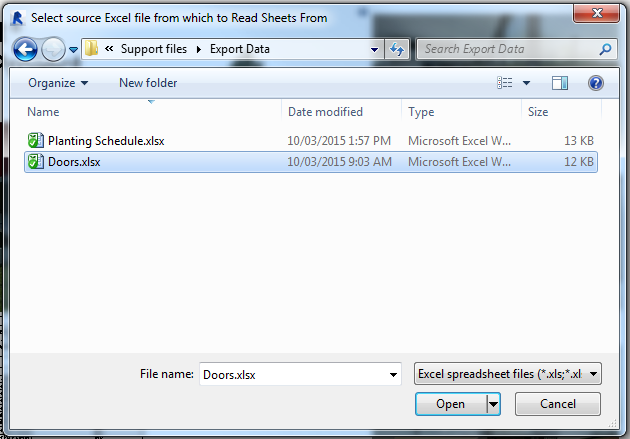
Table of Contents
Key Features
- Reads any Excel file exported by Export Category or Export Schedule
- Matches elements by Element ID (column A) — no manual mapping required
- Identifies parameters using the five-row header metadata (name, type, instance/type, ID)
- Supports Family and Type column — can swap an element to a different type by matching family and type name
- Skips rows with a
Linked:prefix in column A (linked elements cannot be modified) - Progress bar with Cancel button; rolling back all changes on cancel
- Output log records each parameter write with green (pass) or red (fail) status
- Reports total elements updated on completion
Requirements
- The Excel file must have been exported by 033a Export Category to Excel or 033b Export Schedule to Excel — the five-row header structure must be intact
- The Element IDs in column A must match elements in the current project — IDs from a different project or a previously deleted element will be skipped
- Parameters that are read-only (beige cells) cannot be written and will report failure
- Must be run in a project document (not a Family document)
- A valid Kiwi Codes Bonus Tools licence must be active
Running the Tool
Launch
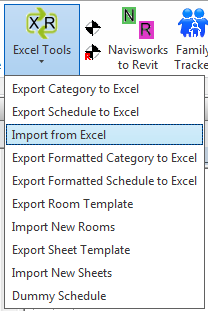
Find Import from Excel on the Bonus Tools Ribbon under the Excel Tools dropdown, or use 115 Search Tools.
Step 1 — Select the Excel file
An Open File dialog appears. Navigate to and select the Excel file exported by Export Category or Export Schedule.
The tool reads the first worksheet in the workbook. If the file has multiple sheets, only the first sheet is processed.
Step 2 — Monitor progress
A progress bar shows how many rows have been processed. The Output log (dockable panel) streams results in real time:
- Green — parameter written successfully
- Red — parameter write failed (read-only, formula, count, or group parameter; or element not found)
- Light Blue — row skipped because the element is from a linked file
Click Cancel at any time to stop and roll back all changes — the transaction is reverted and no elements are modified.
Step 3 — Review the results
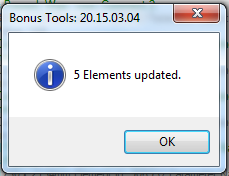
When complete, a message reports the total number of elements updated. Check the Output log for any red entries to understand which parameter writes failed and why.
Understanding the Excel format
The tool expects this exact structure:
| Row | Content |
|---|---|
| 1 | Category or schedule name |
| 2 | Parameter names |
| 3 | Parameter value types |
| 4 | Instance or Type designation |
| 5 | Parameter IDs (GUID or built-in ID) |
| 6+ | Data rows — column A = Element ID |
Do not:
- Delete or modify rows 1–5
- Delete column A (Element ID)
- Add new rows above row 6
- Reorder columns (column order is defined by header row 5)
Family and Type column
If the Export was run with Include Family and Type enabled, the spreadsheet contains a "Family and Type" column. Changing the value in this column during import will attempt to swap the element to the specified type.
The expected format is FamilyName:TypeName (e.g. Single-Flush:36" x 84"). If only the type name is provided (no colon), the tool searches for a type with that name across all families in the same category.
If the specified Family and Type combination is not found in the project, the swap is skipped and reported as failed in the Output log.
Tips and Best Practices
- Keep the Element ID column intact. The entire import depends on column A containing valid Element IDs. Do not sort, filter, or delete rows in a way that moves or removes IDs.
- Edit only the editable cells. Beige (read-only) and Indian Red (ID) cells cannot be imported. Focus edits on the Light Grey editable cells.
- Use the Output log to identify failures. Failed writes are shown in red. Common causes: the parameter is a formula or calculated value, a group parameter, or the element no longer exists in the project.
- Test on a small selection first. Before importing a large file, export and reimport a small selection to verify the round-trip works as expected.
- Do not open the Excel file in Excel while importing. If the file is open and locked by Excel, the tool may fail to read it. Close the file before running Import from Excel.
- Linked elements are skipped. Rows with
Linked:in column A are automatically skipped — you cannot write to elements in linked files.
Common Use Cases
Completing the export→edit→import round-trip — Export Doors, send the spreadsheet to a project manager to fill in hardware and fire rating data, then import the returned file to update all doors in one pass.
Bulk type reassignment — Export with Family and Type enabled, update the Family and Type column for multiple elements to different types, and reimport to swap them all at once.
Updating room data after planning review — Export Rooms, adjust Room Names and Departments after a planning review in Excel, and reimport to update the model.
Restoring a parameter snapshot — Export a schedule as a backup, make experimental changes in Revit, and if needed, reimport the backup spreadsheet to restore the original parameter values.
Troubleshooting
"Action not available in the Family environment." The tool was launched while a Family document was active. Close the Family Editor and run from within a project document.
"Row X contains an error. Not Processed. Please check excel format." Row X could not be parsed. Check that the header rows (1–5) are intact and that the Element ID in column A for that row is a valid integer.
"Element: [name] Parameter Name: [param] Failed. Either, a Count, Formula or Group Parameter." The parameter is a formula, count, or group parameter that cannot be set via the API. This is expected for calculated fields — no action needed.
"Element swap Failed. Selected family not found: [value]"
The Family and Type value in the spreadsheet does not match any loaded family type in the project. Verify that the family is loaded and that the format is FamilyName:TypeName.
"[count] Elements updated." shows 0 The Element IDs in the file do not match any elements in the current project. This typically happens when the file was exported from a different project or the elements have been deleted. Re-export from the current project and reimport.
Import completes but parameter values haven't changed in Revit Check the Output log for red entries on those parameters. Read-only parameters (shown as beige in the export) cannot be changed. Formula parameters also cannot be set. These failures are logged but do not stop the import.