
033i Excel Tools Import New Sheets
Chris McKeown / July 1, 2025
Excel Tools
Overview
Import New Sheets reads an Excel file formatted by 033h Export Sheet Template and creates a new Revit ViewSheet for each data row. The title block is selected by matching the Family Name and Family Type columns to loaded title block families. All sheet parameters (Sheet Number, Sheet Name, Drawn By, and any custom parameters) are applied from the corresponding columns. Duplicate sheet numbers are handled automatically. After import, the new sheets appear in the Project Browser ready for viewports to be placed.
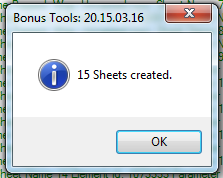
Table of Contents
Key Features
- Creates new Revit sheets — does not modify existing sheets
- Matches Family Name and Family Type columns to select the title block for each sheet
- Falls back to the first available title block if Family Name and Family Type are blank or not matched
- Applies all non-empty column values to sheet parameters by matching column header to parameter name
- Sheet Number conflicts are handled automatically via duplicate checking
- Progress bar with Cancel button
- Confirms the number of sheets created on completion
Requirements
- The Excel file must be formatted using 033h Export Sheet Template — row 1 must be parameter names, data from row 3 onwards
- The project must contain at least one Title Block family loaded
- Must be run in a project document (not a Family document)
- A valid Kiwi Codes Bonus Tools licence must be active
Running the Tool
Launch
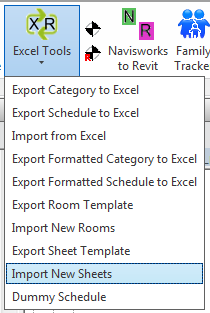
Find Import New Sheets on the Bonus Tools Ribbon under the Excel Tools dropdown, or use 115 Search Tools.
Step 1 — Select the Excel file
An Open File dialog appears. Navigate to and select the Excel file populated with sheet data.
The tool reads the first worksheet of the workbook. Row 1 is the parameter name header. Data begins at row 3.
Step 2 — Monitor progress
A progress bar tracks sheet creation. Each sheet is created in its own transaction so a failure on one row does not affect the others. Click Cancel to stop — sheets already created remain in the project.
Step 3 — Review results
A message confirms the number of sheets created (e.g. "15 Sheets created."). The new sheets appear in the Project Browser. Check the Output log for any parameter write failures.
Tips and Best Practices
- Verify title block names before importing. Family Name and Family Type must match the title block family and type exactly as loaded in the project (case-sensitive). Use the Type Properties dialog in Revit to check names.
- Blank Family Name/Type uses the first title block. If you want all sheets to use the default title block, you can leave these columns blank — the tool picks the first title block in the project.
- Duplicate sheet numbers are handled, not blocked. If a sheet number already exists, the tool generates a unique number. Verify all sheet numbers after import and rename as needed.
- Each sheet is a separate transaction. A failure on one row does not roll back other sheets. Sheets successfully created before a failure remain in the project.
- Empty parameter cells are skipped. Only non-empty data cells are applied. Leave Sheet Number blank to let Revit assign a default number, then rename after import.
- Import creates, not updates. To update parameters on existing sheets, use 033c Import from Excel after exporting the existing sheets via 033b Export Schedule to Excel.
Common Use Cases
Full drawing register setup — Import all sheets for a new project from a master drawing register spreadsheet. Set sheet numbers, names, drawn-by, and title block types in Excel; have all sheets ready in Revit in one import.
Adding a consultant package — Add a set of sheets for a new discipline (e.g. services) without manually creating each one. Populate the template with the consultant's drawing numbers and import.
Phase 2 sheet addition — When a project moves to a new phase, prepare the next issue's drawing set in Excel and import to extend the Project Browser sheet list.
Troubleshooting
"Action not available in the Family environment." Close the Family Editor and run from within a project document.
"Error whilst running the tool. If the problem persists please contact chris@kiwicodes.com" An unexpected error occurred. Contact support at chris@kiwicodes.com with the Revit journal for detail.
Sheets created with wrong title block The Family Name and/or Family Type in the Excel file do not match the loaded title block. Check the exact family and type names in Revit (via Manage → Project Parameters or Properties) and update the Excel file.
Sheet number conflicts after import Duplicate sheet numbers are automatically adjusted. Rename the new sheets in the Project Browser to their intended numbers after import.
Parameters not applied to sheets The column header in row 1 does not match the Revit parameter name exactly. Re-export a fresh template with 033h Export Sheet Template and repopulate the data.
"0 Sheets created." All data rows were empty. Ensure data starts at row 3 and contains at least one non-empty cell per row.