
033h Excel Tools Export Sheet Template
Chris McKeown / July 1, 2025
Excel Tools
Overview
Export Sheet Template generates an Excel workbook with column headers matching all editable Sheet parameters from your project. The first two rows define parameter names and data types. Two fixed columns — Family Name and Family Type — let you specify which title block to use for each new sheet. Add your sheet data from row 3 onwards and then use 033i Import New Sheets to create all sheets in Revit in a single operation.
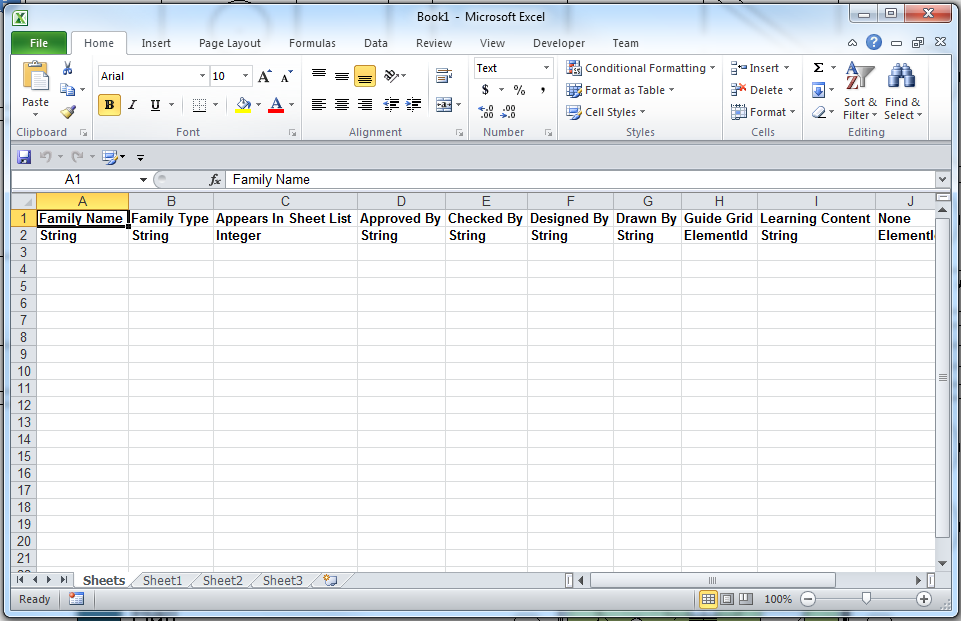
Table of Contents
Key Features
- Scans all ViewSheet elements and collects every non-read-only parameter
- Always includes Family Name and Family Type as the first two columns (for title block selection)
- Row 1: Parameter names — do not modify
- Row 2: Parameter data types — do not modify
- Data from row 3 onwards
- Parameters sorted alphabetically
- No dialog — runs immediately and prompts for a save location
Requirements
- The project must contain at least one ViewSheet (so sheet parameters can be discovered)
- Must be run in a project document (not a Family document)
- A valid Kiwi Codes Bonus Tools licence must be active
Running the Tool
Launch
Find Export Sheet Template on the Bonus Tools Ribbon under the Excel Tools dropdown, or use 115 Search Tools.
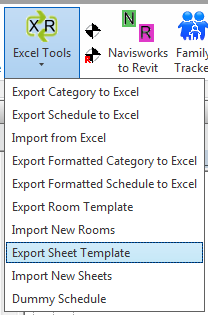
The tool runs immediately — a Save File dialog appears. Choose a location and filename.
Understanding the template structure
| Row | Content |
|---|---|
| 1 | Parameter names — do not delete or modify |
| 2 | Parameter data types — do not delete or modify |
| 3+ | Your new sheet data (one row per sheet) |
Column A — Family Name: The Revit family name of the title block to use (e.g. A1 Title Block). If left blank, the first available title block in the project is used.
Column B — Family Type: The type name within the title block family (e.g. A1). Used together with Family Name to select the exact title block. If left blank, falls back to the default title block.
Remaining columns correspond to Sheet parameters in alphabetical order: Sheet Number, Sheet Name, Drawn By, Checked By, and any custom parameters in the project.
Populating the template
- Open the generated Excel file
- Delete columns you do not need (keep row 1 and 2 headers for columns you keep)
- Add one row per new sheet from row 3 onwards, filling in parameter values
- Use Family Name and Family Type columns to specify the correct title block for each sheet
- Save the file
- Run 033i Import New Sheets to create the sheets in Revit
Tips and Best Practices
- Use Family Name and Family Type to control title block assignment. If your project has multiple title block sizes (A1, A3, etc.), populate these columns to assign each sheet the correct size.
- Do not delete or modify rows 1 and 2. Import New Sheets uses these rows to match columns to parameters. Changing headers will cause that column to be ignored.
- Sheet Number conflicts are handled automatically. Import New Sheets checks for existing sheet numbers and adjusts duplicates. However, it is good practice to pre-check your sheet numbers for conflicts before importing.
- The template is temporary. Re-export a fresh template if sheet parameters change in Revit.
- Match title block names exactly. Family Name and Family Type must match the loaded title block family and type name in Revit exactly (case-sensitive).
Common Use Cases
Bulk sheet setup for a new project — Export the template, populate all sheet numbers and names for the entire drawing register in Excel, and import to create all sheets at once.
Adding a drawing package — Prepare a new set of sheets (e.g. a structural package) in Excel with the correct title block, sheet numbers, and names, then import to add them to the project.
Drawing register from another system — Receive a drawing register in spreadsheet form, reformat to match the template structure, and import into Revit.
Troubleshooting
No file is generated The project may contain no ViewSheet elements. Add at least one sheet to the project before running the tool.
"Action not available in the Family environment." Close the Family Editor and run from within a project document.
Template has very few columns The project's sheets have few editable non-read-only parameters. Add shared or project parameters to the Sheet category in Revit to include them in the template.