
027 Update Referencing Sheets
Chris McKeown / July 1, 2025
Sheet & View Manipulation
Overview
Update Referencing Sheets fixes a known Revit behaviour where a Section or Elevation view references the wrong sheet — even after the callout has been hidden on all other sheets. The tool automates a manual workaround (toggling the view's Discipline parameter back and forth) so Revit recalculates the correct referencing sheet without you having to do it by hand. Run it once while the affected view is active and the reference is immediately corrected.
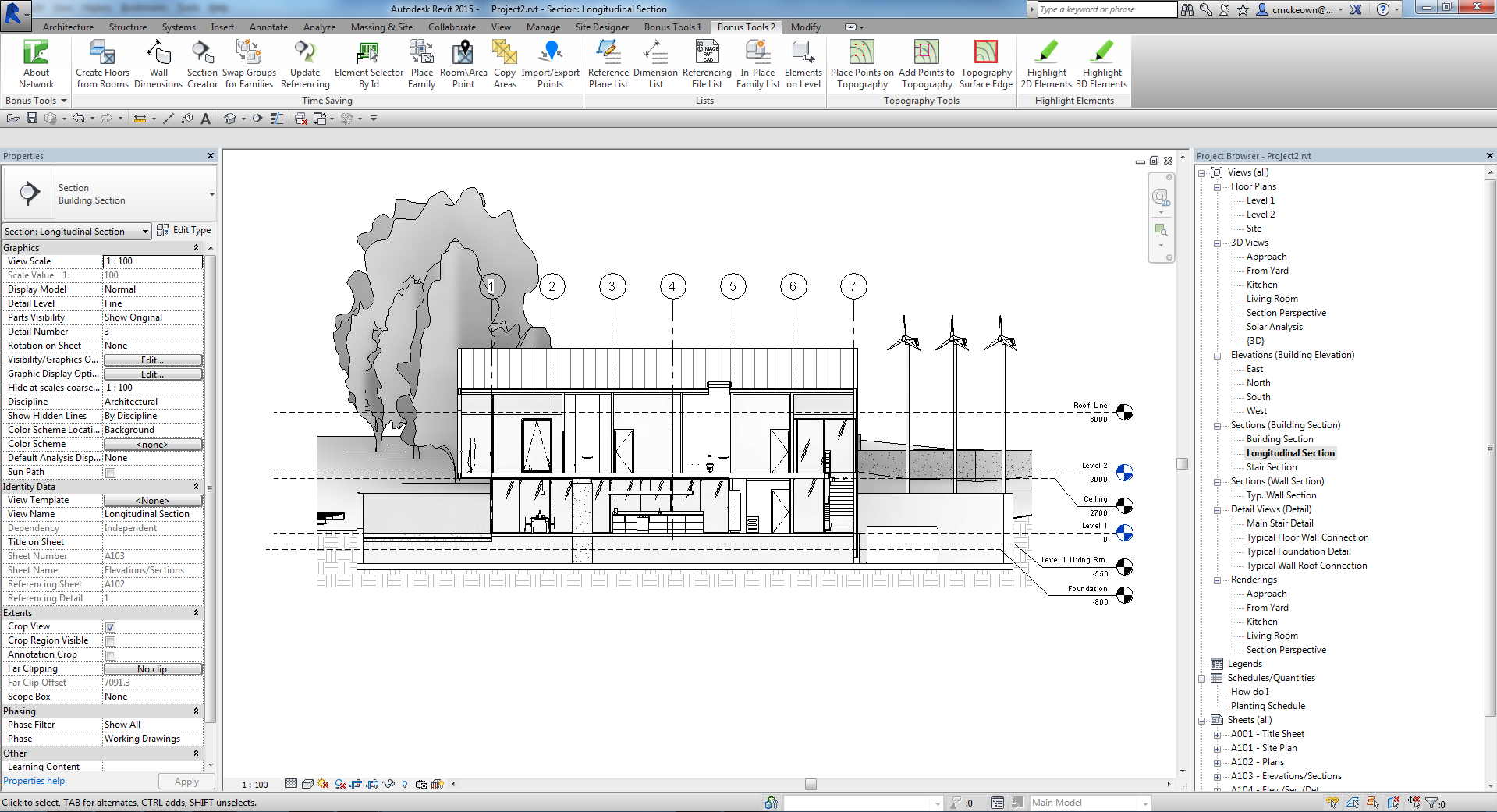
Table of Contents
Key Features
- One-click fix for incorrect sheet references on Section and Elevation views
- No dialog — the tool runs instantly and displays a confirmation when complete
- Automates the Revit discipline-toggle workaround so you never have to do it manually
- Safe to assign to a keyboard shortcut for rapid use across many views
- Blocked in the Family Editor — runs in project documents only
Requirements
- A Section or Elevation view must be the active view when the tool is launched
- Must be run inside a project document (not a Family document)
- A valid Kiwi Codes Bonus Tools licence must be active
Running the Tool
Launch
Open the Section or Elevation view that is showing the wrong sheet reference, then find Update Referencing Sheets on the Bonus Tools Ribbon or use 115 Search Tools.
Important: The active view must be the Section or Elevation view itself — not the sheet it is placed on. Open the view from the Project Browser before running the tool.
Step 1 — Open the affected Section or Elevation view
Navigate to the view that is showing the incorrect referencing sheet annotation. You can identify incorrect references by looking at the callout bubble on the sheet — it will display the wrong sheet number or be blank when it should show a sheet.
Open the view directly from the Project Browser (double-click) so it becomes the active view.
Step 2 — Run the tool
With the Section or Elevation view active, click Update Referencing Sheets on the Bonus Tools Ribbon.
The tool immediately:
- Reads the current Discipline parameter value of the active view
- Temporarily switches the Discipline to a different value
- Switches it back to the original value within a single transaction
This causes Revit to recalculate which sheet is the primary location for the view's callout, correcting the displayed sheet reference.
Step 3 — Confirm the fix
A message box appears: "View reference updated."
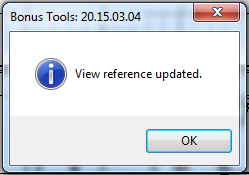
Return to the sheet where the callout appears. The sheet reference annotation on the callout bubble should now display the correct sheet number and name.
Tips and Best Practices
- Assign a keyboard shortcut. If you regularly encounter incorrect sheet references, assign this tool a shortcut key via Revit's Keyboard Shortcuts dialog. You can fix each view in seconds without reaching for the ribbon.
- Run from the view, not the sheet. The tool must be run while the affected Section or Elevation view is active. Running it from a sheet or a different view type will return an error and make no changes.
- Check the callout after running. Revit may not immediately refresh the callout annotation on screen. If the callout still shows the wrong reference, switch to another view and back to force a redraw, or close and reopen the affected sheet.
- This is a Revit quirk, not a data corruption issue. The root cause is Revit's internal reference tracking occasionally falling out of sync with the actual sheet placement. This tool realigns the tracking without modifying any geometry or sheet content.
- Repeat as needed. The tool can be run on the same view multiple times without any side effects. If the reference becomes incorrect again after a model update, simply run the tool again.
Common Use Cases
Section callout showing wrong sheet number — A section is placed on Sheet A1.01 but the callout bubble shows "A1.05". Open the section view, run Update Referencing Sheets, and the callout now correctly reads "A1.01".
Elevation reference blank or showing "?" — A room elevation was placed on a sheet but the callout shows no sheet reference. Open the elevation view, run the tool, and the correct sheet number appears on the callout.
After sheet reorganisation — When sheets are renumbered or views moved between sheets, some callout references can fall out of sync. Run the tool on each affected Section or Elevation view to restore correct references quickly.
Bulk correction workflow — For projects with many incorrect references, open each Section or Elevation view in turn and run the tool with a keyboard shortcut. Each fix takes under a second.
Troubleshooting
"Please run this command in the section view you wish to correct the reference for." The active view is not a Section or Elevation. Switch to the Project Browser, open the correct Section or Elevation view by double-clicking it, and run the tool again.
"Action not available in the Family environment." The tool was launched while a Family document was active. Close the Family Editor and run the tool from within a project document.
Reference still shows the wrong sheet after running the tool The callout annotation may not refresh immediately. Try closing and reopening the sheet, or switching to another view and back. If the problem persists, check that the view is placed on only one sheet — if it appears on multiple sheets, Revit may reference a different placement than expected.
Tool runs but the reference reverts after saving or syncing This can occur in workshared projects if another user simultaneously modifies the same view. Run the tool again after syncing with Central to reapply the correction.