
025 Add Points to Topography
Chris McKeown / July 1, 2025
Topography Tools
Overview
Add Points to Topography reads the exact X, Y and Z coordinates of each selected family instance and inserts them as interior mesh points directly into a Revit TopographySurface or Toposolid. Unlike tool 24 (Place Points on Topography), which also re-hosts the families on the surface, this tool focuses on baking point elevations into the topography mesh — ideal when you need the surface to follow specific elevations defined by a family-based point cloud. After processing, you can optionally remove the original family instances to leave a clean topography.
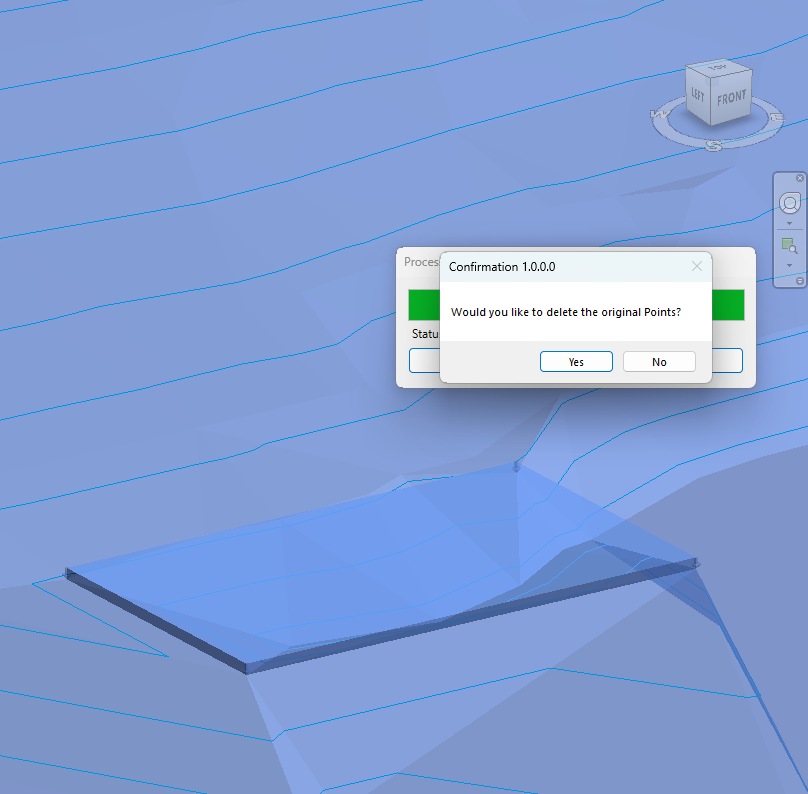
Table of Contents
Key Features
- Adds the X, Y and Z location of each selected family instance as a hard interior point in the topography mesh
- Supports both TopographySurface (Revit 2024 and earlier) and Toposolid (Revit 2025+)
- Only processes unhosted family instances (HOST_ID = -1) — already-hosted families are skipped automatically
- Skips families in the Topography category to prevent double-processing of native topography point families
- Displays a live progress bar with a cancel button so large point sets can be interrupted cleanly, with full rollback on cancel
- After processing, a confirmation dialog asks whether to delete the original point families — useful to clean up marker geometry after the points are baked
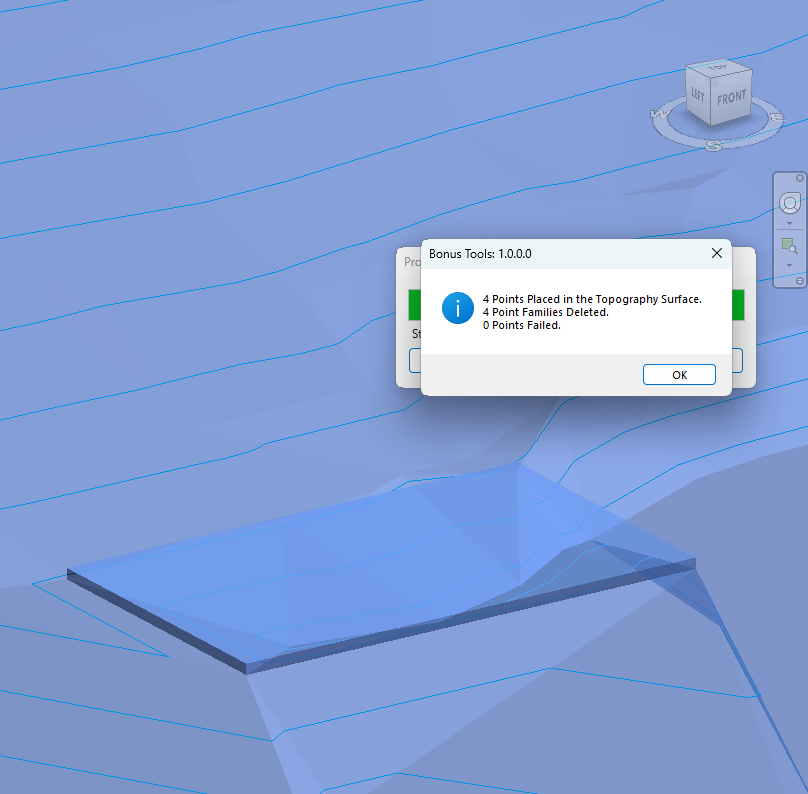
- Reports a complete summary: points placed in the topography, families deleted, and failures
- Blocked in the Family Editor — runs in project documents only
Requirements
- Must be run in a project document (not a Family document)
- The selection must include at least one topography element (TopographySurface or Toposolid) and at least one family instance
- For Toposolid (Revit 2025+), the Slab Shape Editor must be available on the element — the tool enables it automatically if it is not already active
- In Revit 2024 and earlier only TopographySurface is supported; Toposolid is not recognised
- A valid Kiwi Codes Bonus Tools licence must be active
Running the Tool
Launch
Select the topography and family instances in the Revit canvas, then find Add Points to Topography on the Bonus Tools Ribbon or use 115 Search Tools.
Important: All selection must be made before launching the tool — there is no in-tool selection step. Hold Ctrl to add elements, or draw a crossing window and filter by category if needed.
Step 1 — Select the topography and point families
In the Revit canvas, select:
- The TopographySurface or Toposolid whose mesh you want to modify
- All family instances whose locations you want to bake into the surface
You can select them in any order as a mixed selection. Only unhosted families (not already placed on a host) will be processed.
Step 2 — Run the tool and monitor progress
After launching, the tool immediately begins reading each family's location point and inserting it into the topography mesh. A progress bar tracks completion and includes a Cancel button.
- For TopographySurface: points are added via a
TopographyEditScope— all additions are rolled back cleanly if you cancel - For Toposolid: points are added via
SlabShapeEditor.AddPoints— each point is a separate transaction with individual rollback on failure
Step 3 — Confirm deletion of original families
Once all points are added, a confirmation dialog appears:
Would you like to delete the original Points?
- Click Yes to remove the original family instances. This is the typical workflow — the point markers are no longer needed once their locations are baked into the surface.
- Click No to keep the original families in place alongside the new mesh points.
Step 4 — Review the results
A summary message reports the outcome:
| Line | Meaning |
|---|---|
| X Points Placed in the Topography Surface | Interior mesh points successfully added |
| X Point Families Deleted | Original family instances removed (if Yes was chosen) |
| X Points Failed | Instances that could not be added (see Troubleshooting) |
To confirm the result, enter Edit Topography (TopographySurface) or Edit Slab Shape (Toposolid) mode — the baked points appear as pins within the mesh at the family locations.
Tips and Best Practices
- Position families at the correct Z before running. The tool reads the family's current elevation — if a family is at the wrong height, the wrong elevation will be baked into the topography. Set all elevations first.
- Use a generic model point family. A minimal generic family with just a reference point is sufficient. Keep the family lightweight since every instance is read during processing.
- Use a crossing window then filter by category to select a large mixed set. Select all, open the Filter dialog, and deselect everything except your point-family category and Topography to get a clean selection.
- Work on a copy of the topography when testing. Topography modifications are stored in the Revit undo stack but can be slow to revert on large surfaces. Duplicate and isolate the surface before experimenting.
- Cancel safely. The tool rolls back all changes on cancel for both TopographySurface (via EditScope) and Toposolid (per-point transaction). Verify via the Undo history if you are unsure.
- Run Simplify Surface after a large point insertion. Adding many interior points can create a dense triangulation. Use Simplify Surface in Edit Topography mode to reduce mesh complexity if needed.
- Toposolid users (Revit 2025+): If the Slab Shape Editor was not already enabled, the tool activates it. Leave it enabled after the tool runs; disabling it removes the custom points.
Common Use Cases
Baking survey spot elevations into a topography — Place a generic family at each survey point (or import them via Dynamo/Dynamo Player) then run Add Points to Topography to embed all elevations into the surface mesh at once. Delete the original families afterward for a clean model.
Matching topography to a slab underside — Set generic point families to the soffit elevation of a floor slab at each corner or change point. Run the tool to push those elevations into the topography, so the site model accurately reflects the finished underside of the structure.
Converting a Dynamo-placed point cloud to a topography — Dynamo can compute and place family instances at arbitrary XYZ positions but cannot always write directly to a TopographySurface. Use this tool to transfer those placed families into the topography mesh in a single operation.
Refining topography at a retaining wall toe — Place point families at the design elevation along the base of a retaining wall. Run Add Points to Topography to fix those elevations into the mesh, preventing the auto-triangulation from interpolating across the wall line.
Preparing a Toposolid for grading — In Revit 2025+, place point families at each grading break point across a site. Run the tool to add all break points to the Toposolid's Slab Shape Editor, then delete the marker families, leaving a clean graded surface.
Troubleshooting
"Action not available in the Family Environment." The tool was launched while a Family document was active. Close the Family Editor and rerun the tool from within a project document.
"No topography or families (points) found."
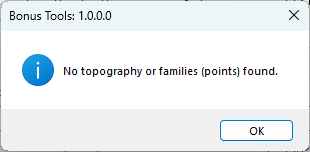
The selection did not contain a recognised topography element and at least one family instance. Re-select making sure both a TopographySurface (or Toposolid in Revit 2025+) and at least one unhosted family instance are included before running the tool.
Points reported as failed (X Points Failed) Individual failures occur when a point coordinate is outside the topography boundary, or the topography edit scope rejects the coordinate. Ensure that family instances are positioned within the horizontal extents of the topography surface and that the surface is editable (not pinned or in a group).
Progress bar runs but no points are added All selected families may already be hosted (HOST_ID ≠ -1) or belong to the Topography category — both are skipped. Verify that families are unhosted generic model instances before running the tool.
"Error whilst running the tool. If the problem persists please contact chris@kiwicodes.com" An unexpected exception was caught at the top level. Check the Revit journal file for error detail and contact support at chris@kiwicodes.com if the issue cannot be resolved by re-selecting and retrying.
Toposolid path not available in Revit 2024 and earlier Toposolid is only available in Revit 2025+. In earlier versions, select a TopographySurface element. If a Toposolid is selected in Revit 2024 or earlier, it will not be recognised and the tool will report no topography found.
Cancelling mid-operation leaves partial changes For TopographySurface, cancelling rolls back the entire edit scope — no points are added. For Toposolid, each point is a separate transaction; cancelling stops further additions but points already committed remain. Use Undo if you need to revert the partial result.