
024 Place Points on Topography
Chris McKeown / July 1, 2025
Topography Tools
Overview
Place Points on Topography takes generic family instances that are not natively hosted on a topography element and re-places them directly on the surface at the correct Z coordinate. At the same time it embeds interior points into the topography so the surface deforms to follow the family locations — a fast way to make a Topography Surface or Toposolid follow the underside of a floor or any other positioned geometry.
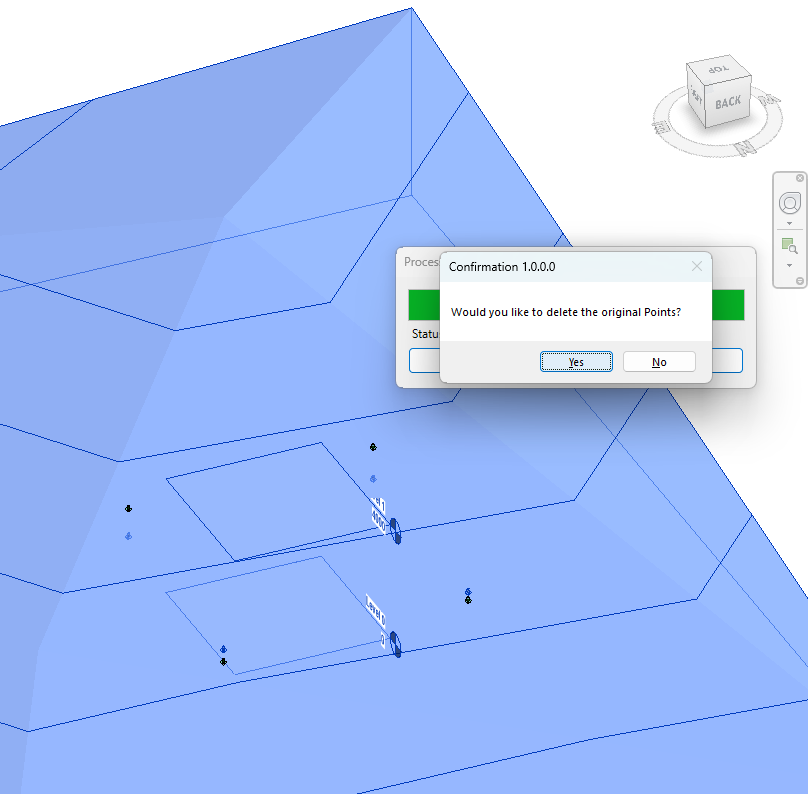
Table of Contents
Key Features
- Reads the exact X, Y and Z location of each selected family instance and re-creates it hosted on the topography element.
- Adds interior points to the topography surface at every family location so the surface mesh conforms to those elevations.
- Works with both the legacy TopographySurface element (Revit 2024 and earlier) and the newer Toposolid element (Revit 2025+).
- Automatically activates the family symbol before placement to avoid "family not loaded" errors.
- Sets the Free Host Offset parameter to zero on every newly placed instance so families sit flush with the surface.
- Only processes families that are currently unhosted (HOST_ID = -1), leaving already-hosted families untouched.
- Skips families in the Topography category so existing surface-point families are not double-processed.
- Offers an optional deletion step — a confirmation dialog lets you remove the original unhosted families once the hosted copies have been placed.
- Displays a progress bar with a cancel button so long-running placements on large point sets can be interrupted cleanly.
- Reports a full summary: points placed in the topography, point families deleted, points placed on the surface, and any failures.
Requirements
- Must be run in a project document — the tool is not available in the Family Editor.
- The selection must contain at least one topography element (TopographySurface or Toposolid) and at least one family instance.
- For Toposolid support, Revit 2025 or later is required. In Revit 2024 and earlier only TopographySurface is supported.
- The project must contain at least one Level — the tool picks the lowest level to use as the host level for new instances.
- A valid Kiwi Codes Bonus Tools licence must be active.
Running the Tool
Step 1 — Select the topography and families
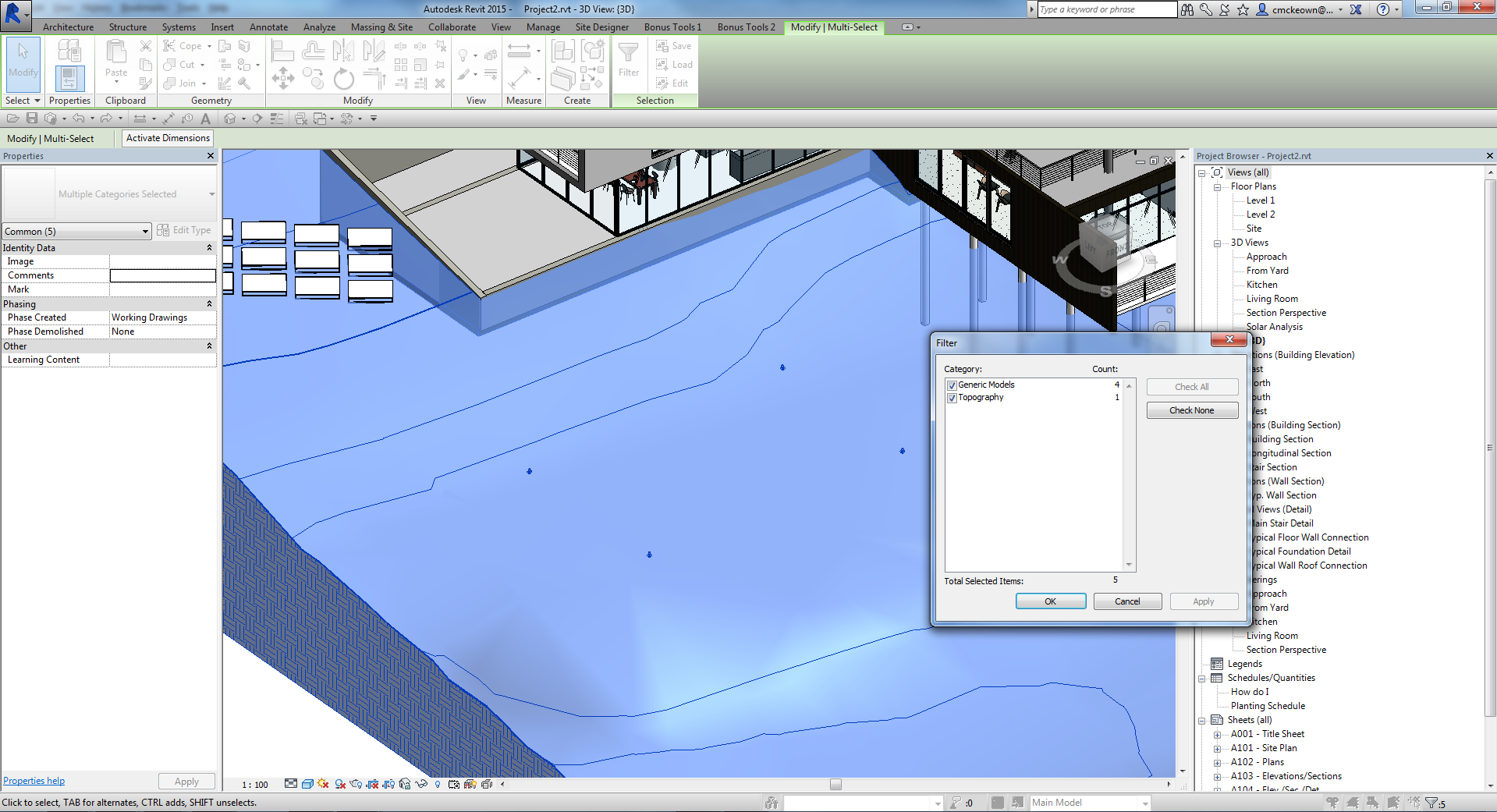
In the Revit canvas, select:
- The Topography Surface or Toposolid that you want to modify.
- All generic family instances whose locations you want to transfer onto the surface.
You can select them in any order and as a mixed selection (hold Ctrl to add elements to the selection, or draw a crossing window).
Step 2 — Launch the tool
Open the Bonus Tools ribbon tab and click Place Points on Topography.

The tool inspects the selection immediately — no dialog is shown at this point. A progress bar appears while families are being re-hosted and points are being added to the topography.
Step 3 — Confirm deletion of original families
Once the hosted copies have been placed, a confirmation dialog appears:
Would you like to delete the original Points?
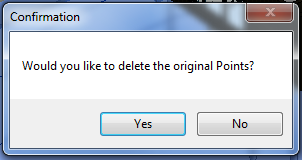
- Click Yes to delete the original unhosted families. This is the typical workflow — the originals are replaced by the newly hosted copies.
- Click No to keep the original families in place alongside the new hosted instances.
Step 4 — Review the results
A summary message appears when the operation is complete:
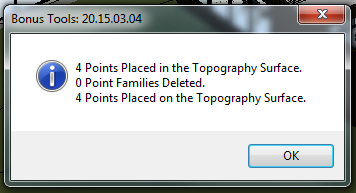
The message reports:
| Line | Meaning |
|---|---|
| X Points Placed in the Topography Surface | Interior points added to the topography mesh |
| X Point Families Deleted | Original unhosted families removed (if you chose Yes) |
| X Points Placed on the Topography Surface | New family instances hosted on the surface |
| X Points Failed | Instances that could not be placed (see Troubleshooting) |
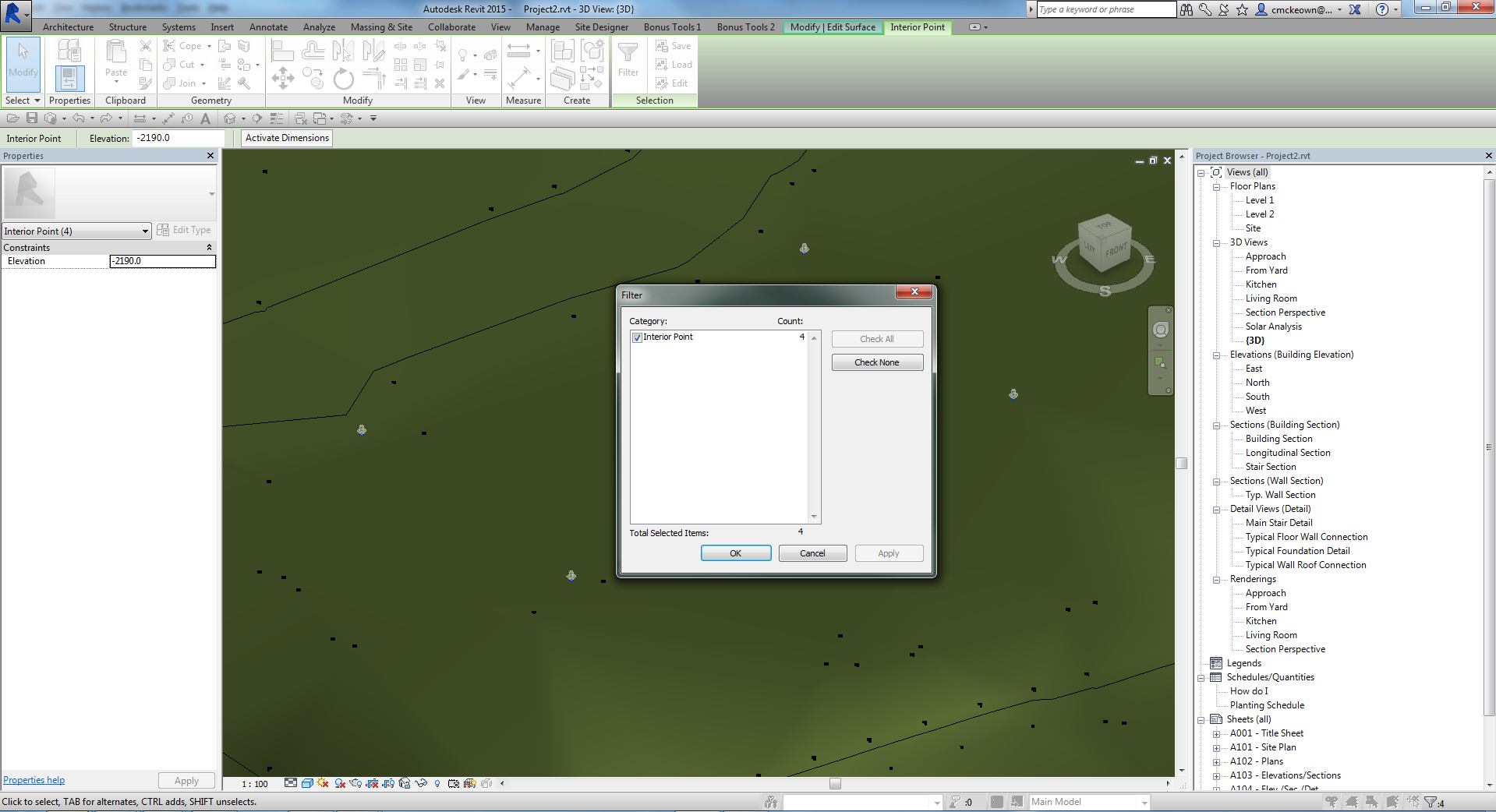
To verify the result, enter Edit Topography mode — the interior points added by the tool are visible as pins within the surface mesh.
Tips and Best Practices
- Place point families at floor underside elevations first. Use a generic point family set to the Z value of each slab soffit before running this tool — the tool will transfer those exact elevations into the topography.
- Work with a copy of the topography when testing. Topography edits can be large and time-consuming to undo. Duplicate the surface on a workset or pinned area before experimenting.
- Use a crossing window for large point sets. Selecting hundreds of families individually is slow. Draw a crossing window over the entire area, then Shift-click the topography to add it to the selection, or select all and filter by category.
- Check your levels. The tool assigns the lowest project level as the host level for newly created instances. If your lowest level is far from the topography elevation, families may appear visually displaced — adjust the host offset or project levels accordingly.
- Cancel safely if needed. If the progress bar shows the operation is taking too long or selecting the wrong elements, click Cancel. The tool rolls back all changes made so far, leaving the project in its original state.
- Toposolid users (Revit 2025+). The Toposolid path uses the Slab Shape Editor to add points. If the slab shape editor is not enabled on the Toposolid, the tool enables it automatically before adding points.
- Avoid families already in the Topography category. These are native topography point families and are intentionally skipped. Only use non-Topography category families (e.g. a Generic Model point family) as your input.
- Run Format after large edits. Adding many interior points can make the topography triangulation complex. After running the tool, open the topography in edit mode and use Simplify Surface if the mesh is denser than needed.
Common Use Cases
Making a topography follow a floor slab — Model point families at each slab corner/edge at the underside elevation of the floor. Select the topography and all point families, run the tool, and choose to delete the originals. The topography surface now has interior points matching the slab underside, causing it to conform to the floor geometry.
Importing survey points as topography edits — Place generic families at surveyed spot elevations (e.g. imported from a CSV via a Dynamo script). Select the topography and all survey-point families, run the tool to embed each point into the surface and optionally clean up the source families.
Refining a topography around a building pad — After placing a building pad, place point families at pad boundary corners. Run Place Points on Topography to add interior points at those exact elevations, giving the surrounding topography a clean break at the pad edge.
Transferring Dynamo-generated points to topography — Dynamo can place family instances at computed XYZ locations but cannot directly add interior points to a TopographySurface or Toposolid in all workflows. Run this tool post-Dynamo to convert those placed families into proper topography points.
Site levelling for car parks or platforms — Place families at each desired level change (e.g. parking bays, ramps) and run the tool to embed those elevations into the topography, creating a modelled site that reflects the engineered finished surface level.
Troubleshooting
"Action not available in the Family Environment." The tool was launched while a Family document was active. Close the family editor and run the tool from within a project document.
"No topography or families (points) found." The selection did not contain a recognised topography element (TopographySurface or Toposolid) and at least one family instance. Re-select ensuring both element types are included before running the tool. In Revit 2024 and earlier, Toposolid is not recognised — use TopographySurface.
Points reported as failed (X Points Failed) Individual point placements can fail if the family symbol cannot be activated, if the point lies outside the topography boundary, or if the topography edit scope rejects the coordinate. Check that family locations are within the extents of the topography and that the family is fully loaded in the project. The tool rolls back failed individual transactions and continues with the remaining points.
Families are placed but not at the correct elevation This occurs when the original family's Z coordinate differs from the surface elevation. The tool uses the family's current Z location — if the family was not placed at the intended elevation before running the tool, the resulting topography point will reflect the wrong height. Adjust family elevations before running the tool.
Progress bar appears but no points are added All selected families may already be hosted (HOST_ID ≠ -1) or may belong to the Topography category, both of which the tool skips. Check that the families are unhosted generic model instances.
"Error whilst running the tool. If the problem persists please contact chris@kiwicodes.com" An unexpected exception was caught at the top level. Note the Revit journal entry for the error detail and contact support at chris@kiwicodes.com if the issue cannot be resolved by re-selecting elements and retrying.
Toposolid path not available in Revit 2024 and earlier The Toposolid element type is only available in Revit 2025+. In earlier versions, select a TopographySurface element instead. Selecting a Toposolid in Revit 2024 or earlier will result in no topography element being found and the "No topography or families found" message appearing.
Cancelling the operation mid-way leaves partial changes For the TopographySurface path, cancelling during the family placement phase rolls back the entire transaction group. Cancelling during the topography edit phase cancels the edit scope, reverting all topography point additions. The project should be returned to its state before the tool was run, but verify by checking Undo history if in doubt.