
023 Swap Groups for Families
Chris McKeown / July 1, 2025
Time Saving
Overview
Swap Groups for Families replaces Revit Groups with equivalent Family instances at the exact same location. It is designed to clean up models where non-company-standard Detail or Model Groups should instead be Detail Components, Annotation Symbols, Generic Models, or Casework families. Select one example of the target family and one Group to use as the template, choose a scope, and the tool replaces every matching Group with a correctly-placed family instance — preserving parameter values and offering to delete the originals.
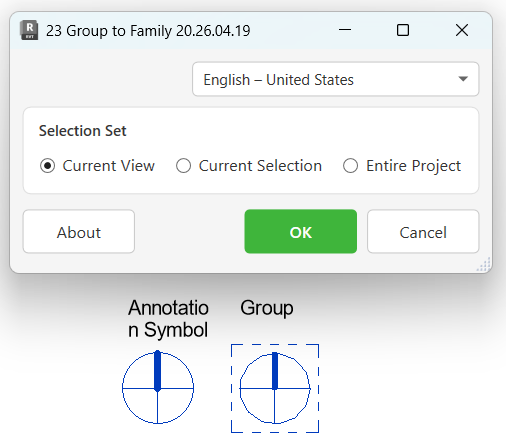
Table of Contents
Key Features
- Replaces Detail Groups or Model Groups with Family instances at identical location points
- Supports four swap combinations: Detail Group ↔ Annotation Symbol, Detail Group ↔ Detail Component, Model Group ↔ Generic Model, Model Group ↔ Casework
- Three scope options: Current View, Current Selection, or Entire Project (default)
- Automatically transfers matching parameter values from the template family to each new instance
- Prompts to delete the original groups after placement — groups can be kept initially to verify alignment
- Progress bar with cancel support for large batches
- Detailed output log showing each replacement's view/level name and XYZ coordinates
Requirements
- Must be run in a project file — not available in the Family editor
- Before launching, select both:
- One Family instance (Annotation Symbol, Detail Component, Generic Model, or Casework)
- One Group (Detail Group or Model Group) of the same type as the family
- The Family instance and Group must share the same base/origin point — misaligned origins will place the replacement families in the wrong position
- The target Family must already be loaded in the project
Running the Tool
Before You Launch — Make Your Selection
Before opening the tool, select one Family instance (the replacement template) and one Group instance (the source to be replaced) in the Revit canvas. Both must be selected simultaneously.
The Family and the Group must have matching base points. Place the family over one group instance and verify alignment before running the full batch — use the Current Selection or Current View scope first.

Launch
Find Swap Groups for Families on the Bonus Tools Ribbon or use 115 Search Tools.
The scope dialog opens immediately after launch.

Step 1 — Choose the Scope
Select which Groups to replace:
| Option | Behaviour |
|---|---|
| Current View | Replaces all Groups matching the selected Group's name in the active view |
| Current Selection | Replaces only the Groups included in the current Revit selection |
| Entire Project | Replaces every matching Group throughout the entire project (default) |
Start with Current View or Current Selection on your first run to verify the result before committing to Entire Project.
Step 2 — Confirm and Run
Click Ok. The tool:
- Reads the parameter values from the selected Family instance
- Finds all Groups with the same name as the selected Group within the chosen scope
- Places a new Family instance at each Group's location point, on the same view (Detail Groups) or level (Model Groups)
- Copies matching parameter values to each new instance
- Logs each placement to the Bonus Tools output window with coordinates
Step 3 — Choose Whether to Delete the Groups
After placement, a confirmation dialog asks whether to delete the original Groups:
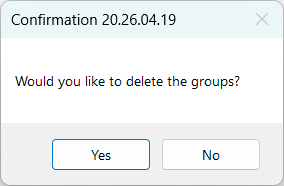
- Click Yes to delete all replaced Groups — the transaction is committed and Groups are removed
- Click No to keep both the new Family instances and the original Groups — useful for a side-by-side comparison before deciding to clean up
The output window reports the final count: how many groups were replaced and how many were deleted.
Tips and Best Practices
- Verify alignment before running Entire Project. Place the family over a single group instance and confirm the base points match before running at full project scope. Use Current Selection on one Group first.
- Keep groups initially. Click No on the deletion prompt the first time. Review the new instances against the groups, then delete manually if everything looks correct.
- Match parameters before running. The tool copies parameter values from the template family to each new instance. Make sure the selected family instance has the correct parameter values set before launching.
- Detail Groups vs. Model Groups require the right family type. Detail Groups can only be swapped for Annotation Symbols or Detail Components (2D view-based families). Model Groups can only be swapped for Generic Models or Casework (3D model families). Mixing types causes a failure.
- The tool replaces by group name. All Groups with the same name as the selected Group are replaced. If only a subset should be replaced, use Current Selection and pre-select only the specific Group instances you want to swap.
- Check the output log. The dockable output panel lists every replacement with its view/level and XYZ coordinates — useful for auditing the results.
Common Use Cases
Replacing non-standard detail groups with detail components — A legacy project used Detail Groups instead of Detail Component families for standard notes or details. Select one Detail Component family instance and one of the offending Detail Groups, choose Entire Project, and replace all instances in one pass.
Cleaning up model groups used as casework — Furniture or casework was modelled as Model Groups instead of loaded Revit families. Select the correct Casework family and a representative Model Group, run for the Entire Project, and swap every instance.
View-specific replacement — Only one floor level of a multi-storey building needs groups swapped (e.g. a revised reception detail). Use Current View to limit the scope to just the active plan view.
Selective batch replacement — Pre-select a specific set of Group instances (e.g. only those in a particular area of the model), then run with Current Selection to replace only those instances.
Troubleshooting
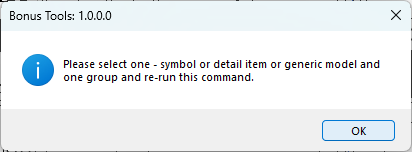
"Please select one - symbol or detail item or generic model and one group and re-run this command." The tool did not detect both a Family instance and a Group in the selection. Before launching, ensure that exactly one Family instance (the replacement) and at least one Group instance are selected simultaneously in Revit. Use Ctrl+Click to multi-select.
"Incorrect family selected." The selected Family type is incompatible with the selected Group type. Detail Groups require an Annotation Symbol or Detail Component (2D). Model Groups require a Generic Model or Casework family (3D). Check that the family and group categories match.
"Action not available in the Family environment." The tool can only run inside a project file. Close the Family editor and open your project.
Families placed in the wrong position The base/origin point of the Family does not match the Group's insertion point. Open the Family in the Family editor, adjust the origin to align with the group's base point, reload into the project, and re-run.
Some Groups were not replaced (count is lower than expected) The tool matches Groups by name. Verify that the selected Group's name matches the Groups you expected to be replaced — check for trailing spaces or similar-looking names that differ subtly.
Tool runs but nothing is placed in the current view For Detail Groups, placement uses the Group's owner view. If the tool is run from a different view than where the groups reside, they are still replaced — but the new instances appear in their original owner views, not the active one.
Progress bar appears then closes with no result The cancel button was pressed, or no matching Groups were found within the selected scope. Verify the Group name and scope, then re-run.