
021 Sheet Duplication
Chris McKeown / July 1, 2025
Sheet & View Manipulation
Overview
Sheet Duplication lets you copy one or many sheets in a single operation, choosing the title block, controlling whether views are duplicated or shared, and specifying how many copies to create per sheet. Use it to rapidly scaffold a new drawing package based on an approved sheet set, or to create revision copies of a sheet series without manually recreating each sheet and its viewports.
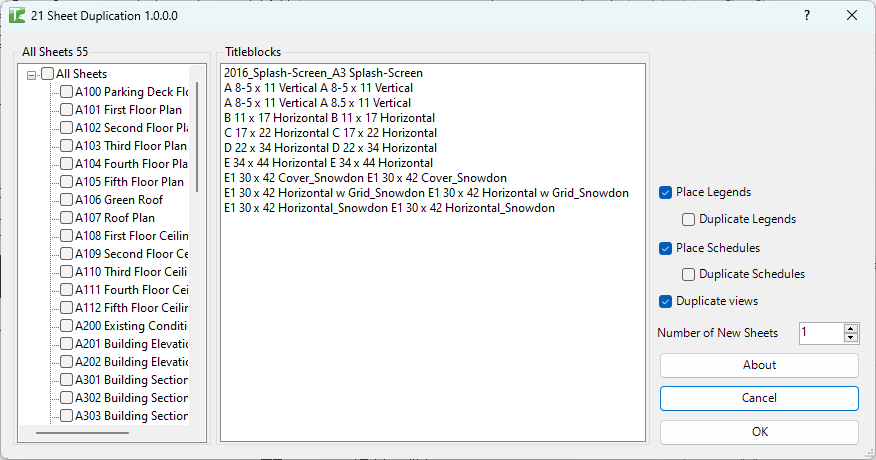
Table of Contents
Key Features
- Displays all project sheets in a sortable tree with checkboxes — tick any combination to duplicate
- Title block list shows all loaded title block types for the target sheets
- Create New Views — duplicates each placed view so the new sheet has its own independent view copy
- Place Schedules — re-places existing schedules from the source sheet on each new sheet; enable Duplicate Schedules to create new schedule copies instead
- Place Legends — re-places existing legends; enable Duplicate Legends to create new legend copies
- Number of copies numeric spinner — duplicate each selected sheet 1–N times in one run
- Transactions: "New Sheet", "Add Schedule", "Add Views" — one transaction per sheet/view to minimise rollback scope
- Progress bar with cancel option; completion summary reports total sheets created
- Settings persist between sessions
Requirements
- Any Revit project document (not available in the Family environment)
- At least one title block family must be loaded in the project
- A valid Kiwi Codes Bonus Tools licence must be active
Running the Tool
Launch
Find Sheet Duplication on the Bonus Tools Ribbon or use 115 Search Tools.

The dialog opens and immediately lists all sheets and title blocks:
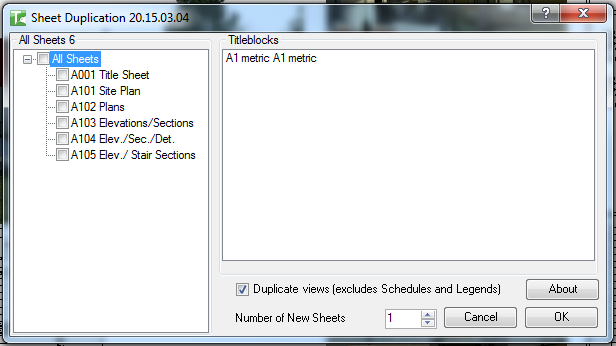
Step 1 — Select sheets to duplicate
Tick the checkboxes next to the sheets you want to duplicate. Click the root node checkbox to select or deselect all sheets at once.
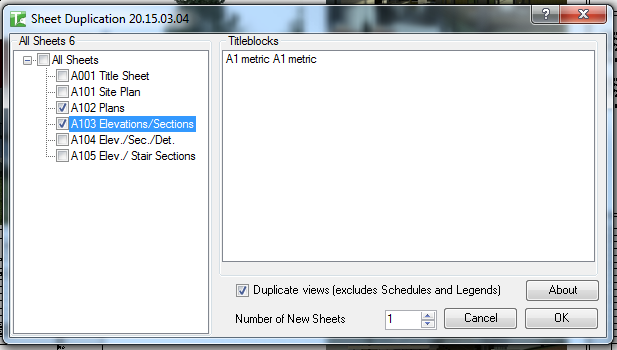
Step 2 — Select a title block
Click one title block in the right-hand list to select it. This title block will be used for all new sheets created.
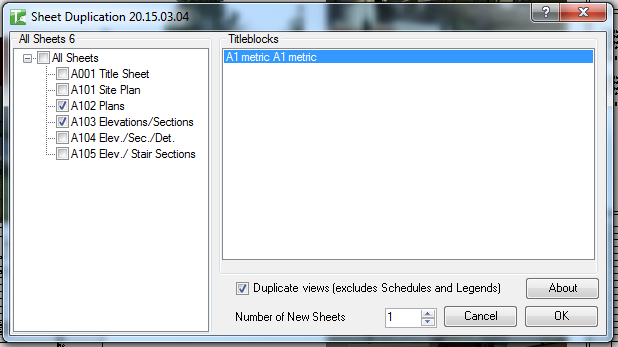
Step 3 — Configure duplication options
Set how the content on each sheet is handled:
| Option | Default | Behaviour |
|---|---|---|
| Create New Views | On | Each view placed on the source sheet is duplicated and the copy is placed on the new sheet |
| Place Schedules | On | Schedules from the source sheet are placed on the new sheet |
| Duplicate Schedules | Off | When on, a new schedule copy is created; when off, the original schedule is re-placed |
| Place Legends | On | Legends from the source sheet are placed on the new sheet |
| Duplicate Legends | Off | When on, a new legend copy is created; when off, the original legend is re-placed |
Set the Number of copies spinner to create multiple copies of each selected sheet in one run.
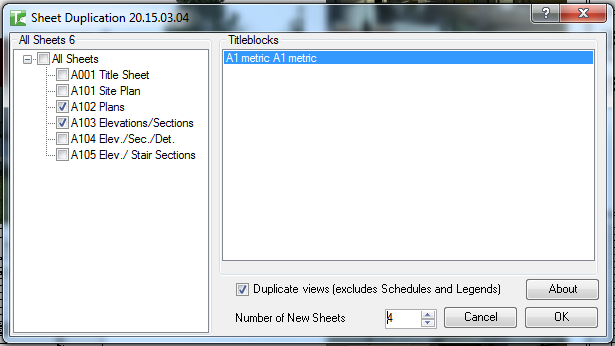
Step 4 — Run and review results
Click OK. A progress bar tracks each sheet being created. When complete, a summary message reports the number of sheets created.
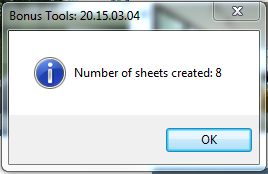
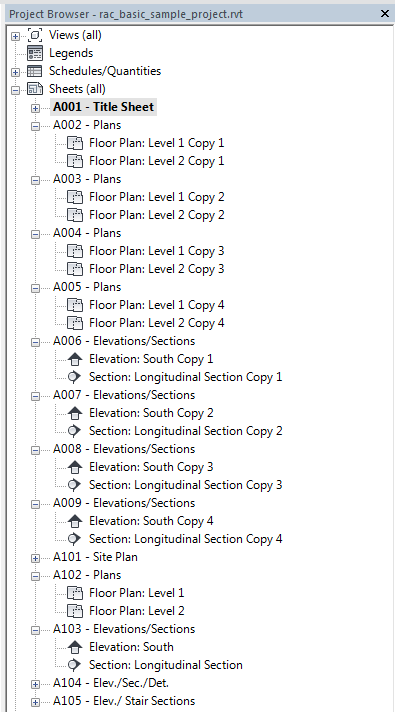
The new sheets appear in the Project Browser:
Click Cancel to close without creating any sheets.
Tips and Best Practices
- Select a title block before clicking OK. If no title block is selected the tool will prompt you to choose one — no sheets are created until both sheets and a title block are confirmed.
- Use "Create New Views" for independent copies. When on, each view port on the source sheet gets a new view so changes to the duplicate do not affect the original. Turn it off if you want all new sheets to share the same view (useful for legends and reference plans).
- Duplicate Schedules and Duplicate Legends are off by default. The original schedule or legend is reused and placed on every new sheet, which is usually the correct behaviour. Only enable duplication if you need each sheet to have an independently editable schedule or legend.
- Use the number spinner to create a blank drawing package. Select an empty template sheet and set copies to 10 (or more) to rapidly create a series of sheets with consistent title blocks and no views.
- Sheet names and numbers are not automatically incremented. All copies start with the same name and number as the source — rename them in the Project Browser after creation.
- Schedules and legends from the source sheet retain their original position on the new sheet. Regular views are also placed at the same position as the source viewport.
Common Use Cases
Creating a new drawing package from an approved set — Select all issued sheets, choose the target title block, enable Create New Views, and run. Each sheet gets an independent copy of its views ready for the next phase of work.
Scaffolding multiple revision sheets — Select a single sheet, set the number of copies to the number of revisions needed, and run. Rename each copy in the Project Browser to reflect the revision.
Replicating a title block change across all sheets — Duplicate all sheets using the new title block family type to produce a parallel sheet set with the updated title block.
Adding blank sheets to a project — Create a blank placeholder sheet once, then use Sheet Duplication with copies set to the number of sheets needed. All new sheets share the same title block and name — rename individually afterward.
Troubleshooting
"Please select sheets to be copied and a title block." No sheets were checked, or no title block was selected in the list. Tick at least one sheet checkbox and click a title block, then click OK.
"There is no title block to generate sheet." No title block families are loaded in the project. Load a title block family via Insert → Load Family before running Sheet Duplication.
"Action not available in the Family environment."
The tool can only run in a project (.rvt) file. Close the Family editor and open a project first.
New sheets have the same number as the source Revit allows duplicate sheet numbers in a project, and the tool copies the name/number from the source sheet. Renumber the new sheets manually in the sheet properties or via 045 Renumber Parameter.
Views are missing from duplicated sheets If Create New Views is off, views that cannot be placed on more than one sheet simultaneously (non-legend, non-schedule views already placed elsewhere) are skipped. Enable Create New Views to duplicate those views so they can be placed.