
017 Referencing File List
Chris McKeown / July 1, 2025
Lists
Overview
Referencing File List loads every external file reference in the project into a single grid — imported CAD files, linked DWG and DWF files, raster images, and Revit links — with full metadata including whether the reference is view-specific, which level it is on, whether it is hidden, and its file path on disk. Use it to find and remove imported CAD files that inflate file size, identify view-specific references that are invisible in the current view, and audit the complete set of external dependencies before a model issue.
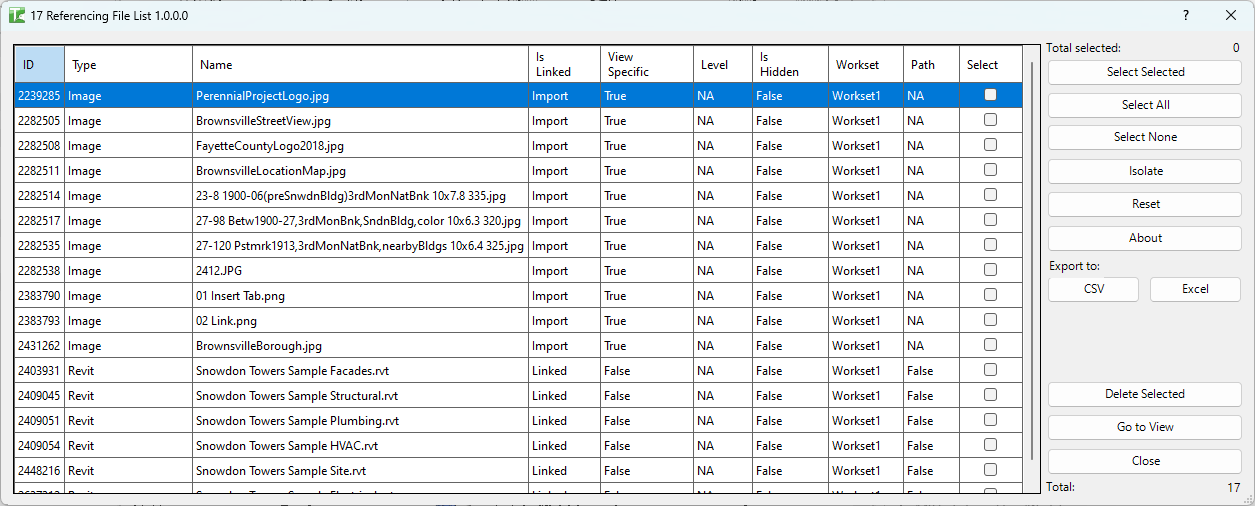
Table of Contents
Key Features
- Loads all external references automatically on dialog open: DWG/DWF imports and links, raster images (jpg, bmp, jpeg, png, tif), and Revit link types
- Grid columns: Type, Name, Id, Is Linked, View Specific, Level, Is Hidden, Workset, Path, Select
- Type column distinguishes DWG, Image, and Revit reference types
- Go to View — opens the host view and highlights selected references in Revit
- Delete Selected — bulk-deletes ticked references with a confirmation prompt; transaction: "Delete Referencing File"
- Isolate — isolates selected elements in the current view for close inspection
- Reset — resets view isolation
- Export to Excel / Export to CSV — saves the current grid for reporting
- Multi-select: Select Selected / Select All / Select None
- Confirmation: "X passed. Y failed."
Requirements
- Any Revit project document
- A valid Kiwi Codes Bonus Tools licence must be active
Running the Tool
Launch
Find Referencing File List on the Bonus Tools Ribbon or use 115 Search Tools.

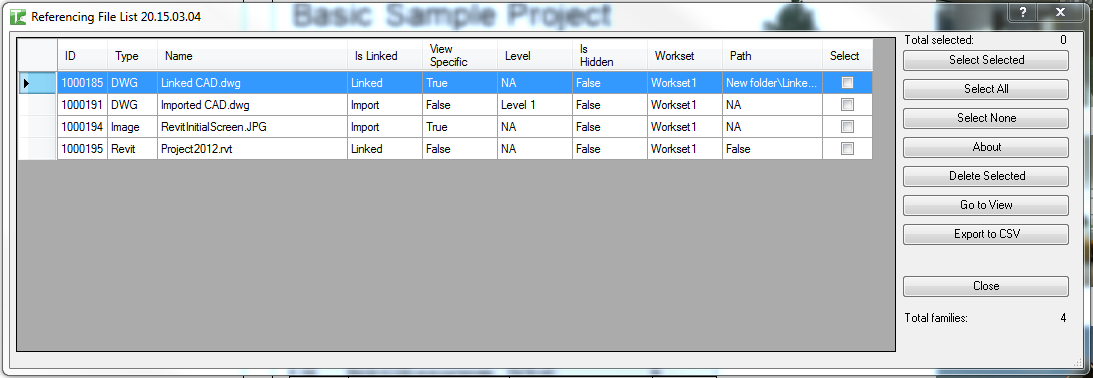
The dialog opens and immediately loads all referencing files in the project:
| Column | Description |
|---|---|
| Type | Reference type: DWG, Image, or Revit |
| Name | The file reference name |
| Id | Revit Element Id of the reference |
| Is Linked | Yes = linked file; No = imported (embedded in the project) |
| View Specific | Yes = exists only in a specific view; No = project-wide |
| Level | The level the reference is associated with (if any) |
| Is Hidden | Yes = hidden in its host view; No = visible |
| Workset | The workset the reference belongs to |
| Path | The file path on disk for linked references |
| Select | Checkbox — tick to include in the next action |
The Total counter at the bottom shows the total number of references. Click any column header to sort.
Step 1 — Select references
Tick checkboxes in the Select column, or use the selection buttons:
| Button | Action |
|---|---|
| Select Selected | Toggle the checkbox for the currently highlighted row(s) |
| Select All | Check all references |
| Select None | Uncheck all references |
The Total selected counter updates as you make selections.
Step 2 — Navigate to a reference (Optional)
To confirm which reference a row represents:
- Select the row(s)
- Click Go to View
Revit opens the host view and highlights the selected reference:
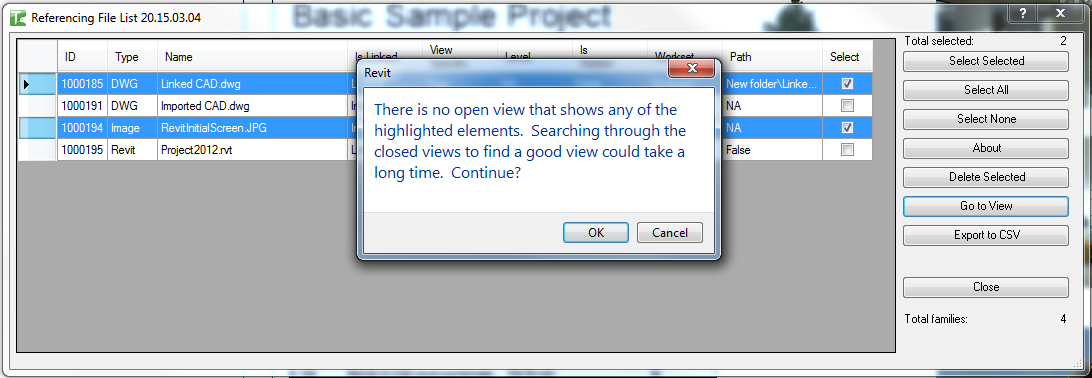
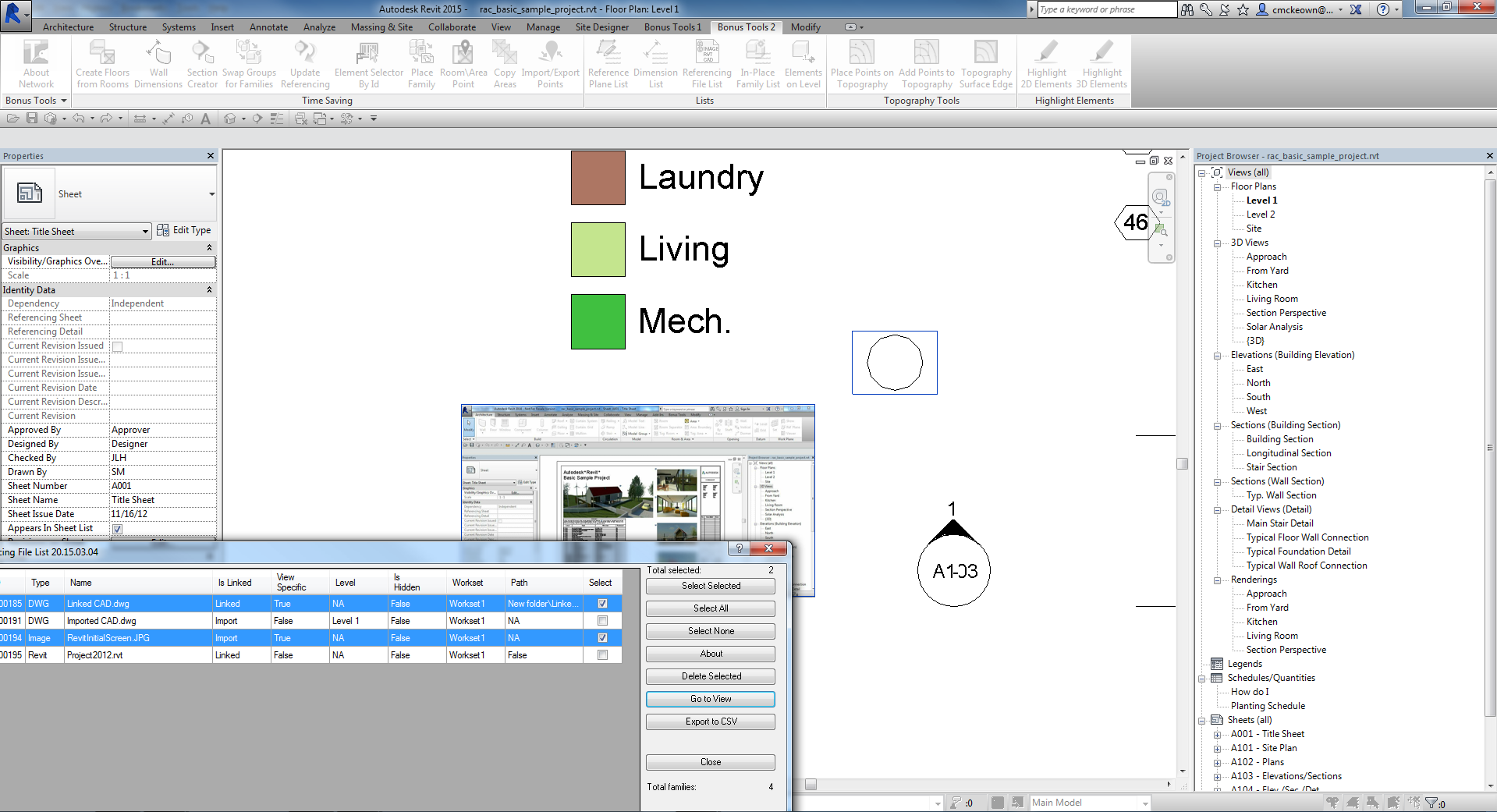
If multiple references are selected across different views, Revit opens the view of the last reference in the selection. View-specific references that are hidden may not highlight — check the Is Hidden column first.
Step 3 — Delete selected references
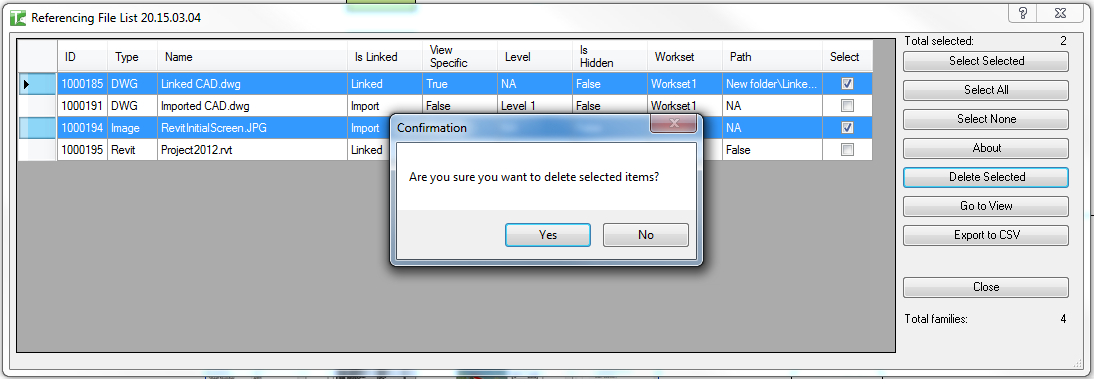
- Select the references to delete
- Click Delete Selected
- Confirm the deletion prompt
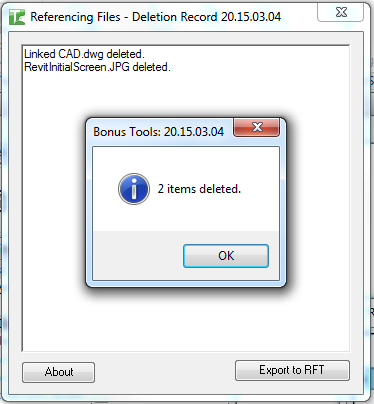
An output dialog confirms which references were deleted:
Isolate and Reset
Click Isolate to isolate selected references in the current view. Click Reset to restore normal view visibility.
Export
Click Export to CSV or Export to Excel to save the current grid for further analysis.
Tips and Best Practices
- Sort by Is Linked to find imports. Imported references (
Is Linked = No) are embedded in the project and inflate file size. Sort by Is Linked and select all imports for cleanup. - Sort by View Specific to find hidden references. View-specific references (
View Specific = Yes) are often forgotten because they're invisible in most views. This grid surfaces them regardless of the active view. - Check Is Hidden before deleting. Hidden references may be intentionally hidden — confirm the intent before deleting. Navigate to the host view first.
- Use the Path column to audit linked file locations. Paths not pointing to the approved shared location indicate a reference that needs relinking via Manage Links.
- Delete imported CAD before issuing the model. CAD imports embedded in the project inflate file size and are a common BIM compliance failure. Sort by Is Linked = No and Type = DWG, then delete.
Common Use Cases
Pre-issue file cleanup — Sort by Is Linked = No and Type = DWG to find all imported CAD files. Delete them before issuing the model to reduce file size and remove embedded geometry.
BIM audit of external references — Export to CSV and review the full list of Revit links, imported CAD, and images. Compare path locations against the project's approved network structure.
Finding view-specific CAD that is no longer needed — Filter by View Specific = Yes and Type = DWG to find imported CAD placed in individual views. Navigate to each and delete obsolete references.
Checking hidden image references — Sort by Type = Image and Is Hidden = Yes to find raster images embedded in the project that are no longer visible and may be unnecessary.
Troubleshooting
Grid is empty The project contains no imported or linked external references. This is the desired state for a clean model.
"X passed. Y failed." with failures Some references could not be deleted. In a workshared model, the reference element may be owned by another user. Borrow or check out the relevant elements and retry.
"Referencing Files deletion failed. Gain ownership of elements and try again." The delete transaction failed due to a worksharing conflict. Gain ownership of the affected references and retry.
"Operation Failed." An unexpected error occurred. Check the Revit journal for details.
Revit link appears in the grid but Path is blank The Revit link may be unloaded. Reload the link via Manage Links, then re-run the tool to see the updated path.
Reference appears hidden and cannot be navigated to A reference with Is Hidden = Yes in a view-specific view may not be selectable in the current view. Open the host view using the Level column as a guide, then use Visibility/Graphics to unhide and inspect it.