
153 Workset Mover
Chris McKeown / July 1, 2025
Worksets
Overview
Workset Mover moves all selected elements to the currently active workset in a single operation. There is no dialog — the change happens immediately using each element's ELEM_PARTITION_PARAM, with a separate transaction per element so that one failure never blocks the rest. It completes the trio of workset shortcut tools alongside 154 Set Active View Workset and 155 Isolate By Workset, and is most effective when assigned to a keyboard shortcut.
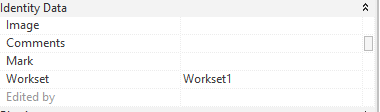
Table of Contents
Key Features
- Moves all selected elements to the active workset in one operation — no dialog, no extra clicks
- Handles single or multi-element selections of any size
- Each element is processed in its own transaction — one failure rolls back only that element, not the entire selection
- Errors are logged to the Output Dialog so you can review exactly which elements failed and why
- No UI to navigate — ideal for keyboard shortcut assignment for a minimal-click workflow
- Works with any element type that exposes the Workset parameter (
ELEM_PARTITION_PARAM) - Pairs with tools 154 and 155 to form a complete workset management workflow
Requirements
- The project must be workshared — the tool will display
File is not Worksharedand exit if not - At least one element must be selected before running
- The active workset must be set and editable
- The elements' current worksets must also be editable (not borrowed by another user)
- A valid Bonus Tools license must be active
Running the Tool
This tool has no interface. The full workflow is:
- Set the active workset to the destination workset — use the Active Workset dropdown in the Revit ribbon, or use 154 Set Active View Workset to activate it by clicking a correctly-assigned element.
- Select the elements you want to move. Any number can be selected.
- Run the tool — find Workset Mover on the Bonus Tools Ribbon, use 115 Search Tools, or press the assigned keyboard shortcut.
All selected elements are immediately moved to the active workset. Verify by selecting one of the moved elements and checking the Workset parameter in the Properties panel.
Assigning a keyboard shortcut (recommended)
- Go to View tab → User Interface → Keyboard Shortcuts
- Search for
153orWorkset Mover - Click Press new keys, type your desired combination, and click Assign
- Click OK
Combining all three workset tools
Tools 153, 154, and 155 are designed to work together with a minimal-click rhythm:
- 154 — click an element to make its workset the active workset
- 155 — click an element to isolate all elements on its workset in the view
- 153 — select elements and move them to the active workset
A typical correction workflow: use 154 to activate the correct destination workset from a known-good element → use 155 to isolate the misassigned elements for easy box selection → select them all → press 153 to move.
Tips and Best Practices
- Always verify the active workset before running. There is no confirmation dialog — elements move immediately to whatever workset is currently active. A quick glance at the Active Workset dropdown before pressing the shortcut prevents costly mistakes.
- Use 154 to set the active workset, then 153 to move. Selecting a correctly-assigned element and pressing 154 is faster and less error-prone than navigating the workset dropdown manually.
- Each element runs in its own transaction. If one element fails (e.g. it is on a borrowed workset), the tool rolls back only that element and continues with the rest. Check the Output Dialog after a bulk move if you suspect some elements were skipped.
- Some elements cannot be reassigned. Datum elements such as Levels, Grids, and Scope Boxes have workset restrictions and may not move. The tool logs an error for these and continues with the remaining selection.
- Elements in groups must be ungrouped first. Grouped elements cannot have their workset changed individually.
- After a bulk move, spot-check a few elements. Select one or two moved elements and confirm the Workset parameter in the Properties panel shows the expected value.
- Use Ctrl+Z to undo a bulk move. Because the tool creates one transaction per element, a large selection may require multiple undos. Undo immediately after an accidental move rather than waiting, as subsequent edits will interleave with the undo history.
Common Use Cases
Correcting misassigned elements — Elements accidentally placed on the wrong workset are common. Set the correct workset active via 154, select the misassigned elements (filter by workset using 155 if needed), and move them all in one press of 153.
Discipline organisation — When setting up a new project or receiving a model that has not been properly organised, select all walls/floors/roofs and move to the Architectural workset, then all framing to Structural, and so on.
Level-based worksets — Select all elements on a given level using a filter or selection box, set the level workset active, and move in bulk. This supports partial model loading strategies that rely on workset-level visibility.
Bulk cleanup after import — Elements from a DWG import or copy/monitor operation often land on the wrong workset. Select the imported elements, set the correct workset active, and move them all at once.
Design option organisation — Move elements to option-specific worksets after modelling, enabling workset-based visibility control of design alternatives without using Revit's built-in Design Options feature.
Troubleshooting
"File is not Workshared" message Worksharing must be enabled on the project before the tool can run. If the file should be workshared, check whether it was accidentally opened as a detached copy. Enable worksharing via the Collaborate tab → Worksets.
Nothing happens after running Confirm that at least one element is selected before running. If elements are already on the active workset, no change is made and nothing is logged. Check the Output Dialog for any error messages that may explain why no action was taken.
Some elements don't move Each element is processed individually — failures are logged but do not stop the rest. Open the Output Dialog after a bulk move to review specific errors. Common causes are:
- Element is on a workset borrowed by another user
- Element is part of a group (ungroup first)
- Element is a datum (Level, Grid, Scope Box) which has workset restrictions in Revit
Elements disappear after moving The destination workset may be hidden in the current view. Open Visibility/Graphics → Worksets tab and enable the destination workset. The elements moved successfully — they are just not visible.
Transaction errors / rollback logged for an element The element's current workset or the active workset is not editable — either it is set to Non-Editable in the Worksets dialog or another user has it checked out. Check the Workset table (Collaborate tab → Worksets) and coordinate with your team to release the checkout.
Keyboard shortcut not responding Verify the shortcut is correctly assigned in the Keyboard Shortcuts dialog (View tab → User Interface → Keyboard Shortcuts) and check for conflicts with other commands. A Revit restart is sometimes required after assigning new shortcuts.
Elements moved to the wrong workset The active workset was not what was expected when the tool ran. Always confirm the Active Workset dropdown shows the correct destination before pressing the shortcut. Use 154 to set the active workset reliably from a known-good element rather than relying on the dropdown alone. To reverse a bulk move, undo immediately with Ctrl+Z before making any further changes.