
152 Reset, Sync & Compact
Chris McKeown / July 1, 2025
Cloud
Overview
Reset, Sync & Compact automates the complete end-of-session workflow for workshared projects in a single click. It opens the project's default starting view, closes all hidden windows, saves the local file, synchronises with the central model with compact enabled, and relinquishes all borrowed elements and worksets. No dialogs, no manual steps.
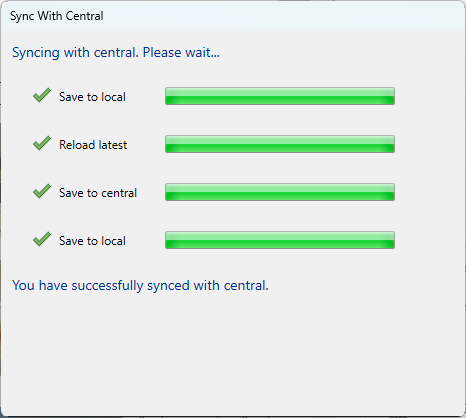
Table of Contents
- Key Features
- Requirements
- Running the Tool
- What the Tool Does
- Tips and Best Practices
- Common Use Cases
- Troubleshooting
Key Features
- Five automated steps in one operation — no dialog, no input required
- Opens the project's default starting view and closes all hidden windows
- Saves the local file before syncing
- Synchronises with central with compact enabled to reduce file size
- Relinquishes all borrowed elements, worksets (Standard, Family, User, View), and checked-out elements
- Adds a timestamped sync comment automatically:
Autosaved by the API at [DateTime] - Writes a journal comment for audit tracking
- On non-workshared files: opens the starting view, closes hidden windows, and saves — sync steps are skipped gracefully
Requirements
- The project must be saved and not read-only
- For sync: the project must be workshared and the central model must be accessible (network or cloud)
- No active edit modes or transactions should be running when the tool is launched
Running the Tool
This tool has no interface. Run the tool — either find Reset, Sync & Compact on the Bonus Tools Ribbon or use 115 Search Tools, or press the assigned keyboard shortcut. The automated sequence begins immediately.
The five steps run in order — allow the process to complete before closing Revit. Time varies by file size and network speed; expect 30 seconds to 2 minutes for most projects.
Assigning a keyboard shortcut (recommended)
Making this a shortcut turns it into a one-press end-of-session habit:
- Go to View tab → User Interface → Keyboard Shortcuts
- Search for
152orReset, Sync & Compact - Click Press new keys, type your combination, and click Assign
- Click OK
What the Tool Does
The tool executes five steps in sequence, stopping early and displaying a message if a critical step fails.
1. Open default starting view and close hidden windows The project's starting view is opened and all hidden windows and views are closed. This leaves the project in a clean, consistent state for the next user.
2. Save
The local file is saved. If the save fails, the tool displays Failed to Save the file. Sync aborted. and stops — no sync is attempted on an unsaved file.
3. Check worksharing
If the file is not workshared, the tool displays File is not Workshared, Sync aborted. and stops. The save and view steps have already completed successfully.
4. Synchronise with central
The file syncs to the central model with the following options set: compact enabled, and all relinquish options on (Checked Out Elements, Family Worksets, Standard Worksets, User Worksets, View Worksets). The sync comment is timestamped automatically. If the sync fails, the tool displays Failed to Sync the file.
5. Compact Compact runs as part of the sync operation. It removes redundant data from the central model, reducing file size for the whole team. It adds time to the sync but the benefit is shared by everyone who opens the file.
Tips and Best Practices
- Assign a keyboard shortcut and use it every session. The tool's value compounds over time — regular compacting keeps file sizes manageable and sync times short.
- Don't close Revit immediately after running. Wait for the status bar to confirm the sync has completed before closing. Interrupting a sync mid-way can leave the central model in an inconsistent state.
- Run before any extended break. Lunch, meetings, end of day — any time you're stepping away from the project. This keeps changes available to the rest of the team and releases borrowed worksets.
- Purge unused content before running to maximise the benefit of compacting. A purge followed by Reset, Sync & Compact gives the best file size reduction.
- For large files on slow networks, plan the sync during a natural break — it will take longer than usual and you won't want to be waiting on it.
- Cloud projects (BIM 360/ACC) require a stable internet connection. Avoid syncing on unreliable connections; if the sync fails mid-way, the tool will report it and you can retry manually.
Common Use Cases
End of day — The primary use case. Press the shortcut, wait for completion, close Revit. Every team member following this habit keeps the central model clean, compact, and current.
Before switching projects — Sync and compact the current project before opening another. Ensures your changes are available to the team even if you don't return to that project.
Before a coordination meeting — Run the tool so the team sees your latest changes during the meeting, not work from earlier in the day.
Periodic syncing during a long session — Run every one to two hours during heavy modelling sessions to share incremental changes, reduce merge conflicts, and create regular recovery points.
Pre-delivery cleanup — After purging and cleaning up warnings, run Reset, Sync & Compact to deliver a compact, clean central model at a project milestone.
Troubleshooting
Failed to Save the file. Sync aborted.
The local file could not be saved. Check that the file is not read-only, that you have write permissions, and that there is sufficient disk space. Try a manual save first to see the specific error.
File is not Workshared, Sync aborted.
This is informational, not an error. The tool successfully opened the starting view, closed hidden windows, and saved the file. Sync is simply not applicable to non-workshared files.
Failed to Sync the file.
The central model could not be reached or the sync operation failed. Check your network connection, verify the central model path is accessible, and confirm no one has the central locked. For BIM 360/ACC files, check the Autodesk service status. Try a manual Sync to Central to see the detailed error.
Tool appears to hang Large files and compact operations take time — allow up to 5 minutes before assuming something is wrong. Watch the status bar for activity. Do not force-quit Revit during a sync.
Starting view doesn't open The project may not have a starting view configured. Set one via Manage → Starting View. If none is set, the tool skips this step and continues — the save and sync steps still complete normally.
Hidden windows don't all close Some pinned or locked views may remain open. This is rare and does not affect the save or sync steps. Close any remaining windows manually after the tool completes.
Compact doesn't appear to reduce file size Compact acts on the central model, not the local file. The size reduction is visible when you next create a local file from the central. Running Purge Unused before compacting gives the best results. Cumulative compacting over many sessions has a more noticeable effect than a single run.
Sync completes but teammates don't see changes Other users must Reload Latest or Sync to Central themselves to receive your changes. The sync makes your changes available — it doesn't push them to other users' local files automatically.