
151 Reset & Sync
Chris McKeown / July 1, 2025
Cloud
Overview
Reset & Sync automates the four essential steps of a workshared sync in a single click: opens the project's default starting view, closes all hidden windows, saves the local file, and synchronises with the central model. Unlike 152 Reset, Sync & Compact, it skips the compact operation — making it faster and better suited to frequent mid-session syncing.
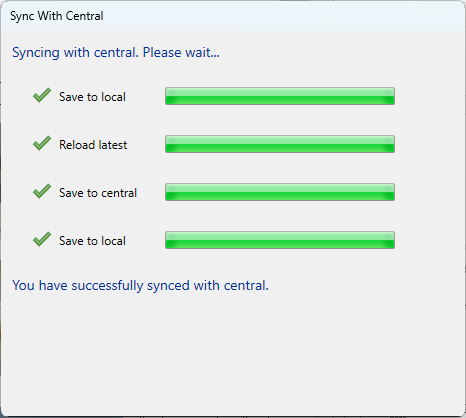
Table of Contents
- Key Features
- Requirements
- Running the Tool
- What the Tool Does
- 151 vs 152 — Which to Use
- Tips and Best Practices
- Common Use Cases
- Troubleshooting
Key Features
- Four automated steps in one operation — no dialog, no input required
- Opens the project's default starting view and closes all hidden windows
- Saves the local file before syncing
- Synchronises with central and relinquishes all borrowed elements and worksets (Checked Out Elements, Family, Standard, User, and View Worksets)
- Adds a timestamped sync comment automatically:
Autosaved by the API at [DateTime] - Writes a journal comment for audit tracking
- No compact — faster than Tool 152, suited to repeated use during a session
- On non-workshared files: opens the starting view, closes hidden windows, and saves — sync steps are skipped gracefully
Requirements
- The project must be saved and not read-only
- For sync: the project must be workshared and the central model must be accessible (network or cloud)
- No active edit modes or transactions should be running when the tool is launched
Running the Tool
This tool has no interface. Run the tool — either find Reset & Sync on the Bonus Tools Ribbon or use 115 Search Tools, or press the assigned keyboard shortcut. The automated sequence begins immediately.
Typical completion time is 10–60 seconds for most projects, making it practical to run frequently without disrupting workflow.
Assigning a keyboard shortcut (recommended)
- Go to View tab → User Interface → Keyboard Shortcuts
- Search for
151orReset & Sync - Click Press new keys, type your combination, and click Assign
- Click OK
Many teams assign this to Ctrl+S so that every "save" action automatically becomes a full sync. Pair it with Tool 152 on a separate shortcut (e.g. Ctrl+Alt+S) for end-of-day use.
What the Tool Does
The four steps run in order, stopping early with a message if a critical step fails.
1. Open default starting view and close hidden windows The project's starting view is opened and all hidden windows and views are closed, leaving the project in a clean state for the next user.
2. Save
The local file is saved. If the save fails, the tool displays Failed to Save the file. Sync aborted. and stops.
3. Check worksharing
If the file is not workshared, the tool displays File is not Workshared, Sync aborted. and stops. The save and view steps have already completed successfully.
4. Synchronise with central
The file syncs to the central model with all relinquish options enabled (Checked Out Elements, Family Worksets, Standard Worksets, User Worksets, View Worksets). The sync comment is timestamped automatically. Compact is not set — this keeps the operation fast. If the sync fails, the tool displays Failed to Sync the file.
151 vs 152 — Which to Use
| 151 Reset & Sync | 152 Reset, Sync & Compact | |
|---|---|---|
| Steps | 4 | 5 |
| Compact | No | Yes |
| Typical time | 10–60 sec | 1–2 min |
| Best for | Frequent mid-session syncs | End-of-day / end-of-session |
| File size | Unchanged | Reduced on central |
Recommended rhythm: use 151 every hour or so during a working session, and 152 once at the end of the day. Assign each to a different keyboard shortcut so both are always one keypress away.
Tips and Best Practices
- Sync frequently, not just at the end of the day. Smaller, more frequent syncs mean fewer conflicts, smaller merge operations, and more current models for everyone on the team. Every 30–60 minutes is a good baseline.
- Override Ctrl+S. Assigning this tool to
Ctrl+Sturns every save reflex into a full sync. Because the tool saves before syncing, nothing is lost — and your team always has your latest work. - Run before any break. Lunch, a meeting, stepping away from your desk — any time you're leaving the project, run 151 first. It takes under a minute and makes your changes available to the team immediately.
- Don't interrupt the process. Even at 10–60 seconds, let the status bar confirm completion before starting new work or closing Revit.
- Use 152 at end of day. Tool 151 doesn't compact, so file size will grow over a session. Running 152 once at the end of the day keeps the central model healthy without slowing down mid-session syncs.
Common Use Cases
Frequent mid-session syncing — The primary use case. Press the shortcut every hour to share incremental changes, retrieve teammates' latest work, and reduce the risk of conflicts. The speed of 151 makes this practical without breaking flow.
Before breaks and meetings — Run 151 before stepping away so the team isn't waiting on your changes. A 30-second sync before a one-hour meeting means everyone in the meeting is looking at current work.
Real-time consultant collaboration — Complete a set of changes, run 151, then notify the consultant. They reload latest and see your updates immediately, without waiting for an end-of-day sync.
Multi-user concurrent modelling — When several users are working in the same model, frequent syncing reduces the chance of conflicting edits and keeps everyone aware of what others have done.
Troubleshooting
Failed to Save the file. Sync aborted.
The local file could not be saved. Check that the file is not read-only, that you have write permissions, and that there is sufficient disk space. Try a manual save first to identify the specific error.
File is not Workshared, Sync aborted.
Informational, not an error. The tool successfully opened the starting view, closed hidden windows, and saved. Sync does not apply to non-workshared files.
Failed to Sync the file.
The central model could not be reached or the sync operation failed. Check your network connection, verify the central model path is accessible, and confirm the central is not locked. For BIM 360/ACC files, check the Autodesk service status. Try a manual Sync to Central to see the detailed error.
Sync takes longer than expected Large change sets or slow network connections extend sync time. Cloud files depend on internet speed. Allow the operation to complete — do not force-quit Revit during a sync.
Starting view doesn't open The project may not have a starting view configured. Set one via Manage → Starting View. If none is set, the tool skips this step and continues — the save and sync still complete normally.
File size keeps growing despite regular syncing Tool 151 does not compact by design. Use 152 Reset, Sync & Compact at the end of each day to manage central file size. Running Purge Unused before Tool 152 gives the best results.
Teammates don't see synced changes Other users must Reload Latest or run their own sync to receive your changes. The sync uploads your work to the central — it does not push changes to other users' local files automatically.
Keyboard shortcut not responding Verify the shortcut is correctly assigned in the Keyboard Shortcuts dialog and check for conflicts. A Revit restart is sometimes needed after assigning new shortcuts.