
150 Clean C4R Files
Chris McKeown / July 1, 2025
Cloud
Overview
Clean C4R Files deletes Revit temporary cache files from a set of directories you define via a Windows environment variable. It checks for multiple open Revit sessions, asks for confirmation before deleting, then reports exactly how many files and folders were removed. Use it when cloud sync is failing or disk space is critically low — not as routine maintenance.
Use sparingly. After running this tool, the next time you open a cloud-based Revit file (BIM 360 / ACC), Revit must recreate your local file from the cloud, which takes additional time.
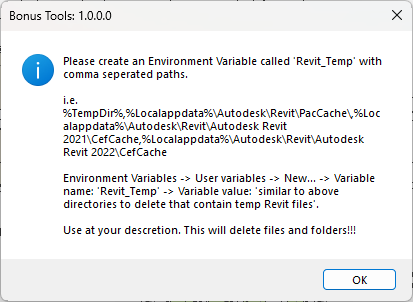
Table of Contents
Key Features
- Reads target directories from the
Revit_TempWindows User environment variable — no UI to configure, fully portable across machines - Enforces single-session safety — aborts with a warning if more than one
Revit.exeprocess is running - Confirmation dialog shows the consequence before any files are touched
- Deletes all files and subfolders inside each listed directory (does not delete the directory itself)
- Skips locked or inaccessible files silently — the rest of the operation continues
- Reports a final count: files deleted, directories deleted, and any paths that failed
- Displays full setup instructions with example paths when the environment variable is missing or empty
Requirements
- Only one Revit session may be open when the tool runs — close all other instances first
- The
Revit_TempWindows User environment variable must exist and contain at least one valid directory path - All cloud work must be synced to central before running — local cached files will be permanently deleted
- A valid Bonus Tools licence
Running the Tool
One-time setup — create the environment variable
The tool reads its target directories from a Windows User environment variable named Revit_Temp. Create this once and update it whenever you install or remove a Revit version.
- Press Win + R, type
SystemPropertiesAdvanced, and press Enter — or right-click This PC → Properties → Advanced system settings - Click Environment Variables...
- Under User variables, click New...
- Set Variable name to
Revit_Temp - Set Variable value to a comma-separated list of directory paths (no spaces around commas) — see the example below
- Click OK on all dialogs
- Restart Revit so it picks up the new variable
Example variable value:
%TempDir%,%Localappdata%\Autodesk\Revit\PacCache\,%Localappdata%\Autodesk\Revit\Autodesk Revit 2024\CefCache,%Localappdata%\Autodesk\Revit\Autodesk Revit 2025\CefCache
Add one CefCache entry per installed Revit version. Common paths to include:
| Path | Contents |
|---|---|
%TempDir% | Windows temporary files |
%Localappdata%\Autodesk\Revit\PacCache\ | Revit package cache |
%Localappdata%\Autodesk\Revit\Autodesk Revit [version]\CefCache | Browser / cloud cache (one per version) |
Only list genuine cache and temp directories. The tool deletes everything inside each path — there is no undo for most of these deletions.
Running the tool
-
Sync all open cloud files to central — use 151 Reset & Sync or 152 Reset, Sync & Compact if needed.
-
Close all other Revit sessions. Check Task Manager if unsure. The tool will abort if it detects more than one
Revit.exeprocess. -
Launch the tool from the Bonus Tools ribbon, or find it using 115 Search Tools.
-
Read the confirmation dialog and click OK to proceed, or Cancel to abort. The dialog reads:
Are you sure you wish to continue? Each time this command is run, Revit must recreate your local file from the Cloud. Recreating local files will take some time.
-
Wait for the operation to complete. Time varies from a few seconds to several minutes depending on cache size.
-
Review the results message — it shows the number of files deleted, directories deleted, and any paths that could not be processed.
Running the tool
The next time you open a cloud-based Revit file, Revit will re-download it from BIM 360 / ACC. This first open will be slower than normal — subsequent opens will return to normal speed.
Tips and Best Practices
- Run only when needed. The re-download penalty is real. Reserve this tool for active cloud sync errors, suspected cache corruption, or genuine disk-space emergencies. Monthly at most for healthy systems.
- Sync first, always. Delete the cache only after you are certain all local changes are committed to central. Local cached data is unrecoverable after deletion.
- Update the variable with each new Revit install. Each Revit version has its own
CefCachefolder. Add the new path toRevit_Tempat install time. Remove old paths when you uninstall a version. - Do not include project or shared library paths. The tool deletes all contents — a wrong path can destroy project data. Double-check each entry by pasting it into Windows Explorer's address bar before saving the variable.
- Run at the end of the day. The slower first-open after cleanup is far less disruptive the following morning than mid-session.
- Team deployments. If the variable needs to be set for multiple users, IT can deploy it via Group Policy login script rather than requiring each user to set it manually.
- Verify the variable is loaded. If Revit was already open when you set the variable, restart Revit before running the tool. Environment variables are read at process startup.
Common Use Cases
Resolving persistent cloud sync failures — When "Cannot sync to central" or cloud connection errors persist after restarting Revit and checking your network, a corrupted local cache is often the cause. Running this tool forces Revit to download a fresh copy and frequently resolves the issue.
Recovering disk space — Revit cache across multiple installed versions can reach several gigabytes. Running the tool when disk space is critically low typically frees 500 MB to several GB without touching any project data.
After upgrading to a new Revit version — Add the new version's CefCache path to Revit_Temp, then run the tool to start the new version with a clean cache state.
Resolving slow or broken cloud file opens — If cloud files are taking unusually long to open or are failing on initial load, clearing the cache removes any partially downloaded or corrupted local data and forces a clean download.
Periodic maintenance on heavy-use machines — Machines used daily for cloud-workshared projects accumulate cache quickly. Including this tool in a monthly maintenance checklist (alongside Purge Unused and audit tasks) keeps cache size manageable.
Troubleshooting
"Must close all other Revit sessions. You have: X open"
The tool detected more than one Revit.exe process running. Close all other Revit windows and re-run. If ghost processes remain after closing all windows, open Task Manager → Details tab → find and end each Revit.exe entry, then run the tool again.
Tool shows environment variable setup instructions instead of running
The Revit_Temp variable does not exist or is empty. The tool displays the following message when this occurs:
Please create an Environment Variable called 'Revit_Temp' with comma separated paths.
Follow the one-time setup steps above. After creating the variable, restart Revit and run the tool again.
Results show 0 files deleted and 0 directories deleted
The directories listed in Revit_Temp were already empty, do not exist, or the paths are incorrect. Paste each path from the variable into Windows Explorer's address bar to confirm it resolves to a real directory. If a Revit version has been uninstalled, its CefCache path will no longer exist — this is expected and not an error.
Some paths listed as failed in the results The tool skips any file or directory it cannot delete (locked by another process, insufficient permissions, or the path doesn't exist). Failed paths are listed in the results message. If the path corresponds to an uninstalled Revit version, remove it from the variable. If files are locked, restart the machine and run the tool again.
Cloud files won't open after running The cache cleanup does not affect Autodesk credentials or network settings. If files won't open, verify your internet connection and that you are signed in to your Autodesk account within Revit. The slower first open is expected — subsequent opens return to normal speed.
The variable value was correct but the tool still shows setup instructions Revit reads environment variables at startup. If Revit was running when you created or edited the variable, the new value is not visible to the current session. Restart Revit and run the tool again.
Accidentally deleted something important
Check the Windows Recycle Bin first — some files land there rather than being permanently deleted. Cloud-cached Revit files can be re-downloaded by reopening the file from BIM 360 / ACC. For any other accidentally deleted data, restore from your most recent backup. This outcome is why the Revit_Temp variable must only ever contain genuine temp and cache directories.
Cannot set user environment variables (corporate machine) Some organisations restrict environment variable access via Group Policy. Contact your IT department — they can grant access or deploy the variable centrally via login script or Group Policy preference so the tool works without each user needing to set it manually.