
147 Hatch Pattern
Chris McKeown / July 1, 2025
Modelling
Overview
The Hatch Pattern tool enables you to create custom Revit fill patterns directly from selected linework in your project. Instead of manually coding .PAT files, you can draw your pattern using Revit's native line tools, then convert it into a reusable hatch pattern. The tool supports both Model and Detail patterns, includes transformation options (scale, rotation, flip), and can export patterns as .PAT files for use in other projects or applications.
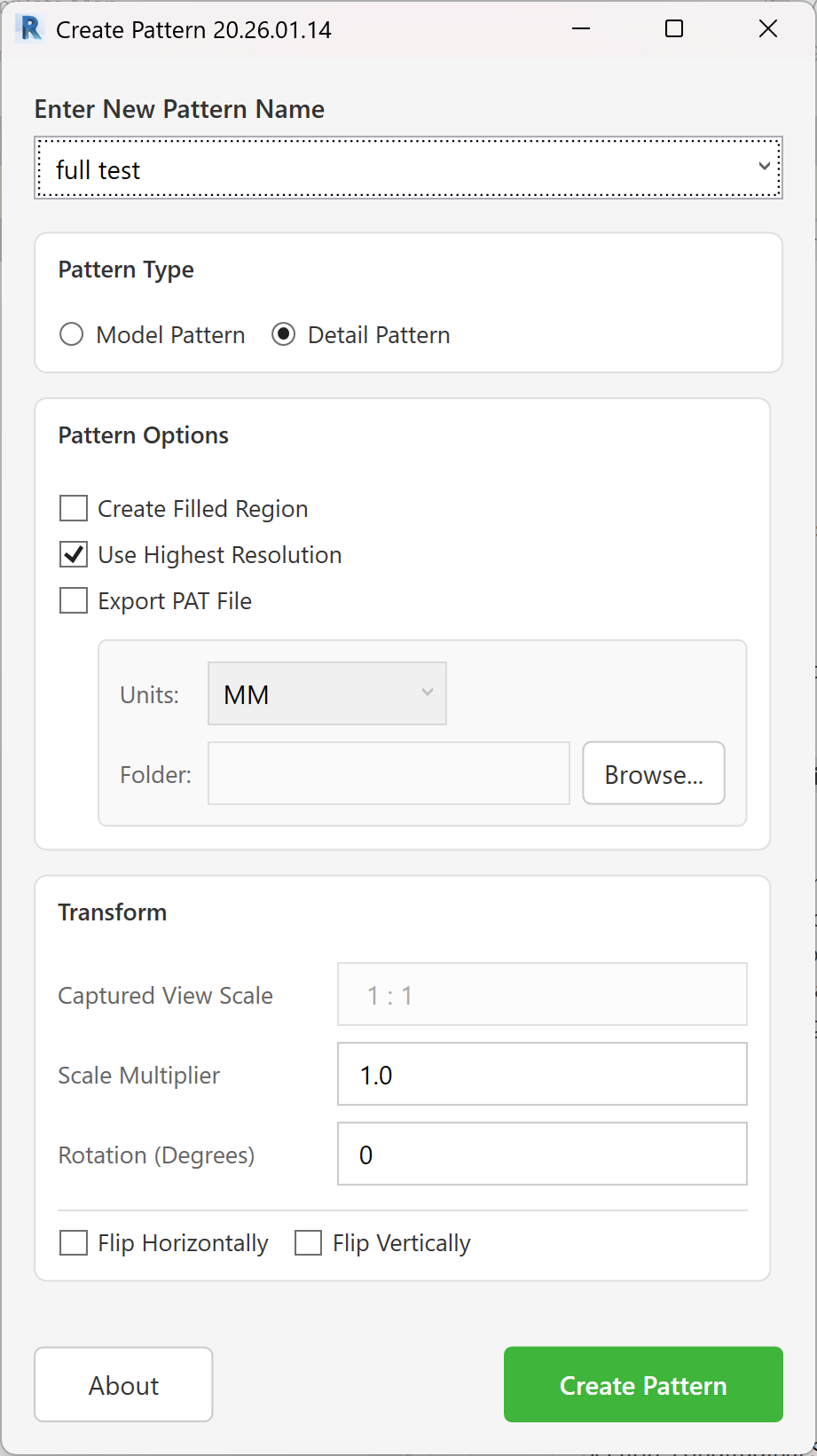
Table of Contents
- Key Features
- Requirements
- Interface Guide
- Pattern Creation Workflow
- Step-by-Step Guide
- Understanding Pattern Types
- Transform Options
- Export Options
- Example Workflows
- Tips and Best Practices
- Common Use Cases
- Troubleshooting
Key Features
- Visual Pattern Creation: Draw patterns using Revit linework instead of coding
- Multiple Input Types: Supports Detail Lines, Model Lines, Detail Arcs, Detail Ellipses, Model Curves, and existing Filled Regions
- Dual Pattern Types: Create Model Patterns (scale with view) or Detail Patterns (fixed size)
- Automatic Boundary Detection: Interactive boundary picker defines pattern extent
- Transform Controls: Scale, rotate, and flip patterns before creation
- View Scale Integration: Automatically accounts for current view scale for Detail patterns
- Filled Region Generation: Option to create a filled region type with the new pattern
- Pattern Export: Export as .PAT file for use in other projects or CAD software
- Highest Resolution Option: Automatically expands pattern domain for complex patterns
- Pattern Update: Updates existing patterns with same name
- Multi-line Processing: Tessellates curved elements into line segments
- Custom Parameter Integration: Reads existing filled region patterns from selection
Requirements
Pre-requisites
-
Active View Requirements
- Must be in a 2D view (Floor Plan, Ceiling Plan, Elevation, Section, Drafting View, Detail)
- Cannot be used in 3D views, schedules, or sheets
- View must have appropriate linework selected
-
Selection Requirements
- At least one line element or filled region selected
- Supported elements:
- Detail Lines (straight)
- Detail Arcs
- Detail Ellipses
- Detail NurbSplines
- Model Lines (straight)
- Model Arcs
- Model Ellipses
- Model NurbSplines
- Filled Regions (extracts fill grids)
-
View Types Supported
- Floor Plans
- Ceiling Plans
- Elevations
- Sections
- Drafting Views
- Detail Views
- Engineering Plans
- Area Plans
-
Permissions
- Project must not be in read-only mode
- User must have permission to create fill patterns
- Worksets (if applicable) must be editable
Pattern Limitations
Revit Pattern Constraints:
- Model patterns limited to 100 ft (30.5 m) domain
- Detail patterns limited to 10 ft (3.05 m) domain
- Maximum pattern complexity determined by Revit's fill pattern engine
- Patterns must be tileable (repeat seamlessly)
- Lines must be within defined boundary
Interface Guide
Pattern Name Section
Pattern Name Dropdown/TextBox
- Editable combo box
- Lists all existing patterns in project (both Model and Detail)
- Type new name for new pattern
- Select existing name to update pattern
- Prevents names containing "copy" (Revit naming convention)
- Auto-populates with existing pattern names sorted alphabetically
Name Validation:
- Cannot be empty
- Cannot contain "copy" (case-insensitive)
- Duplicate names will update existing pattern
- Validates against read-only patterns (e.g., "Solid Fill")
Pattern Type Section
Model Pattern (Radio Button)
- Creates patterns that scale with view scale
- Used for real-world materials (brick, tile, paving)
- Maintains physical size regardless of view scale
- Maximum domain: 100 ft × 100 ft
- Best for: Construction details, material representation
Detail Pattern (Radio Button)
- Creates patterns at fixed display size
- Used for drafting/annotation purposes
- Size stays constant regardless of view scale
- Maximum domain: 10 ft × 10 ft
- Best for: Section fills, diagrammatic patterns
- Automatically accounts for current view scale
Default Selection:
- Model Pattern is checked by default
- Changes which existing patterns appear in name dropdown
Pattern Options Section
Create Filled Region (Checkbox)
- When checked: Creates a new Filled Region Type using the pattern
- Filled Region Type name matches pattern name
- Based on first available Filled Region Type in project
- New type uses pattern as foreground pattern
- Useful for immediate testing and application
- Default: Unchecked
Use Highest Resolution (Checkbox)
- When checked: Tool expands pattern domain to accommodate complex angles
- Automatically adjusts domain if pattern lines don't align to Revit's fill grid
- Increases processing time but ensures pattern accuracy
- Prevents pattern degradation or simplification
- Recommended for: Complex patterns, non-orthogonal lines
- Default: Checked
Export PAT File (Checkbox)
- When checked: Saves pattern as .PAT file after creation
- Enables export options panel
- .PAT file can be imported into other Revit projects
- Compatible with AutoCAD and other CAD software
- Includes pattern metadata (units, type, date)
- Default: Unchecked
Export Options Panel
(Enabled only when "Export PAT File" is checked)
Units Dropdown
INCH: Export pattern in imperial inches (scale factor: 12.0)MM: Export pattern in metric millimeters (scale factor: 304.8)- Default selection based on project units
- Automatically detects if project uses metric or imperial
Folder Path
- Text box displays export directory path
- Read-only (must use Browse button)
- Default: Empty (must be set before export)
- Path persists between sessions (saved in user settings)
Browse... Button
- Opens folder browser dialog
- Select directory for .PAT file export
- Validates folder exists and is writable
- Selected path saved for future sessions
Transform Section
Captured View Scale (Text Box)
- Displays current view's scale (read-only)
- Format: "1 : [scale]" (e.g., "1 : 100")
- Extracted from view's scale parameter
- For Model Patterns: Information only
- For Detail Patterns: Used in scale calculations
- Grayed out (disabled) - cannot edit
Scale Multiplier (Text Box)
- Numeric value to multiply pattern scale
- Range: Any positive number (typically 0.1 to 10.0)
- Default:
1.0(no scaling) - Examples:
2.0: Doubles pattern size0.5: Halves pattern size1.5: Increases by 50%
- Applies to both Model and Detail patterns
- For Detail patterns: Combined with view scale
Rotation (Degrees) (Text Box)
- Rotation angle in degrees
- Range: 0 to 360 degrees
- Default:
0(no rotation) - Positive values: Counter-clockwise rotation
- Examples:
45: Rotates 45° counter-clockwise90: Rotates 90° (quarter turn)180: Flips pattern 180°
- Applied after scaling, before flipping
Flip Horizontally (Checkbox)
- Mirrors pattern across vertical axis
- Applied after rotation
- Can combine with Flip Vertically
- Useful for: Creating mirror patterns, reversing directionality
- Default: Unchecked
Flip Vertically (Checkbox)
- Mirrors pattern across horizontal axis
- Applied after rotation
- Can combine with Flip Horizontally
- Useful for: Inverting patterns, creating variations
- Default: Unchecked
Action Buttons
About Button
- Opens Bonus Tools information dialog
- Shows product version, license details
- Located bottom-left corner
- Does not close main dialog
Create Pattern Button
- Primary action button (green)
- Triggers pattern creation workflow
- Steps performed:
- Validates pattern name
- Hides dialog (allows boundary picking)
- Prompts for boundary corners
- Processes selected linework
- Creates/updates fill pattern
- (Optional) Creates filled region type
- (Optional) Exports .PAT file
- Closes dialog
- Keyboard shortcut: Enter (when name field not focused)
Pattern Creation Workflow
High-Level Process
-
Draw Pattern Geometry
- Create lines/curves representing one tile of pattern
- Consider pattern repeat and alignment
- Use appropriate line type (Detail or Model based on intent)
-
Select Elements
- Select all lines/curves that form pattern
- Can include existing filled regions to extract patterns
- Multiple elements processed together
-
Launch Tool
- Run "147 Hatch Pattern" from Bonus Tools
- Tool reads selection and current view
-
Configure Settings
- Enter pattern name
- Choose Model or Detail pattern type
- Set transform options (scale, rotation, flip)
- Configure export if needed
-
Define Boundary
- Tool prompts for bottom-left corner
- Then prompts for top-right corner
- Boundary defines pattern repeat area
-
Pattern Generation
- Tool converts linework to fill grids
- Applies transformations
- Creates Revit fill pattern
- (Optional) Creates filled region type
- (Optional) Exports .PAT file
-
Verification
- Apply pattern to filled region or material
- Verify repeat and alignment
- Adjust if needed by re-running tool
Step-by-Step Guide
Creating Your First Pattern
Step 1: Prepare Your Drawing
- Open a Drafting View (or Floor Plan for Model patterns)
- Draw the pattern geometry:
- Use Detail Lines for Detail patterns
- Use Model Lines for Model patterns
- Draw one complete tile of the pattern
- Ensure lines will tile seamlessly
Example: Drawing a brick pattern
- Draw horizontal lines for mortar joints (spacing: 75mm)
- Draw vertical lines for brick bonds (offset every other row)
- Keep within manageable area (e.g., 300mm × 225mm)
Step 2: Select Pattern Elements
- Use Selection Box or click individual elements
- Select all lines that form pattern tile
- Verify selection includes all necessary elements
- Can select filled regions to copy their patterns
Step 3: Launch Tool
- Go to Bonus Tools tab
- Click Create Pattern (or press assigned keyboard shortcut)
- Dialog opens with current selection processed
Step 4: Enter Pattern Name
- Type pattern name in top text box
- Follow naming conventions:
- Use descriptive names: "Brick Running Bond", "Tile 300x300"
- Avoid special characters
- Use spaces for readability
- Check if name already exists (will update existing pattern)
Example names:
- "Brick Standard"
- "Paving 45 Degree"
- "Acoustic Tile 600x600"
Step 5: Select Pattern Type
-
Choose Model Pattern if:
- Pattern represents real-world material
- Should scale with view scale
- Used in 3D elements, materials
-
Choose Detail Pattern if:
- Pattern is for drafting/annotation
- Should remain constant size
- Used in detail views, sections
Decision guide:
- Brick, tile, paving → Model Pattern
- Section fills, area designations → Detail Pattern
Step 6: Configure Options
-
Create Filled Region: Check if you want immediate filled region type
- Useful for testing
- Can apply pattern immediately after creation
-
Use Highest Resolution: Leave checked (recommended)
- Ensures pattern accuracy
- Handles complex angles automatically
-
Export PAT File: Check if you need portable file
- Required for: Sharing with team, using in other projects
- Select Units (INCH or MM)
- Click Browse and select folder
Step 7: Set Transform Options (if needed)
-
Scale Multiplier:
- Leave at
1.0for actual size - Increase to enlarge pattern (e.g.,
2.0) - Decrease to shrink pattern (e.g.,
0.5)
- Leave at
-
Rotation:
- Enter degrees for rotation
- Common values:
0,45,90
-
Flip Options:
- Check if mirroring needed
- Test combinations for variations
Step 8: Create Pattern
- Click Create Pattern button
- Dialog hides
- Message appears: "Pick the bottom-left corner of the pattern area, and then the top-right corner!"
Step 9: Define Pattern Boundary
-
First Pick - Bottom-Left Corner:
- Move cursor to lower-left corner of pattern tile
- Click to set corner
- Sets origin point for pattern
-
Second Pick - Top-Right Corner:
- Move cursor to upper-right corner of pattern tile
- Click to set corner
- Defines pattern repeat size
Tips for boundary picking:
- Boundary must completely contain all pattern lines
- Leave small margin around lines
- For repeating patterns: Boundary = one repeat unit
- Snap to obvious grid points if available
Step 10: Review Results
- Tool processes pattern (may take few seconds)
- Success message appears: "Pattern [name] successfully created/updated."
- If "Create Filled Region" was checked:
- New filled region type appears in type list
- If "Export PAT File" was checked:
- .PAT file saved to specified folder
- Message confirms export location
Step 11: Test Pattern
- Create a filled region in view
- Edit Type → Change Foreground Pattern
- Select your new pattern
- Verify pattern appearance, scale, alignment
- Adjust scale or edit pattern if needed
Updating Existing Pattern
When to Update:
- Fixing pattern alignment issues
- Adjusting pattern density
- Correcting errors in original pattern
- Creating variations of existing pattern
Process:
- Select and modify existing pattern linework (or draw new)
- Run tool
- Select existing pattern name from dropdown
- Make any changes to options
- Click Create Pattern
- Define same or new boundary
- Pattern updates - all instances update automatically
Important:
- Updating affects all uses of pattern in project
- Consider duplicating pattern first if preserving original
- All filled regions using pattern will update
Understanding Pattern Types
Model Patterns
Characteristics:
- Scale with view scale
- Represent real-world materials
- Size is physical (e.g., 200mm brick)
- Maximum domain: 100 ft × 100 ft (30.5m × 30.5m)
Typical Uses:
- Material patterns (brick, tile, stone)
- Paving patterns
- Cladding patterns
- Structural patterns (concrete, CMU)
- Flooring patterns
Scale Behavior:
View Scale 1:100 → Pattern appears small
View Scale 1:50  → Pattern appears larger
View Scale 1:20  → Pattern appears much larger
Best Practices:
- Draw at actual size (e.g., actual brick dimensions)
- Use project units (mm or inches)
- Scale Multiplier typically 1.0
- Test in multiple view scales
Detail Patterns
Characteristics:
- Fixed display size (doesn't scale with view)
- Used for drafting purposes
- Size is paper size (e.g., 5mm on paper)
- Maximum domain: 10 ft × 10 ft (3.05m × 3.05m)
- Tool automatically adjusts for current view scale
Typical Uses:
- Section cut patterns
- Area designation patterns
- Drafting symbols
- Annotation fills
- Diagrammatic patterns
Scale Behavior:
View Scale 1:100 → Pattern appears same size
View Scale 1:50  → Pattern appears same size
View Scale 1:20  → Pattern appears same size
View Scale Integration:
- Tool reads current view scale
- Automatically adjusts pattern for that scale
- Pattern appears correct size in that view
- May need adjustment if applied in different scale views
Best Practices:
- Draw considering view scale (tool compensates)
- Use consistent view scale for pattern creation
- Scale Multiplier can fine-tune for specific views
- Test in target view scales
Choosing Pattern Type
| Use Case | Pattern Type | Reason |
|---|---|---|
| Brick wall material | Model | Physical representation |
| Concrete hatch in section | Detail | Drafting convention |
| Tile floor pattern | Model | Real material |
| Earth/ground fill | Detail | Symbol, not actual material |
| Stone cladding | Model | Physical pattern |
| Insulation indication | Detail | Diagrammatic |
| Paving pattern | Model | Actual layout |
| Area color fill | Detail | Annotation only |
Transform Options
Scale Multiplier
Purpose: Resize pattern proportionally
Common Applications:
-
Making Pattern Denser
- Multiplier < 1.0
- Example: 0.5 = half size = twice as dense
- Use when: Pattern too sparse
-
Making Pattern Sparser
- Multiplier > 1.0
- Example: 2.0 = double size = half as dense
- Use when: Pattern too crowded
-
Fine-Tuning
- Multiplier ~1.0
- Example: 1.1, 0.9 for minor adjustments
- Use when: Almost right, needs tweaking
Calculation:
Final Size = Original Size × Scale Multiplier × (View Scale for Detail patterns)
Examples:
Model Pattern:
- Original: 200mm brick
- Multiplier: 0.5
- Result: 100mm brick (appears half size)
Detail Pattern at 1:100 scale:
- Original: 5mm line spacing
- Multiplier: 2.0
- Result: 10mm line spacing (appears double)
- (Tool handles view scale automatically)
Rotation
Purpose: Rotate entire pattern around origin
Common Angles:
- 0°: Default, no rotation
- 45°: Diagonal orientation (common for paving)
- 90°: Quarter turn (90° rotation)
- 180°: Half turn (upside down)
Rotation Direction:
- Positive values: Counter-clockwise
- Negative values: Clockwise (use 360-angle instead)
Use Cases:
-
Diagonal Patterns
- Set rotation: 45°
- Common for: Tile, paving, decorative patterns
-
Perpendicular Patterns
- Set rotation: 90°
- Useful for: Creating variations
-
Custom Angles
- Any degree value
- Example: 30° for hexagonal tile
Tips:
- Rotation applied from bottom-left boundary corner
- Combined with flip for more variations
- Test rotation in small increment if unsure
Flip Options
Flip Horizontally
- Mirrors pattern left-to-right
- Useful for creating variations
- Preserves vertical orientation
Flip Vertically
- Mirrors pattern top-to-bottom
- Useful for inverting patterns
- Preserves horizontal orientation
Combining Flips:
| Horizontal | Vertical | Result |
|---|---|---|
| ☐ | ☐ | Original |
| ☑ | ☐ | Mirrored L-R |
| ☐ | ☑ | Mirrored T-B |
| ☑ | ☑ | 180° rotation |
Use Cases:
-
Creating Pattern Variations
- Same pattern, different orientation
- Example: Herringbone left vs right
-
Fixing Directionality
- Pattern drawn backwards
- Flip to correct
-
Matching Existing Conditions
- Need to match field installation direction
Order of Operations:
- Scale applied first
- Rotation applied second
- Flips applied last
Export Options
PAT File Format
What is a .PAT file?
- Plain text file defining hatch pattern
- Compatible with AutoCAD and Revit
- Contains pattern geometry as mathematical definitions
- Human-readable but typically machine-generated
File Structure:
; Written by "Bonus Tools" for Revit
; Date: 2025-01-30
; Time: 14:30:45
; UNITS=MM
*PatternName,exported pattern
; TYPE=MODEL
0, 0, 0, 100, 100
90, 0, 50, 100, 100
Metadata Included:
- Creation date and time
- Units (INCH or MM)
- Pattern type (MODEL or DRAFTING)
- Pattern name
- Line definitions (angle, origin, spacing, offset)
Export Units
INCH (Imperial)
- Scale factor: 12.0
- Pattern units in decimal inches
- Compatible with: Imperial Revit projects, AutoCAD (Imperial)
- Use when: Project is imperial, sharing with imperial workflows
MM (Metric)
- Scale factor: 304.8
- Pattern units in millimeters
- Compatible with: Metric Revit projects, AutoCAD (Metric)
- Use when: Project is metric, sharing with metric workflows
Auto-Detection:
- Tool examines project units
- Sets default based on Length format
- Meters, Centimeters, Millimeters → MM
- Feet, Inches → INCH
Important:
- Units must match target project/application
- Importing wrong units causes scale issues
- Can convert by re-exporting in correct units
Export Workflow
-
During Pattern Creation:
- Check "Export PAT File"
- Select appropriate units
- Browse to export folder
- Click Create Pattern
- Pattern created AND exported
-
After Pattern Creation:
- Cannot export from this tool after pattern exists
- To export existing pattern:
- Run tool again with same pattern name
- Check "Export PAT File"
- Tool reads existing pattern and exports
File Naming:
- Filename = Pattern Name + ".pat"
- Example: "Brick Standard" → "Brick_Standard.pat"
- Invalid filename characters replaced with underscore
Using Exported Patterns
In Other Revit Projects:
- Locate .PAT file in export folder
- In target project: Manage tab → Additional Settings → Fill Patterns
- Click Edit for Model or Drafting patterns
- Click Import
- Browse to .PAT file
- Select and click Open
- Pattern now available in target project
In AutoCAD:
- Copy .PAT file to AutoCAD support folder
- Typical: C:\Users[username]\AppData\Roaming\Autodesk\AutoCAD [version][language]\Support
- Restart AutoCAD (if running)
- Use HATCH command
- Pattern appears in pattern list
Sharing with Team:
- Export pattern to shared network location
- Document pattern name and use case
- Team members import as needed
- Ensures consistency across projects
Example Workflows
Workflow 1: Creating Brick Pattern (Model)
Scenario: Need running bond brick pattern for wall materials
Step-by-Step:
-
Prepare Drawing
- Open Drafting View
- Set units to millimeters
- Draw brick pattern:
- Brick size: 215mm × 65mm
- Mortar joint: 10mm
- Running bond (half-brick offset)
-
Draw Geometry
- Horizontal lines at: 0, 75, 150, 225 (mortar joints) - Vertical lines at: 0, 112.5, 225 (running bond) - Create 225mm × 225mm tile -
Select Elements
- Select all detail lines (4 horizontal, 2 vertical)
-
Configure Tool
- Name: "Brick Running Bond 215"
- Type: Model Pattern
- Create Filled Region: Checked (for testing)
- Use Highest Resolution: Checked
- Export: Not needed yet
- Scale Multiplier: 1.0
- Rotation: 0
- Flips: Unchecked
-
Define Boundary
- First pick: (0, 0) - bottom-left of tile
- Second pick: (225, 225) - top-right of tile
-
Test Pattern
- Create filled region in floor plan
- Apply pattern
- Verify brick spacing at various view scales
- Adjust Scale Multiplier if needed
Result: Usable brick pattern for material assignments
Workflow 2: Creating Section Hatch (Detail)
Scenario: Custom concrete hatch for section cuts
Step-by-Step:
-
Prepare Drawing
- Open Section view (scale 1:50)
- Plan hatch that looks good at this scale
- Target: Diagonal line pattern
-
Draw Geometry
- 45° diagonal lines - Spacing: 3mm (on paper) - Draw several parallel lines - Area: 15mm × 15mm -
Select Elements
- Select all diagonal detail lines
-
Configure Tool
- Name: "Concrete Section Custom"
- Type: Detail Pattern
- Create Filled Region: Checked
- Use Highest Resolution: Checked
- Scale Multiplier: 1.0 (tool handles view scale)
- Rotation: Already drawn at 45°, set 0
- Flips: Unchecked
-
Define Boundary
- Pick boundary around lines
- Ensure some margin
-
Apply and Test
- Tool creates pattern scaled for 1:50 views
- Apply to filled region in section
- Verify line spacing appears 3mm
- If using in different scale views, may need adjustment
Result: Custom section hatch appropriate for project
Workflow 3: Paving Pattern with Rotation
Scenario: Diagonal paving pattern for plaza
Step-by-Step:
-
Draw Orthogonal Pattern First
- Draw square paver pattern: 400mm × 400mm grid - Include joint lines - Draw orthogonally (no rotation yet) -
Select and Configure
- Select all lines
- Name: "Paving Square 400 Diagonal"
- Type: Model Pattern
- Rotation: 45° (tool will rotate)
- Scale Multiplier: 1.0
-
Define Boundary
- Pick boundary around orthogonal pattern
-
Tool Applies Rotation
- Pattern rotated 45° automatically
- Results in diagonal paving
Benefit: Easier to draw orthogonally, let tool rotate
Workflow 4: Creating Pattern Library
Scenario: Build reusable pattern library for office
Step-by-Step:
-
Create Drafting View - Pattern Library
- Name: "Custom Patterns Master"
- Organize space for multiple patterns
-
Draw Each Pattern
- Section: Materials area (10 patterns)
- Section: Detail fills area (10 patterns)
- Label each pattern
-
Create Patterns One by One
- Select pattern 1 lines
- Run tool, create + export
- Repeat for all patterns
-
Export All
- Use Export PAT File option
- Export to: "\server\BIM\Patterns\"
- Choose appropriate units
-
Document Library
- Create spreadsheet listing:
- Pattern name
- Type (Model/Detail)
- Use case
- File location
- Share with team
- Create spreadsheet listing:
-
Template Integration
- Import all patterns into office template
- Future projects have patterns pre-loaded
Result: Standardized pattern library
Workflow 5: Extracting Patterns from Filled Regions
Scenario: Project has filled regions with good patterns, want to extract as .PAT
Step-by-Step:
-
Select Filled Region
- Select existing filled region in view
- Region has pattern you want to extract
-
Run Tool
- Tool reads fill grids from region's pattern
- No linework needed
-
Configure Export
- Name: Use existing pattern name or new name
- Type: Match original (Model/Detail)
- Export PAT File: Checked
- Select export folder and units
-
Create Pattern
- Boundary picking still required (defines export scale)
- Pick representative boundary
-
Result
- Pattern re-created (updates if same name)
- .PAT file exported
- Can now use in other projects
Use Cases:
- Extracting Revit default patterns
- Sharing patterns between projects
- Creating .PAT library from project
Tips and Best Practices
Drawing Pattern Geometry
-
Start Simple
- Begin with basic patterns
- Test workflow before complex patterns
- Gradually increase complexity
-
Draw One Tile
- Pattern should seamlessly repeat
- Test tile alignment at edges
- Ensure lines connect properly at boundaries
-
Use Appropriate Line Type
- Detail Lines for Detail patterns
- Model Lines for Model patterns
- Consistent line type in single pattern
-
Avoid Overlapping Lines
- Revit handles each line separately
- Overlaps create unnecessary complexity
- May cause unexpected pattern density
-
Consider Scale Early
- Model patterns: Draw at actual size
- Detail patterns: Consider target view scale
- Tool helps but starting right saves rework
Boundary Selection
-
Include Margin
- Don't pick exactly on line endpoints
- Small margin prevents clipping
- Especially important at pattern edges
-
Square Boundaries Preferred
- Easier to visualize repeat
- Works better with Revit's grid system
- Rectangular acceptable but test carefully
-
Align to Pattern Repeat
- Boundary should represent one complete tile
- If pattern repeats every 300mm, boundary = 300mm
- Incorrect boundary causes incorrect repeat
-
Snap Carefully
- Use Revit's snap settings
- Align to obvious grid points
- Precision matters for seamless repeat
Pattern Type Selection
-
When in Doubt → Detail Pattern
- Safer choice for most uses
- Especially for section fills and annotations
- Can always recreate as Model if needed
-
Test in Target Context
- Create pattern in view type where it will be used
- Floor plan pattern → test in floor plan
- Section pattern → test in section
-
Consider View Scale Range
- Model patterns: Verify appearance in multiple scales
- Detail patterns: May need variants for different scales
Transform Options
-
Test Transformations Incrementally
- Apply one transform at a time
- Verify result before adding more
- Easier to diagnose issues
-
Document Custom Settings
- Note scale multipliers used
- Record rotation angles
- Helps maintain consistency
-
Create Variations
- Use transforms to create pattern families
- Example: "Brick 215", "Brick 215 Rotated 45"
- Easier than redrawing
Export Strategy
-
Always Export Important Patterns
- Backup in case project corrupted
- Share with team/other projects
- Archive for future use
-
Organize Export Folder
\\server\BIM\Patterns\ Model\ Brick\ Tile\ Paving\ Detail\ Section_Fills\ Area_Patterns\ -
Use Consistent Units
- Pick unit system (INCH or MM)
- Stick with it across projects
- Document in office standards
-
Version Control
- Include date in filename if needed
- Example: "Brick_Standard_2025-01-30.pat"
- Keep old versions for reference
Troubleshooting During Creation
-
Pattern Looks Wrong
- Check boundary selection
- Verify transform settings
- Test pattern in filled region immediately
-
Pattern Too Dense/Sparse
- Adjust Scale Multiplier
- Recreate pattern with new setting
- For Detail patterns: Check view scale
-
Pattern Doesn't Tile
- Review original line drawing
- Ensure geometry connects at boundaries
- Redraw with proper alignment
-
Complex Pattern Fails
- Ensure "Use Highest Resolution" is checked
- Simplify pattern if still fails
- May exceed Revit's pattern complexity limit
Common Use Cases
Architectural Materials
Masonry:
- Running bond brick
- Stack bond brick
- Flemish bond
- Concrete block
Typical Settings:
- Type: Model Pattern
- Scale: 1.0
- Draw at actual brick size
Tile:
- Square tile (various sizes)
- Rectangular tile
- Diagonal tile
- Herringbone
Typical Settings:
- Type: Model Pattern
- Scale: 1.0 or 0.5 for grout joint emphasis
- Consider rotation for diagonal
Paving:
- Concrete pavers
- Stone paving
- Permeable paving
- Unit pavers
Typical Settings:
- Type: Model Pattern
- Scale: 1.0
- Rotation: 0° or 45° common
Structural Patterns
Concrete:
- Solid concrete (dense diagonal)
- Lightweight concrete (lighter hatch)
- Precast panels (with joints)
Steel:
- Structural steel (light hatch)
- Steel plate (dense hatch)
Typical Settings:
- Type: Usually Detail Pattern (in sections)
- Scale: Adjusted for drawing scale
- Consistent with standards (ISO, BS, etc.)
Section Fill Patterns
Standard Materials:
- Earth
- Gravel
- Insulation
- Plywood
- Gypsum board
Typical Settings:
- Type: Detail Pattern
- Draw at appropriate density for view scale
- Follow drafting standards
Custom Fills:
- Special system indicators
- Zone designations
- Phasing indicators
Typical Settings:
- Type: Detail Pattern
- Simple geometry
- Clear differentiation from standard patterns
Site/Landscape
Planting:
- Grass
- Groundcover
- Mulch
- Gravel
Hardscape:
- Paving (as above)
- Decking
- Boardwalk
Typical Settings:
- Type: Model Pattern (physical materials)
- Scale to actual sizes
Specialized Patterns
MEP Systems:
- Ductwork indication
- Pipe fill
- Equipment hatch
Fire Protection:
- Fire-rated assembly indication
- Smoke barrier
Accessibility:
- Accessible route indication
- Clearance zone
Typical Settings:
- Type: Detail Pattern
- Symbolic rather than realistic
- High contrast for clarity
Troubleshooting
Tool Won't Launch
Problem: Clicking tool does nothing
Solutions:
- Verify elements are selected before launching
- Check view type is supported (not 3D, schedule, or sheet)
- Ensure view is not in sketch mode
- Try selecting different elements
- Check selection contains valid line types
"No linework or filled regions selected"
Problem: Error message at startup
Solutions:
- Nothing was selected when tool launched
- Select at least one valid element type
- Valid types:
- Detail Lines, Arcs, Ellipses, Splines
- Model Lines, Arcs, Ellipses, Splines
- Filled Regions
Not Valid:
- Annotation elements
- Dimensions
- Text
- Symbols
- Reference planes (unless with attached lines)
"Active view is not compatible"
Problem: Error message on launch
Solutions:
- Current view type not supported
- Switch to supported view type:
- Floor Plan
- Ceiling Plan
- Elevation
- Section
- Drafting View
- Detail View
- Engineering Plan
- Area Plan
Not Compatible:
- 3D views (orthographic or perspective)
- Schedules
- Sheets
- Legends
- Walkthroughs (during run)
Boundary Picking Fails
Problem: Can't pick boundary points or tool crashes
Solutions:
- Ensure view has sketch plane set
- For 3D views → Not supported (shouldn't reach this point)
- Try zooming to fit selection
- Check for view corruption (try new view)
- Verify Revit selection settings (Tab to cycle)
If "Set Selection Plane" fails:
- View may not support sketch plane
- Switch to plan/elevation/section view
"Cannot process no boundary"
Problem: Error after picking boundary
Solutions:
- Boundary has zero width or height
- Both corner picks were same point or too close
- Pick again with clear separation
- Ensure boundary encompasses linework
- Check units - boundary might be too small
Pattern Looks Incorrect
Problem: Pattern created but doesn't look right
Solutions:
-
Pattern Too Dense:
- Increase Scale Multiplier (try 2.0)
- Or redraw with wider spacing
-
Pattern Too Sparse:
- Decrease Scale Multiplier (try 0.5)
- Or redraw with closer spacing
-
Pattern Doesn't Tile:
- Original geometry doesn't align at boundaries
- Redraw ensuring lines connect at edges
- Check boundary size matches actual repeat
-
Pattern Rotated Wrong:
- Check Rotation value
- Verify Flip settings
- May need to adjust or redraw
-
Pattern Simplified:
- Revit may have simplified complex pattern
- Enable "Use Highest Resolution"
- Or simplify original geometry
Pattern Not Appearing in Lists
Problem: Created pattern but can't find it
Solutions:
- Check correct pattern type (Model vs Detail)
- Pattern lists are separate
- Search pattern name in Fill Pattern dialog
- Verify pattern creation didn't fail silently (check output)
"Pattern [name] successfully created/updated" but No Pattern
Problem: Success message but pattern not usable
Solutions:
- Pattern may be created but have no fill grids
- Happens if no valid lines within boundary
- Recreate with boundary encompassing lines
- Check line types are valid
Export Fails
Problem: .PAT file not created or corrupted
Solutions:
-
Folder Not Writable:
- Check folder permissions
- Try different export location
- Use local drive instead of network
-
Invalid File Path:
- Browse button selected folder that no longer exists
- Select valid folder
-
Pattern Name Invalid:
- Contains characters illegal for filenames
- Tool should sanitize, but verify
- Use simple names (letters, numbers, spaces)
Pattern Name Errors
Problem: Name rejected or causes issues
Solutions:
-
"Please enter a valid pattern name":
- Name field empty
- Enter any name
-
"Pattern with name [X] already exists" (read-only):
- Trying to overwrite "Solid Fill" or other read-only
- Use different name
- Cannot override Revit default read-only patterns
-
"Name must not contain 'copy'":
- Name contains word "copy" (case-insensitive)
- Remove "copy" from name
- Revit convention to prevent confusion
View Scale Issues (Detail Patterns)
Problem: Detail pattern wrong size in different views
Solutions:
- Detail patterns are created for specific view scale
- Pattern looks correct in creation view scale
- May appear wrong in different scale views
- Options:
- Create separate patterns for each scale
- Adjust Scale Multiplier when applying
- Use Model Pattern instead if needs to scale
Example:
- Pattern created in 1:100 view
- Looks wrong in 1:50 view
- Either:
- Create "Pattern Name 1:50" version
- Or use Model Pattern
Complex Pattern Performance
Problem: Tool slow or freezes with complex patterns
Solutions:
- "Use Highest Resolution" increases processing time
- Expected for complex patterns (many lines, unusual angles)
- Wait for processing (may take 30-60 seconds)
- If consistently freezing:
- Simplify pattern (fewer lines)
- Break into multiple simpler patterns
- Upgrade hardware (more RAM helps)
Filled Region Type Not Created
Problem: "Create Filled Region" checked but no type appears
Solutions:
- No existing filled region types in project
- Add at least one filled region type first
- Tool duplicates from existing type
- Or manually create filled region type and assign pattern
Lines Outside Boundary
Problem: Some pattern lines outside boundary were ignored
Solutions:
- Only lines within boundary are processed
- This is expected behavior
- Adjust boundary to include all lines
- Or trim lines to boundary before running tool
Pattern Updates All Instances
Problem: Updating pattern changed all existing filled regions
Solutions:
- This is correct Revit behavior
- Updating pattern affects all uses
- If need to preserve original:
- Duplicate pattern before updating (rename)
- Reassign some filled regions to duplicate
- Then update original
Need Help? Contact Bonus Tools support or refer to additional documentation.
Thank you for using Bonus Tools - Hatch Pattern Creator!