
146 Keynote Usage
Chris McKeown / July 1, 2025
Lists
Overview
Keynote Usage reads every keynote assignment in the project at launch — across element types, family instances, materials, and all three kinds of keynote tag — and presents them as a consolidated list with usage counts and full keynote text from the project's keynote file. Clicking any row immediately shows which specific elements carry that keynote. Toggle the five source-type checkboxes to focus on any subset of sources, and use Select and go to Revit to isolate the relevant elements for direct inspection or correction.
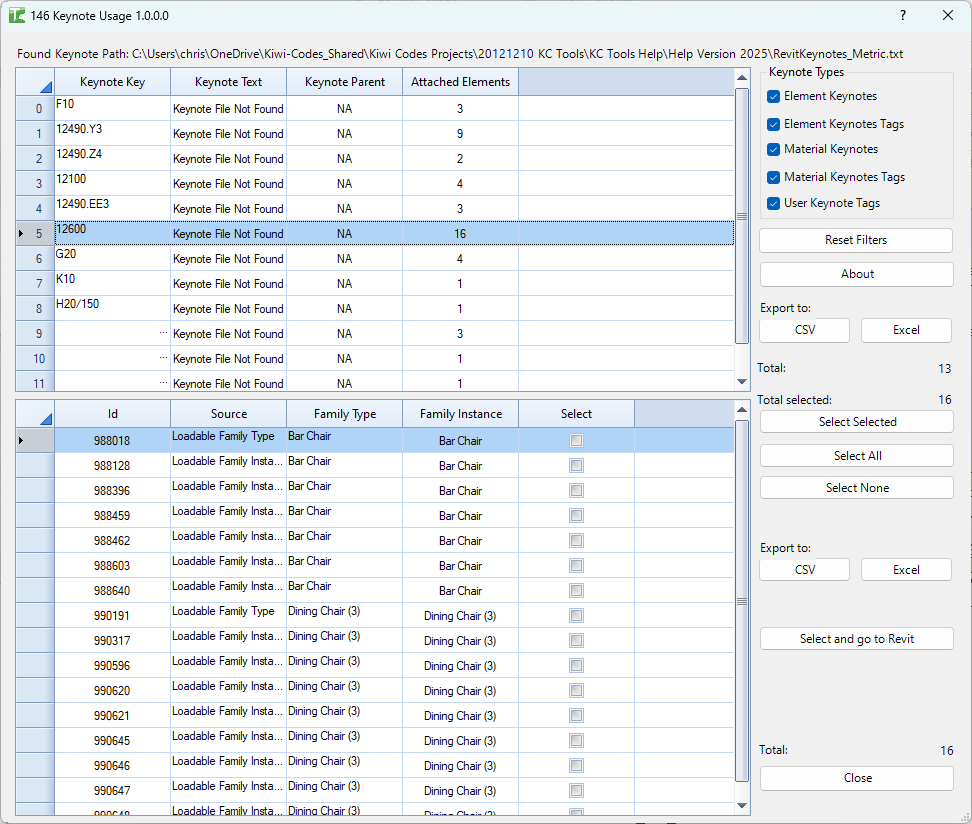
Table of Contents
- Key Features
- Requirements
- Running the Tool
- Understanding the Elements Panel
- Tips and Best Practices
- Common Use Cases
- Troubleshooting
Key Features
- Loads all keynote assignments instantly on open — no secondary analysis step required
- Reads keynote text and parent hierarchy directly from the project's keynote file
- Detects and displays
Keynote Key Not Foundwhen a key is used in the project but absent from the keynote file - Covers five distinct keynote source types via independent checkboxes — toggle any combination in real time
- Two-panel layout: summarised keynote list on top, per-element usage detail below
- Clicking a Keynotes grid row instantly loads its element detail — no button press needed
- Select and go to Revit selects ticked elements in the model and closes the dialog
- Displays the view name where keynote tags are placed (Family Instance column)
- Export both grids independently to CSV or Excel
- Column filtering and row-number headers on both grids
- Built-in language selector for multi-language support
Requirements
- Works in any Project document (not Family documents)
- The project must have a keynote file assigned (Manage → Keynoting Settings). If no file is assigned or the path is broken, keynote text shows as
Keynote File Not Found - No write access is needed — the tool is read-only
Running the Tool
Launch
Find Keynote Usage on the Bonus Tools Ribbon or use 115 Search Tools.
The dialog opens and immediately scans the project. The keynote file path is displayed at the top of the window. Both grids populate without any further action required.
Step 1 — Check the Keynote File Path
The Found Keynote Path label at the top of the dialog shows the path the tool read from the project's Keynoting Settings. Verify it resolves to the correct file before interpreting any results.
If the path is wrong or the file is missing, all rows in the Keynotes grid will show Keynote File Not Found in the Keynote Text column. Correct the path in Revit (Manage → Settings → Keynoting Settings) and reopen the tool.
Step 2 — Filter by Source Type
The Keynote Types group in the right panel contains five checkboxes, all checked by default. Unchecking any type immediately rebuilds the Keynotes grid showing only the remaining source types.
| Checkbox | What it collects |
|---|---|
| Element Keynotes | KEYNOTE_PARAM on FamilySymbols, FamilyInstances, System Families, and Materials |
| Element Keynote Tags | Keynote tag elements where the tag source is Element |
| Material Keynotes | KEYNOTE_PARAM assigned directly on Material definitions |
| Material Keynote Tags | Keynote tag elements where the tag source is Material |
| User Keynote Tags | Keynote tag elements where the tag source is User (manually keyed) |
Note on Element Keynotes: When a FamilyInstance is found with
KEYNOTE_PARAM, the tool reads the keynote from its FamilySymbol (the type), not the instance. The keynote is a type-level parameter for loadable families.
Step 3 — Review the Keynotes Grid
The top grid lists one row per unique keynote key found across the active source types.
| Column | Description |
|---|---|
| Keynote Key | The keynote code as assigned (e.g. 03.21.13.16) |
| Keynote Text | Full description from the keynote file — or Keynote File Not Found / Keynote Key Not Found |
| Keynote Parent | The parent entry from the keynote file hierarchy, or NA if unresolvable |
| Attached Elements | Count of individual element references using this keynote across all active source types |
Selection controls (Keynotes panel):
- Reset Filters — clears all active column filters on the Keynotes grid
- Export to CSV / Excel — exports the Keynotes grid
The Total counter at the bottom of the right panel shows the number of unique keynotes displayed.
Step 4 — Inspect Element Usage
Click any row in the Keynotes grid. The Elements panel below immediately updates with every element that carries that keynote.
See Understanding the Elements Panel for a full breakdown of the columns.
Selection controls (Elements panel):
- Select Selected — toggles the Select checkbox for highlighted (clicked) rows
- Select All — checks all visible rows, respecting active filters
- Select None — unchecks all rows
- Reset Filters — clears active filters on the Elements grid
- Export to CSV / Excel — exports the Elements grid for the currently selected keynote
The Total selected counter tracks how many rows are ticked.
Step 5 — Isolate Elements in Revit
- Tick the Select checkbox for the elements you want to inspect.
- Click Select and go to Revit (primary button at the bottom of the right panel).
The dialog closes and the selected elements are highlighted in Revit. Switch to an appropriate view to review them.
Only the rows where Select = true are passed to Revit. Elements on unloaded worksets or deleted since the tool opened will be silently skipped.
Understanding the Elements Panel
The Elements panel shows one row for each individual element reference using the selected keynote. The same element ID can appear more than once if it matches multiple source types (e.g. a material keynote and a material keynote tag).
| Column | Description |
|---|---|
| Id | Revit Element ID |
| Source | How the keynote is attached — see table below |
| Family Type | Family name (for loadable families), material name, or the tag source value |
| Family Instance | Instance name (for loadable family instances), or view name where a keynote tag is placed |
| Select | Checkbox — tick to include in Select and go to Revit |
Source values
| Source | What it represents | Family Type | Family Instance |
|---|---|---|---|
| Loadable Family Instance | A FamilyInstance — keynote read from its FamilySymbol | Family name | Instance name |
| Loadable Family Type | A FamilySymbol with a keynote assigned | Family name | Type name |
| System Family Type | A system family type (Wall, Floor, Roof, etc.) with a keynote | Type name | (blank) |
| Material | A Material element with KEYNOTE_PARAM set | Material name | (blank) |
| Keynote Tag | A keynote tag placed in a view | Source value (Element / Material / User) | View name where the tag is placed |
Keynote Tag rows show the view name in the Family Instance column — this tells you which view the tag is in, not an instance name.
Tips and Best Practices
- Check the keynote file path first. If
lbl_FoundKeynotePathshows a path that doesn't exist or is on a network share that's currently unreachable, all keynote text will show asKeynote File Not Found. Fix the path in Revit before using the tool. Keynote Key Not Foundneeds action. A key present in the project but absent from the keynote file will cause problems in keynote schedules and tags. Filter the Keynote Text column for "Not Found" to find and correct these.- Use source type checkboxes to isolate disciplines. Uncheck all types except Material Keynotes to audit only material assignments, or uncheck everything except User Keynote Tags to find manually keyed tags that may be bypassing the standard workflow.
- The Attached Elements count includes all active source types. If you want a count for only one source type, uncheck all others first, then check your count.
- FamilyInstance keynotes come from the type. When a
Loadable Family Instancerow appears, the keynote is on the FamilySymbol, not the instance — changing it will affect all instances of that type. - Keynote tags show their view in Family Instance. Use this to track down tags placed in unexpected views, or to verify tags are on the correct sheets.
- Export before making corrections. Export the Keynotes grid and the Elements grid for each keynote you plan to correct — this gives you a clear record of the before state.
- Re-open the tool after making changes. The grid does not refresh automatically. Close and reopen to reflect corrections made in Revit.
Common Use Cases
Pre-submission keynote audit — Open the tool before a drawing issue and filter the Keynote Text column for "Not Found". Any results indicate a mismatch between keynote assignments in the model and the keynote file. Correct the missing keys in the keynote file (or reassign the elements) before issuing.
Finding all elements tagged with a specific keynote — Click the keynote row in the top grid, select all rows in the Elements panel, and use Select and go to Revit to highlight them in the model. Useful for checking whether a keynoted product has been placed everywhere it should be, or verifying scope.
Auditing user keynote tags — Uncheck all source types except User Keynote Tags. User tags bypass the standard element/material keynote assignment and can introduce inconsistencies. Review the list to decide which should be reassigned to proper type keynotes.
Confirming material keynote coverage — Uncheck all types except Material Keynotes. Materials with no keynote won't appear. Compare the count to your full material list (e.g. from 144 Material Usage Reassignment) to identify materials that are missing keynote assignments.
Coordinating keynotes with specifications — Export the Keynotes grid to Excel and open it alongside the specification outline. Map each keynote to its specification section and flag keynotes without a matching spec. Share with the specifications writer for review.
Troubleshooting
All rows show Keynote File Not Found in Keynote Text
The keynote file path in the project is broken or the file is inaccessible. Go to Manage → Settings → Keynoting Settings in Revit, update the file path to a valid .txt keynote file, and reopen the tool.
Some rows show Keynote Key Not Found
A keynote key is assigned to one or more elements but does not exist in the keynote file. Either add the missing key to the keynote file, or reassign those elements to a valid key. Use Select and go to Revit from the element detail to locate the affected elements quickly.
The Keynotes grid is empty Verify that at least one source type checkbox is checked. Also confirm that the project actually has keynote assignments — a project with no keynotes assigned to any elements, materials, or tags will produce an empty grid.
Clicking a keynote row does nothing / Elements panel stays empty
The keynote may have an Attached Elements count of 0 (which can happen if the count was calculated with different source types active). Check the count column. Also try clicking directly on the text in the row rather than at the far edge.
Attached Elements count seems wrong The count reflects only the source types that are currently checked. If you toggle a checkbox after selecting a row, the Keynotes grid rebuilds but the Elements panel will not update until you re-click the row.
Select and go to Revit closes the dialog but elements aren't selected in Revit Confirm rows are ticked (Select = true) — the Total selected counter must be greater than 0. Elements may also have been deleted after the tool was opened, or they may be on unloaded worksets. Switch to a 3D view or a plan that shows the expected elements and look again.
Keynote tag rows show a blank Family Instance
This should not happen — keynote tags always have an owner view. If you see a blank, the tag's OwnerViewId may point to a deleted view. The tag itself may be orphaned. Use Select and go to Revit to locate and clean up the tag.
The tool loads slowly on large projects
The tool scans all elements with KEYNOTE_PARAM and all keynote tags in a single pass. On very large models with many keynotes and tags, this can take several seconds. Uncheck source types you don't need to reduce the scan scope when reopening.