144 Material Usage Reassignment
Chris McKeown / July 1, 2025
Lists
144 Material Usage Reassignment
Overview
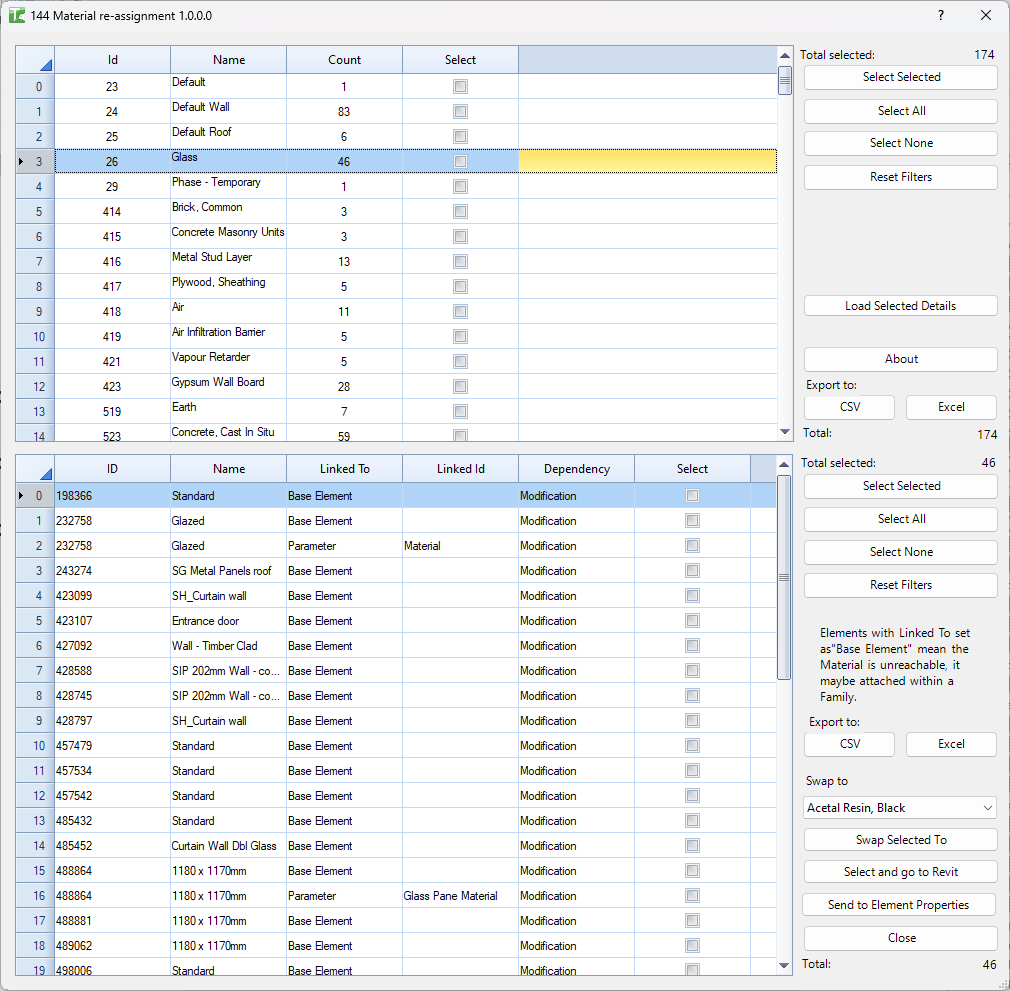
The Material Usage Reassignment tool provides comprehensive analysis of material usage throughout your Revit project and enables selective reassignment of materials. It identifies every location where a material is used—including element parameters, painted faces, and compound structure layers—then allows you to swap materials across multiple elements in a single operation. This is invaluable for material consolidation, correcting assignment errors, and maintaining material standards.

Table of Contents
- Key Features
- Requirements
- Interface Guide
- Step-by-Step Guide
- Understanding Material Dependencies
- Example Workflows
- Tips and Best Practices
- Common Use Cases
- Troubleshooting
Key Features
- Displays all materials in project with usage counts
- Analyzes material dependencies using temporary deletion technique
- Identifies material usage across five distinct locations:
- Base Element: Material unreachable within family structure
- Parameters: Material assigned via element parameters
- Painted Faces: Material applied as paint override
- Layers: Material in compound structure layers (walls, floors, roofs, ceilings)
- Deletion: Elements that would be deleted (dependencies)
- Two-panel interface showing material list and detailed usage
- Selective material reassignment to replacement material
- Batch processing of multiple materials
- Export capabilities to Excel and CSV
- Select and isolate elements in Revit
- Send to Element Properties tool for further analysis
- Advanced filtering on all columns
- Progress indicators for long operations
- Real-time count updates
Requirements
Pre-requisites
-
Materials in Project
- Project must contain material definitions
- Materials can be used or unused
- Works with all material types
-
Project Elements
- Elements using materials (walls, floors, families, etc.)
- Works with both model and annotation elements
- Analyzes material category elements
-
Edit Permissions
- File must be editable for reassignment operations
- Cannot reassign in read-only files
- Central model access required for workshared files
Recommended Setup
Before Using Tool:
- Save project (tool uses temporary transactions)
- Close unnecessary views to improve performance
- Sync workshared files to avoid conflicts
- Document current material assignments if needed
Interface Guide
The interface consists of two main grids with independent controls for material selection and usage detail.
Materials Panel (Top Grid)
Displays all project materials:
- Id: Element ID of material in Revit
- Name: Material name as shown in Material Browser
- Count: Number of usage instances detected
- Select: Checkbox for batch operations
Key Information:
- Total: Count of all materials in project
- Total selected: Count of checked materials
- Rows are automatically numbered for reference
Usage Detail Panel (Bottom Grid)
Displays usage instances when material is selected:
- ID: Element ID using the material
- Name: Element name in Revit
- Linked To: Type of material usage
- "Base Element" - Unreachable material in family
- "Parameter" - Material parameter assignment
- "Painted Face" - Paint override
- "Layer" - Compound structure layer
- Linked Id: Specific parameter name or layer identifier
- Dependency: Always shows "Modification"
- Select: Checkbox to include in reassignment
Key Information:
- Total: Count of usage instances for selected material
- Total selected: Count of checked instances
- Click material row in top grid to load details
Control Panels (Right Side)
Materials Panel Controls:
- Select Selected: Toggle selection for highlighted rows
- Select All: Check all visible material rows
- Select None: Uncheck all material rows
- Reset Filters: Clear all column filters
- Load Selected Details: Analyze checked materials (batch mode)
- About: Display tool version information
- CSV: Export materials grid to CSV
- Excel: Export materials grid to Excel
Usage Detail Controls:
- Select Selected: Toggle selection for highlighted rows
- Select All: Check all visible usage rows
- Select None: Uncheck all usage rows
- Reset Filters: Clear all column filters
- CSV: Export usage detail to CSV
- Excel: Export usage detail to Excel
- Swap to: Dropdown to select replacement material
- Swap Selected To: Execute material reassignment
- Select and go to Revit: Isolate selected elements in Revit
- Send to Element Properties: Open elements in properties tool
Important Notes
Material Analysis Note:
Elements with Linked To set as "Base Element" mean the Material is unreachable; it may be attached within a Family.
This indicates materials embedded in family definitions that cannot be directly reassigned through this tool.
Keyboard Shortcuts
- ESC: Close dialog
Step-by-Step Guide
Basic Material Usage Analysis
-
Open the Tool
- Navigate to Bonus Tools tab in Revit
- Click 144 Material Usage Reassignment
- Tool opens and begins loading materials
-
Wait for Initial Load
- Progress bar displays during material collection
- All project materials populate in top grid
- Review total count in "Total" label
-
Review Material List
- Materials sorted alphabetically by name
- Check "Count" column for usage instances
- Materials with Count = 0 are unused
-
Select Material to Analyze
- Click any row in materials grid
- Tool analyzes material dependencies
- Usage detail panel populates automatically
-
Review Usage Details
- Examine "Linked To" column for usage types
- Check "Linked Id" for specific assignments
- Note which elements are affected
-
Filter or Export (Optional)
- Use column filters to find specific usage
- Export to CSV or Excel for documentation
- Continue analyzing other materials
Analyzing Single Material
-
Locate Target Material
- Scroll or filter materials grid
- Or use column filter on "Name"
- Example: Find "Concrete - Cast-in-Place"
-
Click Material Row
- Single click to select
- Tool performs temporary deletion analysis
- Wait for analysis to complete
-
Review Usage Breakdown
- Parameters: Check which parameters reference material
- Painted Faces: Identify elements with paint overrides
- Layers: See which wall/floor/roof types use material
- Base Element: Note unreachable family materials
-
Document Findings
- Export detail panel if needed
- Note elements requiring attention
- Identify reassignment candidates
Batch Analyzing Multiple Materials
-
Select Materials for Analysis
- Check "Select" box for each target material
- Or use "Select All" then uncheck unwanted
- Can use filters to isolate specific materials
-
Click "Load Selected Details"
- Analyzes each checked material sequentially
- Progress bar shows analysis status
- May take several minutes for many materials
-
Review Results
- Click each material to see its usage details
- Count column updates with findings
- Materials without usage show Count = 0
-
Export Combined Data
- Export materials grid shows all counts
- Switch between materials to review details
- Create documentation of material usage
Reassigning Material to Replacement
-
Select Source Material
- Click material row to load usage details
- Review all usage instances
- Identify which instances need reassignment
-
Select Usage Instances
- Check boxes for instances to reassign
- Can select all with "Select All"
- Or selectively check specific instances
- Use filters to isolate usage types
-
Choose Replacement Material
- Click "Swap to" dropdown
- Select replacement material from list
- Dropdown shows all project materials
-
Execute Swap
- Click "Swap Selected To" button
- Tool processes each checked instance
- Completion message shows results:
- Fixed Parameters: Count
- Fixed Faces: Count
- Fixed Layers: Count
-
Verify Results
- Usage detail automatically refreshes
- Reassigned instances removed from list
- Check elements in Revit to confirm
-
Repeat If Needed
- Remaining instances still shown
- Can reassign to different materials
- Or complete reassignment in phases
Finding Elements Using Material
-
Select Material and Load Details
- Click material row
- Wait for usage analysis
-
Filter Usage Instances (Optional)
- Filter by "Linked To" for specific usage type
- Filter by "Name" for specific elements
- Apply multiple filters as needed
-
Select Elements to Isolate
- Check boxes for desired elements
- Use "Select All" for all visible
- "Select Selected" toggles highlighted
-
Isolate in Revit
- Click "Select and go to Revit"
- Dialog closes
- Selected elements isolated in Revit
- Review in project
-
Or Send to Element Properties
- Click "Send to Element Properties"
- Element Properties tool opens
- Shows all elements from detail panel
- Further analysis available
Understanding Material Dependencies
The tool uses a sophisticated temporary deletion technique to identify all material dependencies.
Analysis Method
Temporary Deletion Process:
- Tool creates temporary transaction group
- Attempts to delete selected material
- Revit reports which elements would be modified
- Tool captures all modified and deleted element IDs
- Transaction group is rolled back (no actual deletion)
- Captured elements analyzed for material usage
Why This Works:
- Revit knows all material dependencies internally
- Deletion triggers dependency tracking
- More comprehensive than simple parameter searching
- Finds hidden dependencies in families
Usage Types Explained
Base Element
Meaning: Material used within family but unreachable from project
Common Causes:
- Material assigned in family editor to nested geometry
- Material in family template that cannot be overridden
- Legacy families with embedded materials
- Materials used in family formulas or constraints
Implications:
- Cannot reassign through this tool
- Must edit family in Family Editor
- May require family reload after editing
- Consider creating family parameter for material
Example:
ID: 123456
Name: Door - Panel
Linked To: Base Element
Linked Id: (empty)
Parameter
Meaning: Material assigned via element or type parameter
Common Parameters:
- "Material" (generic material parameter)
- "Finish Material"
- "Structural Material"
- "Core Material"
- Custom shared or project parameters
Format:
Linked Id: [Parameter Name]
Example:
ID: 234567
Name: Wall - Exterior 1
Linked To: Parameter
Linked Id: Finish Material
Reassignment:
- Changes parameter value to new material
- Affects parameter on that specific element
- Instance parameters affect single element
- Type parameters affect all instances
Painted Face
Meaning: Material applied as paint override on element face
How Paint Works:
- Material overrides base material on specific face
- Applied with Paint tool in Revit
- Persists until removed
- Independent of element material assignments
Format:
Linked Id: Face
Example:
ID: 345678
Name: Wall - Conference Room
Linked To: Painted Face
Linked Id: Face
Reassignment:
- Replaces painted material on face
- Maintains paint override (doesn't remove it)
- Can create new paint if reassigning to different material
- All painted faces on element processed together
Layer
Meaning: Material assigned to compound structure layer
Applicable Elements:
- Wall types
- Floor types
- Roof types
- Ceiling types
Format:
Linked Id: [Function] [LayerId]
Example:
ID: 456789
Name: Exterior Wall - Brick
Linked To: Layer
Linked Id: Finish1 [4] 3
Layer Information:
- Function: Revit layer function (Structure, Finish1, etc.)
- Number in brackets: Function type ID
- Final number: Layer ID within compound structure
Reassignment:
- Changes material in specific layer
- Affects all elements of that type
- Maintains layer thickness and function
- Updates compound structure definition
Dependency Column
Always Shows: "Modification"
Meaning:
- Element would be modified if material deleted
- Distinguishes from elements that would be deleted
- Currently tool focuses on modifications only
- Deleted elements tracked but not displayed
Example Workflows
Workflow 1: Consolidating Duplicate Materials
Scenario: Project has multiple similar concrete materials that should be one
-
Identify Duplicates
- Review materials list
- Look for similar names:
- "Concrete"
- "Concrete - Cast in Place"
- "Concrete - CIP"
- "Concrete_Gray"
-
Choose Standard Material
- Decide which to keep: "Concrete - Cast-in-Place"
- Note its ID for reference
-
Analyze First Duplicate
- Select "Concrete" row
- Wait for usage analysis
- Export detail panel for documentation
-
Reassign All Instances
- Click "Select All" in detail panel
- Choose "Concrete - Cast-in-Place" from Swap dropdown
- Click "Swap Selected To"
- Review completion message
-
Repeat for Other Duplicates
- Select "Concrete - CIP"
- Load details, select all, swap
- Select "Concrete_Gray"
- Load details, select all, swap
-
Delete Unused Materials
- After reassignment, old materials show Count = 0
- Delete manually in Material Browser
- Or use Purge Unused tool
Result: Single standard concrete material, cleaner material library
Workflow 2: Fixing Incorrect Material Assignments
Scenario: Generic gray material used instead of proper materials
-
Find Generic Material
- Locate "Default" or "Generic" material
- Click row to analyze usage
- Check Count - likely very high
-
Filter by Element Type
- Filter "Name" column in detail panel
- Example: filter for "Wall"
- Isolate wall elements using generic material
-
Group by Material Type Needed
- For structural walls:
- Select wall instances
- Swap to "Concrete - Structural"
- For partition walls:
- Select partition instances
- Swap to "Gypsum Wall Board"
- For structural walls:
-
Process in Phases
- Clear filters, filter for "Floor"
- Select floors, swap to appropriate material
- Repeat for roofs, ceilings, etc.
-
Review Painted Faces Separately
- Filter "Linked To" = "Painted Face"
- Evaluate if paint should remain or be removed
- Reassign or manually remove paint in Revit
Result: Elements assigned correct, specific materials
Workflow 3: Material Standards Compliance
Scenario: Verify materials comply with office standards
-
Export Material List
- Load all materials
- Export materials grid to Excel
- Add column "Standards Compliant"
-
Review Against Standards
- Check naming conventions
- Verify materials in approved list
- Mark non-compliant materials
-
Analyze Non-Compliant Materials
- In tool, select first non-compliant
- Review usage details
- Identify replacement from standards list
-
Create Replacement Mapping
- Document: Old Material → New Material
- Example: "Wood - Light" → "Wood - Maple"
- Get approvals if needed
-
Execute Replacements
- For each mapping:
- Select old material
- Load details
- Select all instances
- Swap to standards-compliant material
- For each mapping:
-
Verify and Document
- Re-export materials list
- Confirm only compliant materials used
- Archive mapping for records
Result: Project compliant with material standards
Workflow 4: Pre-Rendering Material Preparation
Scenario: Preparing model for high-quality rendering
-
Review Materials with Paint
- Analyze materials used in paint overrides
- Paint can cause rendering artifacts
- Identify elements with painted faces
-
Consolidate Painted Materials
- For material used only in paint:
- Check if should be base material instead
- Reassign base materials where appropriate
- Consider removing paint overrides
- For material used only in paint:
-
Analyze Render Materials
- Check materials assigned in layers
- Verify render appearances are set
- Look for materials missing render info
-
Standardize Material Organization
- Group similar materials
- Consolidate minor variations
- Ensure consistent naming
-
Test Render Quality
- Create test rendering
- Identify material issues
- Return to tool for adjustments
Result: Clean material organization optimized for rendering
Workflow 5: Material Takeoff Preparation
Scenario: Preparing accurate material quantities for estimating
-
Identify Quantity Materials
- Materials affecting cost estimation
- Structural materials (concrete, steel, CMU)
- Finish materials (tile, paint, flooring)
-
Analyze Each Material
- Click material row
- Review usage in layers vs parameters
- Check for painted overrides (don't affect quantity)
-
Export Layer Usage
- Filter "Linked To" = "Layer"
- Export to Excel
- Includes all walls/floors using material
-
Verify Parameter Usage
- Filter "Linked To" = "Parameter"
- Check which parameters assign material
- Verify appropriate for quantity takeoff
-
Document for Estimating
- Create summary per material:
- Material name
- Usage count
- Element types affected
- Layer vs parameter breakdown
- Provide to estimating team
- Create summary per material:
Result: Detailed material usage data for accurate takeoffs
Tips and Best Practices
-
Save Before Major Reassignments
- Always save project before bulk swaps
- Provides rollback point if needed
- Essential for large reassignment operations
- Consider creating backup copy
-
Analyze Before Reassigning
- Review all usage types first
- Check "Base Element" instances carefully
- These require family editing, not reassignment
- Plan reassignment strategy
-
Use Filters Strategically
- Filter by "Linked To" to process usage types separately
- Filter by "Name" to target specific elements
- Combine filters for precise selection
- Reset filters frequently to avoid confusion
-
Process Similar Elements Together
- Reassign all walls together
- Then floors, then roofs, etc.
- Easier to verify correctness
- Reduces chance of errors
-
Document Reassignment Decisions
- Export grids before reassignment
- Record which materials mapped to what
- Note reasons for decisions
- Helps with future projects
-
Check Count After Operations
- Usage count should decrease after swap
- Remaining instances may need different treatment
- Count = 0 means material can be deleted
- Refresh analysis if count seems wrong
-
Handle Paint Carefully
- Painted faces may be intentional overrides
- Consider removing paint instead of reassigning
- Paint reassignment creates new paint
- Document why paint exists
-
Test on Sample First
- For major reassignments, test on one element
- Verify result is correct
- Then proceed with batch operation
- Especially important for layers
-
Mind the "Base Element" Warning
- Cannot reassign these through tool
- Must edit family in Family Editor
- May need to reload family after edit
- Consider if worth the effort
-
Coordinate with Team
- Communicate material changes
- Affects all users of central model
- May impact work in progress
- Document in BIM log
Common Use Cases
Material Library Cleanup
Purpose: Remove duplicate and unused materials
Workflow:
- Run tool and load all materials
- Sort by Count to find unused (0 count)
- Analyze duplicates for consolidation
- Reassign instances from duplicates
- Delete unused materials
- Export final material list
Benefits:
- Cleaner material browser
- Faster material selection
- Reduced file size
- Professional standards
Paint Override Management
Purpose: Track and manage painted elements
Workflow:
- Select material used in paint
- Load details
- Filter "Linked To" = "Painted Face"
- Export list of painted elements
- Review why paint was applied
- Reassign or remove paint as appropriate
Benefits:
- Identifies all paint overrides
- Enables paint cleanup
- Improves model consistency
- Reduces rendering issues
Material Specification Coordination
Purpose: Align materials with specification sections
Workflow:
- Export all materials to Excel
- Add column for spec section
- Match materials to specs
- Identify materials without specs
- Use tool to consolidate or remove unspecified materials
Benefits:
- Materials match specifications
- Complete documentation
- Reduced RFIs
- Professional deliverable
Family Material Audit
Purpose: Identify materials embedded in families
Workflow:
- Analyze project materials
- Filter detail panel "Linked To" = "Base Element"
- Export list of families with embedded materials
- Prioritize families for editing
- Update families to use parameters instead
Benefits:
- More flexible families
- Better material control
- Easier future changes
- Consistent standards
Material Migration Between Projects
Purpose: Standardize materials across projects
Workflow:
- Export materials from standard project
- Export materials from current project
- Compare and identify differences
- Use tool to reassign to standard materials
- Transfer standard materials from template
- Complete reassignment
Benefits:
- Cross-project consistency
- Easier staff transitions
- Better historical comparison
- Professional standards
Troubleshooting
Tool Takes Long Time to Load
Problem: Initial material loading very slow
Solutions:
- Normal for projects with 500+ materials
- Close unnecessary applications
- Ensure network connection stable (if central model)
- Can cancel with progress bar button
- Consider running on local file
- Large projects may take 5-10 minutes
"Load Selected Details" Never Completes
Problem: Batch analysis hangs or takes extremely long
Solutions:
- Too many materials selected (limit to 20-30 at a time)
- Cancel operation with progress bar
- Process materials individually instead
- Check if Revit is responding (may appear frozen but still working)
- Some materials may have thousands of instances
- Try analyzing smaller batches
Detail Panel Shows No Results
Problem: Clicking material row doesn't populate details
Solutions:
- Material may have no usage (Count = 0)
- Wait for analysis to complete (watch for progress indication)
- Try different material with known usage
- Close and reopen tool
- Check if filters are hiding results
- Click "Reset Filters" on detail panel
Cannot Find Material in Swap Dropdown
Problem: Replacement material not in dropdown
Solutions:
- Dropdown shows all project materials alphabetically
- Use scroll or type to find
- Material might have unexpected name
- Check if material actually exists in project
- Dropdown auto-adjusts width when opened
- Try clicking dropdown multiple times to refresh
Swap Operation Fails Silently
Problem: Click "Swap Selected To" but nothing happens
Solutions:
- Check if any instances are selected (Total selected > 0)
- Verify replacement material chosen in dropdown
- Ensure project is not read-only
- Check if elements are locked or on locked worksets
- May be transaction failure - check for error dialogs
- Try swapping single instance first to test
Only Some Instances Reassigned
Problem: Completion message shows lower count than expected
Solutions:
- Some instances may be locked
- Elements on locked worksets not modified
- Type parameters may require type modification permission
- Painted faces require element editability
- Check completion message breakdown:
- Fixed Parameters: Direct parameter changes
- Fixed Faces: Paint reassignments
- Fixed Layers: Compound structure changes
- Export detail panel to see which instances were selected
"Base Element" Instances Won't Reassign
Problem: Checked instances not reassigning
Solutions:
- "Base Element" indicates unreachable material
- Cannot reassign through this tool
- Must edit family in Family Editor:
- Open family
- Modify material assignment
- Load back into project
- Re-analyze to verify
- Note in tool interface warns about this
Painted Faces Reassignment Issues
Problem: Paint swap creates unexpected results
Solutions:
- Paint reassignment creates new paint on face
- Original paint not removed, material changed
- To remove paint completely:
- Do not use swap function
- Use Revit's "Remove Paint" instead
- Paint on element may be on multiple faces
- All faces with same paint updated together
Layer Reassignment Doesn't Appear
Problem: Swapped layer material but not visible in wall type
Solutions:
- Layer changes affect type, not instance
- Check wall/floor/roof type properties
- Edit Type → Structure to verify
- May need to refresh view
- Changes apply to all instances of that type
- Undo and redo may help refresh display
Count Column Seems Incorrect
Problem: Usage count doesn't match expectations
Solutions:
- Count is from temporary deletion analysis
- Includes all dependency types
- May count element multiple times if multiple dependencies
- Example: Wall with material in layer and painted face = 2 instances
- Re-analyze material to refresh count
- Export detail panel to verify actual instances
Elements Won't Isolate in Revit
Problem: "Select and go to Revit" doesn't work
Solutions:
- Check if elements actually selected (checkboxes)
- Elements may be deleted since analysis
- Some elements may not be selectable (certain types)
- View may not show element category
- Try different view
- Elements may be on unloaded worksets
Export Creates Empty File
Problem: CSV or Excel export has no data
Solutions:
- Verify grid has data before exporting
- Check if all rows filtered out
- Try "Reset Filters" first
- Close existing export file if open
- Select different export location
- May be permission issue with folder
Tool Crashes During Analysis
Problem: Revit crashes when analyzing material
Solutions:
- May indicate corrupt material or element
- Note which material caused crash
- Skip that material or delete if unused
- Check Revit journal for error details
- Update Revit to latest version
- Report to support with material details
- Try analyzing in new Revit session
Reassignment Causes Warnings
Problem: Multiple warnings during swap operation
Solutions:
- Tool includes failure handling for warnings
- Warnings typically handled automatically
- Review warning dialog if appears
- Common warnings:
- "Material change affects rendered appearance"
- "Material parameter change affects type"
- Generally safe to accept warnings
- If many warnings, verify selections correct
Need Help? Contact support or refer to additional Bonus Tools documentation.
Thank you for using Bonus Tools - Material Usage Reassignment!