
127 Style Output
Chris McKeown / July 1, 2025
Power
Overview
Style Output exports every style and type definition from the active Revit project into a structured Excel workbook. Each of the five style categories — Dimension Types, Text Types, Label Types, Line Patterns, and Fill Patterns — is written to its own worksheet, with all Revit parameters included as columns. This makes it straightforward to audit style standards, compare across projects, or document a project's style library.
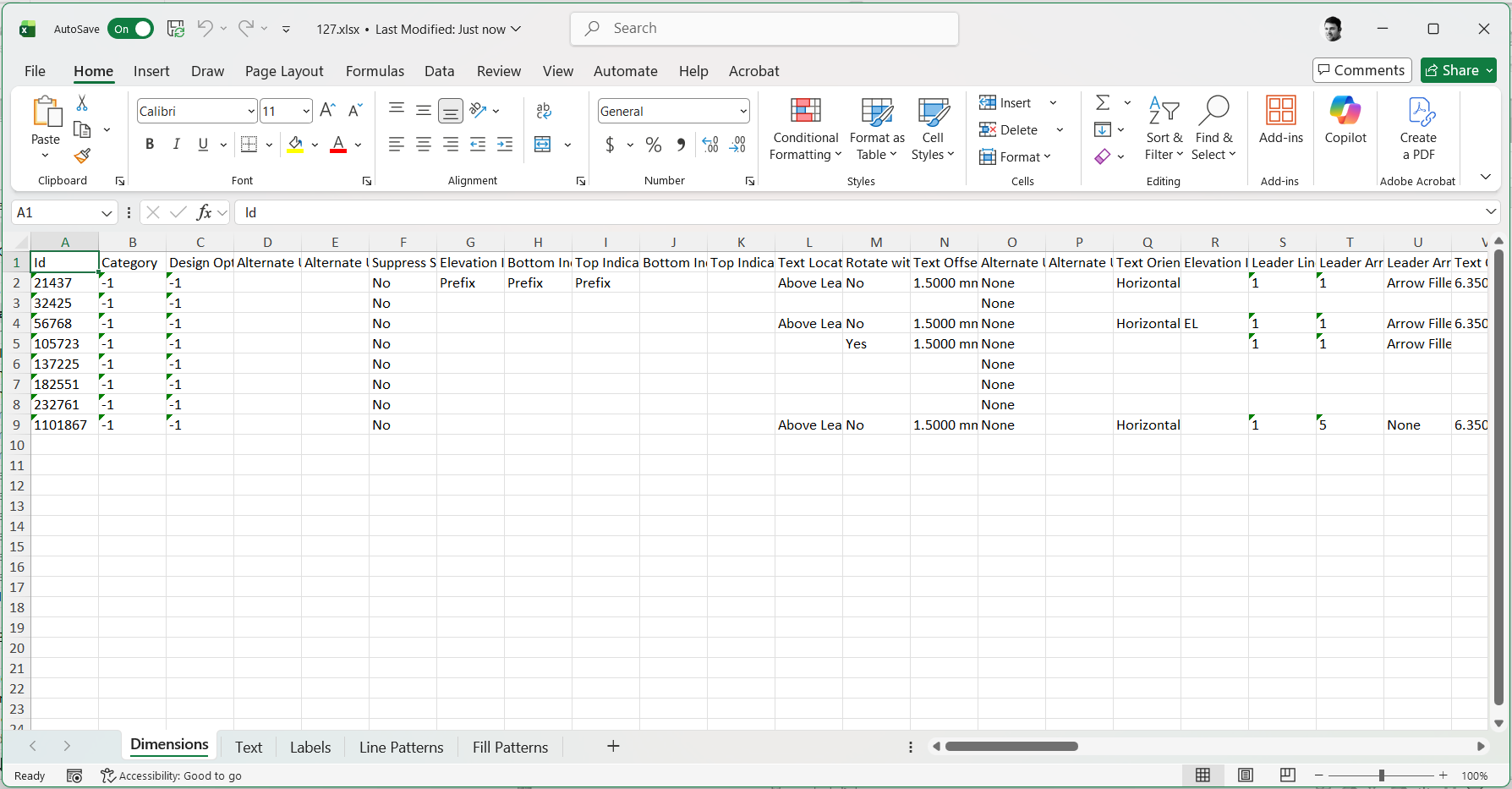
Table of Contents
- Key Features
- Requirements
- Running the Tool
- Output Reference
- Tips and Best Practices
- Common Use Cases
- Troubleshooting
Key Features
- Exports five style categories to a single Excel workbook — one worksheet per category
- Captures every Revit parameter on each type, not just a fixed column set
- Line Pattern output includes segment-level detail: segment type (Dash, Dot, Space) and length in millimetres
- Fill Pattern output includes grid-level detail: rotation angle in degrees and offset length in millimetres
- Fill Pattern Target (
DraftingorModel) and Host Orientation exported per pattern - No dialog required — one click, choose a save location, done
- Works with any project that has styles defined; skips types with no parameters
Requirements
- Must be run from a Project document — not available in the Family Editor
- A valid Bonus Tools licence is required
- Microsoft Excel (or compatible) to open the output file
Running the Tool
Launch
Find Style Output on the Bonus Tools Ribbon or use 115 Search Tools.
Step 1 — Choose a Save Location
A Save As dialog opens immediately. Navigate to the destination folder, enter a filename, and click Save.
The file is saved in
.xlsxformat. If a file with the same name already exists, it will be overwritten.
Step 2 — Review the Excel Output
Once saved, the Excel workbook opens automatically. It contains five worksheets:
| Worksheet | Contents |
|---|---|
| Dimensions | All Dimension Types with their full parameter set |
| Text | All Text Note Types with their full parameter set |
| Labels | All Label Types (non-text-note TextElementTypes) |
| Line Patterns | All Line Patterns with segment type and length data |
| Fill Patterns | All Fill Patterns with grid rotation and offset data |
Each row represents one type or pattern. The first column is the Revit Element Id. Subsequent columns are populated dynamically from the element's parameters — so the column count will vary between projects.
Output Reference
Dimensions, Text, and Labels
These three worksheets follow the same structure:
- Id — the Revit Element Id of the type
- One column per Revit parameter, labelled with the parameter name
- Parameter values are written as display strings (e.g.
3mmnot0.00984); where no display string is available, the raw string value is used
Line Patterns
In addition to the standard Id, Name, and parameter columns:
| Column | Description |
|---|---|
| Name | The line pattern name |
| Type 1 | Segment type for segment 1: Dash, Dot, or Space |
| Length 1 | Segment length in millimetres |
| Type 2 | Segment type for segment 2 (if present) |
| Length 2 | Segment length for segment 2 (if present) |
| … | Columns continue for each additional segment in the pattern |
Fill Patterns
In addition to the standard Id, Name, and parameter columns:
| Column | Description |
|---|---|
| Name | The fill pattern name |
| Target | Drafting or Model |
| Host Orientation | How the pattern aligns relative to its host surface |
| Rotation 1 | Grid line angle in degrees (rounded to 3 decimal places) |
| Length 1 | Grid offset in millimetres |
| Rotation 2 | Second grid line angle (if present) |
| Length 2 | Second grid offset (if present) |
| … | Columns continue for each additional fill grid in the pattern |
Tips and Best Practices
- Run at project milestones. Export at the start, midpoint, and end of a project to capture how styles evolved — or to confirm a handover package uses the correct standard types.
- Use as a style audit checklist. Filter the Dimensions worksheet for non-standard type names to find deviations from company templates.
- Compare against a baseline. Export both the project file and the company template, then diff the worksheets in Excel to identify added or modified styles.
- Line Pattern lengths are in millimetres. The tool converts from Revit's internal feet-based units — no manual conversion needed.
- Fill Pattern rotation is in degrees. Revit stores angles in radians internally; the output converts these to degrees rounded to 3 decimal places.
- Labels and Text are separate worksheets. Revit has two distinct text type classes —
TextNoteType(placed text notes) andTextElementType(tag labels, keynotes, etc.). Style Output splits these correctly so each can be reviewed independently. - Empty types are excluded. Types with no parameters are silently skipped — this is normal for certain built-in system types.
Common Use Cases
Project style audit — Run Style Output on a project before a BIM Audit submission. Open the Dimensions worksheet and check type names against the company naming standard. Flag any types that don't match, then use Revit's Type Manager to rename or purge them.
Template development — Export styles from a completed project to identify which types were actually used. Cross-reference with 122 Element Usage to confirm which types appear in the model, then carry only those into the next template revision.
Cross-project style comparison — Export Style Output from two projects, open both Excel files, and use Excel's VLOOKUP or Power Query to highlight differences in dimension tick marks, text sizes, or line pattern definitions. Useful when consolidating multiple project templates.
Documenting a client deliverable — Attach the Style Output workbook to a project close-out package as a machine-readable record of every style definition. Enables accurate recreation of the project environment if the model is reopened years later.
Identifying duplicate or near-duplicate patterns — Sort the Line Patterns or Fill Patterns worksheet by the Type and Length columns to surface patterns that differ only by name but share the same geometry — a common cause of bloated project files.
Troubleshooting
"Action not available in the Family Environment" Style Output runs on Project documents only. Close the Family Editor and open the host project before running the tool.
Save dialog does not appear / tool does nothing Ensure a valid Bonus Tools licence is active. The tool silently cancels if the licence check fails.
The Excel file won't open after saving Another application may have the file open. Close the existing workbook in Excel, then re-run the tool to overwrite it, or choose a different filename.
A worksheet is missing from the output If a project has no types of a given category (e.g. no custom Line Patterns), that worksheet will be blank or may contain only the header row. This is expected behaviour — it does not indicate an error.
Parameter values appear blank in some cells Some Revit parameters return no value for certain type configurations. The tool writes an empty cell in this case rather than a placeholder. This is normal for optional or unused parameters.
The tool reports "Failed." An unexpected error occurred during export. Check that the destination folder exists and that you have write permission. If the problem persists, try saving to a local drive rather than a network share.