
124 Update Key Plan
Chris McKeown / July 1, 2025
Power
Overview
Update Key Plan eliminates the manual work of setting key plan zones across large sheet sets. Where a title block family contains a nested Key Plan family whose types represent project zones, and a view placed on a sheet has a Scope Box applied with the same name as one of those nested family types, the tool reads the Scope Box name and automatically sets the title block parameter to the matching zone — across every selected sheet in a single transaction.
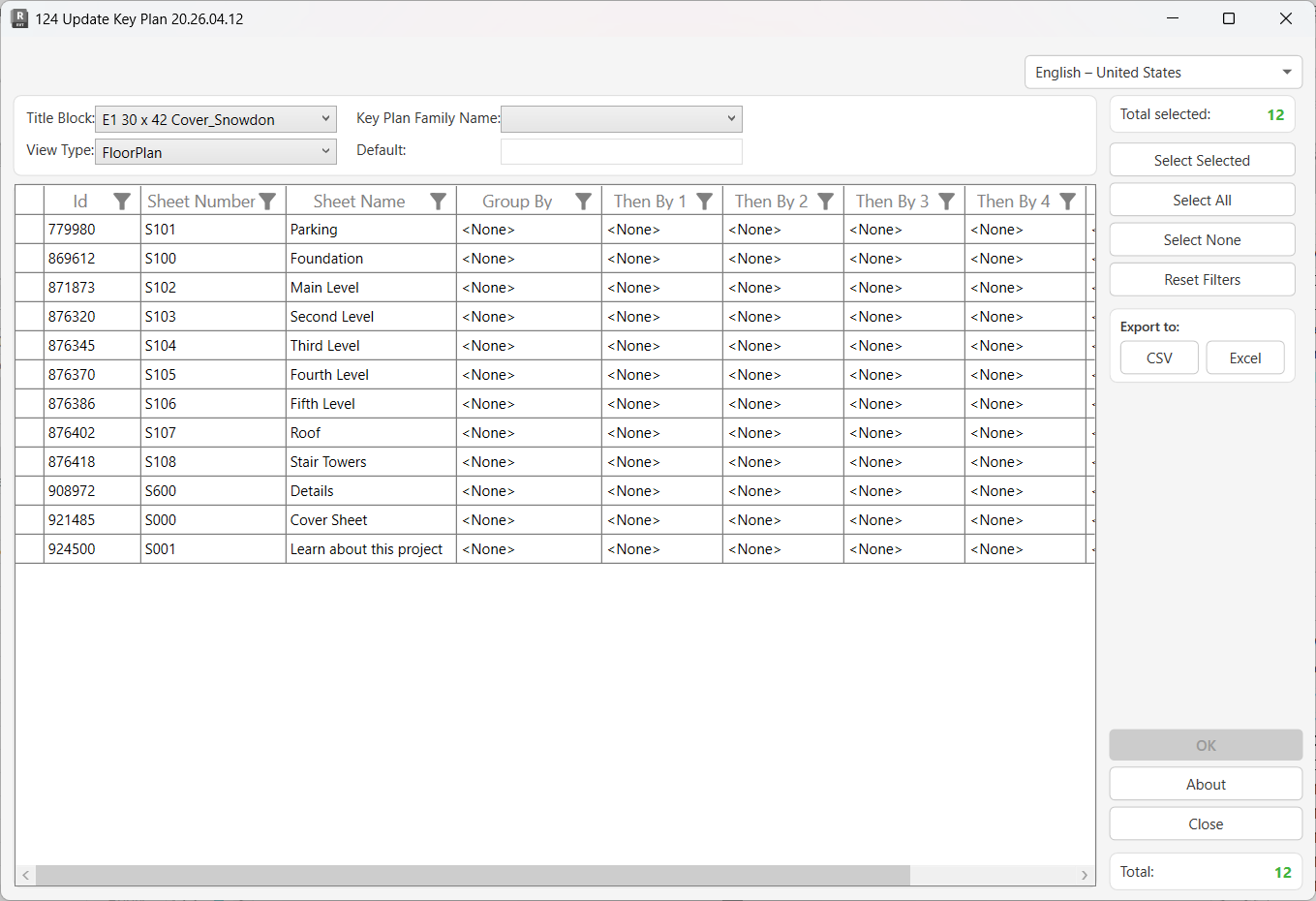
Table of Contents
Key Features
- Bulk-updates the Key Plan zone parameter across all selected Sheets in one transaction
- Reads the Scope Box name from the primary view on each Sheet and matches it to a nested family type of the same name inside the title block family
- Supports six Revit view types for Scope Box lookup: Floor Plan, Area Plan, Ceiling Plan, Engineering Plan, Section, and Elevation
- Default fallback — if a view has no Scope Box applied, the tool uses a configurable default value instead of skipping the sheet
- Displays sheets with full Project Browser organisation columns (Group By, Then By 1–5) for easy filtering
- OK button is automatically disabled when the selected title block has no parameters that control nested family types — preventing misconfiguration at a glance
- Column filtering on the sheets grid for targeted batch updates
- Per-sheet success/failure logging in the dockable Output panel
- Export the sheet list to CSV or Excel
Requirements
- Must be run from a Project document — not available in the Family Editor
- The project must contain at least one Sheet with a title block placed on it
- The title block family must contain a nested family controlled by a family type parameter — this is the Key Plan family that cycles through zone types
- The nested family type names must exactly match the Scope Box names applied to views in the project (case-sensitive)
- Views on sheets must be of the Revit view type selected in the View Type dropdown; the tool inspects the first matching view found on each sheet
Running the Tool
Launch
Find Update Key Plan on the Bonus Tools Ribbon or use 115 Search Tools.
The dialog opens and loads all sheets from the project. All sheets are pre-selected by default.

Step 1 — Select the Title Block
Use the Title Block dropdown to choose the title block family whose Key Plan parameter you want to update.

The dropdown lists every title block family that has at least one placed instance in the project. Selecting a title block automatically populates the Key Plan Family Name dropdown with the parameters from that family that control nested family types.
If the OK button is greyed out after selecting a title block, the title block has no parameters that reference nested family types. Check that the nested Key Plan family is correctly set up inside the title block.
Step 2 — Select the Key Plan Family Name
Use the Key Plan Family Name dropdown to select the specific parameter on the title block that controls which Key Plan zone is displayed.

This dropdown is populated automatically when you choose a title block. It only lists parameters whose values are nested family type references — no standard text or number parameters appear here.
Step 3 — Set the View Type
Use the View Type dropdown to specify which type of view on each sheet the tool should inspect to read the Scope Box name.

| View Type | When to use |
|---|---|
| FloorPlan | Most common — sheet shows a floor plan with a Scope Box applied |
| AreaPlan | Sheet contains an area plan view |
| CeilingPlan | Sheet contains a reflected ceiling plan |
| EngineeringPlan | Structural or MEP plan views |
| Section | Sheet is driven by a section view |
| Elevation | Sheet is driven by an elevation view |
For each sheet, the tool checks every placed view and uses the first view it finds of the selected type. If no view of that type is placed on a given sheet, the sheet is skipped silently.
Step 4 — Set the Default (Optional)
In the Default field, enter the nested family type name to use when a view's Scope Box is set to None or not applied.

If a sheet's view has no Scope Box, the tool substitutes this default value to look up a matching nested family type. Leave blank to skip sheets with no Scope Box.
Step 5 — Review and Filter the Sheet List
The main grid lists all sheets in the project. Use the column header filters to narrow down the list and the Select checkbox to control which sheets are processed.

Grid columns:
| Column | Description |
|---|---|
| Id | Revit Element ID of the sheet |
| Sheet Number | Sheet number as displayed in the Project Browser |
| Sheet Name | Sheet name |
| Group By | First-level Project Browser organisation folder |
| Then By 1–5 | Subsequent browser organisation levels |
| Select | Checkbox — tick to include in the update |
The Group By and Then By columns reflect your current Browser Organisation for sheets. Use them to filter by discipline, level, or package — for example, filter Group By to Architecture and select all at once.
Selection controls:
- Select Selected — toggles the Select checkbox for highlighted rows
- Select All — checks all rows
- Select None — unchecks all rows
- Reset Filters — clears all active column filters
The Total Selected counter in the right panel updates as you change selections.
Step 6 — Run the Update
Click OK to apply the Key Plan update to all selected sheets.

A progress bar tracks processing. Each sheet is updated in its own sub-transaction — if one sheet fails, it is rolled back individually and processing continues with the remaining sheets.
Results are shown in the dockable Output panel: each successfully updated sheet logs its sheet number in green. On completion, a summary dialog reports: "X items updated. Y items failed."
Tips and Best Practices
- Name Scope Boxes to exactly match nested family type names. This is the core requirement — the match is case-sensitive and must be exact. A naming convention like
Z-01,Z-02, etc. applied consistently to both Scope Boxes and nested family types makes this reliable across the whole project. - Set the Default field for sheets without a Scope Box. General arrangement or cover sheets that don't use a Scope Box should still show a Key Plan. Enter a type name like
OverallorZAin the Default field to cover these automatically. - Use browser organisation filters before running. Filter the grid to a specific discipline or package before clicking Select All to update only that subset of sheets — avoiding accidental changes to sheets you haven't reviewed.
- Run per view type if your project uses multiple view types on sheets. If some sheets are driven by floor plans and others by sections, run the tool twice — once with View Type set to
FloorPlanand once toSection— selecting the appropriate sheets each time. - Check the Output panel for failures. Failed sheets are not highlighted in the grid after processing. Open the Output panel to identify which sheet numbers failed and investigate why (missing Scope Box match, parameter access issue, or workset ownership).
- The OK button being greyed out is your early warning. If it disables when you select a title block, your title block family is not set up with a nested family type parameter. Edit the title block family in the Family Editor to add the nested Key Plan family and its controlling parameter, then re-run the tool.
- All sheets are pre-selected on load. Always use Select None and then filter + select only the sheets you intend to update, unless you genuinely want to update every sheet.
Common Use Cases
Initial project setup — A project template includes a title block with a nested Key Plan family whose types (North, South, East, West, Overall) match Scope Box names set up in the template. After placing all sheets, run Update Key Plan with Select All to stamp the correct zone on every sheet at once — a process that would otherwise take hours manually.
After adding new sheets — Midway through a project, a new package of sheets is added. Use the browser organisation Group By filter to isolate the new package, select those sheets only, and run the update to bring them in line with existing sheets.
Correcting a Scope Box rename — If a Scope Box is renamed during the project (e.g. Level 1 → L1), the title block parameter no longer matches. Use the tool to re-read all sheets and update the parameter to the renamed type in one pass.
Multi-building projects with zone-specific key plans — For projects with multiple buildings or wings, each Scope Box is named after the building zone (BldA, BldB, etc.). The nested family types in the title block match these zone codes. Run the tool to ensure every sheet shows its correct building zone on the key plan.
Handover quality control — Before issuing a drawing set, run Update Key Plan across all sheets to verify that key plan zones are correctly set. Any sheet with a mismatched or missing Scope Box will fail and be reported in the Output panel, prompting a check before issue.
Troubleshooting
"File contains no Sheets" The project has no sheets, or there are no title block family instances placed on any sheet. Add sheets with title blocks and try again.
OK button is greyed out The selected title block family has no parameters that control nested family type references. Open the title block family in the Family Editor, add a nested family (your Key Plan family), create a family type parameter that drives which nested type is displayed, and reload the family into the project.
"Operation Failed." The overall transaction could not be committed. This is usually caused by a workset ownership conflict. Use the Worksets dialog in Revit to borrow or take ownership of the sheet and title block worksets, then retry.
Some sheets show 0 updates but no failures
The view type selected in the View Type dropdown does not match any view placed on those sheets. Switch to the correct view type (e.g. change from FloorPlan to Elevation if the sheets show elevations) and run again for those sheets only.
Sheets updated but Key Plan still shows wrong zone The Scope Box name on the view does not exactly match any nested family type name — including capitalisation or spacing. Check the Scope Box name in the view's Properties palette and compare it character-for-character to the nested family type names in the title block family.
"X items failed" reported but Output panel shows no error detail The sub-transaction for those sheets was rolled back individually. This often means the title block parameter is read-only in the current workset state. Check workset borrowing for the affected sheets.
Key Plan parameter not listed in Key Plan Family Name dropdown
The parameter exists on the title block but it does not reference a nested family type — it may be a regular text or integer parameter. Only parameters whose value is a NestedFamilyTypeReference appear in this dropdown. Verify the title block family is correctly configured with a family type parameter driving the nested Key Plan family.