
121 Document Macros
Chris McKeown / July 1, 2025
Power
Overview
Document Macros gives you a complete view of every macro module registered in the active Revit session — both at the Application level (available across all open projects) and the Document level (embedded in the current project file). Clicking any module shows the individual macros it contains. Modules that are no longer needed can be selected and deleted in bulk, keeping the project's macro library clean and reducing potential security exposure.
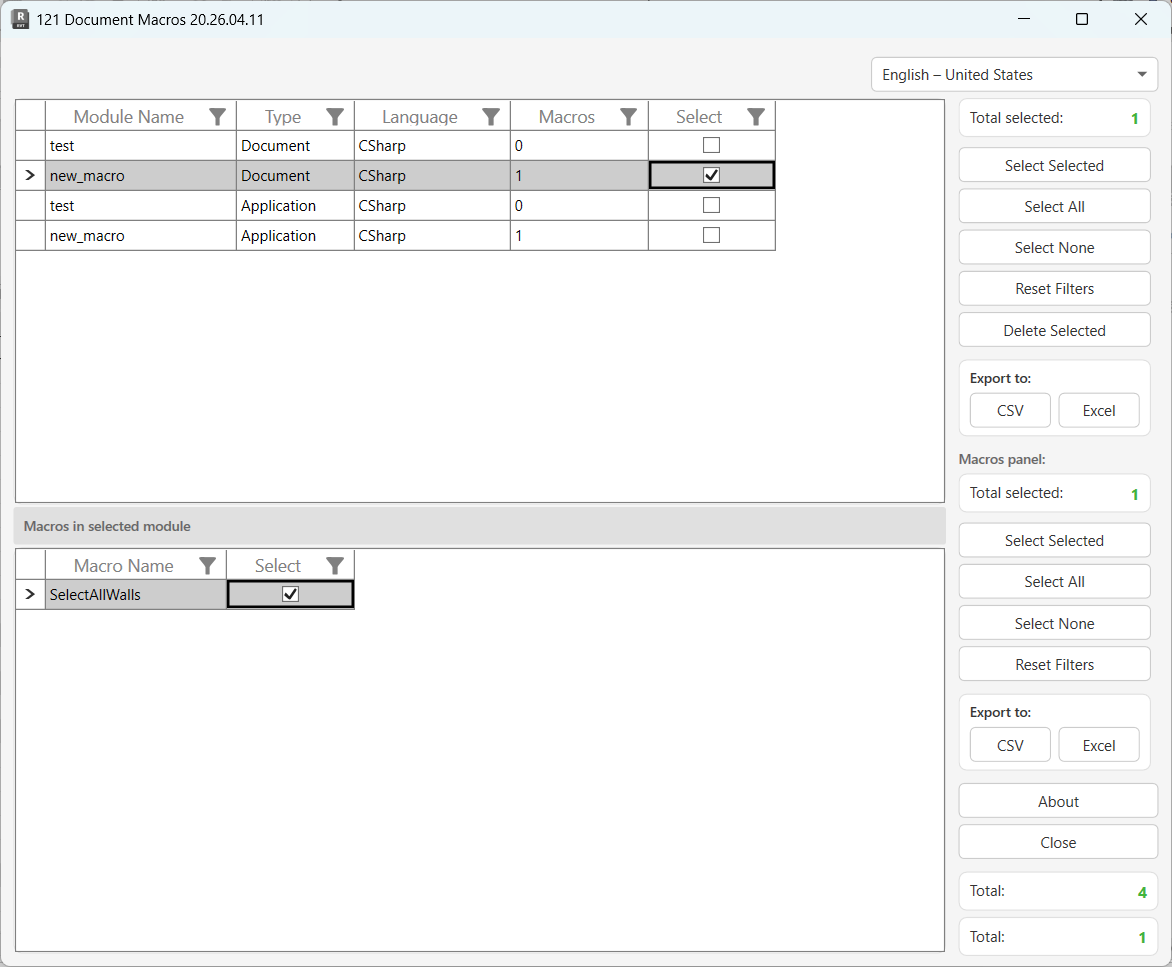
Table of Contents
Key Features
- Lists all macro modules from both the Application scope and the Document scope in a single unified view
- Shows each module's programming language (e.g.
CSharp,VBNet) and how many macros it contains - Drill-down panel shows every individual macro name within the selected module
- Bulk delete selected modules with a single action
- Filter and sort both the modules list and the macros list independently
- Export the modules list or the macros list to CSV or Excel
- Window size and position persists between sessions
Requirements
- Must be run from a Project document — not available in the Family Editor
- If no macro modules are found in either Application or Document scope, the dialog displays a message and closes automatically
- Deleting modules uses the Revit Macro API (
UIMacroManager.RemoveModule) — no standard Revit transaction is involved, so changes cannot be undone with Ctrl+Z
Running the Tool
Launch
Find Document Macros on the Bonus Tools Ribbon or use 115 Search Tools.
On load, the tool reads all Application-scope and Document-scope macro modules and populates the list. The first module is selected automatically and its macros are shown in the bottom panel.
Step 1 — Review the Modules List
The top grid lists every macro module registered in the current session. Each row shows:
| Column | Description |
|---|---|
| Module Name | The name of the macro module |
| Type | Document — embedded in the project file; or Application — loaded at the application level |
| Language | Programming language used, e.g. CSharp, VBNet |
| Macros | Number of macros defined within this module |
| Select | Checkbox — tick rows to mark for deletion |
Use column headers to sort or filter. Click Reset Filters to clear all active column filters on the modules grid.
Total at the bottom-right shows how many modules are loaded. Total selected updates as you tick rows.
Document modules travel with the project file and are visible to anyone who opens it. Application modules are installed at the user or machine level and are not embedded in the file.
Step 2 — Inspect Macros in a Module
Click any row in the Modules grid to load its macro list in the bottom panel. The panel header reads "Macros in selected module" and displays:
| Column | Description |
|---|---|
| Macro Name | The name of the individual macro |
| Select | Checkbox — for selection and export purposes |
The Macros panel is for inspection and export only. Individual macros cannot be deleted from this panel — deletion operates at the module level from the top grid.
Use the Macros panel's own Select All, Select None, Reset Filters, and Export controls to work with the macros list independently.
Step 3 — Delete Selected Modules
- Tick the modules you want to remove using the Select checkboxes, Select All, or Select None.
- Click Delete.
- Confirm the prompt: "Are you sure you want to delete selected items?"
Each module is removed via the Revit Macro API. Deletions are processed individually — if one fails, the others continue. The Output panel logs each result in green (success). A summary message shows the final counts.
Module deletion cannot be undone. There is no Revit transaction wrapping this action, so Ctrl+Z will not reverse it. Verify the module contents in the bottom panel before deleting.
Tips and Best Practices
- Inspect macros before deleting a module. Click each module in the list to review its contents in the bottom panel. A module with many macros may contain automation that the project team relies on.
- Document-scope modules travel with the file. If you share the project with other offices or clients, embedded macros are included. Removing unused Document modules reduces the file's attack surface and may be required by BIM compliance policies.
- Application-scope modules are user- or machine-specific. Deleting an Application module removes it from the current Revit installation but not from the project file. Other users opening the same file will not be affected.
- Export the list before deleting. Use Export to Excel on the modules grid to record which modules and macros existed before cleanup — useful for audit trails.
- The dialog closes automatically if no modules exist. This is expected behaviour — there is nothing to display if neither Application nor Document scope has any modules registered.
- Language column helps identify module origins.
CSharpandVBNetmodules are the standard Revit macro types. If you see an unexpected language entry, investigate before deleting.
Common Use Cases
Pre-handover cleanup — Before issuing a project file to a client, open the tool to check for Document-scope modules that contain internal automation scripts. Delete any modules that should not be distributed, leaving only what the client needs.
Security audit — Revit macro modules can contain executable code. Use the tool to inventory all modules in a project received from an external party and remove any unfamiliar or unsolicited entries before running the file in a production environment.
Template maintenance — Over time, project templates accumulate macro modules that are no longer relevant. Run the tool against your template, review the modules list, and delete any obsolete entries before re-issuing the template.
Inventory across application level — When onboarding a new workstation or verifying a workstation's configuration, use the tool to confirm which Application-scope macro modules are installed at the machine level.
Troubleshooting
"Action not available in the Family Environment." The tool cannot run inside a Family document. Open a Project first, then re-launch.
"Project contains no Modules." and dialog closes Neither the Application scope nor the Document scope has any registered macro modules. This is expected if macros have never been set up in this Revit installation or project.
Module deletion fails — "[module name] failed." in Output panel The Macro API could not remove the module. This can occur if the module is currently running, is locked by another process, or if the module reference has become stale. Close any running macros and retry.
"[n] items deleted. [n] items failed." Some modules were removed successfully and others were not. Check the Output panel for individual results. Failed items remain in the list for another attempt.
"Operation Failed." An unexpected exception occurred during the deletion loop. Check the Output panel for the full error message. Close and reopen the dialog, then retry on a smaller selection.
Modules list is empty but macros are known to exist The tool reads modules at the time it opens. If modules were added or modified in the current session after the dialog opened, close and reopen the tool to refresh the list.