
120 Dynamic Warnings
Chris McKeown / July 1, 2025
Power
Overview
Dynamic Warnings is a dockable panel that monitors Revit warnings in real time as you work. Select one or more elements in any view and the panel immediately reports how many warnings exist in the entire project, which of those warnings involve the selected elements, and the full warning description for each. No dialog, no manual refresh — it updates automatically each time the selection changes.
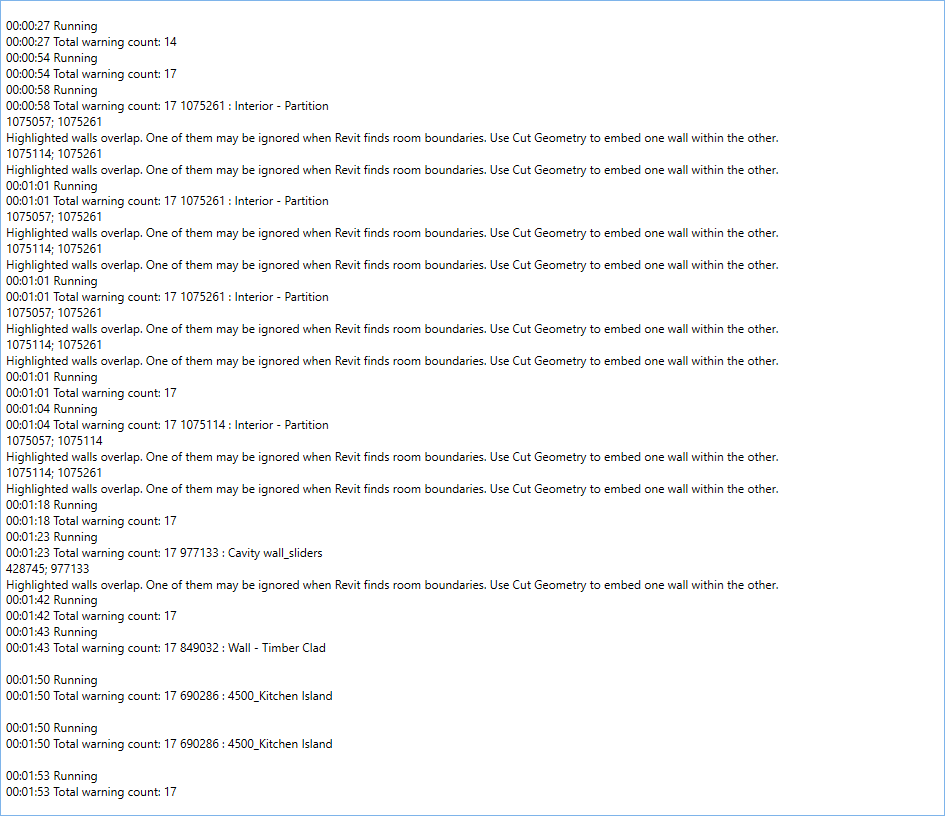
Table of Contents
- Key Features
- Requirements
- Running the Tool
- Reading the Panel Output
- Tips and Best Practices
- Common Use Cases
- Troubleshooting
Key Features
- Dockable panel — sits alongside the Project Browser, Properties palette, or any other Revit panel
- Automatically updates when the selection changes — no button to press
- Shows the total warning count for the entire project on every update
- Reports per-element warning details for each selected element that has warnings
- Displays the Revit warning description text and the Element Ids of all failing elements involved in each warning
- Timestamped log entries — each update is prefixed with the current time (
HH:mm:ss) - Panel auto-opens when warnings are detected for selected elements
- Works across all view types (plans, sections, 3D, etc.)
Requirements
- Must be run from a Project document — not available in the Family Editor
- A valid Bonus Tools licence is required
- The panel must be open (or will auto-open) to see results; nothing is written if the panel has been closed and not yet initialised
Running the Tool
Launch
Find Dynamic Warnings on the Bonus Tools Ribbon or use 115 Search Tools.
The Dynamic Warnings panel opens and docks tabbed behind the Project Browser by default. You can drag it to any docking position in Revit.
Step 1 — Position the Panel
Drag the panel tab to a convenient position — alongside the Project Browser, Properties palette, or as a floating window. The panel retains its docked position between sessions.
The panel is registered as a standard Revit dockable pane. It behaves identically to the Project Browser or Properties palette — it can be pinned, floated, tabbed, or resized.
Step 2 — Select Elements to Inspect
Select one or more elements in any Revit view. The panel updates automatically, showing:
- A "Running" entry (timestamped) to confirm the check fired
- A "Total warning count: N" summary line
- For each selected element that is involved in a warning — the element's details and the warning description
Reading the Panel Output
Each update appends new entries to the panel log. Entries are not cleared between selections — scroll up to review previous checks.
Entry format for a selected element with warnings:
HH:mm:ss  Total warning count: N  [Element Id] : [Element Name]
          [Failing Element Id 1]; [Failing Element Id 2]; ...
          [Warning description text]
Example:
09:14:32  Running
09:14:32  Total warning count: 14  1234567 : Basic Wall
          1234567; 1234568
          Highlighted walls overlap. One of them may be ignored when Revit
          calculates room boundaries.
| Part | Description |
|---|---|
| Timestamp | Time the selection-change event fired |
| Total warning count | All warnings in the project — not just those for selected elements |
| Element Id : Name | The selected element that is involved in at least one warning |
| Failing Element Ids | All element IDs listed in the Revit FailureMessage for that warning |
| Warning description | The full text from Revit's FailureMessage.GetDescriptionText() |
If a selected element has no warnings, it does not appear in the output. Only elements that participate in at least one
FailureMessageare listed.
Tips and Best Practices
- Dock it alongside the Properties palette. The Dynamic Warnings panel is most useful when visible while you work — dock it in the same column as Properties so you can see warning details without switching focus.
- The total count is project-wide. Even when only one element is selected, the "Total warning count" line reflects all warnings in the model — useful for a quick health-check without opening the Review Warnings dialog.
- Use with 130 Review Warnings for full remediation. Dynamic Warnings identifies which elements are affected; Review Warnings provides the tools to resolve them.
- Select multiple elements at once. Box-select a region and the panel reports on all warning-bearing elements in that selection simultaneously, making area-based audits fast.
- The log is cumulative. Entries are appended — not replaced — each time the panel updates. Scroll to the bottom for the latest check; scroll up to compare earlier selections.
- The panel auto-shows when warnings are found. If you've minimised or hidden the panel, it will reappear automatically when a selection includes elements with warnings.
- Element Ids in the output are clickable in Revit. Copy an Element Id from the panel and use Manage → Select by Id to navigate directly to a specific element listed in a warning.
Common Use Cases
Pre-submission warning check — Before issuing a drawing set, select all elements in a critical area (box-select in plan) and scan the Dynamic Warnings panel. Any warning description appearing in the output flags elements that need attention before the model goes out.
Investigating a specific element — Click a wall, beam, or room that you suspect is causing warnings. The panel immediately confirms whether it is involved in any failure and shows the exact Revit description — faster than opening Review Warnings and scrolling to find the element.
Monitoring warning count during modelling — Keep the panel docked and visible while placing or editing elements. The "Total warning count" line updates with each selection, giving a passive indication if the count rises unexpectedly after a modelling operation.
Identifying duplicate or overlapping elements — Select a group of recently placed elements (e.g. walls from a paste operation). If any overlap or duplicate warnings exist, the panel lists the affected elements and description text immediately, before you've moved on to the next task.
Team-based model auditing — During a worksharing session, select elements by workset or phase and check the panel to identify which elements in that scope carry warnings. Combine with 122 Element Usage to cross-reference ownership.
Troubleshooting
"Action not available in the Family Environment" The tool only runs on Project documents. Close the Family Editor and open the host project before launching Dynamic Warnings.
Panel does not appear after clicking the ribbon button The dockable pane may be hidden behind another panel tab. Check the Project Browser tab group — the panel is registered to dock there by default. If it is not visible, try dragging the panel to a new position or restarting Revit with the plugin active.
Panel opens but shows no output when elements are selected The update fires when the view tab title changes, not purely on selection change. Try switching away from the current view and back, or clicking in the canvas area. Ensure elements are truly selected (highlighted in blue) rather than pre-highlighted on hover.
"Total warning count: 0" but warnings exist in Review Warnings
The count reads from Document.GetWarnings() which returns active, unresolved warnings. Warnings that have been suppressed or resolved since the last Revit session may not appear. Reopen and resync the model if counts appear mismatched.
Output log grows very long Entries are not automatically cleared. Close and re-open the panel (click the ribbon button again) to reset the log to a clean state.
The panel shows "Running" but no element details follow The selected elements have no warnings — this is the expected result for clean elements. The "Total warning count" line still shows the project-wide count even when selected elements are warning-free.