
115 Search Tools
Chris McKeown / July 1, 2025
Help
Overview
Search Tools provides a single searchable interface for every tool in the Bonus Tools suite. Type any part of a tool's name, tooltip, or description to instantly filter the list, then launch the tool with a double-click or the Run Tool button — without leaving the dialog to find the right ribbon panel. The complete tool list can also be exported to CSV or Excel for documentation or onboarding purposes.
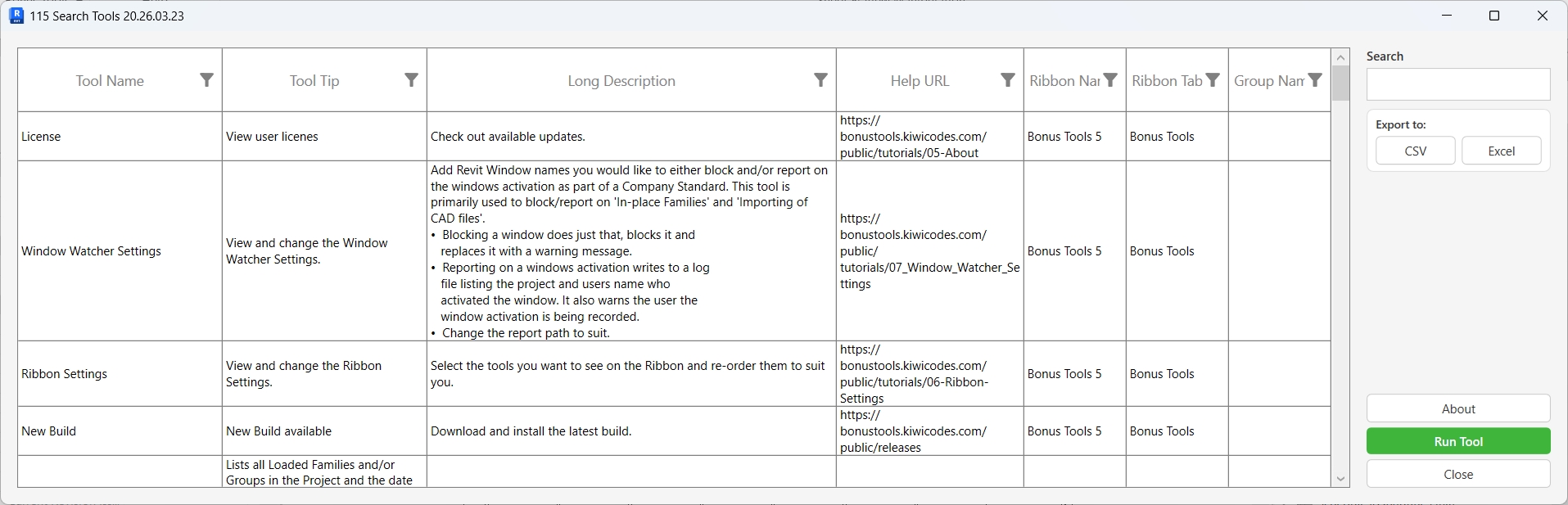
Table of Contents
Key Features
- Real-time search across tool name, tooltip, and long description simultaneously
- Case-insensitive filtering — results update as you type
- Double-click any row to run that tool immediately
- Press Enter in the search box to run the selected tool (or the top result if nothing is selected)
- Click the Help URL column to open the tool's documentation in your browser
- Displays ribbon location details for each tool: Ribbon Name, Tab Name, and Group Name
- Export the full or filtered tool list to CSV or Excel
- Window size and position are remembered between sessions
Requirements
- An active Revit project document must be open
- A valid Bonus Tools license is required
Running the Tool
Launch
Find Search Tools on the Bonus Tools Ribbon or use the keyboard shortcut assigned during installation. The dialog opens showing all available tools in a sortable grid.
Step 1 — Search for a Tool
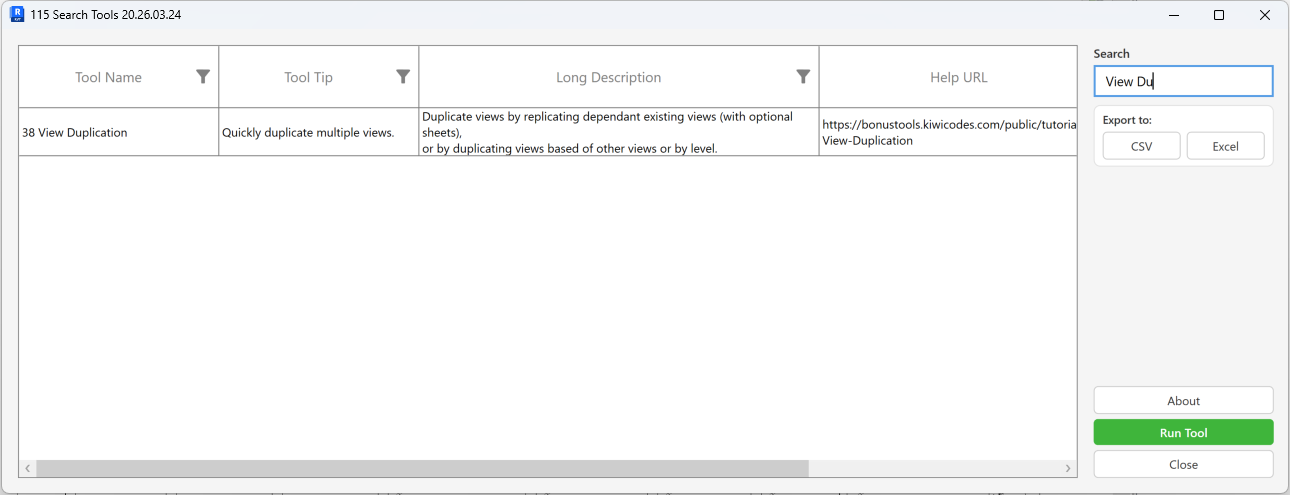
Type in the Search box at the top-right of the dialog. The grid filters in real time across three columns:
- Tool Name — the button label as it appears on the ribbon
- Tool Tip — the short hover tooltip
- Long Description — the full description shown in the ribbon tooltip
The search is case-insensitive. Results include any tool that matches in any of the three fields.
To clear the filter and show all tools, delete the text in the Search box.
Step 2 — Review the Grid Columns
The grid displays seven columns for each tool:
| Column | Description |
|---|---|
| Tool Name | The ribbon button label used to identify and run the tool |
| Tool Tip | Short description shown when hovering over the ribbon button |
| Long Description | Full explanation of what the tool does |
| Help URL | Link to the tool's documentation page — click the cell to open it |
| Ribbon Name | The Bonus Tools ribbon panel this tool belongs to |
| Ribbon Tab Name | The ribbon tab containing this tool |
| Group Name | The sub-group within the tab (if applicable) |
Row heights adjust automatically to show wrapped text for longer descriptions.
Step 3 — Run a Tool
Select a row in the grid and click Run Tool, or double-click the row directly.
If you pressed Enter in the Search box:
- If a row is selected, that tool runs.
- If no row is selected but the search returned results, the first tool in the filtered list runs.
The dialog closes automatically after launching the tool.
Step 4 — Open Help (Optional)
Click any cell in the Help URL column to open that tool's documentation in your default browser. This works for any row in the list regardless of whether it is selected.
Step 5 — Export the Tool List (Optional)
Use the Export to: buttons in the right panel to save the current grid contents:
- CSV — exports a comma-separated values file
- Excel — exports a formatted Excel workbook
The export includes only the rows currently visible — if you have an active search filter, only filtered results are exported.
Tips and Best Practices
- Search by function, not name. If you forget a tool's number, search a keyword from what it does — e.g. type
scheduleto find Schedule-related tools, orrenameto find all renaming tools. - Use it as a launcher. For power users, Search Tools can replace ribbon navigation entirely — open it, type a few characters, press Enter, done.
- Export for team documentation. Export the full list (with no search filter) to Excel to produce a reference sheet for onboarding new staff or reviewing what tools are available.
- Check the Help URL before asking. Click the Help URL cell for a tool to jump straight to its documentation — faster than searching the website separately.
- Keyboard-first workflow. Open Search Tools, type to filter, and press Enter — all without touching the mouse.
- Ribbon location columns are useful for admins. The Ribbon Name, Tab Name, and Group Name columns help identify where a tool lives if you need to document or customise the ribbon layout.
Common Use Cases
Finding a forgotten tool — You know Bonus Tools has something for managing keynotes but can't remember where it is. Open Search Tools, type keynote, and all keynote-related tools appear filtered in the grid.
Running a rarely-used tool quickly — Some tools are used infrequently enough that their ribbon location is hard to remember. Use Search Tools as a universal launcher so you don't need to hunt through ribbon tabs.
Producing a tool inventory — Export the full list to Excel to document which Bonus Tools are available for a project, team training material, or a BIM Execution Plan appendix.
Accessing help during a session — Click the Help URL cell for any tool to open its documentation without leaving Revit. Useful when you want to check parameters or steps before running a tool.
Checking tool organisation — Review the Ribbon Name, Tab Name, and Group columns to understand how tools are grouped — helpful when setting up custom ribbon layouts or writing internal user guides.
Troubleshooting
The dialog opens but the grid is empty This should not occur under normal conditions. Try closing and reopening the dialog. If the problem persists, restart Revit and reopen the tool.
Clicking Run Tool does nothing Ensure a row is selected in the grid before clicking Run Tool. If the tool still fails to launch, the ribbon command ID may not be resolvable — see "Error finding command" below.
"Tool not found" message appears The selected tool name could not be matched in the tool list. This can happen if the tool list was modified or the tool is disabled. Close the dialog and try again.
"Error finding command" message appears The tool was found in the list but Revit could not resolve its ribbon command ID. This may occur if the tool's ribbon button is hidden, the ribbon has been customised, or the add-in was not fully loaded. Restart Revit and try again.
"Failed to run tool" message appears An unexpected error occurred when posting the command to Revit. Check the Bonus Tools output log for details. Restarting Revit typically resolves transient command posting errors.
"Unable to open URL" message appears The Help URL for the selected tool could not be opened. Verify your default browser is configured correctly and that you have an active internet connection.
Export buttons produce no file A save dialog should appear when clicking CSV or Excel. If no dialog appears, check whether a dialog has opened behind the Revit window. Also verify you have write access to the folder you are saving to.