
112 Dockable Dialog
Chris McKeown / July 1, 2025
Power
Overview
The Dockable Dialog is the Bonus Tools Output panel — a persistent dockable window that captures timestamped, colour-coded log messages from Bonus Tools operations as they run. Rather than showing a series of pop-up dialogs after each tool completes, the output panel collects messages in one place so you can review them at any point during your session. The panel docks alongside the Project Browser and stays visible across multiple tool runs.
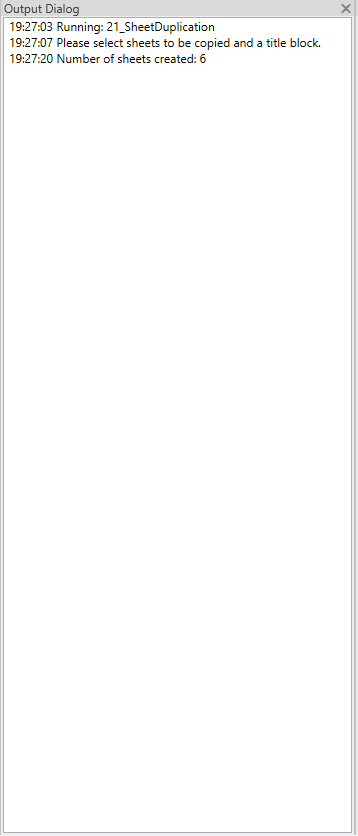
Table of Contents
Key Features
- Persistent dockable panel — tabs alongside the Project Browser
- Timestamped output: every message is prefixed with the current time (
HH:mm:ss) - Colour-coded messages: different colours indicate different message severity or tool context
- Auto-clears when a new tool starts (
Running: ...prefix triggers a clear) - Scrolls automatically to the most recent message
- Shown and hidden programmatically by other Bonus Tools tools that produce output
- Read-only — output cannot be edited
Requirements
- Must be run from a Revit project document — not available in the Family Editor
- The panel is registered at Revit startup; running the button simply brings it into view if it has been closed or hidden
Running the Tool
Launch
Find Dockable Dialog on the Bonus Tools Ribbon or use 115 Search Tools.
Clicking the button shows the Output panel. If it is already visible, running the tool again brings it to focus.

Reading the Output
Each line in the panel follows this format:
HH:mm:ss [message text]
Colour indicates message type:
| Colour | Meaning |
|---|---|
| Black | Standard tool progress message |
| Blue-violet | Point moved upward (e.g. Topo to Follow Topo) |
| Light blue | Point moved downward |
| Orange | Point added |
| Red | Error or failure |
The panel auto-scrolls to the bottom as new messages arrive, so the most recent output is always visible.

Auto-Clear Behaviour
When a Bonus Tools tool begins a new run, it writes a Running: [tool name] line to the panel. This triggers an automatic clear of all previous messages, so each tool run starts with a clean output panel.
If you need to review output from a previous run, do so before starting another tool — the panel clears automatically on the next run.
Tips and Best Practices
- Open the panel before running batch operations. For tools that process many elements (e.g. Topo To Follow Topo, batch renamers), having the output panel open lets you monitor progress and immediately spot any errors.
- Keep it docked alongside the Project Browser. This is the default position — the panel does not consume additional screen space and is always available when needed.
- Review output immediately after a tool run. The panel clears when the next tool starts. If you want to preserve a log, copy the text from the panel before running another tool.
- Red text means a problem occurred. If you see red output, review the message for the element name or ID that caused the error and investigate before continuing.
Common Use Cases
Monitoring long-running tools — When running tools that process hundreds of elements, the output panel shows real-time progress so you can confirm the tool is running and track how many items have been processed.
Reviewing errors after a batch operation — After a tool completes, scroll through the output to identify any red (error) messages and determine which elements were not processed successfully.
Debugging unexpected results — If a tool appears to complete but the model looks unchanged, the output panel often contains a message explaining why — such as no elements found, or all elements already matching the target state.
Troubleshooting
Panel does not appear after clicking the button The panel may be hidden behind another dockable panel. Look for a Dockable Dialog tab along the Revit panel edges. If it is not visible, try dragging the Project Browser panel to reveal it. Restarting Revit and clicking the button again will re-register the panel.
Panel is empty even after running another tool
Some tools only write to the panel when there is something to report. If the tool completed with no elements to process, the panel will remain empty (or contain only the Running: header line).
Tool is not available (greyed out) The Dockable Dialog cannot open in a Family Document. Open a project file and try again.