
110 Legend Usage
Chris McKeown / July 1, 2025
Sheet & View Manipulation
Overview
Legend Usage gives you a complete picture of every legend in your Revit project and precisely where each one is placed. The top grid lists all legends with a live count of how many sheets they appear on. Click any legend and the bottom grid updates to show every sheet it is placed on — with the sheet number and name. From here you can remove the legend from individual sheets, delete the legend entirely, or export either list to CSV or Excel.
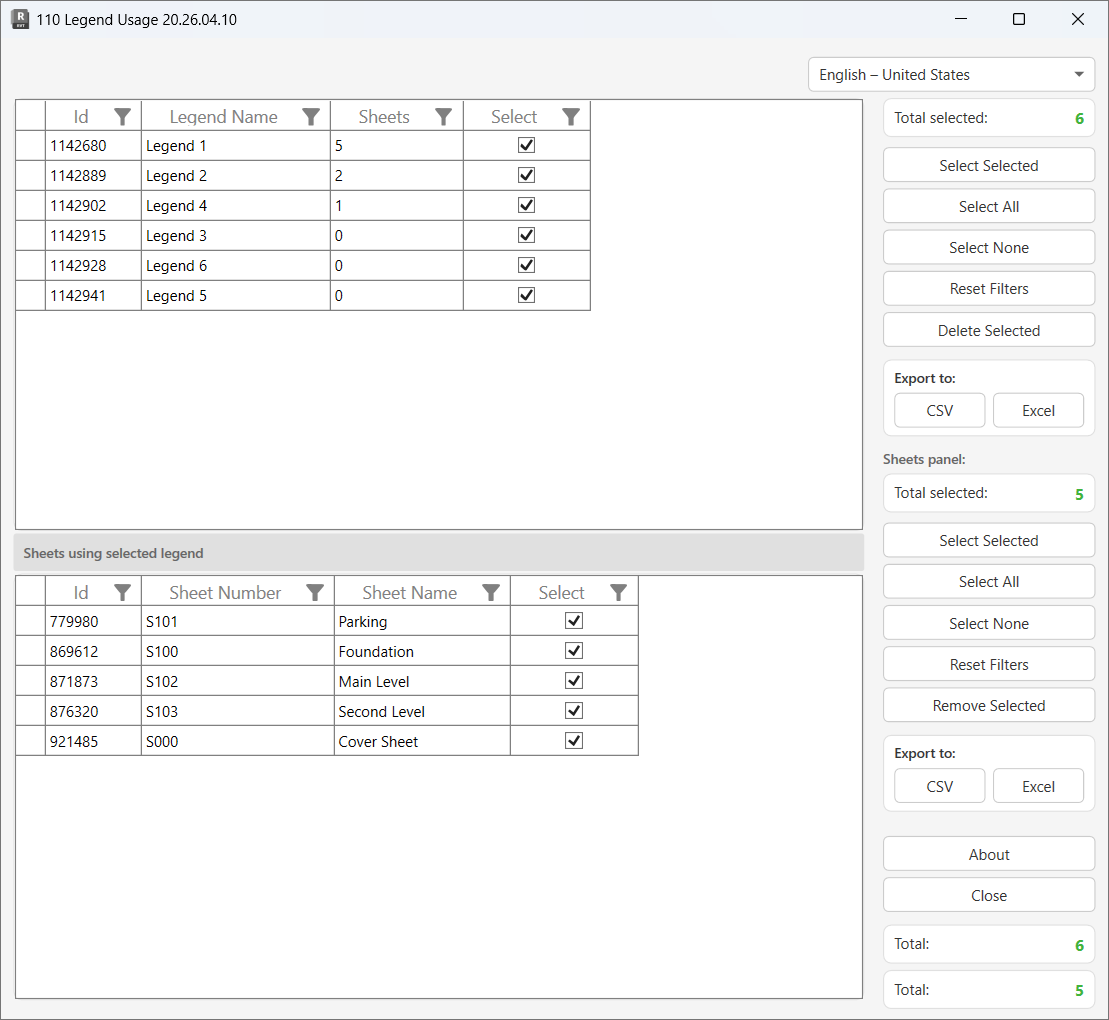
Table of Contents
Key Features
- Lists every legend view in the project with its Id, name, and sheet-placement count
- Click any legend to instantly see which sheets it is placed on (Sheet Number + Sheet Name)
- Optional detail scan on launch — skip it for fast audit of legend names and counts only
- Remove Selected — removes the legend viewport from chosen sheets without deleting the legend view itself
- Delete Selected — permanently deletes the legend view(s) from the project
- Sub-transaction safety — each remove or delete runs independently so a single failure doesn't cancel the rest
- Separate selection controls and export buttons for both the legends panel and the sheets panel
- Column filtering with Reset Filters on both grids
- Export either grid to CSV or Excel for offline review
Requirements
- An open Revit project document (not a Family document)
- At least one legend view in the project — the tool closes automatically if none are found
- Workset ownership for any deletion or removal operations in a workshared model
Running the Tool
Launch
Find Legend Usage on the Bonus Tools Ribbon or use 115 Search Tools.
When the tool opens it immediately collects all legend views and displays them in the top grid.
Step 1 — Load details (optional)
After the legends are listed, a prompt asks "Load details?"
- Yes — the tool scans every sheet in the project to determine which sheets each legend is placed on. The Attached Views column in the top grid populates with counts, and the bottom grid becomes usable. For large projects this scan may take a few seconds.
- No — the tool opens without scanning sheets. The Attached Views column remains empty. You can still view legend names and delete legends, but the sheet detail panel will not populate.
Choose Yes whenever you need to know where a legend is used before deciding whether to delete it. Choose No for a quick audit of legend names only.
Step 2 — Review legends in the top grid
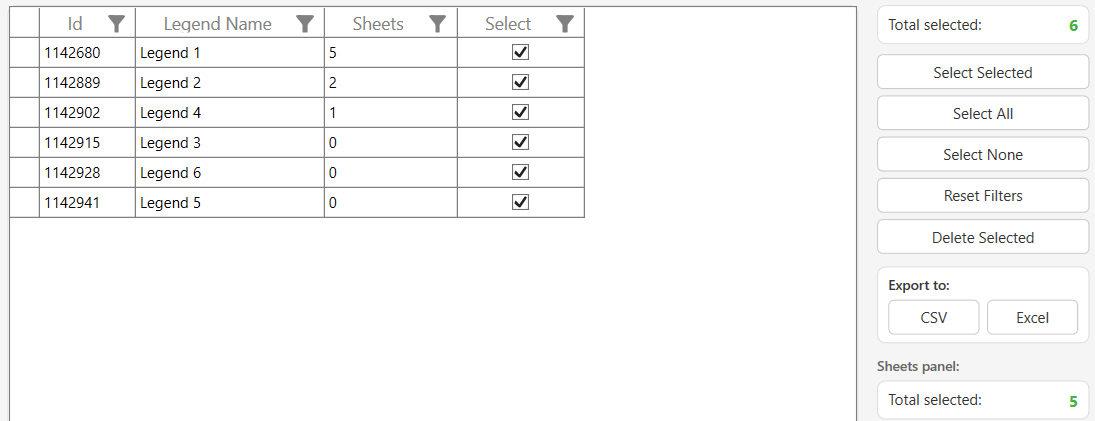
The Legends grid shows all legend views in the project:
| Column | Description |
|---|---|
| Id | Revit element ID of the legend view |
| Legend Name | Name of the legend view |
| Attached Views | Number of sheets this legend is currently placed on (populated only if details were loaded) |
| Select | Checkbox to mark this legend for bulk actions |
Click any column header to sort. Use the filter row beneath each header to narrow the list. Click Reset Filters (Legends panel) to clear active filters.
Step 3 — Review sheets for a legend
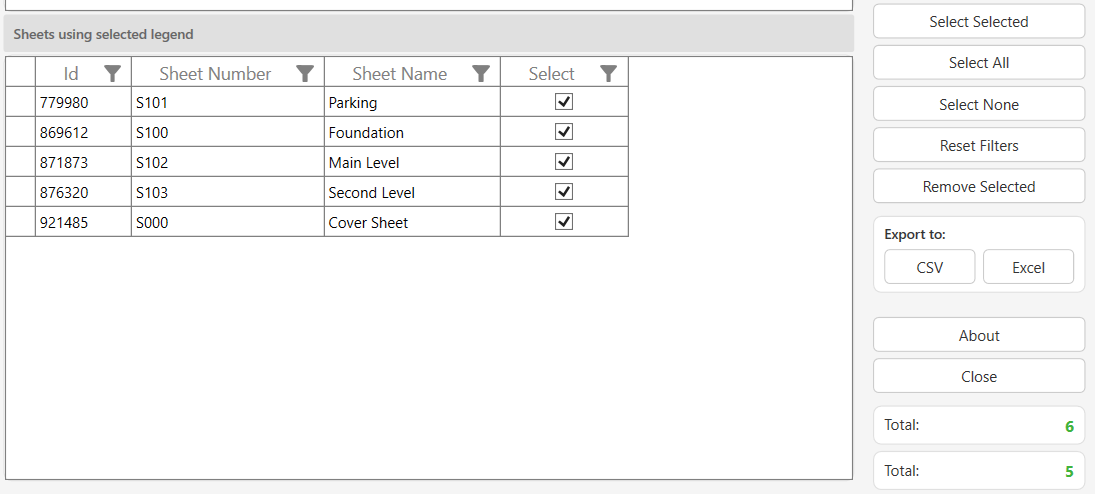
Click any row in the top grid to select a legend. The Sheets using selected legend panel below updates immediately to list every sheet that contains a viewport of that legend:
| Column | Description |
|---|---|
| Id | Revit element ID of the sheet |
| Sheet Number | The sheet number |
| Sheet Name | The sheet name |
| Select | Checkbox to mark this sheet for removal |
If the sheet panel is empty, the selected legend is not placed on any sheet — it is safe to delete.
Step 4 — Remove a legend from sheets (optional)
To detach the currently selected legend from specific sheets without deleting the legend:
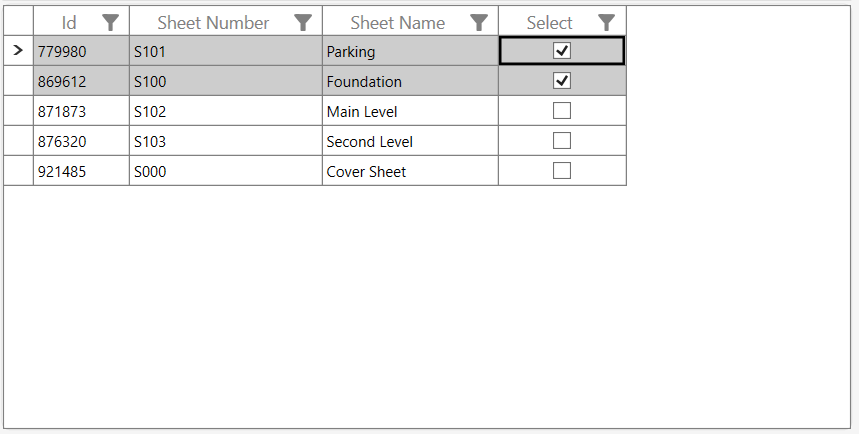
- In the Sheets panel, check the rows for the sheets you want to remove the legend from
- Use Select All / Select None / Select Selected as needed — the Total selected counter updates live
- Click Remove Selected
- Confirm the prompt: "Are you sure you want to remove Legend from Selected Sheets?"
The tool removes the legend's viewport from each checked sheet, logs each removal to the Output Dialog, and refreshes both grids with updated counts.
Step 5 — Delete legends (optional)
To permanently delete legend views from the project:
- In the Legends panel, check the rows for the legends to delete
- Click Delete Selected
- Confirm the prompt: "Are you sure you want to delete selected items?"
Deleted legends are removed from the top grid. The Output Dialog shows which names were deleted and a final count of successes and failures.
Warning: Deleting a legend permanently removes it from the project, including from any sheets it is currently placed on. Use Remove Selected in the Sheets panel if you only want to detach it from specific sheets.
Step 6 — Export (optional)
Each panel has independent CSV and Excel export buttons under Export to:. The export includes all rows currently visible in the grid, respecting any active column filters.
- Export the Legends grid for a project-wide audit of all legend names and sheet counts
- Export the Sheets grid for a record of which sheets a specific legend appears on
Tips and Best Practices
- Load details to find unused legends. After loading, filter the Attached Views column to
0— any legend with zero attached views is not placed anywhere and is safe to delete. - Export before deleting. The Legends CSV gives you a recoverable record of every legend that existed, including its Id, in case you need to reference it after deletion.
- Remove before deleting. If a legend has a non-zero count, use Remove Selected in the Sheets panel to clean up placements first, then delete the legend. This avoids surprise failures.
- Sub-transactions protect partial batches. Each remove or delete is wrapped independently. If one item fails (e.g. you don't own the workset), the others still complete — check the Output Dialog for the failure count.
- No details loaded? Filter is still useful. Even without the sheet-scan, you can filter legend names to find duplicates or badly named legends and delete them in bulk.
- Click to navigate. Clicking a legend row is the fastest way to inspect its sheet placements — no separate lookup needed.
- Reset Filters is per-panel. Each grid has its own Reset Filters button. Resetting the Legends filters does not affect the Sheets filters and vice versa.
Common Use Cases
Finding unused legends before a model audit — Load details and sort the Attached Views column ascending. All legends showing 0 are placed on no sheets. Check them all and click Delete Selected to clean up unused legend views in one pass.
Removing a legend from selected sheets during a sheet reorganisation — Select the legend in the top grid, filter the sheet panel by sheet number prefix to find the affected sheets, Select All filtered, then click Remove Selected. The legend view itself is preserved for other sheets.
Auditing how widely a standard legend is distributed — Click the legend in question and export the Sheets panel to Excel. The exported file lists every sheet number and name, giving you a distribution report to share with the project team.
Cleaning up a model before issuing — Export all legends to CSV before issue. After the issue, reopen Legend Usage and compare the current list against the export to confirm nothing unexpected was deleted.
Replacing a legend with an updated version — Use Remove Selected to detach the old legend from all sheets (the Sheets panel shows them all), then delete the old legend. Place the new legend manually from the Project Browser onto the same sheets.
Troubleshooting
Tool closes immediately on launch The project contains no legend views. Create at least one legend view in the Project Browser before using this tool.
"Attached Views" column is empty Detail loading was skipped at the "Load details?" prompt. Close and relaunch the tool, then choose Yes when prompted.
Sheets panel is empty after clicking a legend The selected legend is not placed on any sheet — it has zero placements. It is safe to delete.
Cannot delete a legend / deletion fails Check the Output Dialog for the specific error. Common causes: you don't own the workset in a workshared model (borrow the workset first), or the legend is still placed on sheets (use Remove Selected in the Sheets panel first). The failure count and reason appear in the Output Dialog.
Remove Selected reports failures One or more sheet viewports could not be removed — usually because you don't own the sheet's workset. Borrow the relevant workset, relaunch, and retry. Successfully removed sheets are committed even when others fail.
"Deletion failed. Gain ownership of elements and try again." The overall transaction could not commit. In a workshared model, borrow ownership of the legend view elements or the sheet viewports before attempting the operation again.
Filters showing fewer rows than expected A column filter is active. Click Reset Filters in the relevant panel to restore all rows.