
107 Next Number
Chris McKeown / July 1, 2025
Sheet & View Manipulation
Overview
Next Number is a targeted helper for numbering workflows. Select a single element in Revit before launching — the tool presents all renumber-compatible parameters on that element type and lets you search the project for existing values in the chosen parameter. The results list shows what numbers are already in use, making it easy to identify the next available value. You then enter the new number and apply it to the selected element in a single click.
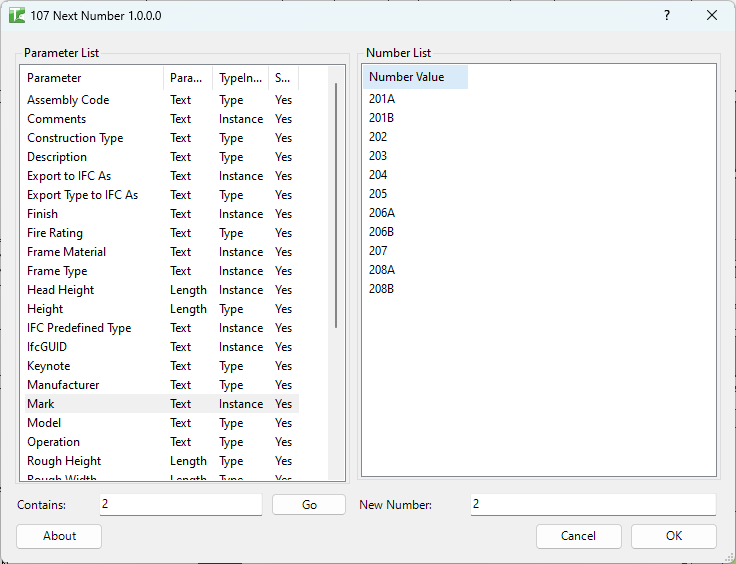
Table of Contents
Key Features
- Operates on a single pre-selected element — the category of that element drives the parameter and search scope
- Parameters list: shows all renumber-compatible parameters available on the element, with columns for Parameter, ParameterType, TypeInstance, and Shared
- Search field: enter a partial value to find elements of the same category whose chosen parameter contains that text
- Results list: shows all matching parameter values found across the project
- New Number field: enter the value to assign to the selected element
- Apply button: sets the chosen parameter to the new value and closes the dialog
- Remembers the last-used parameter name and search value between uses
- Works with any writable, renumber-compatible parameter on any element category
Requirements
- Exactly one element must be pre-selected in Revit before launching the tool
- The selected element must be in a project document (not a Family document)
- The target parameter must be writable (not a read-only computed parameter)
- A valid Kiwi Codes Bonus Tools licence must be active
Running the Tool
Launch
Select a single element in Revit, then find Next Number on the Bonus Tools Ribbon or use 115 Search Tools.
The tool requires exactly one element to be selected before launch. If no element or multiple elements are selected, the tool will not open.
Step 1 — Select a parameter
The Parameters list on the left populates with all renumber-compatible parameters on the selected element. Click the parameter you want to work with (e.g. "Mark", "Number", or a custom shared parameter).
The parameter list columns are:
| Column | Description |
|---|---|
| Parameter | Parameter name |
| ParameterType | Data type (Text, Integer, etc.) |
| TypeInstance | Whether it is a Type or Instance parameter |
| Shared | Whether it is a Shared parameter |
Step 2 — Search for existing values
Enter a partial value in the Search For field. Click the Search button (or press Enter).
The tool scans all elements of the same category in the project and finds those whose selected parameter value contains the search text. Matching values appear in the Results list.
For example, if you are working with door marks and enter
A, the Results list will show all existing door marks containing the letter A — such asA1,A12,BA3, etc. This helps you find the last number in a sequence.
"Must enter a value" is shown if the search field is empty when you click Search.
Step 3 — Enter and apply the new number
Type the value you want to assign to the selected element in the New Number field.
Click Apply. The tool:
- Opens a transaction named "Renumber"
- Sets the selected parameter on the pre-selected element to the value in New Number
- Closes the dialog
Tips and Best Practices
- Search with a prefix to find the last used number in a series. If doors are numbered
D-001,D-002, etc., search forD-to see all existing numbers and identify the next available one. - Leave the search field blank only if you intentionally want to list all values. An empty search triggers a validation error — enter at least one character.
- The Results list is for reference only. Values shown there are already in use; enter a value NOT in that list into the New Number field to avoid duplicates.
- Works for any element category. Not just doors — use it for rooms, equipment, spaces, casework, or any category that has a writable parameter.
- The tool remembers your last parameter and search. If you are running it repeatedly (e.g. numbering several elements in sequence), the dialog re-opens with the same settings, saving re-entry time.
Common Use Cases
Finding the next available door mark — Select an unnumbered door, launch Next Number, pick the Mark parameter, search for your door number prefix (e.g. D), review the Results list, and assign the next sequential mark.
Assigning room numbers without duplicates — Select an unoccupied room, search for the level prefix in the room Number parameter, identify the highest existing number, and assign the next value.
Checking for gaps in equipment numbers — Search with a partial value to list all existing equipment numbers. Identify any gaps in the sequence and fill them in.
Ad-hoc renumbering of a single element — When a specific element needs a non-sequential number (e.g. after a late design change), use Next Number to check what values are in use before assigning the new one.
Troubleshooting
Tool does not open No element is selected, or multiple elements are selected. Select exactly one element in Revit and re-launch the tool.
Parameters list is empty The selected element has no renumber-compatible writable parameters available. This can occur with system families that expose only read-only computed parameters. Try a different element or check whether the required parameter exists on the category.
"Must enter a value" The Search For field is empty. Enter at least one character before clicking Search.
Results list is empty after searching No elements of the same category have a value in the selected parameter that contains the search text. Either no elements have been numbered yet (expected for a new project), or the search prefix does not match the existing numbering scheme.
Apply does not change the value The target parameter may be read-only for the specific element instance, or the value entered in New Number violates a parameter format constraint (e.g. entering text in an integer parameter). Check the parameter type and try again.