
104 Replace Line Styles
Chris McKeown / July 1, 2025
Time Saving
Overview
Replace Line Styles scans the model for Model and Detail Lines and presents a two-column mapping grid: the left column lists every line style currently in use (the source), and the right column is a dropdown where you select the replacement style (the target). Running the replacement changes every matching line in scope to the target style in a single operation. Lines inside groups or filled regions are deliberately skipped, since their styles are controlled by the group or region definition.
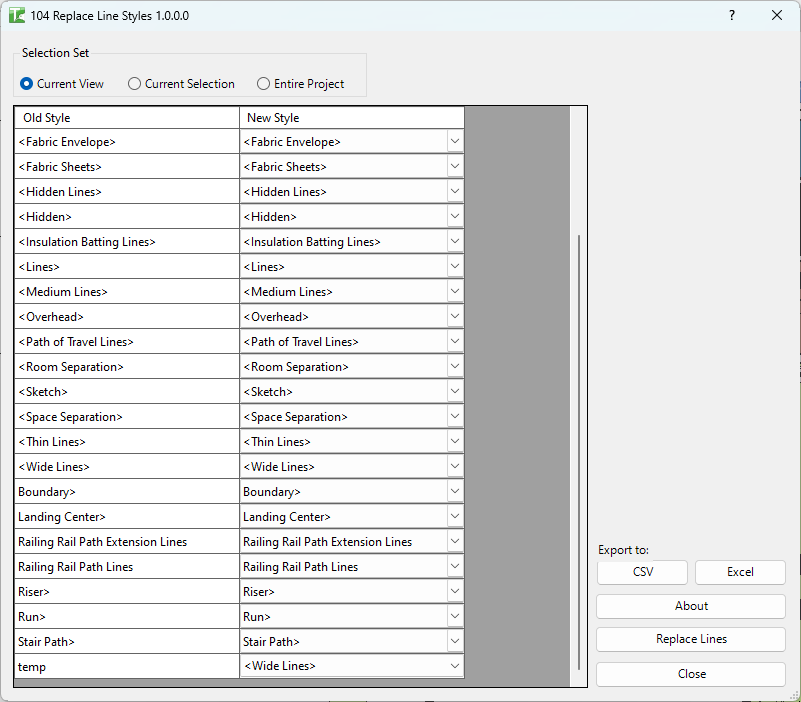
Table of Contents
Key Features
- Two-column mapping grid: Source (current style, read-only) → Target (replacement style, dropdown)
- Target dropdown is populated with all GraphicsStyle line categories in the project
- Three scope options: Current View, Current Selection, or Entire Project (whole model)
- Handles all line curve types: DetailLine, DetailArc, DetailEllipse, DetailNurbSpline, ModelLine, ModelArc, ModelEllipse, ModelNurbSpline
- Lines inside groups (GroupId > 0) are skipped to avoid group integrity errors
- Progress bar with Cancel button — cancelling stops mid-run (changes already committed to that point are retained)
- Export CSV / Export Excel for exporting the mapping grid
- Completion message: "X Passed. Y Failed."
Requirements
- Must be run in a project document (not a Family document)
- The target line styles must already exist in the project (Manage → Additional Settings → Line Styles)
- Lines inside groups or filled regions will not be affected
- A valid Kiwi Codes Bonus Tools licence must be active
Running the Tool
Launch
Find Replace Line Styles on the Bonus Tools Ribbon or use 115 Search Tools.
Step 1 — Set the scope
Choose the Selection Set:
| Option | Behaviour |
|---|---|
| Current View | Replaces line styles only for lines visible in the active view (default) |
| Current Selection | Replaces line styles only for lines currently selected in Revit |
| Entire Project | Replaces line styles for all matching lines across the whole model |
Use Current View or Current Selection for targeted replacements. Entire Project is powerful but affects every matching line in the model — review the mapping grid carefully before running.
Step 2 — Configure the mapping
The grid lists every line style currently used by lines in the selected scope. For each source style:
| Column | Description |
|---|---|
| Source | The current line style name (read-only) |
| Target | Dropdown — select the replacement line style. Defaults to the same as Source (no change) |
Only rows where Target differs from Source will trigger a replacement. If Source and Target are the same, those lines are left unchanged.
Step 3 — Run the replacement
Click Ok (or the equivalent run button). A progress bar tracks each line element as it is processed. For each line where the source style differs from the target:
- The line's
LineStyleis set to the target GraphicsStyle - The result is logged
When complete, a message reports: "X Passed. Y Failed."
Click Cancel at any time to stop processing. Note that changes already applied before Cancel was clicked are not rolled back — unlike some other Bonus Tools, this tool does not do a full-rollback cancel. Use Undo in Revit after cancelling if you need to revert partial changes.
Tips and Best Practices
- Map only the styles you need to change. Leave all Source → Target pairs as identical (no change) except for the specific styles you want to replace. This prevents accidental replacements.
- Use Current View for safe testing. Run on the active view first to preview the result before committing to an Entire Project replacement.
- Lines in groups are excluded. If some lines were not replaced, they may be inside a group. Edit the group definition separately to change those line styles.
- Purge unused line styles after replacing. After running a full replacement, use Revit's Purge Unused command to remove any line styles that are no longer referenced.
- Export the mapping grid before running. Click Export CSV/Excel to create a record of the source → target mapping for future reference or team communication.
Common Use Cases
Standardising line styles after importing a CAD file — Imported DWG files often introduce non-standard line styles. Run Replace Line Styles to remap all imported styles to project-standard equivalents in one operation.
Migrating from an old line style scheme to a new one — When a practice updates its drawing standards, the old line style names need to be replaced project-wide. Configure the mapping once and run on Entire Project.
Cleaning up a received model — Consultant models merged into the project may use different line style naming conventions. Replace Line Styles remaps them to match your project standards.
Fixing a batch of lines in a single view — A specific view has inconsistent line styles from manual drafting. Select all the lines in the view, switch to Current Selection, and remap just those elements.
Troubleshooting
Some lines were not replaced Lines inside groups (GroupId > 0) or filled regions are skipped by design. To update those lines, edit the group or region definition directly in Revit.
Target dropdown does not show the expected line style The line style does not exist in the project. Create it first via Manage → Additional Settings → Line Styles, then re-open the dialog.
"X Passed. Y Failed." with failures Check the Output log for red entries. Common causes include the line element being read-only (e.g. pinned), or a Revit API exception during the style assignment.
Changes partially applied after Cancel Cancel stops processing but does not roll back changes already made. Use Ctrl+Z (Undo) in Revit to revert to the state before running, then re-run with a narrower scope if needed.
Entire Project runs slowly Large projects with thousands of lines can take time. Consider using Current View or Current Selection on a subset first, or run during off-peak hours.