
102 Revision Clouds
Chris McKeown / July 1, 2025
Sheet & View Manipulation
Overview
Revision Clouds provides two complementary capabilities in one dialog: a live grid showing every Revision Cloud in the project (or only those on the current sheet), and a Schedule Creation panel that can build a formatted Revit schedule from that cloud data and place it on a nominated sheet. The grid supports filtering by issued status, exporting to CSV or Excel, and isolating clouds in the canvas. The schedule creation feature lets you configure which columns appear, apply a view template, and optionally replace an existing schedule — all settings are saved per-project via Revit's ExtensibleStorage so they persist between sessions.
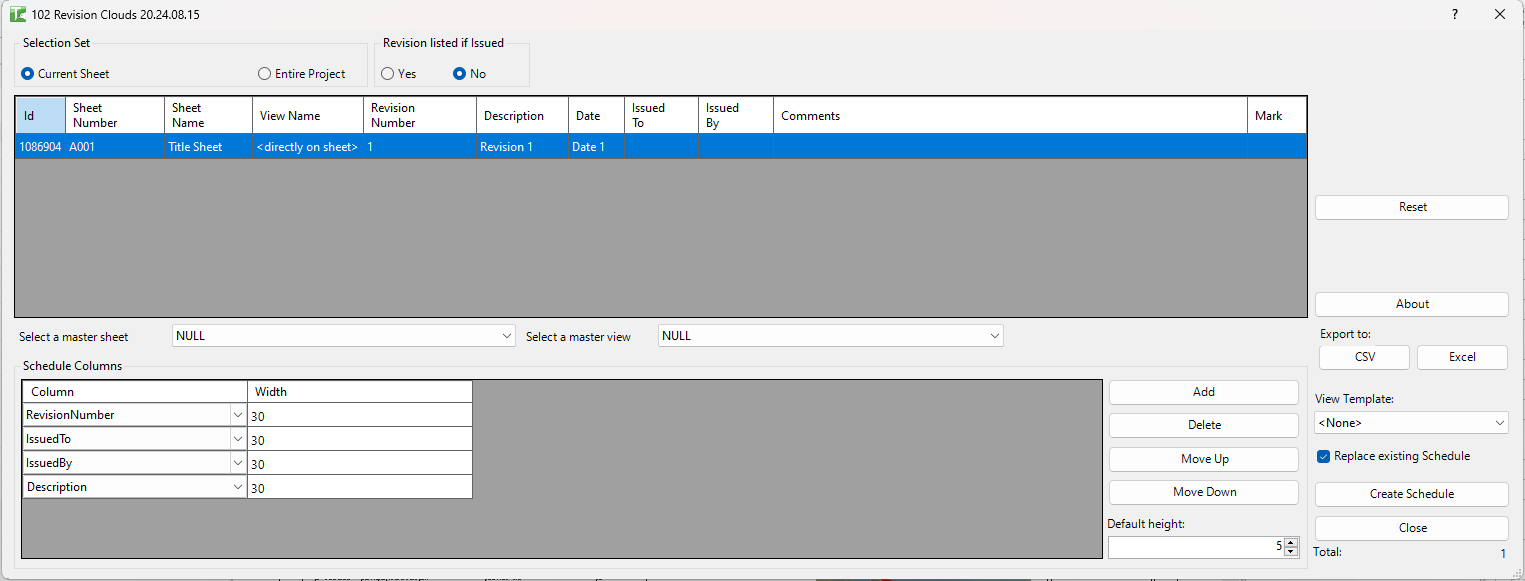
Table of Contents
Key Features
- Grid showing all Revision Cloud elements with: Id, Sheet Number, Sheet Name, View Name, Revision Number, Description, Date, Issued To, Issued By, Comments, Mark
- Selection Set filter: Current Sheet (default when on a sheet) or Entire Project
- Revision listed if Issued filter: Yes (include issued revisions) or No (exclude issued — default)
- Export CSV / Export Excel — exports the full grid to a file
- Schedule Creation panel:
- Configure which columns appear in the generated schedule and their widths
- Choose a View Template to apply to the new schedule
- Select a Master Sheet and Master View to position the schedule on the sheet
- Replace existing Schedule checkbox — removes an existing schedule of the same name before creating the new one
- Default height — sets the initial schedule height in the sheet viewport
- Create Schedule button — generates the schedule and places it
- All schedule creation settings are persisted per-project in Revit's ExtensibleStorage
Requirements
- Must be run in a project document (not a Family document)
- For Current Sheet mode, the active view must be a sheet or a view placed on a sheet
- The project must have Revit Revision elements defined (Manage → Sheet Issues/Revisions) for revision clouds to exist
- A valid Kiwi Codes Bonus Tools licence must be active
Running the Tool
Launch
Find Revision Clouds on the Bonus Tools Ribbon or use 115 Search Tools.
If the active view is a sheet, the dialog defaults to Current Sheet mode. Switch to Entire Project to view all clouds in the model.
Step 1 — Set the scope
In the Selection Set group, choose:
| Option | Behaviour |
|---|---|
| Current Sheet | Shows clouds on the active sheet only (default when on a sheet) |
| Entire Project | Shows all revision clouds across the whole project |
Step 2 — Filter by issued status
In the Revision listed if Issued group:
| Option | Behaviour |
|---|---|
| No | Exclude issued revision clouds from the grid (default) |
| Yes | Include issued revision clouds in the grid |
Choose Yes when you need a complete historical record of all clouds, including those already issued.
Step 3 — Review the grid
The grid populates with all matching Revision Cloud elements. Each row shows:
| Column | Source |
|---|---|
| Id | Revit element ID of the cloud |
| Sheet Number | Sheet number of the sheet the cloud appears on |
| Sheet Name | Sheet name |
| View Name | Name of the view (viewport) containing the cloud |
| Revision Number | Revision sequence number from the Revision definition |
| Description | Revision description text |
| Date | Revision date |
| Issued To | Issued To value from the Revision definition |
| Issued By | Issued By value from the Revision definition |
| Comments | ALL_MODEL_MARK parameter value on the cloud element |
| Mark | Mark parameter value on the cloud element |
Step 4 — Export (optional)
Click Export CSV or Export Excel to save the grid contents to a file. This is useful for generating a revision register or transmittal log outside of Revit.
Step 5 — Create a Schedule (optional)
Expand the Schedule Creation panel to build a Revit schedule from the cloud data:
Configure columns
The column configuration grid lets you define which columns appear in the generated schedule:
| Setting | Description |
|---|---|
| Column | The data field to include (Id, SheetNumber, SheetName, ViewName, RevisionNumber, Description, Date, IssuedTo, IssuedBy, Comments, Mark) |
| Width | Column width in the schedule (numeric, in sheet units) |
Add at least one column before creating the schedule.
Set placement options
| Field | Description |
|---|---|
| View Template | A view template to apply to the newly created schedule |
| Master Sheet | The sheet on which to place the schedule |
| Master View | The viewport position reference on that sheet |
| Replace existing Schedule | If checked, removes any existing schedule of the same name before creating the new one |
| Default height | Initial height of the schedule viewport on the sheet |
Click Create Schedule. The tool generates a ViewSchedule, applies the template and column settings, and places it on the nominated sheet.
Tips and Best Practices
- Use "Entire Project" for a transmittal register. Running in Entire Project mode with issued clouds included gives you a complete record of all revisions ever made — export to Excel for a transmittal log.
- Exclude issued clouds for active work. The default "No" filter keeps the grid focused on open revisions that still need action.
- Save schedule settings once and reuse. All Schedule Creation settings persist via ExtensibleStorage, so after the first setup you can re-create or refresh the schedule with a single click.
- Use Replace existing Schedule for iterative updates. Enable this checkbox so each run replaces the previous revision schedule rather than accumulating duplicates.
- Mark field stores custom cloud comments. Use Revit's Mark parameter on individual cloud elements (via Properties) to add note text that will appear in the Comments column.
- Apply a View Template for consistent formatting. Create a dedicated view template with the column widths and font settings you want, then assign it here to keep the schedule looking the same across re-runs.
Common Use Cases
Generating a revision register for an issue package — At each design issue milestone, run Revision Clouds in Entire Project mode, export to Excel, and distribute it alongside the drawing set as a transmittal record.
Checking outstanding clouds before issuing — Switch to Current Sheet mode and filter to non-issued clouds only to confirm that all revision clouds on the sheet are addressed before marking the revision as issued.
Creating an embedded revision schedule on a cover sheet — Configure the Schedule Creation panel with the desired columns and point Master Sheet to your cover sheet. Click Create Schedule to place a live Revit schedule of current clouds directly on the cover.
Historical audit of all revision activity — Set Issued to "Yes" and scope to Entire Project to produce a complete revision history for a project archive or QA audit.
Troubleshooting
"Must have Current View Selected." Schedule creation requires the Current Sheet scope when creating a schedule. Switch from Entire Project to Current Sheet, or ensure the active view is a sheet, before clicking Create Schedule.
"Must add at least 1 Schedule Column." The column configuration grid is empty. Add at least one column to the schedule configuration before clicking Create Schedule.
Grid is empty in Current Sheet mode The active view is not a sheet or is not associated with any revision clouds. Navigate to a sheet view that contains revision clouds and re-run the tool.
Grid is empty in Entire Project mode The project has no revision cloud elements. Confirm revision clouds exist by checking Revit's Annotate tab → Revision Cloud.
Schedule creates but appears empty The schedule was created but no revision clouds matched the current filter. Check the "Revision listed if Issued" setting — if set to "No" and all clouds are issued, the schedule will be empty. Switch to "Yes" or ensure there are non-issued clouds in the project.