
101 Select Title Blocks
Chris McKeown / July 1, 2025
Sheet & View Manipulation
Overview
Select Title Blocks lets you find and select title block family instances across the project by searching any sheet parameter — Sheet Number, Sheet Name, or any custom parameter available on sheets. The matching title blocks are added to the Revit selection set, so you can immediately perform bulk edits (parameter fills, tag placement, property changes) without manually clicking through each sheet. An optional Auto Search mode triggers the search automatically as you type.
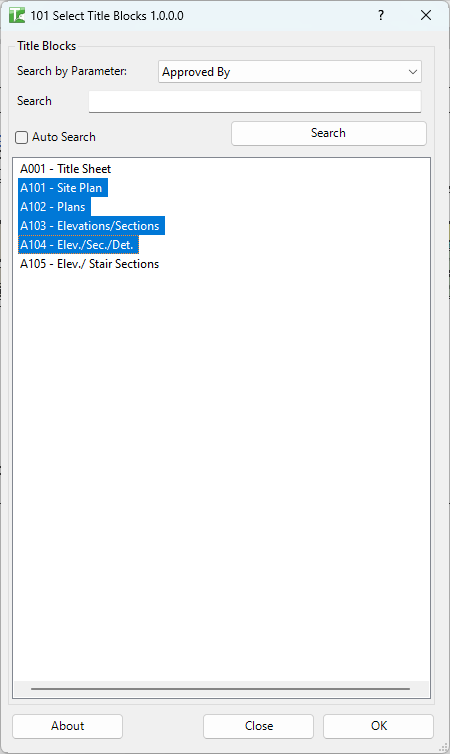
Table of Contents
Key Features
- Search by any sheet parameter — the dropdown is populated dynamically from the parameters available on title block FamilyInstances in the project
- Search text field with an explicit Search button
- Auto Search checkbox — when enabled, the list updates as you type without pressing Search
- Results list shows Sheet Number — Sheet Name for every matching title block
- Clicking OK passes all listed results to the Revit UI selection set
- Works across the entire project (not limited to the active view)
- A valid Kiwi Codes Bonus Tools licence must be active
Requirements
- Must be run in a project document (not a Family document)
- The project must contain at least one sheet with a title block family instance
- A valid Kiwi Codes Bonus Tools licence must be active
Running the Tool
Launch
Find Select Title Blocks on the Bonus Tools Ribbon or use 115 Search Tools.
Pre-select any elements in Revit before launching if you want to combine this selection with an existing selection set; otherwise, existing selections will be replaced.
Step 1 — Choose a search parameter
Open the Search by Parameter dropdown and select the sheet parameter you want to filter on. The list includes all parameters found on title block instances in the project — typically Sheet Number, Sheet Name, and any project-specific custom parameters.
Step 2 — Enter search text
Type a value in the Search text box. The search performs a contains match — for example, entering A1 will match A1-001, A1-002, Drawing A100, etc.
- To search immediately, click the Search button.
- To search as you type, tick the Auto Search checkbox before typing.
The results list updates to show all matching title blocks in Sheet Number — Sheet Name format.
Step 3 — Apply the selection
Click OK. All title block instances shown in the results list are added to the Revit selection set. You can then use Revit's Properties panel, Manage tab, or any third-party tool to edit the selected elements in bulk.
Tips and Best Practices
- Combine with other Revit tools. After selecting title blocks with this tool, use Revit's built-in parameter fill tools or keyboard shortcuts to edit all selected title blocks simultaneously.
- Use Auto Search for iterative filtering. Enable Auto Search when you want to narrow results in real time by progressively typing more of the search string.
- Search by a custom parameter for zone-based selections. If your project uses a custom "Zone" or "Package" parameter on sheets, you can select all title blocks in a zone in one query.
- Clear the search field to list all title blocks. An empty search with Auto Search on will match all title blocks in the project, giving you a full inventory.
- Sheet Number searching is case-sensitive where Revit parameters are. If results are unexpectedly empty, check capitalisation in the search text.
Common Use Cases
Bulk-updating a sheet parameter across a discipline — You need to set a "Checked By" or "Status" parameter on all sheets in a specific drawing package. Search by Sheet Number prefix (e.g. A-), select all results, and update the parameter value in one Properties panel edit.
Selecting all title blocks for a revision annotation — At issue time, search for all sheets in the current issue (by package code or date parameter) and select them so a revision cloud or stamp can be placed in bulk.
Verifying title block coverage — Run with an empty search to see a list of every sheet's title block in Sheet Number — Sheet Name format. Useful for a quick completeness audit.
Selecting a range of sheets by number — Enter a partial sheet number (e.g. E-10) to select all electrical sheets in the 100-series without manually scrolling through the Project Browser.
Troubleshooting
No results returned for a search that should match Verify the selected parameter is the correct one — a search against "Sheet Name" will not find values stored in "Sheet Number". Also check capitalisation in the search string.
Search by Parameter dropdown is empty The project contains no title block instances, or the title block families have no accessible parameters. Ensure sheets are placed on the model and that at least one sheet has a title block loaded.
OK does not update the Revit selection If the Revit document changed (e.g. another transaction occurred) while the dialog was open, the element IDs may be stale. Close the dialog, re-run the tool, and click OK immediately after the search.
All sheets appear in the list regardless of search text Auto Search may have fired before the full search string was entered. Click Search again with the full value to re-filter.