
010 3D Views for All Worksets
Chris McKeown / July 1, 2025
Sheet & View Manipulation
Overview
3D Views for All Worksets creates one isometric 3D view per user workset in a single operation, naming each view WRK_[WorksetName] and isolating each workset by hiding all others within that view. This gives every workset its own dedicated 3D view for model review, clash detection, and discipline coordination — eliminating the manual setup of individual views and workset visibility overrides.
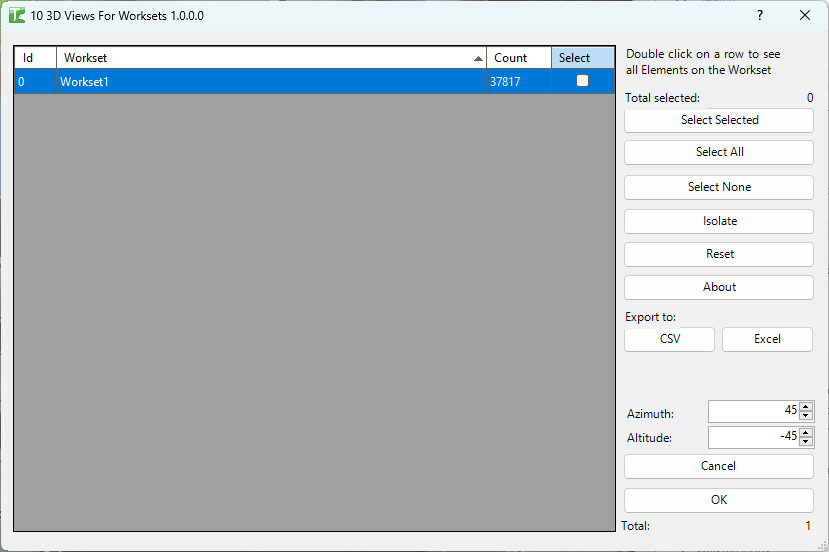
Table of Contents
Key Features
- Lists all user worksets with a per-workset element count
- Offset field (per row) — section-box height above the workset base; controls the vertical depth of each 3D view
- Camera controls — Azimuth and Altitude numerics to set the view direction for all created views
- Views named
WRK_[WorksetName]— easily located and batch-managed in the Project Browser - Each view isolates its workset by hiding all other worksets via Visibility/Graphics overrides
- Detail Level set to Fine; Visual Style set to Consistent Colors on all created views
- Multi-select — create views for any combination of worksets in one click
- Select Selected / Select All / Select None for fast selection
- Double-click a row to view elements on that workset
- Transaction: "3d Views" with per-workset sub-transactions
- Confirmation: "X passed. Y failed."
Requirements
- A workshared Revit project with at least one user workset
- A valid Kiwi Codes Bonus Tools licence must be active
Running the Tool
Launch
Find 3D Views for All Worksets on the Bonus Tools Ribbon or use 115 Search Tools.

Step 1 — Review worksets
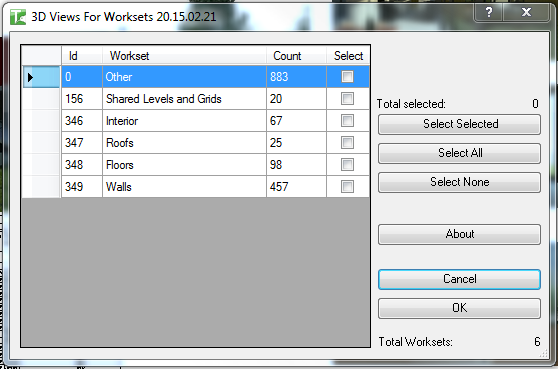
The dialog loads all user worksets sorted by name:
| Column | Description |
|---|---|
| Id | Revit Workset Id |
| Workset | The workset name |
| Count | Number of elements assigned to this workset |
| Offset | Section-box height above the base level in millimetres (editable) |
| Select | Checkbox — tick to include this workset in the view creation run |
The Total counter at the bottom shows the total number of worksets. Click any column header to sort.
Step 2 — Adjust offset and camera (Optional)
Offset — Controls how high the section box extends above the base. Edit the Offset value in any row to set a custom depth for that workset.
Camera — Use the Azimuth and Altitude numeric inputs to set the view direction for all created views:
- Azimuth: horizontal rotation (0° = North)
- Altitude: vertical viewing angle
Step 3 — Select worksets
Tick checkboxes in the Select column, or use the selection buttons:
| Button | Action |
|---|---|
| Select Selected | Toggle the checkbox for the currently highlighted row(s) |
| Select All | Check all worksets |
| Select None | Uncheck all worksets |
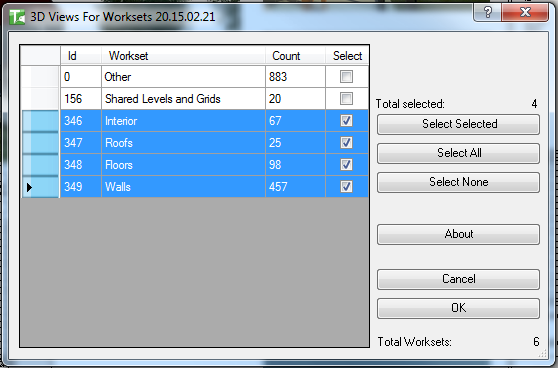
The Total selected counter updates as you make selections.
Step 4 — Create views
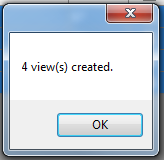
Click OK. A 3D view is created for each selected workset, with all other worksets hidden in that view. A confirmation dialog reports the result:
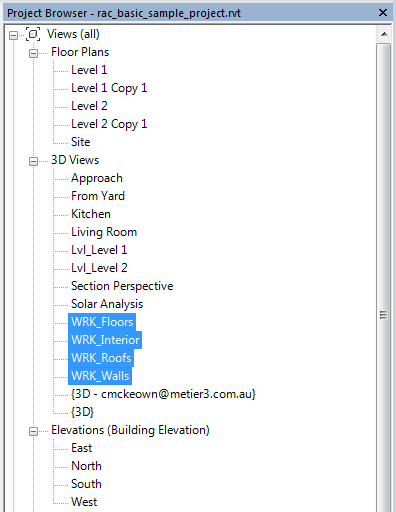
The new views appear in the Project Browser under 3D Views with the WRK_ prefix:
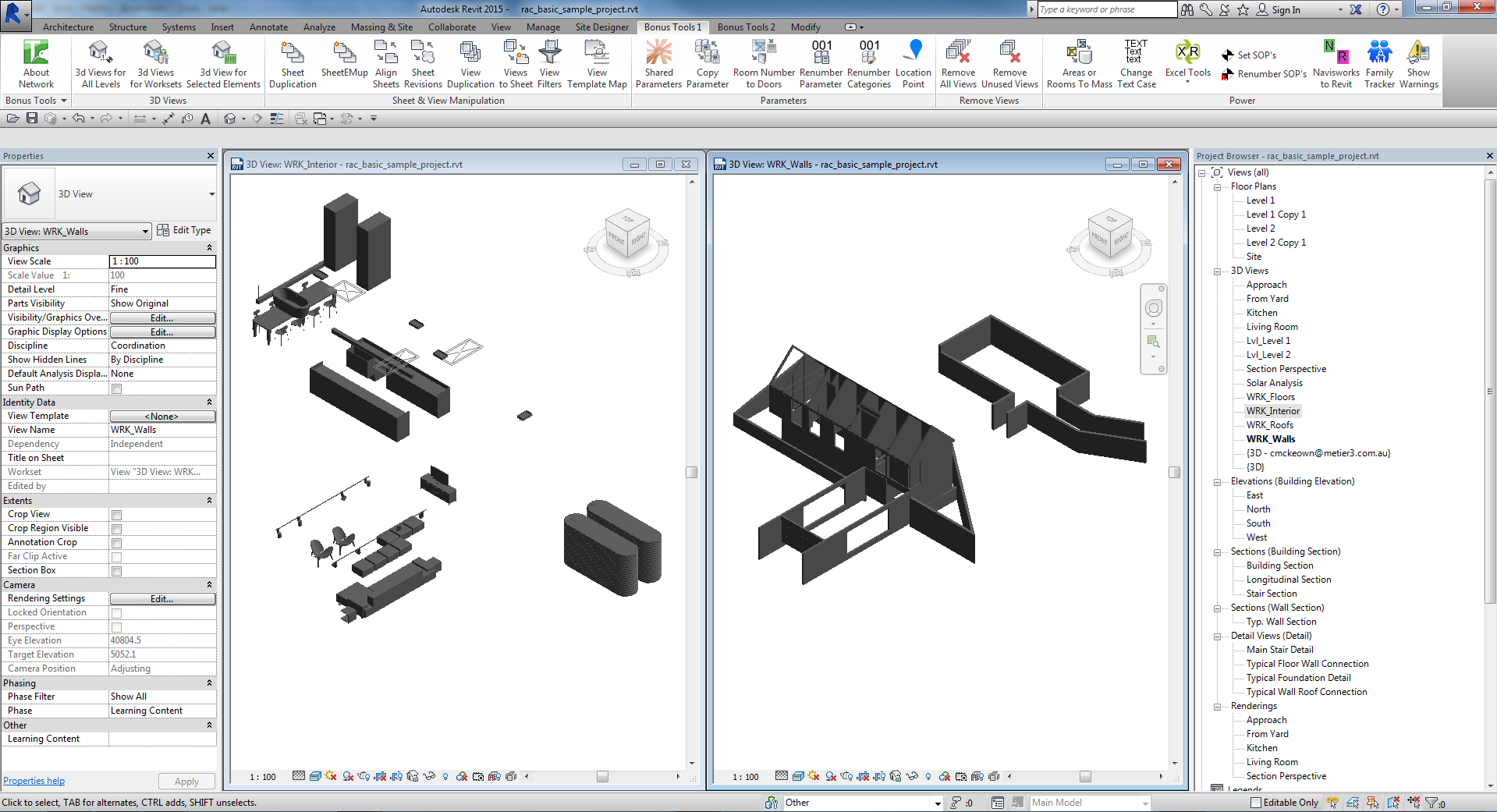
Opening any generated view shows only the 3D geometry belonging to that workset:
Tips and Best Practices
- Requires a workshared model. If the project is not workshared, the tool has no worksets to process and will create no views.
- The WRK_ prefix keeps generated views grouped. All views sort together under
WRK_in the Project Browser — easy to locate and delete as a batch if regeneration is needed. - Re-run after adding worksets. The tool does not modify or delete existing
WRK_views — re-running creates new views for any new worksets. Delete obsoleteWRK_views manually if needed. - Use Select All for the initial full-project run. On first use, generate the complete set; on subsequent runs, select only new or changed worksets.
- Delete existing WRK_ views before regenerating with new settings. If you need different offsets or a different camera angle, delete the existing generated views first, then re-run.
- Each view uses Consistent Colors for clear workset-based review. This ensures geometry from the isolated workset is clearly visible without material overrides interfering.
Common Use Cases
Workset model review — Generate a WRK_ view for every workset and use them as the standard views for discipline model reviews, ensuring each discipline sees only their own elements.
Clash detection scoping — Workset-isolated 3D views are an efficient way to scope a Navisworks or Revit clash detection run to a single discipline, reducing noise from unrelated elements.
Worksharing setup verification — After initial worksharing setup, create WRK_ views to visually confirm elements are assigned to the correct worksets before the project advances.
Coordination package preparation — Generate WRK_ views for each discipline's workset and use them as base views for issued coordination packages or model screenshots.
Troubleshooting
No views created — "X passed. Y failed." with all failures The project may not be workshared, or all selected worksets failed. Verify the project has worksharing enabled with user-defined worksets.
"X passed. Y failed." with some failures Some views could not be created. In a workshared model, view creation may fail if another user holds ownership of the view tree. Gain ownership and retry.
"3D View Creation failed. Gain ownership of elements and try again." The transaction failed due to a worksharing conflict. Ensure you have the necessary permissions and retry.
"Operation Failed." An unexpected error occurred. Check the Revit journal for details.
Re-running creates duplicate WRK_ views
The tool does not check for existing WRK_ views before creating new ones. Delete the existing generated views from the Project Browser before re-running if you need to regenerate them with updated settings.
Workset shows Count = 0 The Count column reflects elements formally assigned to the workset. Worksets used as ownership containers only may show 0. Views are still created for these worksets.