
008 Family Tracker
Chris McKeown / July 1, 2025
Power
Overview
Family Tracker gives you a complete inventory of every family or group loaded into the project, including when it was inserted, who inserted it, when it was last reloaded, and its current file path on disk. Use it to identify out-of-date families, find families loaded from non-standard locations, bulk reload or repath a library after a folder restructure, or clean up unused families before a project issue. Insertion and modification dates are captured at load time by the Bonus Tools or Family Browser add-in — without those tools running when a family is loaded, dates will show as Not Set.
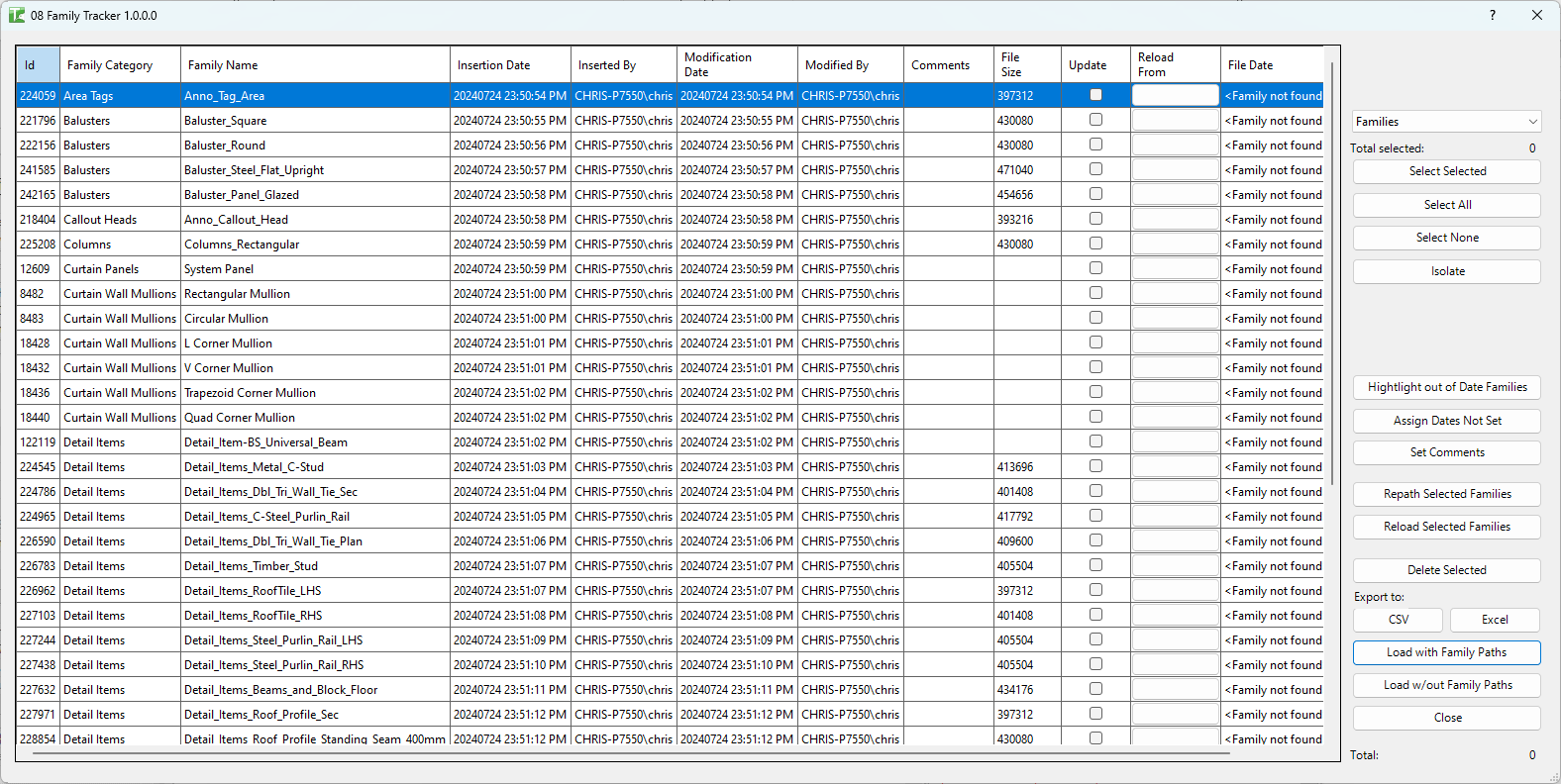
Table of Contents
Key Features
- Mode selector — switch between Families and Groups
- Load with Family Paths — full load including File Date, File Path, File Size, and a per-row Reload button; enables all operations
- Load w/out Family Paths — fast snapshot load without file path data; limited operations available
- Load Groups — lists all model and detail group types in the project
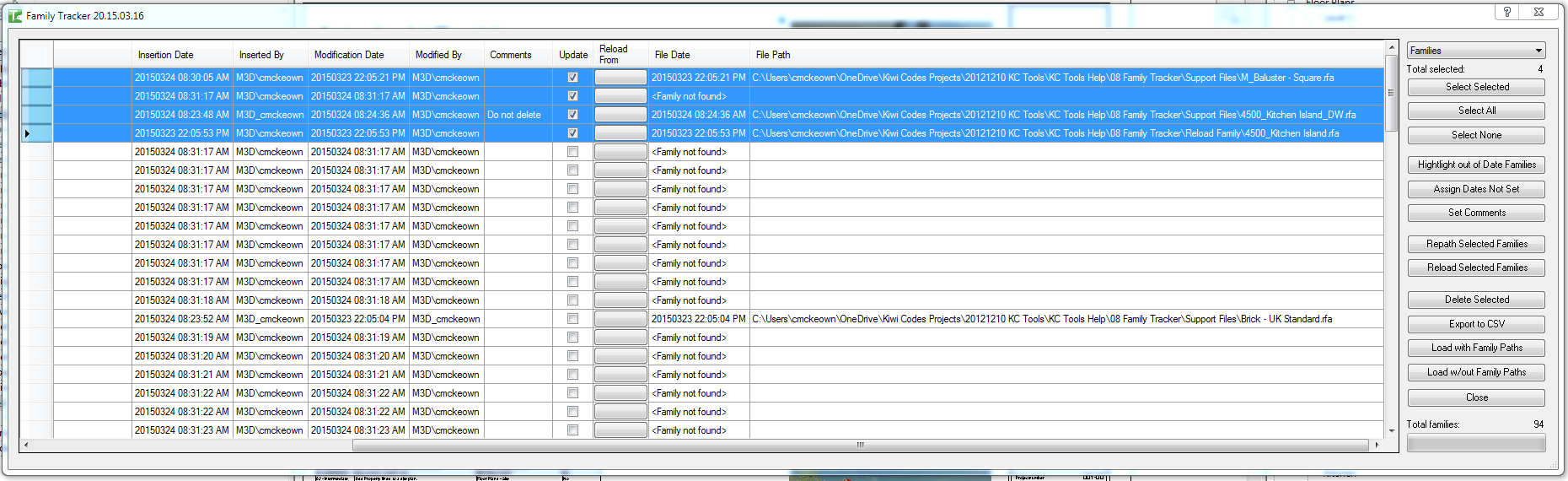
- Grid columns (full load): Id, Family Category, Family Name, Insertion Date, Inserted By, Modification Date, Modified By, Comments, Update checkbox, Reload button, File Date, File Path, File Size
- Colour coding — red = project family is older than the file on disk (reload recommended); dark cyan = project family is newer than the file (edited and reloaded without saving)
- Highlight out of Date Families — applies red/cyan colour coding to the entire grid at once
- Assign Dates Not Set — back-fills today's date (or the file date if found) to families with missing insertion/modification dates
- Set Comments — bulk-writes a comment string to all ticked families
- Reload Individual — per-row button that opens a file browser navigating to the family's recorded path
- Repath Selected Families — bulk re-targets selected families to a new parent folder, recursively searching for matching filenames
- Reload Selected Families — bulk reloads selected families from their recorded file paths
- Delete Selected — bulk-deletes selected families with a confirmation prompt
- Export to CSV — exports the grid to a CSV file for Excel analysis
Requirements
- Any Revit project document
- Insertion and modification date tracking requires Kiwi Codes Bonus Tools or Family Browser to have been installed and running when each family was loaded
- For reload and repath operations, family files must be accessible on disk at the recorded paths
- A valid Kiwi Codes Bonus Tools licence must be active
Running the Tool
Launch
Find Family Tracker on the Bonus Tools Ribbon or use 115 Search Tools.


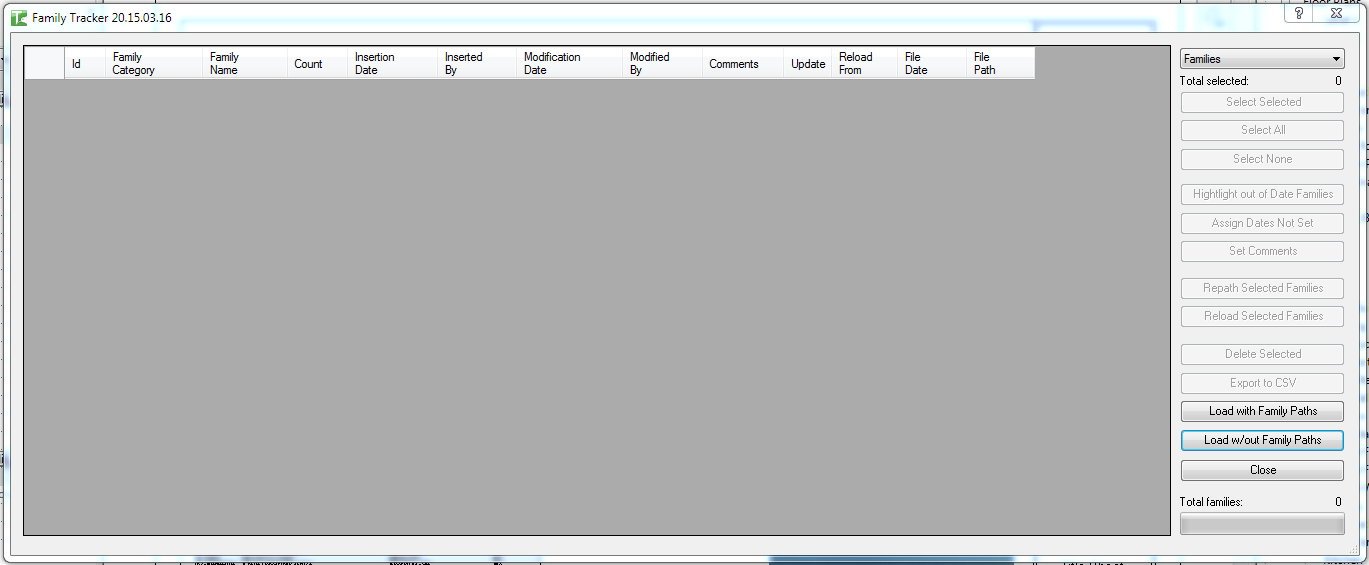
The dialog opens with an empty grid. Only the mode selector and the load buttons are active until a load is performed.
Step 1 — Select mode
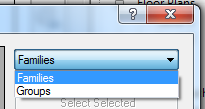
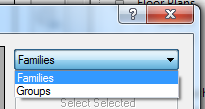
Use the mode dropdown at the top of the dialog:
| Mode | Description |
|---|---|
| Families | Lists all loaded Revit family types |
| Groups | Lists all model and detail group types |
Step 2 — Load
Load with Family Paths (Recommended)
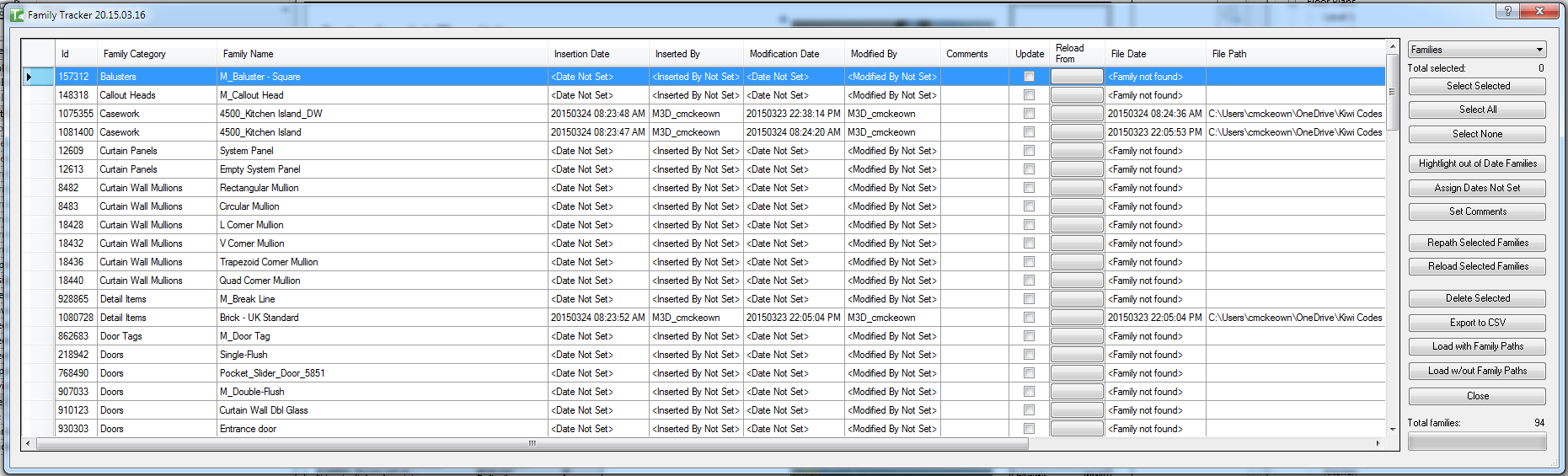
Loads all families with their file path, file date, and file size. Enables all grid operations including Reload and Repath. The scan takes longer on large projects as Revit extracts each family's file path.
-
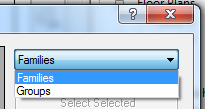
Select Families
-
Click Load with Family Paths
-
Click through any Revit export warnings — these are standard Revit warnings generated during the file-path extraction and are not a Family Tracker issue.
Load w/out Family Paths
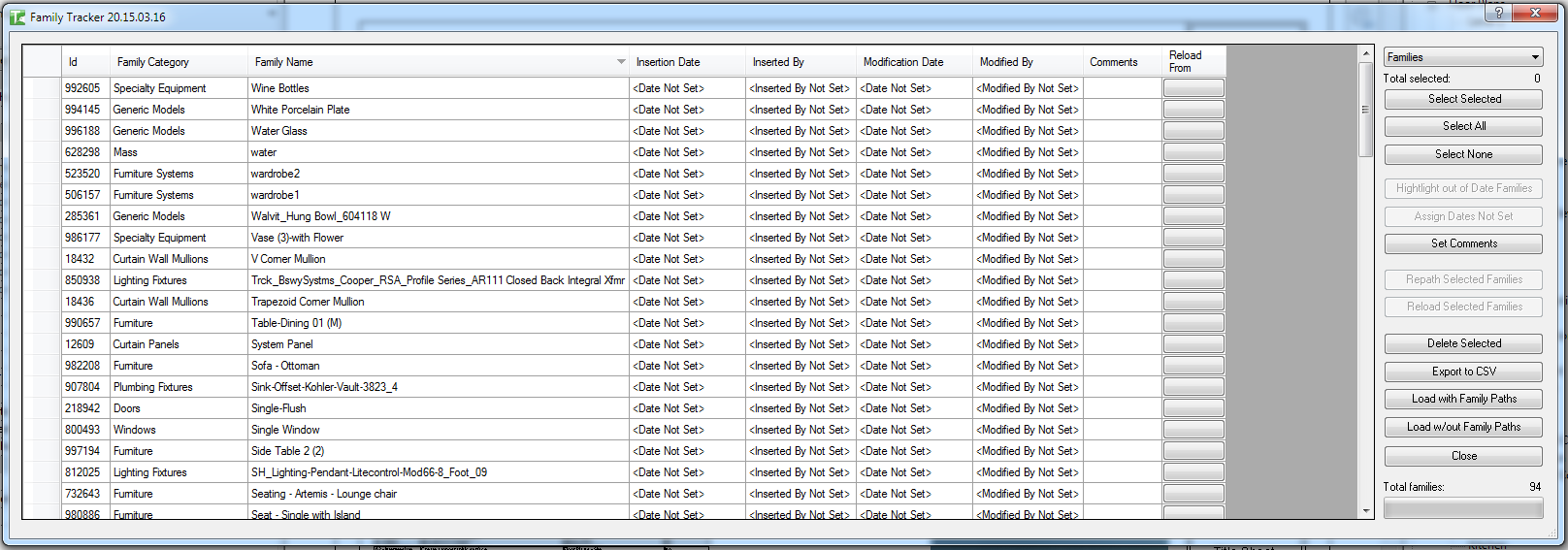
Provides a fast snapshot of all families without file path data. Reload and Repath operations are not available in this mode.
Load Groups
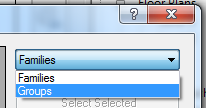
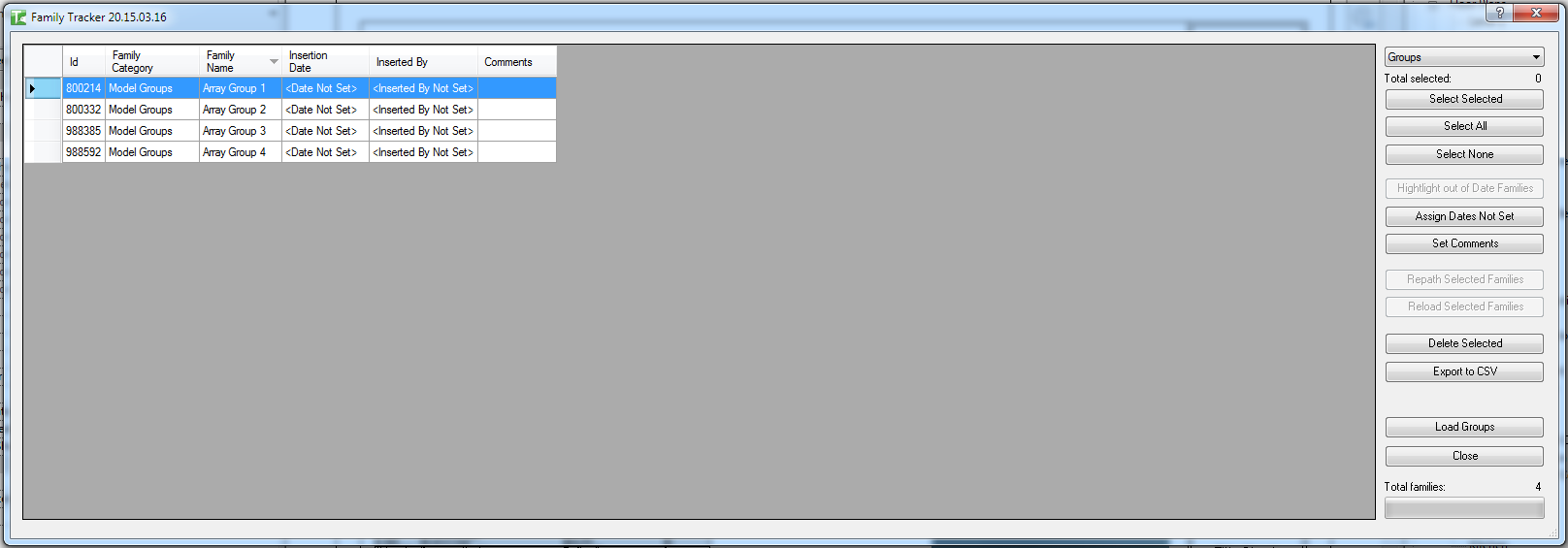
Select Groups from the mode selector and click Load Groups:
Step 3 — Review the grid
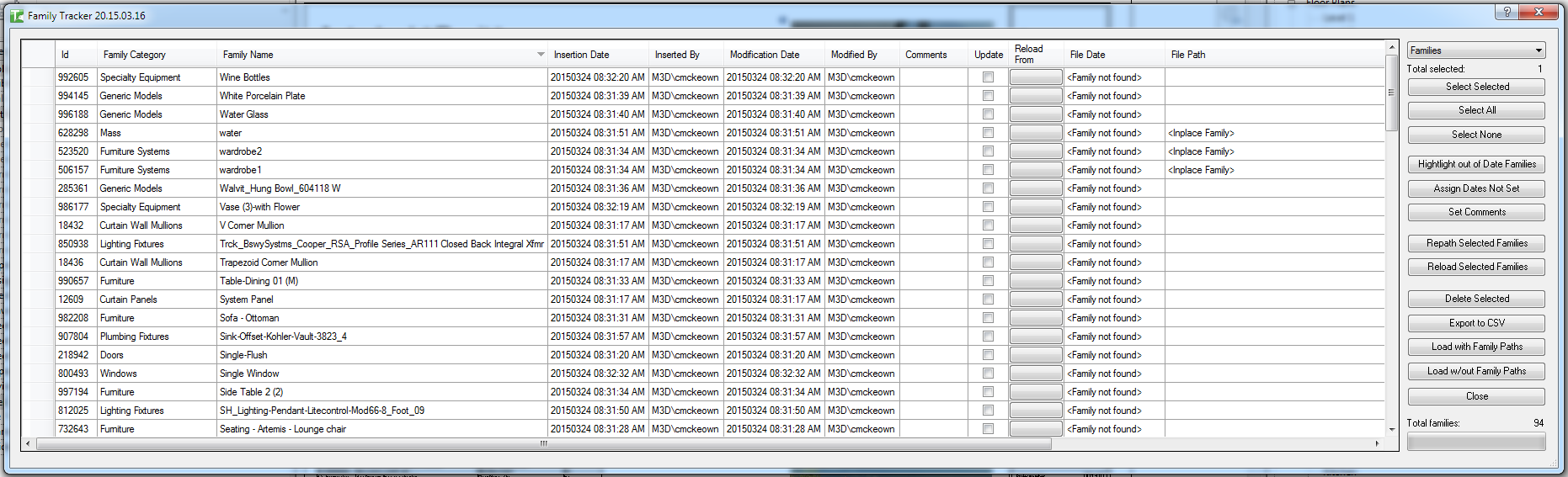
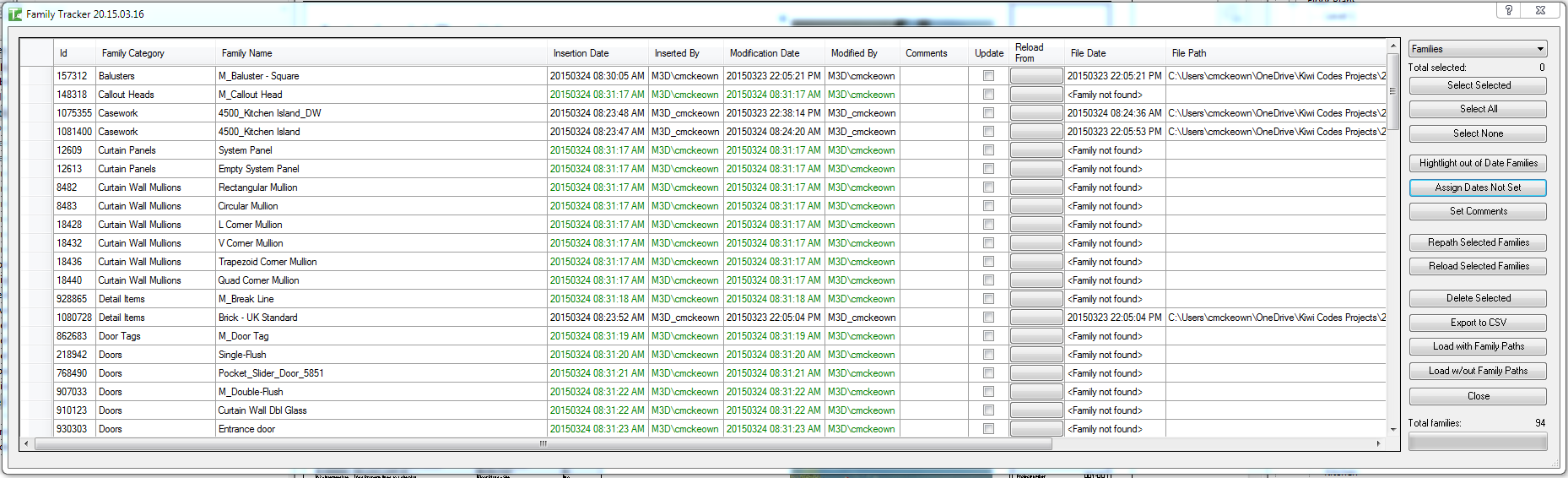
After loading, each row shows one family:
| Column | Description |
|---|---|
| Id | Revit Element Id of the family type |
| Family Category | The Revit category the family belongs to |
| Family Name | The family name |
| Insertion Date | When the family was first loaded (recorded by Bonus Tools at load time) |
| Inserted By | The user who first loaded the family |
| Modification Date | When the family was last reloaded or modified |
| Modified By | The user who last modified the family |
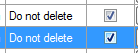
| Comments | Free-text notes (e.g. "Do not update") |
| Update | Checkbox — tick to include this family in bulk comment updates |
| Reload | Per-row button — opens a file browser to reload this family individually |
| File Date | Last-modified date of the family file on disk (Load with Family Paths only) |
| File Path | Path of the family file on disk (Load with Family Paths only) |
| File Size | Size of the family file on disk (Load with Family Paths only) |
Families where Insertion Date or Modification Date shows <.... Not Set> were loaded before Bonus Tools was installed, or by a user without Bonus Tools.
In-place families are listed and identified separately:
Step 4 — Select families
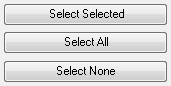
Use the selection buttons or tick checkboxes directly in the Update column:
| Button | Action |
|---|---|
| Select Selected | Toggle the checkbox for the currently highlighted row(s) |
| Select All | Check all families |
| Select None | Uncheck all families |
Step 5 — Operations
Highlight out of Date Families
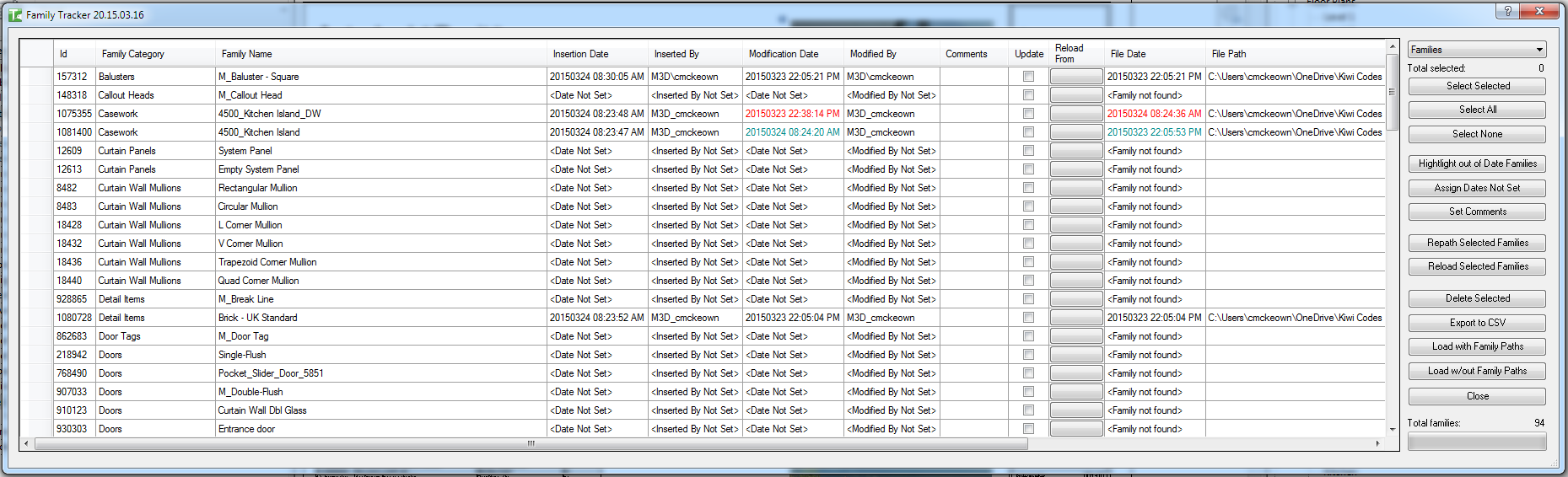
Click Highlight out of Date Families to apply colour coding based on the comparison between the Modification Date and the File Date on disk:
- Red — the family in the project is older than the file on disk. Reload is recommended.
- Dark cyan — the family in the project is newer than the file on disk. The family was edited and reloaded into the project without saving the changes to disk.

Assign Dates Not Set
If families show <.... Not Set> for insertion or modification dates, click Assign Dates Not Set to back-fill them:

The tool writes the file date (if the family is found on disk) or today's date to all families with missing dates. An output dialog shows the results:
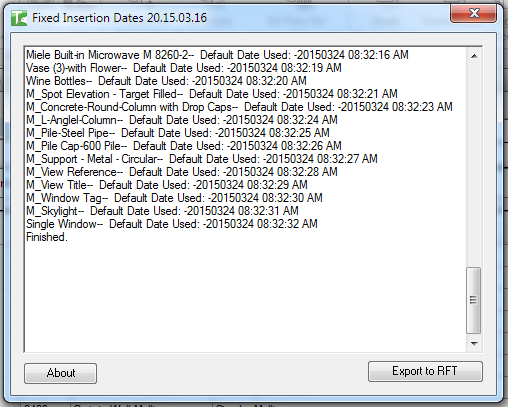
Families updated successfully appear in green:
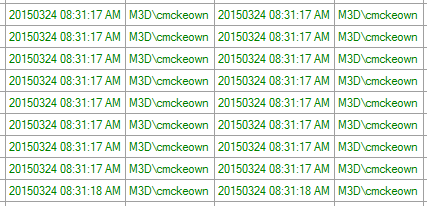
Set Comments
Add team notes to families (e.g. "Do not update — custom for project"):
-
Click the Set Comments button to reveal the comments controls

-
Type the comment text

-
Tick the Update checkbox for each family to receive the comment
-
Click Set Comments
Families updated with the comment appear in green:

Reload Individual Family
Each row has a Reload button. Click it to reload that one family from a file you browse to:

A file browser opens, navigating to the family's recorded file path if one exists. Browse to the replacement file and click Open:
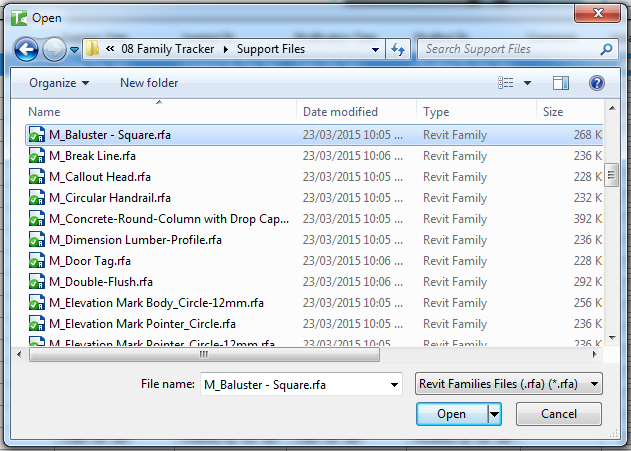
Revit prompts whether to overwrite the existing version or overwrite and reset parameter values:
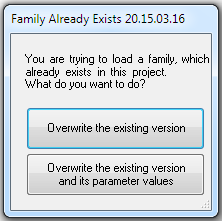
An output dialog confirms the reload result:
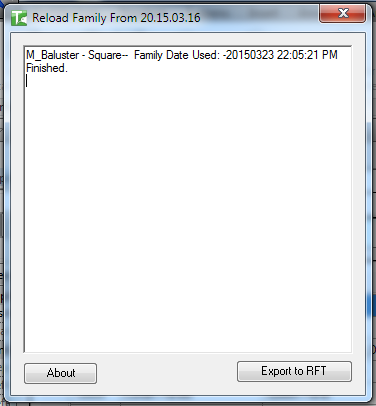
Individual reload is useful for swapping a non-standard family with a library-standard version without touching other families.
Repath Selected Families
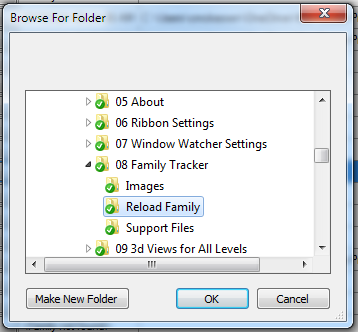
Repath re-targets selected families to a new parent folder. The tool recursively searches the chosen folder for files matching each family's name and reloads from the first match found.
-
Select the families to repath

-
Click Repath Selected Families
-
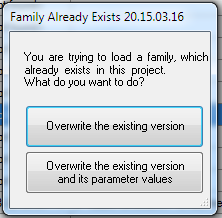
Accept the Family Already Exists prompt
-
Browse to the new parent folder and click OK
-
An output dialog shows results for each family
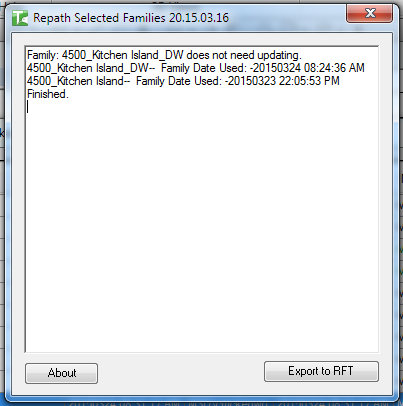
Successfully repathed families appear in green. Note: comments on repathed families are cleared.

If the family at the new location is the same Revit version as the one already loaded, Revit will not reload it (a Revit API limitation). The recorded path is still updated.
Reload Selected Families
Bulk reloads selected families from their recorded file paths (Load with Family Paths required).
-
Select the families to reload
-
Click Reload Selected Families
-
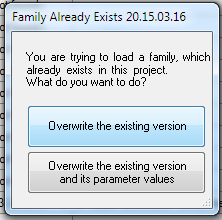
Accept the Family Already Exists prompt
-
An output dialog shows the reload results
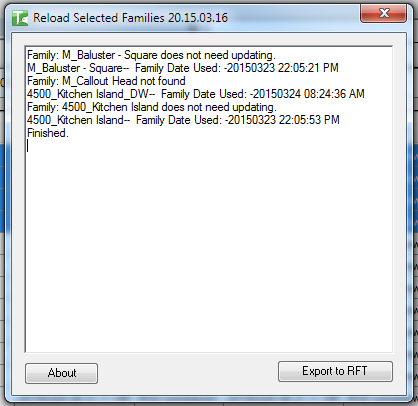
Successfully reloaded families appear in green:

Delete Selected
Removes selected families from the project.
-
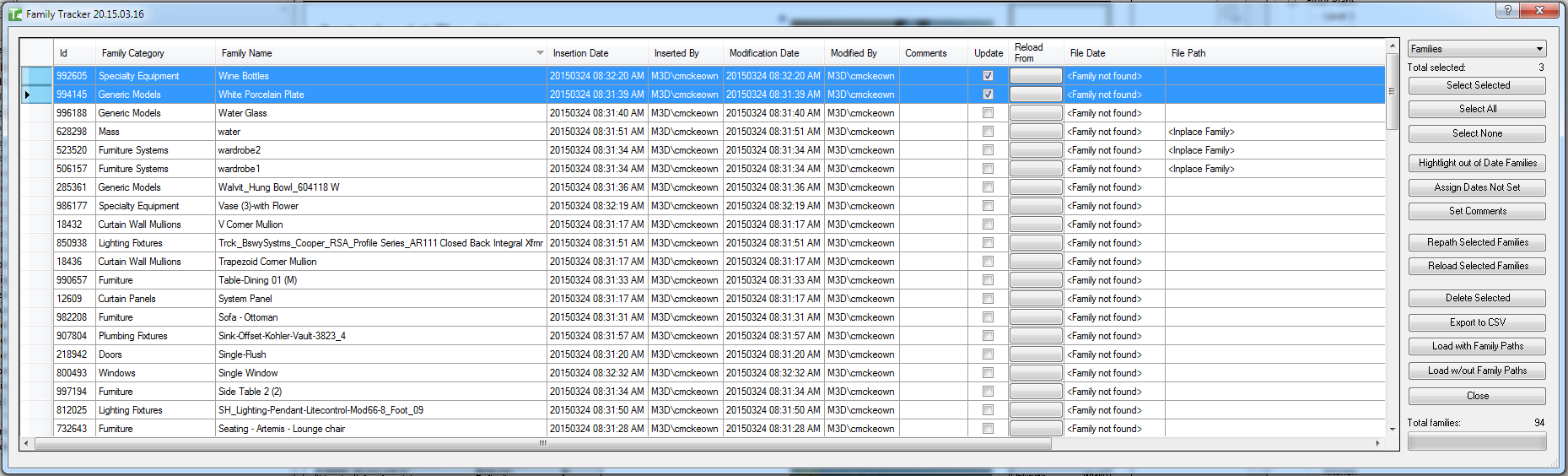
Select the families to delete
-
Click Delete Selected
-
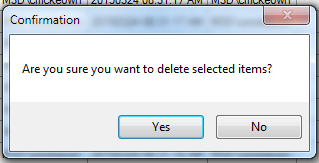
Confirm the deletion prompt
-
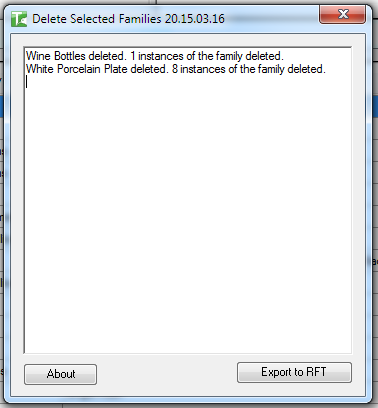
An output dialog shows which families were deleted
-
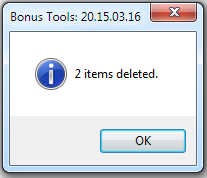
A final summary dialog reports the total count deleted
Export to CSV
Click Export to CSV to save the current grid to a CSV file for further analysis in Excel:

Tips and Best Practices
- Use Load with Family Paths for all active management work. Load w/out Family Paths gives a quick census but disables reload and repath. Only use the faster load when you just need to review the family inventory.
- Run Highlight out of Date Families before a project issue. Red families are behind the library standard — reload them. Cyan families contain unsaved edits — confirm with the editor before overwriting.
- Assign Dates Not Set on projects where Bonus Tools was installed mid-project. This back-fills tracking so all families have a date for future reference; future loads will be tracked automatically once all users have Bonus Tools.
- Use Comments to flag families that must not be reloaded. A comment like "Custom for project — do not reload" prevents accidental overwrites during bulk operations.
- Repath after a library folder restructure. After moving families to a new location, Repath Selected updates all paths in one pass instead of manually reloading each family.
- In-place families cannot be deleted via Family Tracker. They are listed for visibility but must be removed by editing or deleting them directly in Revit.
- Export before bulk deletion. Save the CSV before running Delete Selected so you have a record of what was removed.
Common Use Cases
Family library audit before handover — Load with Family Paths, run Highlight out of Date Families, export to CSV. Reload all red families, then re-export for the handover record.
Finding non-standard family sources — After loading, sort by File Path to identify families loaded from a local drive or non-standard network location. Use Repath to redirect them to the approved library.
Back-filling tracking on legacy projects — Run Assign Dates Not Set on a project that pre-dates Bonus Tools to establish a baseline date for all families already in the project.
Bulk reload after a library update — Load with Family Paths, click Highlight out of Date Families, select all red rows, and run Reload Selected to bring the project up to the current library standard in one operation.
Project clean-up before issue — Load all families, review by File Path or Comments to identify non-standard or obsolete entries, and Delete Selected to remove them in a single bulk operation.
Troubleshooting
Insertion Date / Modification Date shows <.... Not Set>
The family was loaded before Bonus Tools was installed, or by a user without Bonus Tools. Use Assign Dates Not Set to back-fill a date. Future loads will be tracked automatically once all users have Bonus Tools.
Family not reloaded — "Family in new location is the same Revit version" This is a Revit API limitation. If the file on disk is the same Revit version as the one already in the project, Revit will not replace it. Open the family in the Revit family editor, make a minor change, save, and reload manually.
Revit export warnings appear during Load with Family Paths These are standard Revit warnings generated when Revit exports families temporarily to extract their file paths. Click OK through them — they do not affect the Family Tracker results.
Reload/Repath completes but the family is unchanged Ensure the rows were selected (Update checkbox ticked or rows highlighted with Select Selected) before clicking the action button.
After Repath, comments are cleared This is by design — repathing reloads the family from its new source, which clears any stored comments. Re-apply comments after repathing if needed.
Export to CSV produces an empty file Confirm the grid is populated before exporting. If no load has been performed, the grid is empty and the export will reflect that.