
005 About
Chris McKeown / July 1, 2025
Licensing, Settings
Overview
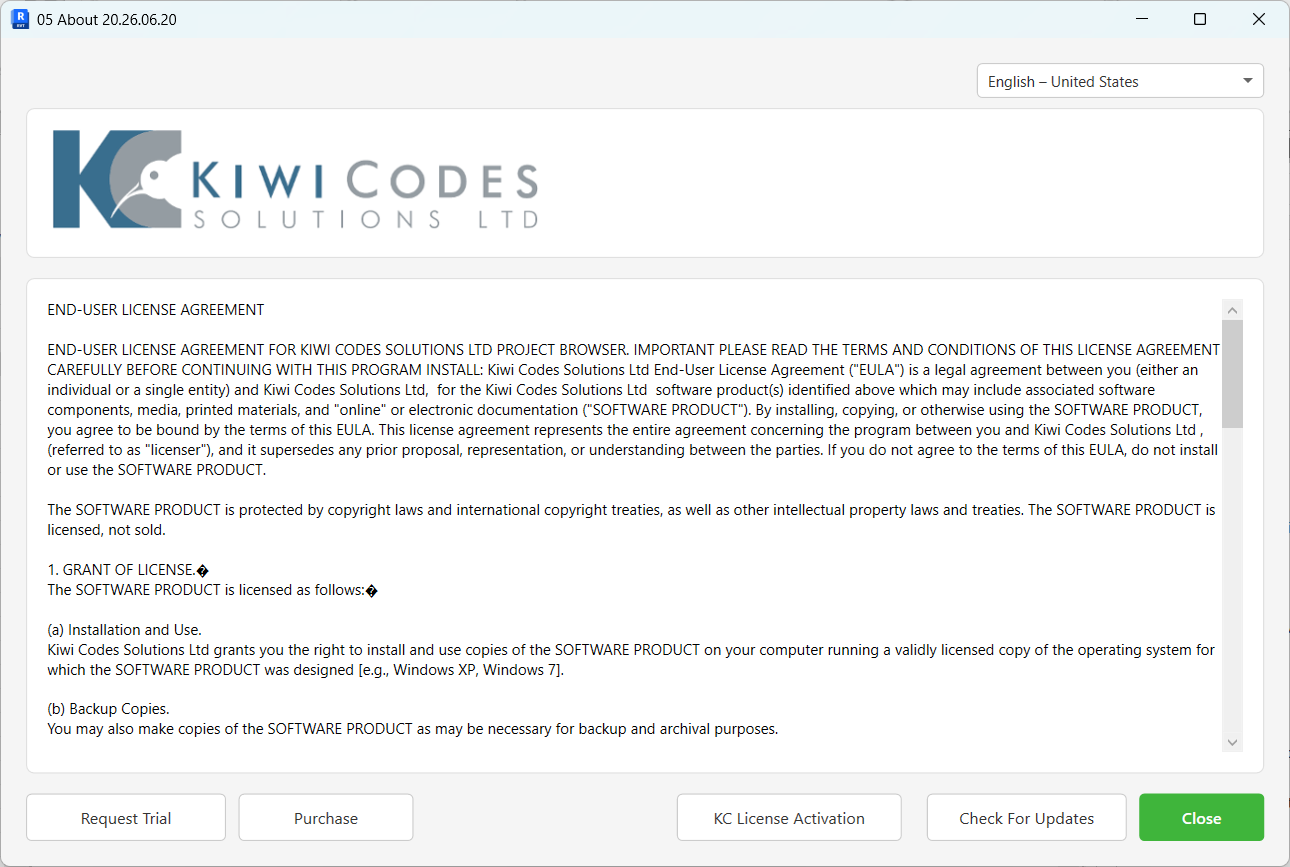
The About dialog is your central hub for managing your Kiwi Codes Bonus Tools license. It displays the End User License Agreement (EULA) and your current version number. From here you can activate a license key, release a license back to the pool, request a trial, make a purchase, or check for product updates.
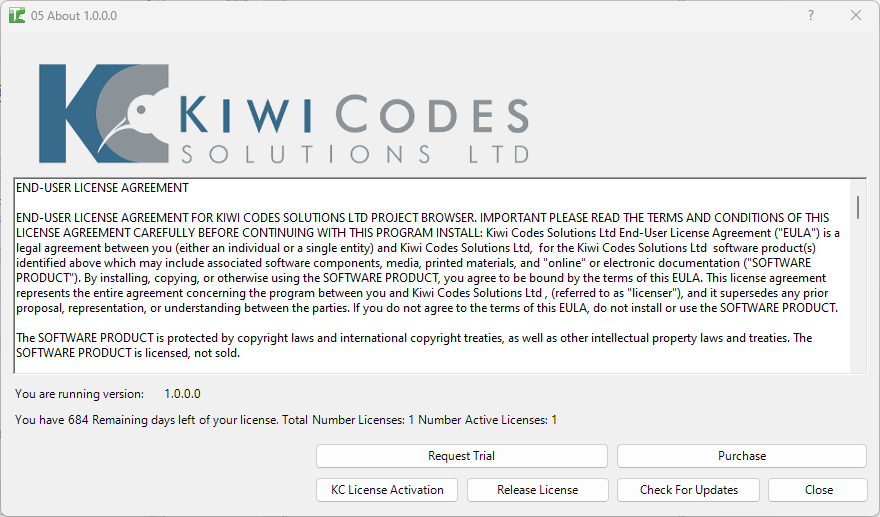
Table of Contents
Key Features
- Displays the full End User License Agreement loaded from the installation folder
- Shows the currently installed Bonus Tools version number
- Displays current license status code with description
- Request Trial — opens the Kiwi Codes trial key request page in your browser
- Purchase — opens the Kiwi Codes FastSpring purchase page in your browser
- KC License Activation — opens the Registration dialog to enter or release a license key
- Release License — releases your active license back to the floating pool
- Check For Updates — opens the Bonus Tools releases page in your browser
Requirements
- No active Revit document is required to open About
- An active document is required to use the KC License Activation button (the button is hidden when no document is open)
- Internet access is required to use Request Trial, Purchase, and Check For Updates
Running the Tool
Launch
Find About on the Bonus Tools Ribbon or use 115 Search Tools.
Step 1 — Read the End User License Agreement
The upper scrollable section displays the full EULA loaded from the App Resources\EULA.txt file in your installation folder.
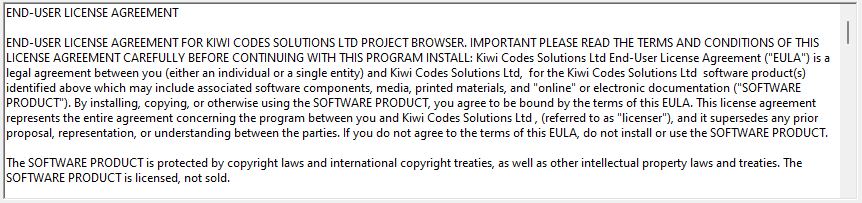
Scroll through the text to review the terms of use for Bonus Tools.
Step 2 — Review Your License Information
The license information panel below the EULA shows:
| Field | Description |
|---|---|
| Version | The currently installed Bonus Tools version number |
| Status Code | Numeric code returned by the license server |
| Description | Human-readable description of the license status |

Step 3 — Manage Your License
Request a Trial
Click Request Trial to open the Kiwi Codes trial extension page in your browser. Use this to get additional trial days if your evaluation period has expired.
Purchase
Click Purchase to open the Kiwi Codes purchase page in your browser where you can buy a standalone or floating license.
Activate a License (KC License Activation)
Click KC License Activation to open the Registration dialog.
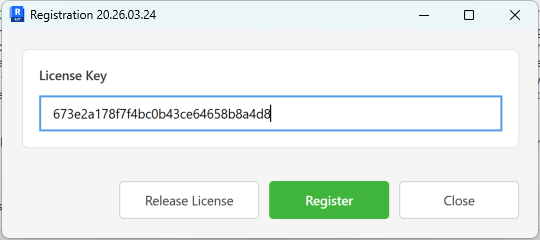
In the Registration dialog:
- The License Key field is pre-filled with any previously stored key.
- Edit or paste your license key into the field.
- Click Register to validate and save the key. If the key is invalid, a message will inform you to try again.
- Click Release License within this dialog to release the KC license key only.
- Click Close to dismiss without making changes.
Release License
Click Release License on the main About dialog to release both the floating license and the KC license key simultaneously. Use this before uninstalling or when handing back a seat to the pool.
Check For Updates
Click Check For Updates to open the Bonus Tools Releases page in your browser and see if a newer version is available.
Tips and Best Practices
- Release before uninstalling. Always click Release License before removing Bonus Tools from a workstation. Unreleased floating licenses tie up seats for other users.
- Use the trial request link for evaluations. If you are evaluating Bonus Tools for your organisation, use Request Trial to extend your evaluation rather than purchasing immediately.
- License key is stored per machine. The KC license key is written to the local machine. If you move to a new workstation, you will need to re-enter your key via KC License Activation.
- The Registration dialog pre-fills your existing key. When you open KC License Activation, the current stored key is displayed — you only need to retype it if it has changed.
Common Use Cases
Setting up a new workstation — After installing Bonus Tools on a new machine, open About and click KC License Activation to enter your license key. The floating license is then claimed automatically on first use.
Freeing up a seat for a colleague — If you are finishing work on Bonus Tools for the day and a colleague needs a seat, click Release License to return your seat to the pool immediately.
Verifying the installed version — When reporting a bug or checking compatibility, open About to confirm the exact version number installed on the workstation.
Evaluating before purchase — Click Request Trial to extend a trial key, or Purchase to buy a license once the evaluation is complete.
Troubleshooting
KC License Activation button is not visible The button is hidden when no Revit document is open. Open or create a project document in Revit, then re-open About — the button will appear.
"Invalid key, please try again" message after entering a license key The key entered does not pass validation. Check for extra spaces, incorrect characters, or an expired key. Copy the key directly from your purchase confirmation email to avoid transcription errors.
EULA section is blank
The EULA.txt file could not be found in App Resources\ relative to the Bonus Tools assembly. Reinstall Bonus Tools to restore the file.
About dialog does not open Ensure Bonus Tools is correctly loaded in Revit. Check the Add-Ins tab and verify Bonus Tools appears. If it does not, re-run the installer and confirm the correct Revit version is selected.